INSPECTION PROCEDURE
PROCEDURE
- Click here
CHECK IMAGE QUALITY SETTING
-
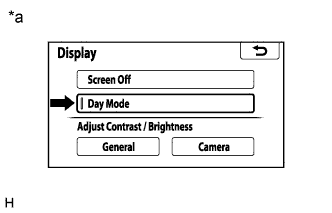
Display the "Display Settings" screen.
-
Turn the light control switch in the tail or head position.
-
Check if "Day Mode" on the display adjustment screen in on.
Table 1. Text in Illustration *a Example Table 2. Result Result Proceed to "Day Mode" setting is on A "Day Mode" setting is off B
-
- Click here
CHECK IMAGE QUALITY SETTING
-
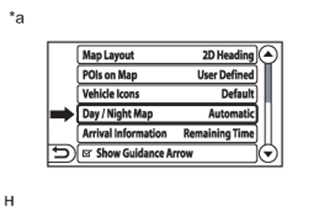
Display the "Map Settings" screen.
-
Turn the light control switch in the tail or head position.
-
Check if "Day / Night Mode" on the display adjustment screen is on.
Table 3. Text in Illustration *a Example Table 4. Result Result Proceed to "Day" is on A "Night" is on B "Automatic" is on
-
- Click here
CHECK VEHICLE SIGNAL (OPERATION CHECK)
-
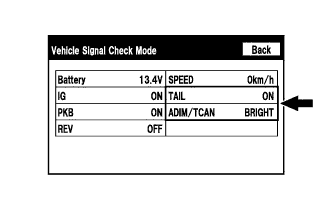
Enter the "Vehicle Signal Check Mode" screen. Refer to Check Vehicle Signal in Operation Check (Click here).
-
Check that the display for "TAIL" changes between ON and OFF according to the light control switch operation.
OK Light Control Switch Condition Display Tail or head ON Off OFF -
Check that the display for "ADIM/TCAN" changes between DIM and BRIGHT according to the light control switch operation.
OK Light Control Switch Condition Display Tail or head DIM Off BRIGHT Tip:The display is updated once per second. As a result, it is normal for the display to lag behind the actual switch operation.
- OKClick here
- NGClick here
-
- Click here
TURN DAY/NIGHT MAP TO "Night" OR "Automatic"
- Click here
PROCEED TO NEXT SUSPECTED AREA SHOWN IN PROBLEM SYMPTOMS TABLEClick here
- Click here
REPLACE RADIO AND DISPLAY RECEIVER ASSEMBLYClick here
- Click here
TURN "Day Mode" SETTING OFF