INTELLIGENT PARKING ASSIST SYSTEM
-
FUNCTION OF MAIN COMPONENTS
Component Function Parking Assist ECU
-
Sends video signals, which contain a composite view of the area behind the vehicle taken with the rear television camera assembly and the parking guide lines and target frame, to the radio and display receiver assembly*1 or navigation receiver assembly*2. Furthermore, it performs overall control of the system based on signals received from ECUs.
-
Determines if enough parking space is available based on the signals from the No. 1 ultrasonic sensors.
-
Sets the display language for parking assist according to the language setup information from the radio and display receiver assembly*1 or navigation receiver assembly*2.
-
Provides power from the headlight leveling ECU assembly to the rear height control sensor sub-assembly RH.*3
-
Provides power to the rear height control sensor sub-assembly RH.*4
No. 1 Ultrasonic Sensor Detects the distance between the driven vehicle and parked vehicle, and outputs it to the parking assist ECU. Rear Television Camera Assembly Mounted on the back door to transmit the rear view of the vehicle to the parking assist ECU. Radio and Display Receiver Assembly*1 Receives image signals from the parking assist ECU and displays the image of the area behind the vehicle on the multi-display. Navigation Receiver Assembly*2 Parking Assist Pre Support Switch Assembly Turns the pre-support function on/off and switches between perpendicular parking assist mode and parallel parking assist mode. Spiral Cable with Sensor Sub-assembly
- Steering Sensor
Detects the angle of the steering wheel, and sends a signal to the parking assist ECU. Power Management Control ECU
-
Sends vehicle condition signals such as the accelerator pedal angle signal and shift position signal to the parking assist ECU.
-
Sends a reverse signal to the No. 1 integration relay.
-
Receives the creep force increase request signal from the parking assist ECU and increases motive force from MG2.
Back Door Lock Assembly
- Back Door Courtesy Switch
Sends the back door courtesy switch signal to the main body ECU (multiplex network body ECU). Main Body ECU (Multiplex Network Body ECU) Sends the parking brake signal and back door courtesy switch signal to the parking assist ECU. Brake Booster with Master Cylinder Assembly
- Skid Control ECU
Sends the wheel speed signal to the parking assist ECU. Power Steering ECU Assembly
-
Performs steering control upon receiving signals such as the steering control signal from the parking assist ECU.
-
Sends vehicle condition signals such as the EPS fail-safe signal and steering control status signal to the parking assist ECU.
No. 1 Integration Relay Sends the reverse signal from the power management control ECU to the radio and display receiver assembly*1 or navigation receiver assembly*2. Rear Height Control Sensor Sub-assembly RH Sends changes in vehicle height to the parking assist ECU. Headlight Leveling ECU Assembly*3 Provides power to the rear height control sensor sub-assembly RH via the parking assist ECU. Air Conditioning Amplifier Assembly Sends outside temperatures received from the outside temperature sensor (thermistor assembly) to the parking assist ECU.
-
*1: Models with multimedia system
-
*2: Models with navigation system
-
*3: Models with LED headlights
-
*4: Except models with LED headlights
-
-
OPERATING CONDITION
-
The operation condition of each function of the intelligent parking assist system varies as follows:
Function Operating Condition Pre-support Function
-
Power switch is on (READY).
-
Neutral (N), drive (D) or brake (B) is selected.
-
Back door is closed.
-
Vehicle speed is approximately 15 km/h (9 mph) or less.
-
Parking assist pre support switch assembly is on.
Rear Display Mode
-
Power switch is on (READY).
-
Assist mode button is ON.
-
Back door is closed.
-
Reverse (R) is selected.
Perpendicular Parking Assist Mode or Parallel Parking Assist Mode
-
Power switch is on (READY).
-
Assist mode button is ON.
-
Back door is closed.
-
Reverse (R) is selected.
Estimated Course Line Display Mode, Parking Assist Line Display Mode or Distance Guide Line Display Mode
-
Power switch is on (READY).
-
Assist mode button is OFF.
-
Back door is closed.
-
Reverse (R) is selected.
-
-
-
FUNCTION
-
Area Displayed on Screen
-
Objects on the right of the vehicle appear on the right side of the display panel, and objects on the left of the vehicle appear on the left side of the display panel.
-
The rear television camera uses a wide-angle lens. The perceived distance from images that appear on the screen differs from the actual distance.
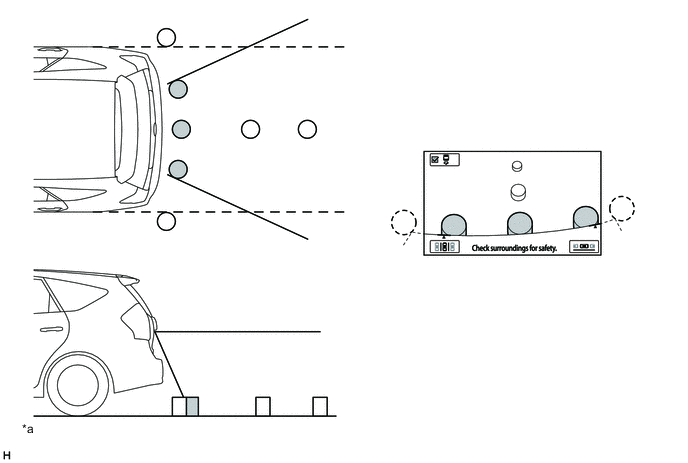
Text in Illustration *a The illustration shown is an example only. The illustration may differ from the actual vehicle screen. - - Note
The area displayed on the screen may vary according to vehicle status or road conditions. The area covered by the rear television camera assembly is limited. The rear television camera assembly does not show objects close to either corner of the bumper or show the area under the bumper.
-
-
Display Function (Display Modes)
Assist Mode Button Mode Outline - Rear Display Mode Displays an image of the area behind the vehicle taken by the rear television camera assembly. ON Perpendicular Parking Assist Mode Displays the target parking frame on the multi-display. Parallel Parking Assist Mode OFF Estimated Course Line Display Mode Displays the guide lines on the multi-display. Parking Assist Line Display Mode Distance Guide Line Display Mode -
Rear Display Mode
-
In rear display mode, an image of the area behind the vehicle is displayed on the multi-display to assist the driver.
-
During rear display mode (assist mode button is on), the perpendicular parking assist mode or parallel parking assist mode can be selected.
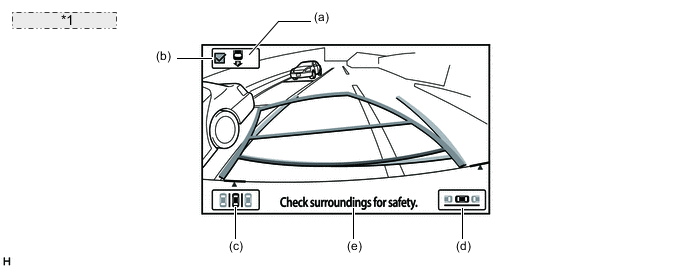
*1 Models for Europe: Item Description of Display (a) Assist Mode Button Disables and enables the intelligent parking assist system. (b) Checkbox Shows the assist mode state.
-
Checked: intelligent parking assist system is enabled.
-
Not checked: intelligent parking assist system is disabled.
(c) Perpendicular Parking Assist Mode Button These switches appear on the screen when reverse (R) is selected. The system transfers to perpendicular parking assist mode or parallel parking assist mode when the driver touches the respective button. (d) Parallel Parking Assist Mode Button (e) Warning Message Display Area Area where warning messages are displayed. 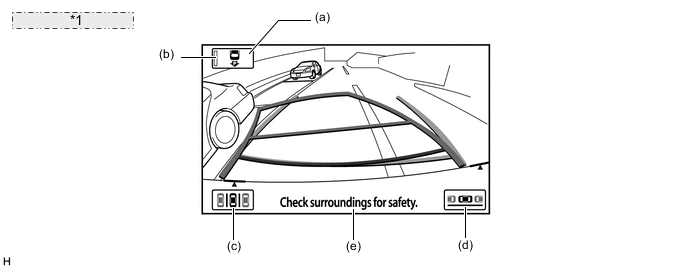
*1 Models for Australia: Item Description of Display (a) Assist Mode Button Disables and enables the intelligent parking assist system. (b) Indicator Shows the assist mode state.
-
Illuminated: intelligent parking assist system is enabled.
-
Not illuminated: intelligent parking assist system is disabled.
(c) Perpendicular Parking Assist Mode Button These switches appear on the screen when reverse (R) is selected. The system transfers to perpendicular parking assist mode or parallel parking assist mode when the driver touches the respective button. (d) Parallel Parking Assist Mode Button (e) Warning Message Display Area Area where warning messages are displayed. -
-
Rear display mode (assist mode button is off) has 3 modes: estimated course line display mode, parking assist line display mode and distance guide line display mode.
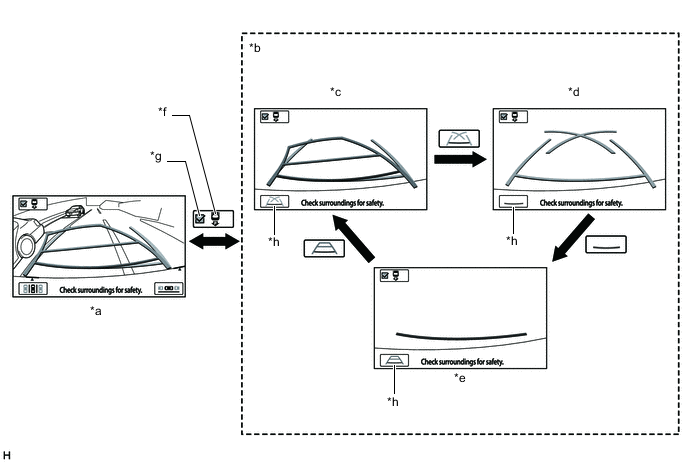
Text in Illustration (Models for Europe:) *a Rear Display Mode (Assist Mode Button is on) *b Rear Display Mode (Assist Mode Button is off) *c Estimated Course Line Display Mode *d Parking Assist Line Display Mode *e Distance Guide Line Display Mode *f Assist Mode Button *g Checkbox *h Display Mode Switch Screen Button 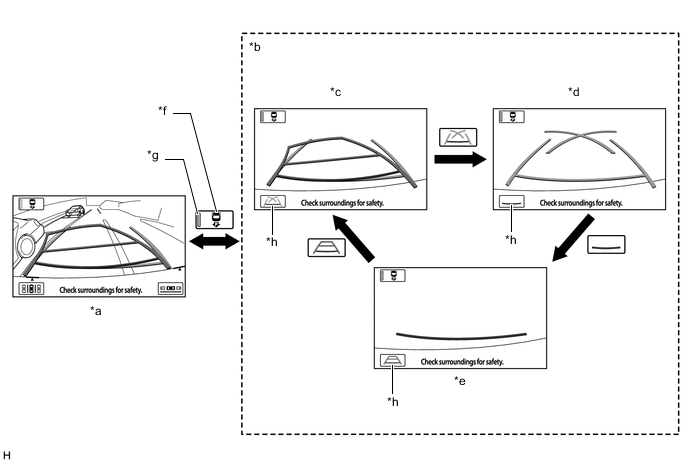
Text in Illustration (Models for Australia:) *a Rear Display Mode (Assist Mode Button is on) *b Rear Display Mode (Assist Mode Button is off) *c Estimated Course Line Display Mode *d Parking Assist Line Display Mode *e Distance Guide Line Display Mode *f Assist Mode Button *g Indicator *h Display Mode Switch Screen Button
-
-
Perpendicular Parking Assist Mode
-
When the system operates in perpendicular parking assist mode, it displays a composite view of the area behind the vehicle and the target parking frame that are necessary for the perpendicular parking. In addition, it assists the driver's steering maneuvers.
-
A direct touch function is used. This function allows the driver to set a target parking position by touching the front most corner of the target parking frame.
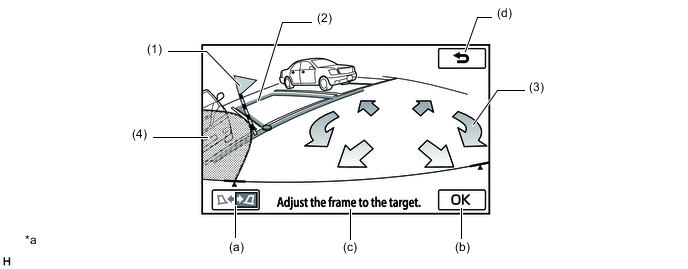
Text in Illustration *a The illustration shown is an example only. The illustration may differ from the actual vehicle screen. - - Item Description of Display (1) Warning Flag Displays the approximate position at which the vehicle will come in contact with an obstacle, while a target parking position is being set. Thus, a target parking position should be set at a position that does not overlap with an obstacle. (2) Target Parking Frame
(Blue or Red)
Displays the present target parking position.
Blue: The target parking position is OK and can be confirmed.
Red: The target parking position is not appropriate and cannot be confirmed.
(3) Arrows Button Moves the target parking position in the direction of the arrow that is touched. (4) Inaccessible Area Displays the area inaccessible for parking that is judged based on the steering angle state. (a) Switch Orientation Button Switches the right-left orientation of the target parking position. (b) OK Button Confirms the target parking position. (c) Warning Message Display Area Area where warning messages are displayed. (d) Return Button Returns the screen to rear display mode (assist mode button is on).
-
-
Parallel Parking Assist Mode
-
When the system operates in parallel parking assist mode, it displays a composite view of the area behind the vehicle and the target parking frame that are necessary for parallel parking. In addition, it assists the driver's steering maneuvers.
-
A direct touch function is used. This function allows the driver to set a target parking position by touching the front most corner of the target parking frame.
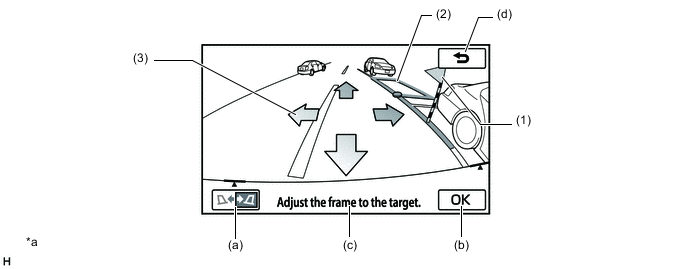
Text in Illustration *a The illustration shown is an example only. The illustration may differ from the actual vehicle screen. - - Item Description of Display (1) Warning Flag Displays the approximate position at which the vehicle will come in contact with an obstacle, while a target parking position is being set. Thus, a target parking position should be set at a position that does not overlap with an obstacle. (2) Target Parking Frame
(Blue or Red)
Displays the present target parking position.
Blue: The target parking position is OK.
Red: The target parking position is not appropriate and cannot be confirmed.
(3) Arrow Button Moves the target parking position in the direction of the arrow that is touched. (a) Switch Orientation Button Switches the right-left orientation of the target parking position. (b) OK Button Confirms the target parking position. (c) Warning Message Display Area Area where warning messages are displayed. (d) Return Button Returns the screen to rear display mode (assist mode button is on).
-
-
Estimated Course Line Display Mode
-
A description of the estimated course line display mode is provided in the following diagram.
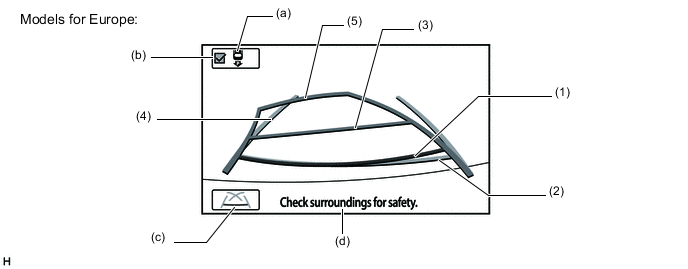
Item Description (1) Distance Guide Line (Red) Moves together with estimated guide lines in sync with the steering wheel. The center of the line indicates a position on the ground approximately 0.5 m (1.6 ft.) behind the rear bumper. (2) Distance Guide Line (Blue) Indicates a position on the ground approximately 0.5 m (1.6 ft.) behind the rear bumper. (3) Distance Guide Line (Yellow) Indicates a position on the ground approximately 1.0 m (3.3 ft.) behind the rear bumper. (4) Vehicle Width Guide Line (Blue) Indicates the estimated vehicle width. (5) Estimated Course Line (Yellow) Moves in sync with the steering wheel to indicate the estimated reverse course of the vehicle. (a) Assist Mode Button Enables the intelligent parking assist system. (b) Checkbox Shows the assist mode state. (c) Display Mode Switch Screen Button Pressing this button changes the rear display mode (assist mode button is off). (d) Warning Message Display Area Area where warning messages are displayed. 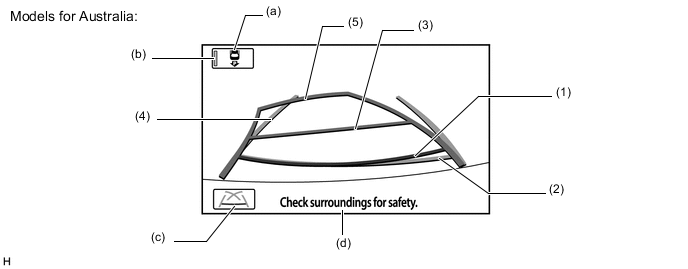
Item Description (1) Distance Guide Line (Red) Moves together with estimated guide lines in sync with the steering wheel. The center of the line indicates a position on the ground approximately 0.5 m (1.6 ft.) behind the rear bumper. (2) Distance Guide Line (Blue) Indicates a position on the ground approximately 0.5 m (1.6 ft.) behind the rear bumper. (3) Distance Guide Line (Yellow) Indicates a position on the ground approximately 1.0 m (3.3 ft.) behind the rear bumper. (4) Vehicle Width Guide Line (Blue) Indicates the estimated vehicle width. (5) Estimated Course Line (Yellow) Moves in sync with the steering wheel to indicate the estimated reverse course of the vehicle. (a) Assist Mode Button Enables the intelligent parking assist system. (b) Indicator Shows the assist mode state. (c) Display Mode Switch Screen Button Pressing this button changes the rear display mode (assist mode button is off). (d) Warning Message Display Area Area where warning messages are displayed.
-
-
Parking Assist Line Display Mode
-
A description of the parking assist line display mode is provided in the following diagram.
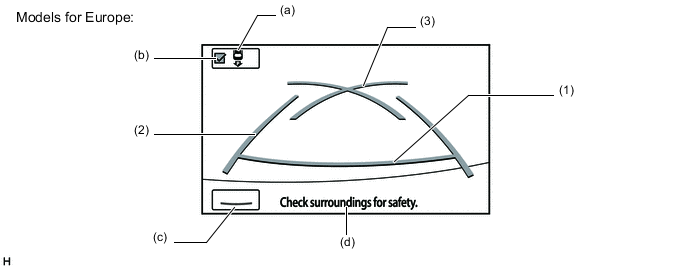
Item Description (1) Distance Guide Line (Red) Indicates a position on the ground approximately 0.5 m (1.6 ft.) behind the rear bumper. (2) Vehicle Width Guide Line (Blue) Indicates the estimated vehicle width. (3) Parking Assist Guide Line (Blue) Indicates the path the vehicle will follow if the driver turns the steering wheel fully. (a) Assist Mode Button Enables the intelligent parking assist system. (b) Checkbox Shows the assist mode state. (c) Display Mode Switch Screen Button Pressing this button changes the rear display mode (assist mode button is off). (d) Warning Message Display Area Area where warning messages are displayed. 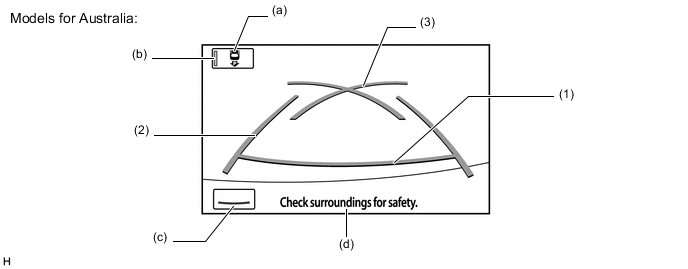
Item Description (1) Distance Guide Line (Red) Indicates a position on the ground approximately 0.5 m (1.6 ft.) behind the rear bumper. (2) Vehicle Width Guide Line (Blue) Indicates the estimated vehicle width. (3) Parking Assist Guide Line (Blue) Indicates the path the vehicle will follow if the driver turns the steering wheel fully. (a) Assist Mode Button Enables the intelligent parking assist system. (b) Indicator Shows the assist mode state. (c) Display Mode Switch Screen Button Pressing this button changes the rear display mode (assist mode button is off). (d) Warning Message Display Area Area where warning messages are displayed.
-
-
Distance Guide Line Display Mode
-
A description of the distance guide line display mode is provided in the following diagram.
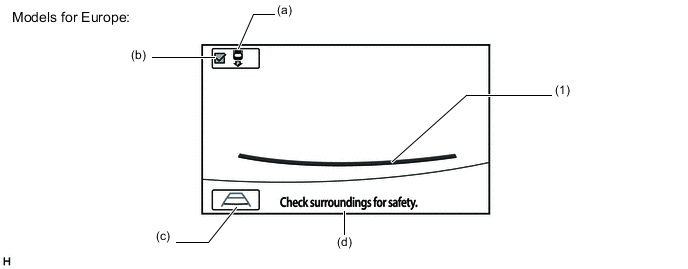
Item Description (1) Distance Guide Line (Red) Indicates a position on the ground approximately 0.5 m (1.6 ft.) behind the rear bumper. (a) Assist Mode Button Enables the intelligent parking assist system. (b) Checkbox Shows the assist mode state. (c) Display Mode Switch Screen Button Pressing this button changes the rear display mode (assist mode button is off). (d) Warning Message Display Area Area where warning messages are displayed. 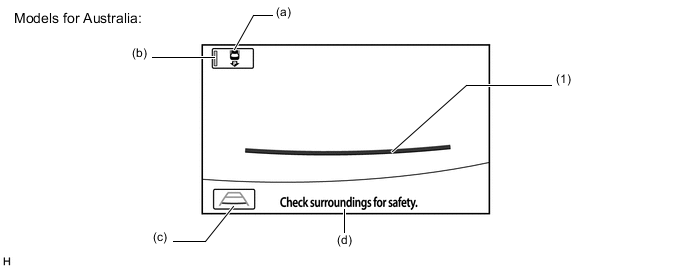
Item Description (1) Distance Guide Line (Red) Indicates a position on the ground approximately 0.5 m (1.6 ft.) behind the rear bumper. (a) Assist Mode Button Enables the intelligent parking assist system. (b) Indicator Shows the assist mode state. (c) Display Mode Switch Screen Button Pressing this button changes the rear display mode (assist mode button is off). (d) Warning Message Display Area Area where warning messages are displayed.
-
-
Pre-support Function
-
When the No. 1 ultrasonic sensor detects a space where the vehicle can be parked and the driver operates the parking assist pre support switch assembly, the screen display and voice guidance direct the driver to the back up start position (parking assist start position) in both modes; perpendicular parking assist mode and parallel parking assist mode. In perpendicular parking assist mode the guidance gives the timing for turning the steering wheel, and in parallel parking assist mode the guidance notifies the driver of the stop position.
-
-
Visual Servo Function
-
When perpendicular parking assist mode is operating, the lines of the parking space are continuously tracked to ensure that the vehicle follows the lines of the parking space. When the vehicle approaches the lines of the parking space and the visual recognition accuracy increases, the target parking position is corrected.
-
-
Easy Set Function
-
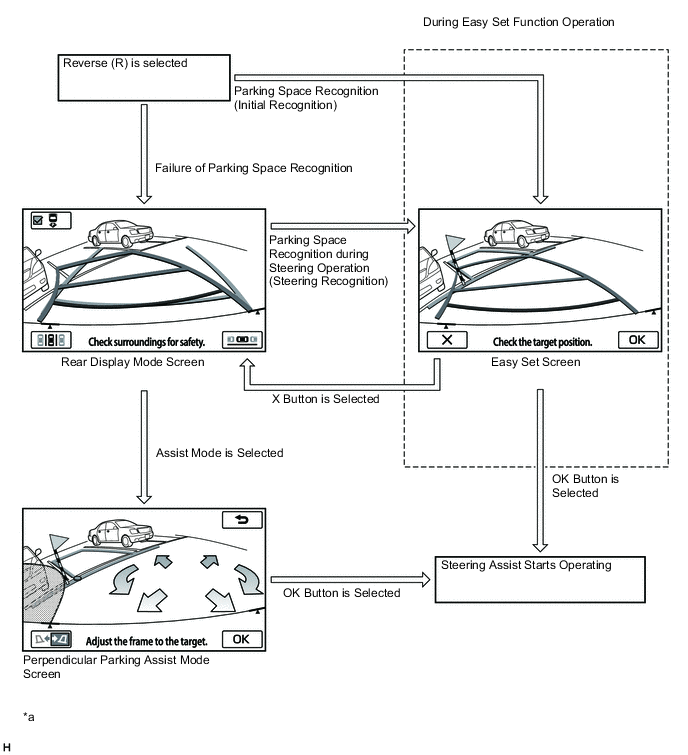
If the intelligent parking assist system recognizes the lines of the parking space when reverse (R) is selected, the easy set screen will appear (initial recognition). This enables the driver to omit the operation of setting the target parking position, shortening the time required until assist starts.
Tech Tips
In a situation where the easy set function cannot operate, such as when parallel parking, a parking place with no parking lines or a place where parking line recognition is difficult, normal setting of the target parking place is available using the perpendicular parking assist mode button or parallel parking assist mode button.
-
If the parking lines are not detected initially, steering toward the target parking space may enable the intelligent parking assist system to detect the lines. When the system judges that the assist route can be set, the easy set screen appears (steering recognition). When the easy set screen is displayed due to steering recognition, it is possible to start assistance without returning the steering wheel to the neutral position.
-
Under the following conditions, the easy set function may not operate because parking lines (white) cannot be recognized:
-
Parking spaces without parking lines (parking spaces marked with rope, blocks etc.)
-
Unclear, dirty or chipped parking lines
-
Parking spaces with lines that are difficult to differentiate from the road surface due to insufficient contrast (such as yellow lines on concrete)
-
-
Under the following conditions, the system may incorrectly recognize the target parking position.
-
Parking spaces with interfering lines or objects (lines other than parking lines or obstacles such as poles)
-
Parking spaces on a slope
-
Parking spaces which are affected by nearby vehicles (such as a shadow, grill or side step of a nearby vehicle)
-
Unclear, dirty or chipped parking lines
-
Parking spaces with lines that are difficult to differentiate from the road surface due to insufficient contrast (such as yellow lines on concrete)
-
-
Under the following conditions, the easy set function cannot operate.
-
When the assist mode switch is off
-
During the screen transition from the pre-support function
-
While parallel parking
Text in Illustration *a The illustrations shown are examples only. The illustrations may differ from the actual vehicle screens. - - -
-
-
Warning Message Function
-
A warning message appears at the bottom or center of the screen under the following conditions. The warning message appears in the same language that has been selected using the multi-display.
Messages Appearing at Bottom of Screen Warning Message Outline Check surroundings for safety. Always appears during system operation. System initializing. Appears when the steering wheel is operated after the auxiliary battery terminal (-) is disconnected and then the terminal is reconnected. Guidance unavailable. Appears if there is a malfunction in this system. Stop vehicle by using foot brake. This message and the "Check surroundings for safety." message appear alternately when the driver is backing up the vehicle and attempting to park it in the target parking position. Messages Appearing at Center of Screen Warning Message Outline System not ready. Appears if the system is not initialized. Check IPA system. Have your vehicle checked by a dealer. Appears if there is a malfunction in a system component. Assist has been cancelled. Appears as a result of the operation of the steering wheel or accelerator pedal while the system is operating in parking assist mode. Speed is too fast. Appears if the backing up speed is too fast while the system is operating in parking assist mode. Parking position has not been set. Appears as a result of the driver starting to back up without touching the OK button after the target parking position has turned blue. Release parking brake. Appears as a result of the driver attempting to operate the system without releasing the parking brake. Too much acceleration applied. Appears if the accelerator pedal is depressed too much while the system is operating in parking assist mode. Clean Park Sonar. Appears if the No. 1 ultrasonic sensor is frozen or dirty. Use on flat surface. Appears if the vehicle starts to roll downhill or if the vehicle fails to move uphill when the brake pedal is released. System cannot assist under current conditions. Appears if the system is operating in parking assist mode and a tire is worn or the tire pressure is lower than the specified value. IPA not available now. Appears when an attempt is made to operate the intelligent parking assist system in an environment where the system cannot be operated such as on a steep incline. Too much force applied to the steering wheel. Appears if the steering wheel is held too tightly when the system is operated in parking assist mode. Steering position is not neutral. Turn the steering wheel to the LEFT (or RIGHT). Appears if the steering wheel is not centered.
-
-
Calibration Following Parts Replacement
-
The items listed below must always be adjusted whenever one of the following conditions occurs. For details, refer to the Repair Manual.
Adjustment Items Condition Neutral steering point in memory After spiral cable with sensor sub-assembly is removed and installed or after connector is disconnected and reconnected, "System initializing." is displayed. Steering angle setting
-
After spiral cable with sensor sub-assembly is removed and installed or after connector is disconnected and reconnected, "System initializing." is displayed.
-
Spiral cable with sensor sub-assembly replacement.
Camera optical axis adjustment
-
Vehicle height has changed due to replacement of suspension parts or tires.
-
The installation angle of the rear television camera assembly has changed.
-
When the rear height control sensor sub-assembly RH is misaligned such as after disassembly and installation or after replacement.
Installation position adjustment of the height control sensor
-
Vehicle height has changed due to replacement of suspension parts or tires.
-
The installation angle of the rear television camera assembly has changed.
-
When the rear height control sensor sub-assembly RH is misaligned such as after disassembly and installation or after replacement.
Bumper reference line displayed position adjustment
-
When the rear bumper cover is misaligned such as after disassembly and installation or after replacement.
-
The installation angle of the rear television camera assembly has changed.
Parking assist ECU initialization Parking assist ECU is replaced. -
-
-
Initialization
-
Initialization can be performed using the diagnosis menu screen. The method for starting the diagnosis menu screen is the same as in the navigation system. Refer to the Repair Manual for detailed instructions for operating the diagnosis menu screen and initialization.
-
-
-
OPERATION
-
Pre-support Function Operation (Parallel Parking Assist Mode)
-
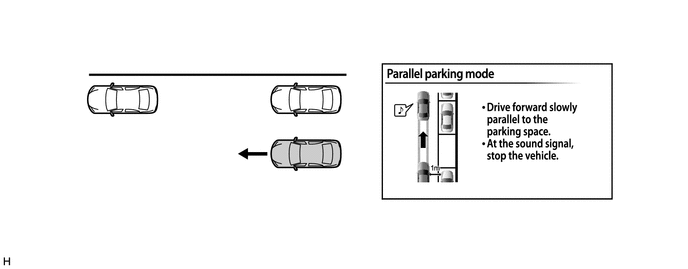
Press the parking assist pre support switch assembly once with the vehicle positioned before the parking space.
-
When the pre-support function screen is displayed, drive forward slowly.
-
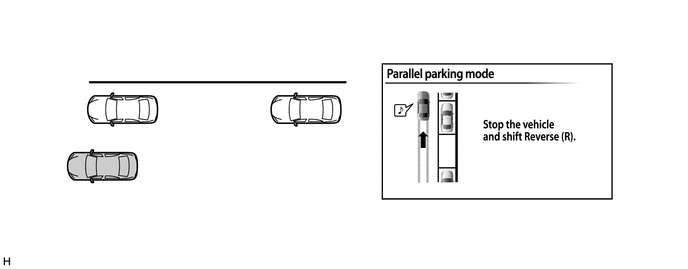
When the tone is heard, stop the vehicle.
-
Select reverse (R) to change the display to the parking space display.
-
-
Pre-support Function Operation (Perpendicular Parking Assist Mode)
-
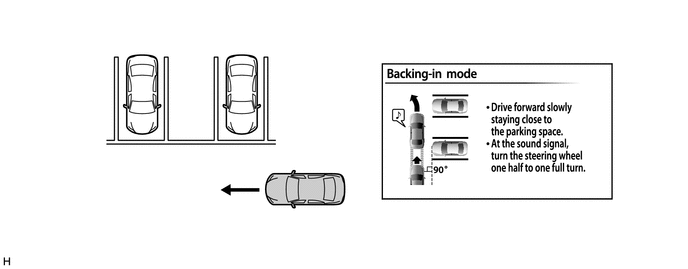
Press the parking assist pre support switch assembly twice with the vehicle positioned before the parking space.
-
When the pre-support function screen is displayed, drive forward slowly.
-
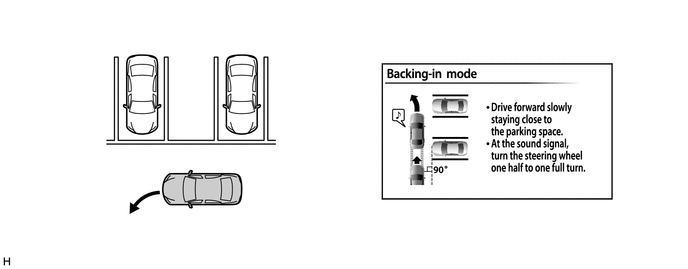
When the tone is heard, turn the steering wheel while driving.
-
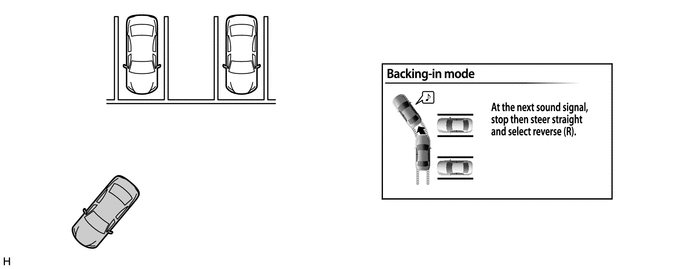
When the tone is heard again, stop the vehicle.
-
Return the steering wheel and select reverse (R) to change the display to the parking space display.
-
-
Parallel Parking Assist Mode Operation
-
Move the vehicle to a position parallel to the road (or shoulder) and approximately 1 m (3.3 ft.) away from the parked vehicles.
-
At this time, the No. 1 ultrasonic sensors mounted on both sides of the front bumper start detecting the distance between the driven vehicle and parked vehicle to calculate the parking space.

Text in Illustration *a Approximately 1 m (3.3 ft.) - - -
Slowly move the vehicle forward parallel to the parking space with the steering wheel straight. Stop the vehicle where you can see the front end of the parked vehicle right beside your vehicle.

-
Select reverse (R).
-
Touch the parallel parking assist button on the screen.

Text in Illustration *a The illustration shown is an example only. The illustration may differ from the actual vehicle screen. - - -
Use the arrows to align the blue frame with your target parking position, and touch the OK button.

Text in Illustration *a The illustration shown is an example only. The illustration may differ from the actual vehicle screen. - - -
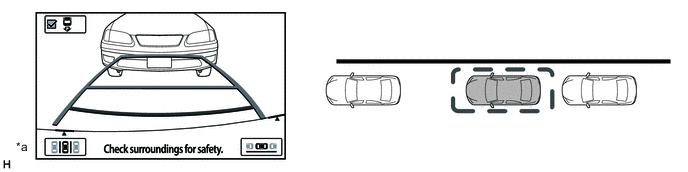
Position yourself as you would when backing up normally, and rest your hands on the steering wheel without applying any pressure. Check your surroundings and behind the vehicle for safety, and slowly back up, using the brake pedal to control the vehicle speed.
-
At this time, the messages, "Check surroundings for safety." and "Stop vehicle by using foot brake." are alternately displayed on the warning message display area on the screen.

-
Once the vehicle is mostly within the target parking position, voice guidance will give the message "The guidance is finished", and parallel parking assist mode will finish.
Text in Illustration *a The illustration shown is an example only. The illustration may differ from the actual vehicle screen. - -
-
-
Perpendicular Parking Assist Mode Operation
-
Move the vehicle to a position perpendicular to the parking space, and as close as possible to the parked vehicle.
-
At this time, the No. 1 ultrasonic sensors mounted on both sides of the front bumper start detecting the distance between the driven vehicle and parked vehicle to calculate the parking space.
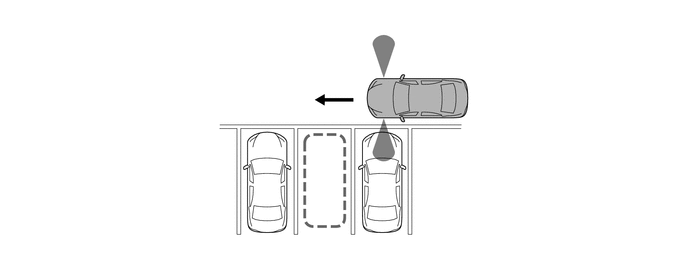
-
Move the vehicle to a position where you can see the center of the parking space just beside your vehicle, and start turning the steering wheel.
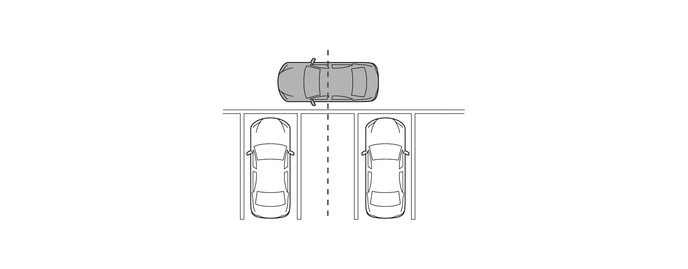
-
Position the vehicle so that you can enter the parking space, then stop the vehicle with the steering wheel straight.
-
At this time, when you position the vehicle where a corner of the parking space is reflected in the center of the outside rear view mirror, you can easily adjust the target parking space.
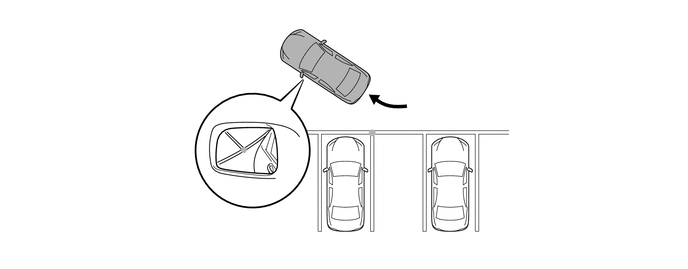
-
Select reverse (R).
-
Touch the perpendicular parking assist mode button displayed on the screen.

Text in Illustration *a The illustration shown is an example only. The illustration may differ from the actual vehicle screen. - - -
Touch the arrows to align the blue frame with the target parking position, and then touch the OK button.

Text in Illustration *a The illustration shown is an example only. The illustration may differ from the actual vehicle screen. - - -
Position yourself as you would when backing up normally, and rest your hands on the steering wheel without applying any pressure. Check your surroundings and behind the vehicle for safety, and slowly back up, using the brake pedal to control the vehicle speed.
-
At this time, the messages, "Check surroundings for safety." and "Stop vehicle by using foot brake." are alternately displayed on the warning message display area on the screen.

-
Once the vehicle is mostly within the target parking position, voice guidance will give the message "The guidance is finished," and parking assist mode will finish.
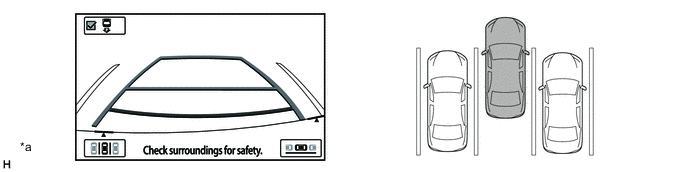
Text in Illustration *a The illustration shown is an example only. The illustration may differ from the actual vehicle screen. - -
-
-
Estimated Course Line Display Mode Operation
-
To use estimated course line display mode in manual assist when parking the vehicle in a parking space, perform the following procedure:
-
Select reverse (R).
-
Select estimated course line display mode.
-
An image appears on the display panel as illustrated below.
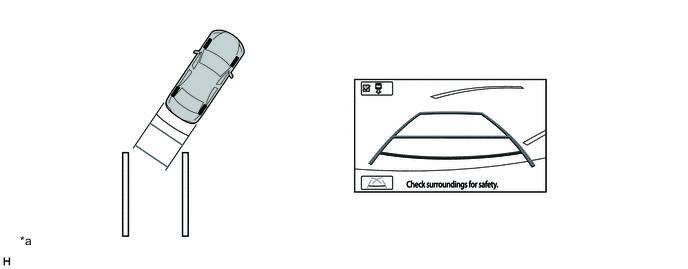
Text in Illustration *a The illustration shown is an example only. The illustration may differ from the actual vehicle screen. - - -
Turn the steering wheel so that the estimated guide lines are within the parking space, and back up carefully.
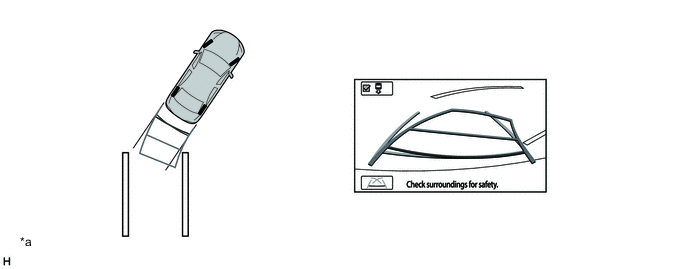
Text in Illustration *a The illustration shown is an example only. The illustration may differ from the actual vehicle screen. - - -
When the rear of the vehicle is within the parking space, turn the steering wheel in order to equalize the gap between the left and right sides of the vehicle width guide lines and the painted lines of the parking space.
-
When the vehicle width guide lines and the painted lines of the parking space are parallel, straighten the steering wheel and then carefully back up until the entire vehicle is within the parking space.
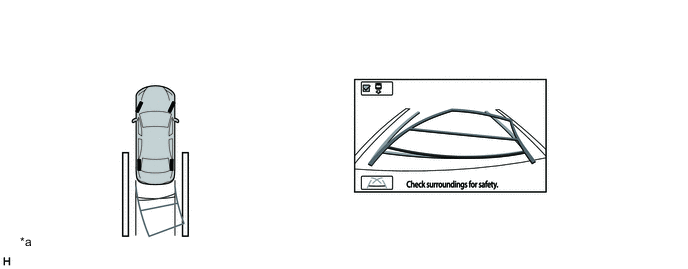
Text in Illustration *a The illustration shown is an example only. The illustration may differ from the actual vehicle screen. - -
-
-
-
Parking Assist Line Display Mode Operation
-
To use parking assist line display mode in manual assist when parking the vehicle in a parking space, perform the following procedure:
-
Select reverse (R).
-
Select parking assist line display mode.
-
An image appears on the multi-display as illustrated below.
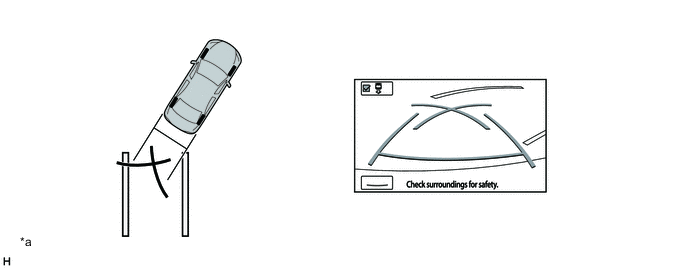
Text in Illustration *a The illustration shown is an example only. The illustration may differ from the actual vehicle screen. - - -
Back up the vehicle and stop at the position in which the parking guide line comes in contact with the left side of the intended parking position.
-
Turn the steering wheel fully to the right and back up the vehicle.
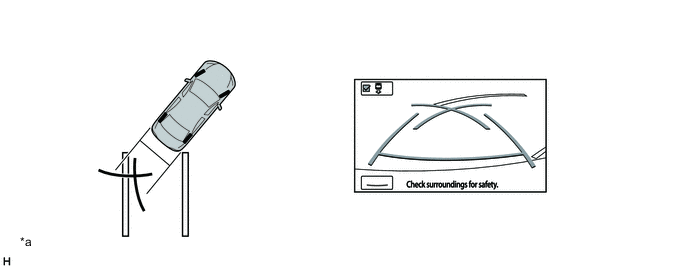
Text in Illustration *a The illustration shown is an example only. The illustration may differ from the actual vehicle screen. - - -
Continue backing up the vehicle until the vehicle is parallel to the painted lines.
-
Once the vehicle is parallel, aim the steering wheel straight ahead and back up the vehicle to the target stop position.
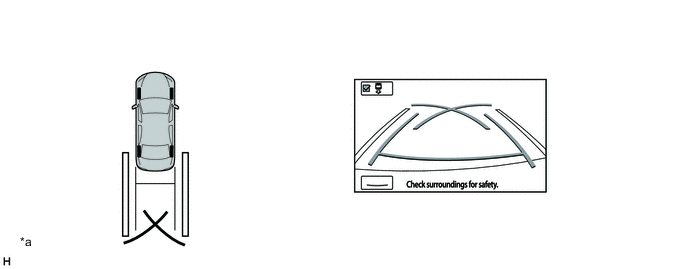
Text in Illustration *a The illustration shown is an example only. The illustration may differ from the actual vehicle screen. - -
-
-
-
-
CONSTRUCTION
-
Rear Television Camera Assembly
-
The rear television camera assembly consists of a wide-angle lens and a Complementary Metal Oxide Semiconductor (CMOS).

Text in Illustration *a Wide-angle Lens - -
-
-
No. 1 Ultrasonic Sensor
-
The No. 1 ultrasonic sensor consists of a microphone that transmits and receives ultrasonic waves and a circuit portion.
-
The circuit portion is filled with urethane to prevent water from entering.
-
The connector is integrated in to the No. 1 ultrasonic sensor. Also, a flat type microphone that has no concave edge is provided in order to improve the appearance.
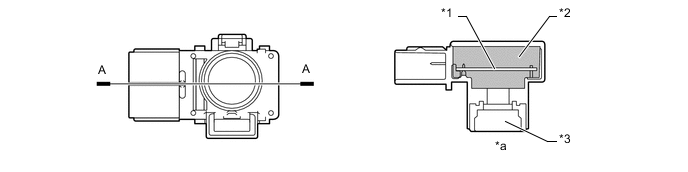
Text in Illustration *1 Circuit Portion *2 Urethane *3 Microphone - - *a A-A Cross Section - -
-
-
-
FAIL-SAFE
-
The table below indicates malfunction detection items for the sensors and ECUs in this system.
Malfunctioning Part Detection Item Function Rear Display Mode Perpendicular Parking Assist Mode/Parallel Parking Assist Mode Spiral Cable with Sensor Sub-assembly
- Steering Sensor
-
Transmission of sensor malfunction signal
-
Open circuit in sensor signal
-
Communication malfunction between the spiral cable with sensor sub-assembly (steering sensor) and parking assist ECU
Displays "Guidance unavailable." The mode automatically switches to rear display mode and the following message will appear on the screen: "Check IPA system. Have your vehicle checked by a dealer." Transmission of signal of incompletion of neutral steering point correction Displays "System initializing." The mode automatically switches to rear display mode and the following message will appear on the screen: "System initializing." Rear Television Camera Assembly Transmission of rear television camera assembly malfunction signal Stops signal reception and displays a dark screen Parking Assist ECU Malfunction of parking assist ECU Stops system operation Power Steering ECU Assembly Malfunction of power steering ECU assembly - The mode automatically switches to rear display mode and the following message will appear on the screen: " Check IPA system. Have your vehicle checked by a dealer." -
-
-
DIAGNOSIS
-
The radio and display receiver assembly*1 or navigation receiver assembly*2 is equipped with a diagnosis function which can display a diagnosis menu for the intelligent parking assist system. For details, refer to the Repair Manual.
*1: Models with multimedia system
*2: Models with navigation system
-