NAVIGATION SYSTEM / MULTI INFORMATION SYSTEM
-
FUNCTION OF MAIN COMPONENTS
Component Function Multi-display Assembly
-
Controls image signals received from the radio receiver assembly and sends them to the built-in display panel.
-
Can be used to adjust the color balance of the display panel.
-
Displays the map screen, audio screen, etc. according to image signals received from the radio receiver assembly.
Remote Touch
-
Sends operation signals to the radio receiver assembly.
-
Vibrates the touchpad to provide feedback according to signals received from the radio receiver assembly.
Radio Receiver Assembly
-
Has a built-in navigation computer, gyro sensor and GPS receiver.
-
Sends operation signals received from the remote touch to the navigation computer.
Major Components of Radio Receiver Assembly Navigation Computer
-
Controls the navigation system by processing data received from each component installed in the vehicle and uses the multi-display to output various information and the operation status of the system through images and sounds.
-
Corrects the vehicle position based on location information calculated from GPS information, vehicle speed signals, information from the built-in sensors and the shift status.
-
Applies the mark of the calculated vehicle position to the map data in the microSD card (disc player disc) and sends the data to the multi-display.
-
Sends voice guidance audio signals to the stereo component amplifier assembly.
Gyro Sensor Detects the vehicle's vertical axis rotation speed (yaw rate and rotation movement) and sends it to the navigation computer. GPS Receiver Demodulates GPS information received by the navigation antenna assembly, calculates the vehicle position and sends the position signal to the navigation computer. microSD Card Slot Interfaces with the microSD card (disc player disc), which contains map data, the navigation system control program, etc. microSD Card (Disc Player Disc) Contains map data and the navigation system control program, etc. Navigation Antenna Assembly Receives GPS signals from satellites in orbit around the Earth, at an altitude of approximately 20200 km (12600 miles), and sends them to the radio receiver assembly. Parking Brake Switch Assembly Sends the parking brake position signal to the radio receiver assembly. Window Glass Antenna Wire
-
AM
-
FM
Receives radio broadcasting signals (AM/FM). No. 1 Amplifier Antenna Assembly Amplifies radio broadcasting signals from the radio antenna and sends them to the radio receiver assembly. Window Glass Antenna Wire
-
DAB*1
Receives radio broadcasting signals (DAB). Digital Audio Broadcasting Antenna Assembly*1 Amplifies DAB signals from the DAB antenna and sends them to the radio receiver assembly. Steering Pad Switch Assembly Sends operation signals from switches such as the volume switch, mode switch, seek switch and voice switch, to the spiral cable with sensor sub-assembly. Spiral Cable with Sensor Sub-assembly Sends operation signals from the steering pad switch assembly to the radio receiver assembly. No. 1 Stereo Jack Adapter Assembly
-
Sends audio signal to the radio receiver assembly when an auxiliary device is connected.*2
-
Sends audio and/or video signals to the radio receiver assembly when an auxiliary device is connected.*3
-
Communicates with the radio receiver assembly via a USB communication line when a USB memory device, portable audio player (USB type) or Apple product is connected.
Map Light Assembly Houses the telephone microphone assembly. Telephone Microphone Assembly Recognizes speech during voice recognition system operation and sends the audio signal to the radio receiver assembly. Combination Meter Assembly
-
Sends vehicle speed signals to the radio receiver assembly or stereo component amplifier assembly.
-
Displays navigation information, such as directions and route guidance, sent from the radio receiver assembly on the multi-information display.
Stereo Component Amplifier Assembly Amplifies audio signals sent from the radio receiver assembly and sends them to the speakers. *1: Models with Digital Audio Broadcast (DAB) tuner
*2: Destination package for Hong Kong
*3: Except destination package for Hong Kong
-
-
FUNCTION
-
Navigation Screen
-
The navigation computer calculates the present position and direction of travel, then determines a route and calculates the driving distance based on the following information sources:
-
Map data in the microSD card (disc player disc)
-
Global Positioning System (GPS) satellites
-
Built-in gyro sensor
-
Vehicle speed signal
-
Reverse signal
-
Parking brake signal
-
Radio Data System Traffic Message Channel (RDS-TMC) and Transport Protocol Experts Group (TPEG) signal*1
-
Radio Data System Traffic Message Channel (RDS-TMC) signal*2
-
*1: Models for Europe
-
*2: Except models for Europe and destination package for Hong Kong
Item Function Map Display Taillight-interlocked Map Color Change Changes the color of the map screen that is displayed when the taillights are turned on. North Up / Heading Up
-
If North Up is selected, regardless of the direction of vehicle travel, north is always up.
-
If Heading Up is selected, the direction of vehicle travel is always up.
3D Display Displays a 3-dimensional (3D) view of the map. 2D and 3D City Map*1
-
Displays some areas of major cities with a 3-dimensional (2D and 3D) city map when the map scale is set to 50 m or less.
-
Always displayed in Heading Up mode.
3D City Model Map*2
-
Displays some areas of major cities with a 3-dimensional (3D) city model map when the map scale is set to 200 m or less.
-
Always displayed in Heading Up mode.
City Map*3 Displays some areas of major cities with a 2D city map when the map scale is set to 50 m or less. Multi-step Scale Display Changes the map scale in 14 steps.*1*2 Changes the map scale in 13 steps.*3 Direct Scale Change Directly selects and displays the map scale. Street Name Indication on Scrolled Map Displays the street name and city name even when the map screen is being scrolled. Stepless Scale Display Changes the scale of the map from the basic 14 steps to an even finer range of scales.*1*2 Changes the scale of the map from the basic 13 steps to an even finer range of scales.*3 Road Number Sign Board Displays the road number on the map. Point of Interest Display Displays selected types of points of interest as marks on the map. Multiple Display Function Displays different screens on a screen that is split into 3 views or 2 views. Compass Mode Screen*1*3 Displays the direction of travel and detailed data of the present location. Route Guidance Demonstration Demonstrates the route guidance to the destination. Route Trace Registration*1*3
-
A traveled route (up to 124 miles (200 km)) can be stored with a name by setting a start point and end point.
-
The stored traveled route can be displayed on the map screen.
-
Available when the map scale is set to 30 miles (50 km) or less.
RDS-TMC and TPEG Service Information Display*1 Displays the traffic icons, arrows and indicators when RDS-TMC or TPEG service information is being received. RDS-TMC Display*3 Displays RDS-TMC icons, arrows, pop-up messages and indicators when RDS-TMC service is being received. Destination Search Preset Destination Memory Search Sets a pre-registered point as a destination point while driving. Name Search*3 The name of a destination can be entered with the screen keyboard and searched for. Then a destination is selected using the area or POI category. Address Search Information can be entered in the order of: area, town name, street name and house number.*1 Information can be entered in the order of: city name, street name and area number.*2 Information can be entered in the order of: province, town name, street name and block number.*3 Point of Interest Search Searches for a point of interest by selecting the area from the category.*2*3 Hybrid Point of Interest*1 Narrows the search by names of the point of interest, category and areas. Online Search*1 Allows use of an internet search engine to set a destination using the most up to date information. Previous Destination Search Stores the coordinates, names, and dates of up to 100 locations that have been set as destinations in the past. QR Code Search*1*3 POI information is displayed as a QR code. By scanning this code with a cellular phone, destination information can be obtained. Map Search A destination can be set by using the cursor on the map screen. Memory Point Search*1*2*3 Sets a destination from an item in the registered memory point. Intersection Search*1 By specifying 2 streets, the point at which they intersect is set as the destination point. Motorway Entrance or Exit Search*1 Searches for the destination by the name of the street that connects to a motorway (highway) entrance or exit. Destination Search Coordinate Search*1 A destination can be input by entering its coordinates. Phone Number Search*1*3 A destination can be input by entering its phone number. Postal Code Search*1 A destination can be input by entering its postal code. Point of Interest Near Cursor Search*1*2*3 A destination can be set by selecting the search point and point of interest category. MAP CODE Search*2*3 A destination can be set using a MAP CODE. Panoramio Search*1 A destination can be set using location information applied to photos searched for in Panoramio. POI Smartphone Search*2 The POI searched for using a smartphone can be obtained and set as a destination. Easy destination search*2 Displays a list of frequently entered destinations (for commuting, etc.), allowing a destination to be easily set. Voice Recognition Search*1 A destination can be set by voice command input. Route Search Multiple Destination Setting Sets multiple destinations. Can also rearrange sequence of destinations. Multiple Route Search Searches for multiple routes. Search Condition Designation Searches for quick, eco, and short routes.*1 Searches for quick 1, quick 2, and short routes.*3 Searches for the recommended route, the shortest route, a route that prioritizes the use of highways, a route that prioritizes the use of general roads, and other route.*2 Reordering Destinations Changes the order of destinations when more than one destination is selected. Detour Search Changes the route to detour around a section of the route. Regulated Road Consideration Performs searches which consider regulated roads. Avoidance Area Searches for a route that avoids a designated area. Auto Avoid Traffic Search Automatically changes route the heavy congestion. Guidance Voice Guidance Provides voice guidance about the distance and the direction of travel to a destination point based on road conditions and vehicle speed. Next Turn Guidance Provides guidance about the distance to the next turn and indicates the direction of the turn using an arrow. Motorway (Freeway, Highway) Mode Display Displays the distance to the next junction and exit, or POIs in the vicinity of the motorway exit. Motorway (Freeway, Highway) Exit or Junction Display When the vehicle approaches an exit or junction, the motorway guidance screen will be displayed. Motorway (Freeway, Highway) Direction of Travel Display Displays the direction of travel to take on the motorway. Real Freeway (Highway) Junction Display*2 Displays the junction and signage in 3D in the vicinity of a major junction while driving. Intersection Zoom-in Display Zooms in the map display when approaching an intersection. Turn List Display*1*3 Displays a turn list on the right side of the 2-screen display. Arrow (Turn-by-Turn) Display*1*3 Displays the direction of the next turn and the distance to the turn on the right side of the 2-screen display. Lane List Display*2 Display a lane list on the right side of the 2-screen display. Distance-to-destination Display Displays the distance from the present location to the destination. Direction Sign Display*2 Displays direction signs, similar to overhead highway signs, with route guidance information overlaid. Large Roundabout Guidance*2 Displays detailed guidance for large roundabouts. Large Intersection Guidance*2 Displays detailed guidance for large intersections. Importing Stored Route Guidance*1 Starts the guidance for the route set using the route information that is stored at the Lexus centre and imported. Driver Support Information icon Display Displays warning icons when the vehicle approaches the area, such as a school zone, railway crossing or high accident zone. Route Information Bar Display Displays the following information:
-
Street name of the current location.
-
Distance and travel time to the destination.
-
Distance to the destination and estimated time of arrival.
-
Distance to the destination and an arrow facing the destination (when off the route during guidance).
Traffic Bar Display*1*3 Displays traffic information of congestions or accidents on the route using the traffic bar. Others Voice Recognition*1 Recognizes pre-programmed system commands spoken to operate the navigation system. Map Coverage Information Display Displays the map area that is stored on the microSD card. *1: Models for Europe
*2: Destination package for Hong Kong
*3: Destination package for Taiwan
-
-
-
Information Screen
-
The functions of the information screen display are listed below.
Tech Tips
The display order of the menu icons may vary depending on country where the vehicle is sold.
Item Outline Fuel Consumption*1 Information about fuel consumption per minute or per trip can be displayed. Traffic Information*2 By receiving the RDS-TMC and TPEG service, a list of the current traffic incidents is displayed along with information on an incident's distance and position relative to the vehicle.*3*4 By receiving the RDS-TMC service, a list of the current traffic incidents is displayed along with information on an incident's distance and position relative to the vehicle.*4 Parking Information*3 By receiving the TPEG service, the location and vacancy status of parking lots can be displayed. A parking lot can also be set as a destination. Street View*3 By connecting to the Internet, Google Street View can be displayed. Panoramio*3 By connecting to the Internet, users' pictures, comments and other information uploaded to Panoramio can be displayed. USB 1 photo*5 Photo data in a USB memory device plugged into each USB port can be displayed on the screen in a slide show or thumbnail view. USB 2 photo*5 *1: Except models for Europe
*2: Except destination package for Hong Kong
*3: Models for Europe
*4: This function is not made available in countries/areas where the necessary information service is not provided.
*5: Models for Europe and destination package for Taiwan
-
The fuel consumption screen is displayed as illustrated below. This screen has the display functions listed below.
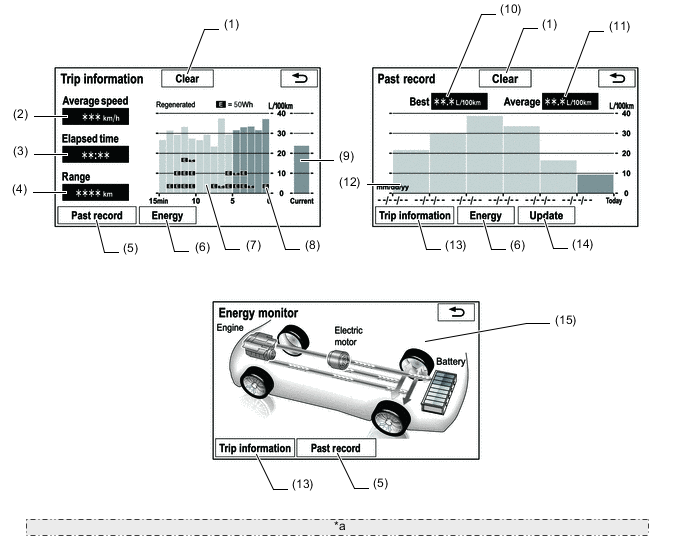
*a The illustrations shown are examples only. The illustrations may differ from the actual vehicle screens. Item Outline (1) Clear Switch Clears all past information. (2) Average Speed Displays an average speed value that has been calculated by the combination meter assembly, which is based on the distance driven and time elapsed since the power switch was turned on (IG). (3) Elapsed Time Displays an elapsed time value that has been calculated by the combination meter assembly, which is based on the time elapsed since the power switch was turned on (IG). (4) Cruising Range Displays the approximate drivable distance. (5) Past Record Switch Changes the screen to the Past Record (per trip) fuel consumption screen. (6) Energy Switch Changes the screen to the energy monitor. (7) Average Per Minute Fuel Consumption
-
Displays the value that has been calculated by the combination meter assembly, which is based on the driven distance and the volume of fuel consumed (fuel injection signal), since that the power switch was turned on (IG).
-
Displays the average fuel consumption for the last minute, or since clear was last selected.
(8) Recovered Energy
-
Indicates the recovered energy for 1 minute with "E" symbols.
-
The recovered energy status is calculated by the hybrid vehicle control ECU assembly.
(9) Current Per Minute Fuel Consumption Displays the instantaneous (current) fuel consumption value that has been calculated by the combination meter assembly, which is based on the driven distance and the volume of fuel consumed (fuel injection signal), since that the power switch was turned on (IG). (10) Best Fuel Consumption Displays the best (most economical) per trip fuel consumption. (11) Average Fuel Consumption Displays the average fuel consumption for this trip and the previous 5 trips. (12) Average Per Trip Fuel Consumption
-
Displays the current record and the last 5 average per trip fuel consumption records or the current record and those since clear was last selected.
-
Starts calculating the average fuel consumption when the average fuel consumption displayed on the combination meter assembly is reset.
(13) Trip Information Switch Changes the screen to the average per minute fuel consumption screen. (14) Update Switch
-
Restarts calculation of the average fuel consumption value.
-
Sends the average fuel consumption reset signal to the combination meter assembly to update the graph.
(15) Energy Monitor Indicates the energy transmission direction, making it possible to confirm the current drive method (engine, motor or both), the power generation status by the engine and status of regenerative energy use.
-
The State Of Charge (SOC) of the battery can be checked on the meter. The meter shows the SOC in 8 levels.
-
Displays the energy monitor status that has been calculated by the hybrid vehicle control ECU assembly.
-
-
-
Setup Screen
-
The settings for the functions of the multi-display are available from the setup screen.
Item Function General Settings
-
The time zone, the on/off setting of daylight saving time of the clock can be changed.*1*2
-
The language can be selected.*1*2
-
The voice recognition language can be selected.*1
-
The unit of measurement for fuel consumption can be changed.*1*2
-
The startup/screen off images can be customized:
-
Images can be copied from a USB device
-
Images can be deleted
-
An image can be set as the startup or screen off image
-
Automatic return from the audio or air conditioning screen to the home screen after audio or air conditioning operation can be changed.
-
The color of the screen buttons can be changed.
-
The selection sound can be set.
-
The pointer sound can be set.
-
The error sound can be set.
-
The pointer sound volume can be adjusted.
-
The strength of the feedback force which pulls the cursor toward the buttons can be adjusted.
-
Registered information (personal data) can be cleared.
-
The navigation system program can be updated.
-
The Gracenote database can be updated.*1
-
Third party software information used in the navigation system, such as notices, can be displayed.
-
The set security mode on/off setting can be changed.*3
Voice Settings
-
The voice guidance volume can be adjusted or switched off.
-
Voice recognition prompts can be set.*1*2
-
Automatic volume settings for voice guidance while driving at high speeds can be set.*2
-
Voice guidance while using the audio and visual system or air conditioning can be set.
-
Voice guidance during route guidance can be set.*1*3
-
Beep sound of navigation guidance can be set.
Bluetooth Settings*1*3
-
Bluetooth device registration settings can be changed:
-
Register a Bluetooth device
-
Delete a Bluetooth device
-
Select a Bluetooth device
-
Edit a Bluetooth device
-
Bluetooth system settings can be changed:
-
Automatic connection to a Bluetooth device
-
Bluetooth device name
-
Bluetooth device PIN-code
-
Bluetooth device address
-
Display of Bluetooth device connection status
-
Bluetooth device profile
-
Bluetooth internet connection can be set up.*1
Bluetooth Settings*2
-
Bluetooth devices can be registered.
-
Bluetooth devices can be deleted.
-
Bluetooth devices can be selected.
-
Bluetooth devices can be edited.
-
Bluetooth system settings can be displayed or changed:
-
Automatic connection to a Bluetooth device
-
Bluetooth device name
-
Bluetooth device PIN-code
-
Bluetooth device address
-
Display of Bluetooth device connection status
-
Bluetooth device profile
Wi-Fi Settings*1
-
The Wi-Fi function can be switched on/off.
-
Available networks that can be connected can be displayed.
-
Available networks that can be connected can be searched for.
-
A Wi-Fi Protected Setup (WPS) compatible Wi-Fi device can be connected quickly.
-
Wi-Fi settings can be changed:
-
The networks list can be edited
-
An automatic connection to a preferred network can be set
-
An automatic connection message can be set
Audio Settings
-
Sound quality can be adjusted.*1
-
Radio settings can be changed:
-
The station list refresh operation can be set*2
-
The listing order of the station list can be set
-
Setting to automatically seek an FM station that regularly broadcasts traffic information and station broadcasts can be set*1
-
Setting to automatically select an FM station providing good reception if current reception worsens can be set*1
-
Setting to switch to a broadcasting station within the same local program network can be set*1
-
The FM radio text feature can be set
-
DAB settings can be changed:*1*2
-
L-band in the tune range can be set
-
Setting to automatically seek a DAB station that regularly broadcasts traffic information and station broadcasts can be set
-
Setting to automatically select a DAB station providing good reception if current reception worsens can be set
-
The DAB text feature can be set
-
An input terminal for iPod audio sound signals can be selected.
-
An input video signal format can be selected.
-
Cover art settings can be changed:*1
-
Cover art display in DISC mode
-
Cover art display in USB mode
-
Priority setting of the Gracenote database cover art in USB mode
-
Cover art display in iPod mode
-
Priority setting of the Gracenote database cover art in iPod mode
-
Cover art settings can be changed.*2*3
-
DVD settings can be changed:
-
Audio language
-
Subtitle language
-
DVD video menu language
-
Multi-angle mark display during multi-angle compatible disc playback
-
Viewer restriction level
-
Auto start playback
-
Volume difference adjustment between the lowest and highest volume
Navigation Settings*1 The Navigation Settings can be used to:
-
Set detailed online search settings such as:
-
Cost warning message display setting when connecting to the online search portal site
-
Synchronized settings of the online search portal site and navigation system
-
Roaming warning message settings
-
Memorization settings of the user name and password used when connecting to the portal site
-
Search engine settings of the online search
-
Deletion of the online search history
-
Changing of the user name and password used when connecting to the portal site
-
Deletion of the user name and password used when connecting to the portal site
-
Set detailed navigation settings such as average cruising speed.
-
Set detailed navigation settings such as displayed POI icon categories.
-
Set detailed navigation settings such as display of 3D landmarks.
-
Display the speed limit of the road currently being used.
-
Set the function that magnifies the map scale as the vehicle approaches a guidance point.
-
Set the cautionary message display shown when a regulated street is included in the route.
-
Set the display of pop-up information.
-
Manually adjust the current vehicle position mark.
-
Display the coverage areas and legal information.
Navigation Settings*2 The Navigation Settings can be used to:
-
Set and edit the home.
-
Set preset destinations.
-
Set memory points.
-
Delete previous destinations.
-
Set detailed navigation settings such as:
-
The visual city map display
-
Display of 3D landmarks
-
The daytime map color
-
The nighttime map color
-
The character size on the map
-
The display of the scale switching messages
-
The merging lane guidance
-
The warning point guidance
-
The cross-border guidance
-
The display of the 3D intersection zoomed map
-
The automatic zooming function
-
The average cruising speed
-
The displayed POI icon categories
-
The display of the 3D city map
-
The viewing angle of the 3D map
-
Manual adjustment of the current vehicle position mark
-
Transfer memory points stored in a USB memory device or disc to the system.
-
Copy memory points to a USB memory device or disc for backup.
Navigation Settings*3 The Navigation Settings can be used to:
-
Set detailed navigation settings such as average cruising speed.
-
Set detailed navigation settings such as displayed POI icon categories.
-
Set detailed navigation settings such as display of 3D landmarks.
-
Set the display of the speed limit of the road currently being used.
-
Set the function that magnifies the map scale as the vehicle guidance point.
-
Set the display of cautionary messages. (If the route includes traffic restrictions, seasonally restricted roads, etc.)
-
Set the display of pop-up information.
-
Manually adjust the current vehicle position mark.
-
Display the coverage areas and legal information.
Telephone Settings
-
A Bluetooth phone can be registered or connected.*2
-
Phone sound settings can be changed:
-
Ring tone
-
Ring tone volume
-
Message readout volume*1
-
SMS/MMS incoming tone*1
-
SMS/MMS incoming tone volume*1
-
E-mail incoming tone*1
-
E-mail incoming tone volume*1
-
In-call volume
-
Contact settings can be changed:*1*3
-
Contacts can be transferred from the connected cellular phone to the system, or added, edited, and deleted*4
-
Favorites list registration
-
Contacts deletion from the call history
-
Voice tags can be added, edited and deleted*3
-
Contact/Call history settings can be changed:*2
-
Automatic contact/history transfer function settings when a PBAP compatible Bluetooth phone is connected
-
Contacts update
-
Favorites list registration
-
Contacts deletion from the favorites list
-
Contact image display
-
Call history deletion*4
-
New contact addition to the contact list*4
-
Contact list editing*4
-
Contact deletion from the contact list*4
-
Message function settings can be changed:*1
-
Message forwarding from cellular phones
-
Automatic message readout
-
SMS/MMS notification popup
-
E-mail notification popup
-
Vehicle signature on outgoing messages
-
Message read status on phone update
-
Incoming SMS/MMS display when an SMS/MMS message is received
-
"Full Screen": The incoming SMS/MMS display screen is displayed and can be operated on the screen.
-
"Drop-Down": A message is displayed on the upper side of the screen.
-
Incoming e-mail display when an e-mail is received
-
"Full Screen": The incoming e-mail display screen is displayed and can be operated on the screen.
-
"Drop-Down": A message is displayed on the upper side of the screen.
-
Display of messaging account names on the inbox tab
Telephone Settings
-
Telephone display settings can be changed:*1
-
Incoming call display
-
Display of the automatic contact/history transfer completion message
-
Automatic contact/history transfer (only available with Bluetooth phones that support PBAP)*1
-
Contact list sorting*1
-
Contact image display*1
-
Phone display settings can be changed:*2*3
-
Incoming call display
-
Display of the automatic contact/history transfer completion message
-
Automatic contact/history transfer (only available with Bluetooth phones that support PBAP)*3
-
Contact list sorting*3
-
Contact image display*3
Traffic and Parking Settings*1
-
The voice guidance for traffic information can be switched off.
-
Display of the traffic information icon can be set.
-
The detour route function can be selected.
-
When searching for a route, a detoured route search that avoids traffic jams and so forth can be set.
-
The selection of traffic stations can be set to auto/manual.
-
The selected station can be displayed.
-
TPEG traffic information receive settings can be used to:
-
Automatically update more frequently
-
Automatically update less frequently
-
Update manually
-
Cancel TPEG traffic information reception via Wi-Fi or a Bluetooth device
-
The roaming function of TPEG traffic information can be set.
-
Traffic information can be set to be received automatically, or to receive RDS-TMC traffic information only.
-
Display of parking icons on the map can be set.
-
Parking lot information reception can be set.
-
The roaming function of parking lot information can be set.
Traffic Information Settings*5
-
The voice guidance for traffic information can be switched off.*3
-
Display of the traffic information icon can be set.
-
The avoid traffic function can be set to auto/manual.*3
-
The selection of traffic stations can be set to auto/manual.*3
-
The selected station can be displayed.*3
Vehicle Settings
-
Settings can be changed for the following maintenance items:
-
ENGINE OIL
-
OIL FILTER
-
ROTATION
-
TYRE/Tires
-
BATTERY
-
BRAKE PAD
-
WIPERS
-
LLC/Coolant
-
BRAKE OIL
-
ATF/Trans. fluid
-
SERVICE
-
AIR FILTER
-
PERSONAL
-
Reminder*1*2*3
-
Delete all
-
Reset all
-
Set dealer
-
Customizable vehicle settings can be changed.
-
LEXUS Parking Assist-sensor system adjustment.*6
*1: Models for Europe
*2: Destination package for Hong Kong
*3: Destination package for Taiwan
*4: PBAP non-compatible phone, or PBAP compatible phone with the automatic telephone number transfer function set to off
*5: Except models for Europe and Hong Kong
*6: Models with LEXUS parking assist-sensor system
-
-
-
-
DIAGNOSIS
-
For details on the procedure required to enter the Service Menu screen, refer to the Repair Manual.
-