LIGHTING SYSTEM CUSTOMIZE PARAMETERS
PROCEDURE
-
CUSTOMIZE LIGHTING SYSTEM (EXT)
Tech Tips
The following items can be customized.
Note
-
When the customer requests a change in a function, first make sure that the function can be customized.
-
Be sure to make a note of the current settings before customizing.
-
When troubleshooting a function, first make sure that the function is set to the default setting.
-
Customizing with the GTS
-
Connect the GTS to the DLC3.
-
Turn the power switch on (IG).
-
Turn the GTS on.
-
Enter the following menus: Customize Setting / Light Control.
-
Select the setting by referring to the table below.
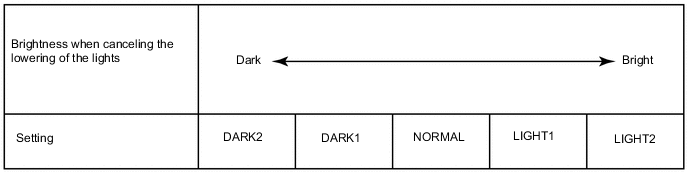
Light Control Display Default Content Setting Relevant ECU Response Time*1 Normal Changes the delay timing of lighting the taillights when going into a tunnel when the light control switch is in the AUTO position Normal or Long Main Body ECU (Multiplex Network Body ECU) Sensitivity Normal Adjusts the sensitivity of the automatic light control sensor.*A Light2, Light1, Normal, Dark1 or Dark2 Disp Ex ON Sen NORMAL Changes the ambient brightness level required to dim the lights such as the indicator lights of the combination meter, A/C indicator light and clock.*B LIGHT2, LIGHT1, NORMAL, DARK1 or DARK2 Disp Ex OFF Sen NORMAL Changes the ambient brightness level required to cancel the dimming of the lights such as the indicator lights of the combination meter, A/C indicator light and clock.*C LIGHT2, LIGHT1, NORMAL, DARK1 or DARK2 Follow Me Home Lighting Time*2 30 s Sets the headlight lighting time after the power switch is turned off. 30 s, 60 s, 90 s or 120 s
-
*1: for Australia
-
*2: w/ Follow Me Home System
Tech Tips
The sensitivity adjustment may be difficult to confirm. Check by driving the customer's vehicle.
Figure 1. *A
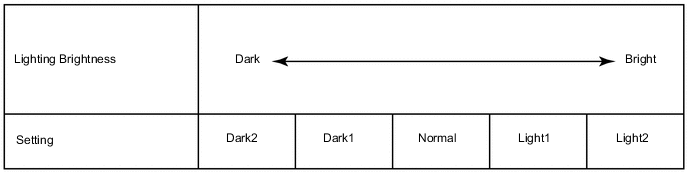
Figure 2. *B
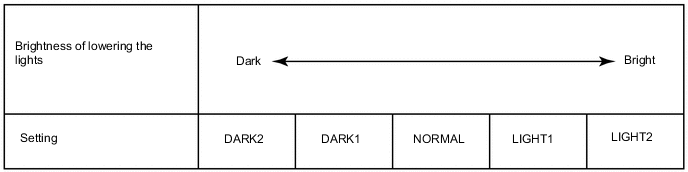
Figure 3. *C
-
-
-
Customizing with the Multi-display (for Navigation Receiver Type)
-
Turn the power switch on (IG).
-
Enter the following menus: SETUP / Vehicle / Vehicle customization / Light settings.
-
Select the setting by referring to the table below.
Lights Settings Display Default Content Setting Relevant ECU Light Sensor Sensitivity 0 Adjusts the sensitivity of the automatic light control sensor*A -2, -1, 0, 1 or 2 Main Body ECU (Multiplex Network Body ECU) Tech Tips
The sensitivity adjustment may be difficult to confirm. Check by driving the customer's vehicle.
Figure 4. *A
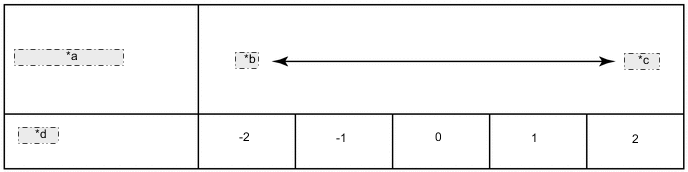
*a Lighting Brightness *b Dark *c Bright *d Setting
-
-
Customizing with the Multi-display (for Radio and Display Type)
-
Turn the power switch on (IG).
-
Enter the following menus: SETUP / Vehicle / Vehicle settings.
-
Select the setting by referring to the table below.
Vehicle Settings Display Default Content Setting Relevant ECU Light Sensor Sensitivity 0 Adjusts the sensitivity of the automatic light control sensor.*A -2, -1, 0, 1 or 2 Main Body ECU (Multiplex Network Body ECU) Tech Tips
The sensitivity adjustment may be difficult to confirm. Check by driving the customer's vehicle.
Figure 5. *A
*a Lighting Brightness *b Dark *c Bright *d Setting
-
-