AUDIO AND VISUAL SYSTEM
-
OUTLINE
-
Audio System
-
The following audio systems are available:
Audio System Audio Head Unit Speaker Navigation ECU Multimedia System Radio and Display Receiver Assembly 6 Speakers - 9-speaker Surround Sound System 9 Speakers - Navigation System 6 Speakers ○* ○: Available
-: Not available
*: For the navigation system, enhanced navigation system functions are available by installing a navigation ECU.
-
-
Audio Head Unit
-
In consideration of the unity with the instrument panel, a uniquely sized audio head unit is provided.
-
A Thin Film Transistor Liquid Crystal Display (TFT LCD) is used for the multi-display of the radio and display receiver assembly. The multi-display shows the audio screen, Bluetooth hands-free screen, vehicle information screen, etc. and can be operated using touch operation, flick operation* or drag operation*.
Tech Tips
*: Flick operation or drag operation may not be possible on all screens.
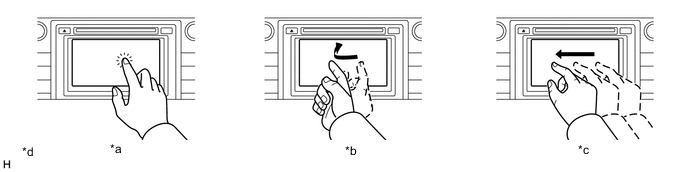
*a Touch Operation *b Flick Operation *c Drag Operation *d The illustrations shown are examples only. The illustrations may differ from the actual audio head unit. -
The audio source can be switched on the audio source selection screen. The arrangement of the audio sources displayed on the audio source screen can be changed according to the frequency of use.
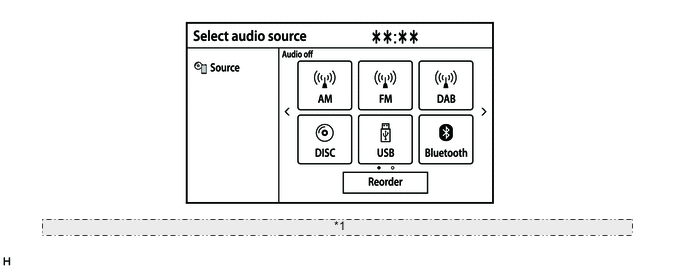
*1 The illustration shown is an example only. The illustration may differ from the actual vehicle screens. -
Discs containing MPEG audio layer-3 (MP3) files, Windows Media Audio (WMA) files and Advanced Audio Coding (AAC) files can be played.
-
Discs with the marks shown below can be played.
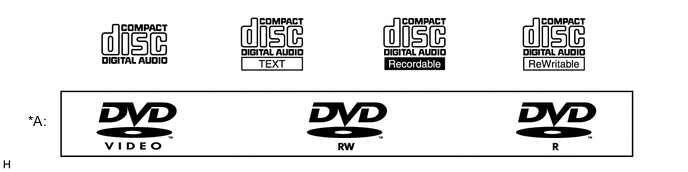
*A Except Models for Australia - - -
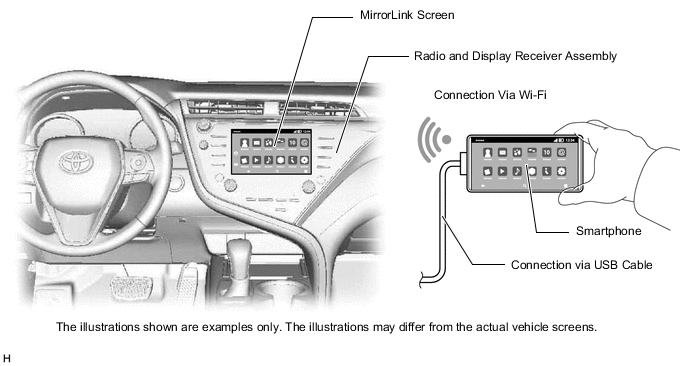
The MirrorLink function is provided. This function enables the user to operate their smartphone using the multi-display by connecting it to the system via a USB cable or Wi-Fi communication. (Models with MirrorLink function)
-
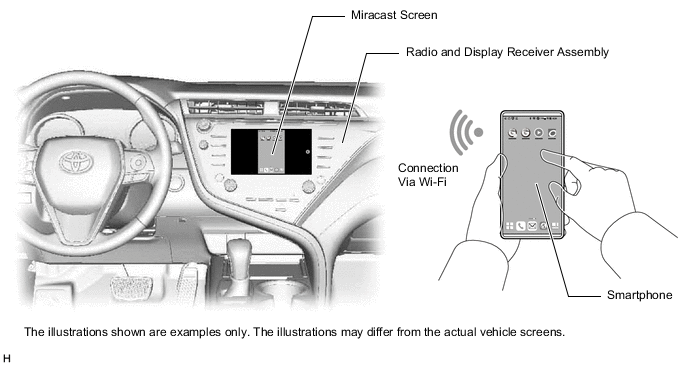
The Miracast function is provided. This function enables the display of a Wi-Fi connected smartphone to be displayed on the multi-display. (Models with Miracast function)
-
The status of the audio source currently selected can be displayed on the headup display. (Models with headup display)
-
A fuel consumption screen is provided in consideration of the environment.
-
-
Home Screen
-
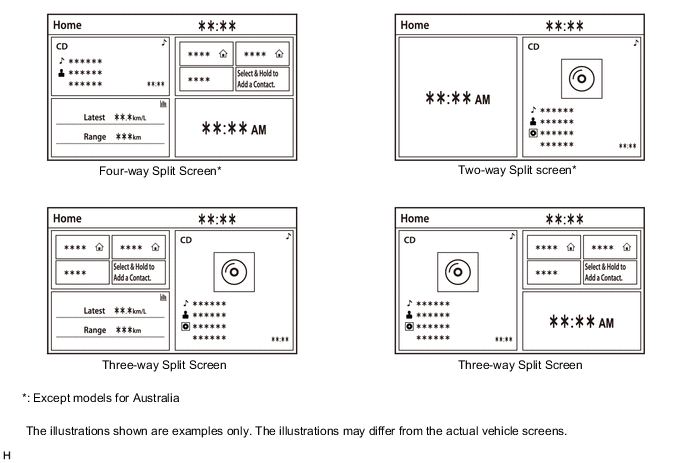
The home screen can display multiple information screens.
-
The screen can be divided into a maximum of 3*1 or 4*2 display areas, and the audio screen, hands-free screen, vehicle information screen, clock screen, etc. can be displayed in each desired area at the same time.
Tech Tips
*1: Models for Australia
*2: Except models for Australia
-
Displayed items are customizable, and the top screen of each function can be displayed by selecting the corresponding information screen.
-
-
Digital Audio Broadcast (DAB) (Models with Digital Audio Broadcast (DAB) Tuner)
-
Digital Audio Broadcast (DAB) reception is available. This mostly prevents broadcast interference, achieving clear reception with high quality sound.
-
The time shift operation function can be used to play back DAB programs at a later time.
Tech Tips
The amount of playback possible depends on the bit rate of the DAB station to be recorded, the amount of DAB unit memory, and the time at which reception of the broadcast began.
-
-
Digital TV (Models with Digital TV Tuner)
-
A digital terrestrial television broadcast tuner is integrated to receive 1seg broadcasts, enabling the user to view them in the vehicle.
-
The time shift operation function can be used to play back DAB programs at a later time.
Tech Tips
1seg broadcasting is a data broadcasting service. Each of digital terrestrial television broadcasting frequency bandwidth is divided into 13 segments. A single segment of the 13 is assigned for broadcasting to mobile communications terminals.
-
-
Window Glass Antenna (Models with Digital TV Tuner)
-
A window glass antenna wire is attached to the front windshield to enhance reception of 1seg signals.
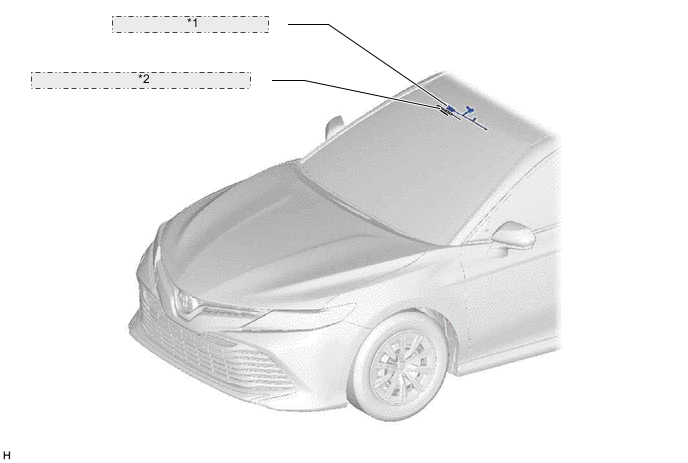
*1 Television Antenna Assembly *2 Window Glass Antenna Wire (Digital TV)
-
-
Toyota Link Service (Models for Australia)
-
Toyota Link service is supported. The Toyota Link service displays distributed information from content providers through compatible apps installed to a smartphone on the screen of the multi-display, and sends audio content, etc. to the speakers of the vehicle.
-
-
USB Port
-
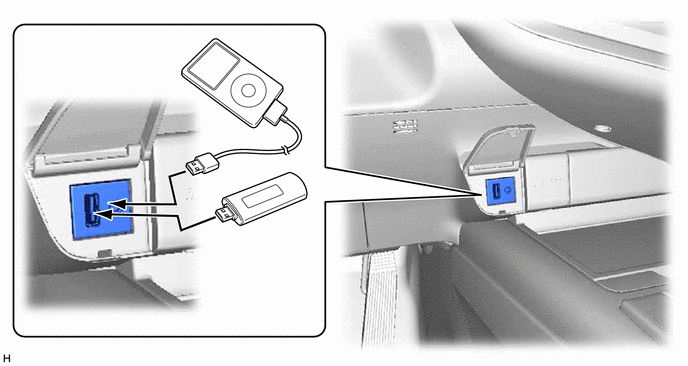
A USB port is provided that enables operation of a USB memory device, portable audio player (USB type), iPhone, iPod classic, iPod, iPod nano or iPod touch.
-
The USB audio system supports high-resolution sound sources and high-resolution sound sources on USB devices can be played. (A high-resolution sound source has a higher bit rate than a music CD, enabling sound quality closer to that of the original recording. The definition of high-resolution is based on the standards of groups such as the CTA (Consumer Technology Association).)
-
The USB system enables the playback of video data stored on a USB memory device.
-
By plugging a USB hub into the USB port, up to 2 of the following items can be available at once: USB memory device, portable audio player (USB type) or Apple product.
Tech Tips
-
Even if 3 or more USB devices are connected using a USB hub, only the first 2 connected USB devices will be recognized.
-
iPhone, iPod, iPod classic, iPod nano and iPod touch are trademarks of Apple Inc., registered in the U.S. and other countries.
-
The following iPod, iPod nano, iPod classic, iPod touch and iPhone devices can be used with this system.
-
Made for
-
iPod touch (6th generation)
-
iPod touch (5th generation)
-
iPod nano (7th generation)
-
iPhone SE
-
iPhone 6s Plus
-
iPhone 6s
-
iPhone 6 Plus
-
iPhone 6
-
iPhone 5s
-
iPhone 5c
-
iPhone 5
-
iPhone 4s
-
Depending on differences between models, software versions, etc., some models may be incompatible with this system.
-
USB memory devices that meet the following specifications are supported:
USB Communication Formats
-
USB 2.0, Full Speed (12 Mbps)
-
USB 2.0, High Speed (480 Mbps)
File System FAT 16/32 Correspondence Class Mass Storage Class File Format
-
MP3, WMA, AAC
-
WAV (LPCM), FLAC, ALAC, OGG Vorbis*
*: High-resolution sound source file format
-
-
Video data, which meets the following specifications, is supported:
File Format MPEG-4, AVI Container, Windows Media Video Corresponding Screen Size MAX 1920 x 1080 Corresponding Frame Rate MAX 60i/30p
-
-
-
Bluetooth Audio System
-
The Bluetooth audio system enables users to enjoy music stored on a portable audio player from the vehicle speakers via Bluetooth communication.
-
The Bluetooth specifications and profiles required for operation are as follows:
Specification/Profile Version Required Recommended Bluetooth Specification Version 2.0 Version 4.1+EDR Profile Advanced Audio Distribution Profile (A2DP) Version 1.0 Version 1.3 Audio/Video Remote Control Profile (AVRCP) Version 1.0 Version 1.6 Tech Tips
-
When multiple Bluetooth-compatible devices are registered, the user can select different devices for the Bluetooth audio system and Bluetooth hands-free system.
-
The connection history of Bluetooth devices is stored in the internal memory of the audio head unit. The stored data can be exported to a USB memory device as a connection history file, which can be checked using the GTS.
-
-
-
Bluetooth Hands-free System
-
The Bluetooth hands-free system allows the user to make or receive a call without taking their hands off the steering wheel when the system is linked with a Bluetooth-compatible cellular phone.
-
The Bluetooth specifications and profiles required for operation are as follows:
Specification/Profile Version Required Recommended Bluetooth Specification Version 2.0 Version 4.1+EDR Profile Hands Free Profile (HFP) Version 1.0 Version 1.7 Object Push Profile (OPP) Version 1.1 Version 1.2 Phone Book Access Profile (PBAP) Version 1.0 Version 1.2 Message Access Profile (MAP)* Version 1.0 Version 1.2 Serial Port Profile (SPP) - Version 1.2 *: Models for Australia
Tech Tips
-
The operation of the interrupt call function of the Bluetooth hands-free system may vary with the Bluetooth phone or the telephone company that is used.

The Bluetooth word mark and logos are registered trademarks owned by the Bluetooth SIG, Inc. -
Some profiles described above may not be supported by the system depending on the audio head unit equipped.
-
If the specification of the connected Bluetooth phone is lower than the recommended or does not support the functions required, the available functions may be limited.
-
If a Bluetooth-compatible cellular phone does not support the Hands Free Profile (HFP), the cellular phone cannot be registered or data transmission such as Object Push Profile (OPP) or Phone Book Access Profile (PBAP) may not be available.
-
When multiple Bluetooth-compatible devices are registered, the user can select different devices for the Bluetooth audio system and Bluetooth hands-free system.
-
The connection history of Bluetooth devices is stored in the internal memory of the audio head unit. The stored data can be exported to a USB memory device as a connection history file, which can be checked using the GTS.
-
-
When a Bluetooth phone is connected to the audio head unit, e-mails and Short Message Service (SMS) messages received on the phone can be displayed or read out. In addition, it is possible to reply to the received e-mails and Short Message Service (SMS) messages. (Messages may not be displayed depending on the message service or profile that the connected Bluetooth phone supports.) (Models for Australia)
-
-
Clock and Status Display
-
An area to display the status bar in which the clock, connection status of a Bluetooth device, etc. can be checked has been provided.
-
The user can check the current time, Bluetooth connection status, signal strength, remaining battery level of a cellular phone, etc. using the status bar display.
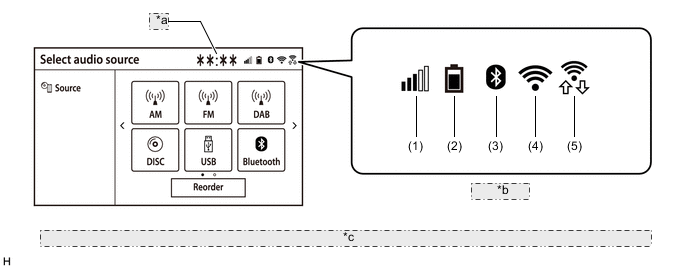
*a Clock *b Status Bar *c The illustrations shown are examples only. The illustrations may differ from the actual vehicle screens. Item Outline Clock
-
Displays the time adjusted manually or by the GPS signal-linked function.
-
Enables the adjusts of time zones and daylight saving time.*1
-
The notation can be switched between 12-hour and 24-hour.
Status Bar (1) Cellular phone signal strength*2 Displays the signal strength of the cellular phone connected by Bluetooth. (2) Cellular phone battery level*2 Displays the battery level of the cellular phone connected by Bluetooth. (3) Bluetooth connection status Displays the Bluetooth connection status between the audio head unit and cellular phone. (4) Wi-Fi connection status*1*3 Displays the Wi-Fi connection status between the audio head unit and a tethering-compatible cellular phone or mobile Wi-Fi router. (5) Wi-Fi P2P mode status Displays the Wi-Fi connection status between the audio head unit and smartphone when using Wi-Fi P2P mode (Miracast or MirrorLink*3). *1: Except destination package for South Korea
*2: May not be displayed depending on the Bluetooth specifications and profiles of the cellular phone.
*3: Except models for Australia
-
-
-
Wi-Fi Communication (Except Models for Australia and Destination Package for South Korea)
-
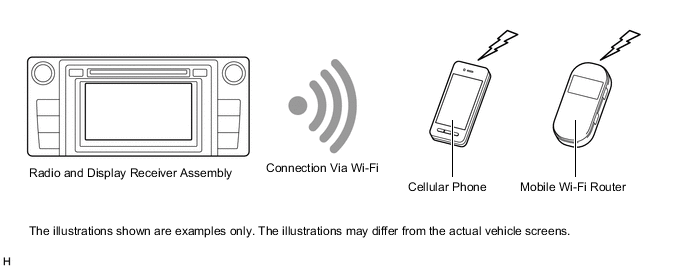
A wireless LAN antenna is integrated into the radio and display receiver assembly, enabling Wi-Fi communication to wireless clients (User's tethering-compatible cellular phone or mobile Wi-Fi router).
Tech Tips
-
Wi-Fi communication may be unavailable depending the vehicle conditions, condition of the surroundings such as radio wave conditions around the radio and display receiver assembly, the distance to the device or device conditions. In addition, during Wi-Fi communication, communication may be cut or become unstable due to the conditions described above.
-
The connection history of the audio head unit and wireless clients are stored in the internal memory of the audio head unit. The stored data can be exported to a USB memory device as a connection history file, which can be checked using the GTS.
Figure 1. Wi-Fi Communication Image
-
-
-
Voice Recognition System (Models for Australia and Destination Package for South Korea)
-
When the voice switch of the steering pad is pushed, the voice recognition system starts and the voice recognition menu screen is displayed on the multi-display.
-
Systems and commands which can be operated by voice recognition are displayed to assist users who are unfamiliar with the voice recognition system. Also, an indicator which displays a voice recognition status such as when to speak or the result of the voice recognition is provided.
-
By selecting a system from the menu screen and speaking according to the sample command, the user can operate the system with minimal words.
-
Sample commands can be displayed by selecting "More hints" on the bottom of the menu screen. (Models for Australia)
-
With the Grapheme to Phoneme (G2P) function which converts text to phoneme, an audio file recorded in a USB memory device, Apple product, etc. can be searched for using the voice recognition function by speaking the artist name, album name, title, playlist name, genre, etc. (Models for Australia)
Tech Tips
The system operates as commanded by the user even when a command not shown on the current screen is spoken.
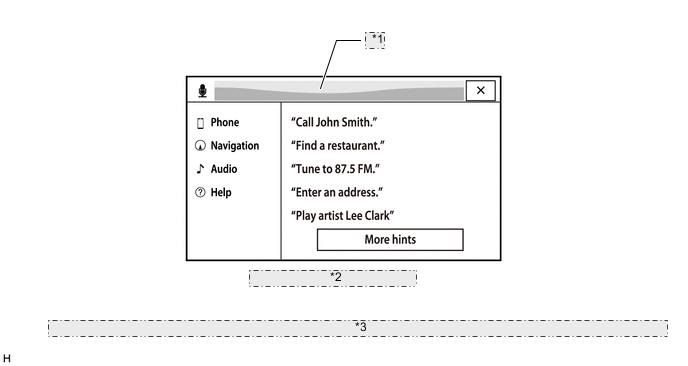
*1 Voice Recognition Status Indicator *2 Voice Recognition Menu Screen *3 The illustrations shown are examples only. The illustrations may differ from the actual vehicle screens.
-
-
Mobile Assistant
-
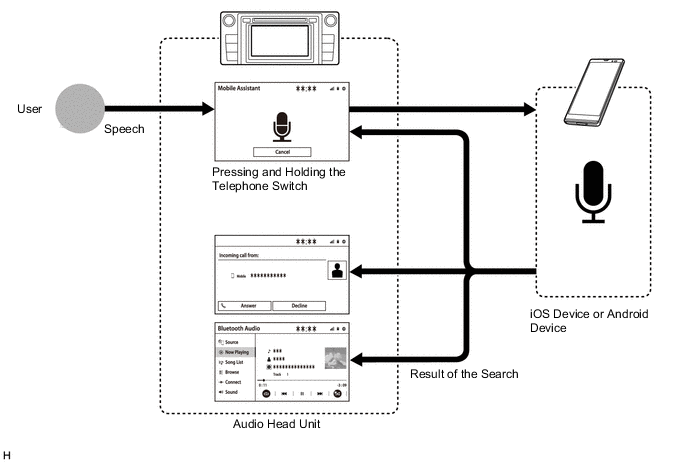
The Mobile Assistant function which assists voice input is available when an iOS smartphone or Android smartphone is connected via Bluetooth communication.
-
By pressing and holding the telephone switch of the steering pad, the Mobile Assistant screen is displayed on the multi-display and the user can ask questions without taking their eyes off the road. To minimize distraction, the iOS smartphone or Android smartphone screen will not light up.
-
Mobile Assistant feature, users can ask Mobile Assistant to call contacts, select and play music, hear and compose text messages, use Maps and get directions, read notifications, find calendar information, add reminders, and more.
-
The system responds with search results screen display and synthesized voice.
-
When the Mobile Assistant function is used to call a contact or listen to music stored on the user's smartphone, the system will automatically transition to the phone call or audio screen.
Tech Tips
-
The available features and functions may vary based on the iOS/Android version installed on the connected smartphone.
-
While a phone call is active, Mobile Assistant function cannot be used.
Figure 2. Mobile Assistant Image
-
-
-
App Suite Service (Models with App Suite Service)
-
For details (operation, setup, etc.), refer to www.toyota-connect.com/TSL/.
-
-
Automatic Sound Levelizer (ASL)
-
The Automatic Sound Levelizer (ASL) function automatically adjusts the audio system volume level in order to compensate for increased vehicle noise (vehicle noise tends to increase as vehicle speed increases).
-
Vehicle speed signals are received from the combination meter assembly and used for ASL control.
-
-
Multi-information Display
-
Audio source modes, radio stations, audio tracks, etc. can be displayed on the multi-information display in the combination meter assembly.
-
Switching the audio source mode, selecting radio stations or audio tracks, etc. can be performed by operating the multi-information display on the combination meter assembly.
-
When a Bluetooth-compatible cellular phone is connected to the system, history or favorite is listed on the multi-information display and the user can make a call to a contact on the list.
-
When a cellular phone connected to the system via Bluetooth communication receives a phone call, the call information is displayed on the multi-information display in the combination meter assembly. Operating the multi-information display while the call information is displayed enables the user to answer the phone call.
-
When the voice switch of the steering pad is pushed, the voice recognition screen is displayed on the multi-information display as an interrupt display and the voice recognition mode status is displayed with a microphone icon and message. (Models with voice recognition system)
-
-
Class D Amplifier (Destination Package for South Korea)
-
The amplifier controls the power supplied to the amplifier circuit in the most efficient way according to the received audio signals.
-
The power consumption and heat generation of the Class D amplifier is small, minimizing the size of the heatsink and related parts. This realizes a compact and lightweight amplifier.
-
-
Clari-Fi Music Restoration Technology (Destination Package for South Korea)
-
The amplifier utilizes Clari-Fi technology.
-
Files such as an MP3 or AAC have lost the audio details of the original music source during the file compression process. The Clari-Fi technology is used to restore the lost audio details and optimize data.
-
During playback of a compressed music file, the Clari-Fi technology improves the frequency characteristics, dynamic range, low frequency sounds, etc. of the music file in real time, recreating the wide soundstage of the original music source.
-
-
Steering Pad Switch
-
Switches that the driver often uses are provided on the steering wheel for convenience.
-
-
Rear Seat Audio Control Panel (Cooler Control Switch Assembly) (Models with Cooler Control Switch Assembly)
-
A controller is provided on the rear seat center armrest assembly, enabling the rear seat occupants to adjust the volume and change the audio sources.
-
-
-
PRECAUTION
-
The type of ignition switch used on this model differs depending on the specifications of the vehicle. The expressions listed in the table below are used in this section.
Expression Ignition Switch
(Position)
Engine Switch
(Position)
Ignition Switch off LOCK Off (LOCK) Ignition Switch ACC ACC On (ACC) Ignition Switch ON ON On (IG) Engine Start START On (Start)
-
-
SPECIFICATION
-
Audio System
LHD Models Audio Head Unit Design Specification Destination Radio and Display Receiver Assembly 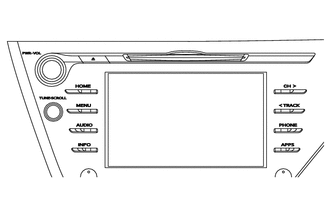
-
8-inch Wide Liquid Crystal Display (WVGA Type)
-
Display language supported: English, Spanish and Portuguese
-
AM/FM Tuner
-
Mobile Assistant
-
Automatic Sound Levelizer (ASL)
-
CD/DVD Player: Compatible with MP3, Windows Media Audio (WMA) and Advanced Audio Coding (AAC) files
-
CD-TEXT Display Function
-
Bluetooth Audio System
-
Bluetooth Hands-free System
-
Portable Audio Player (USB type) Interface
-
iPod/iPhone Interface
-
USB Memory Device Interface
-
MirrorLink Function
-
Miracast Function
-
USB Video
-
Stereo Jack Adapter
-
Wi-Fi Connection
-
Customizable vehicle settings can be changed
-
6-speaker System
-
Unit: Pioneer
Multimedia System:
Central and South America Radio and Display Receiver Assembly 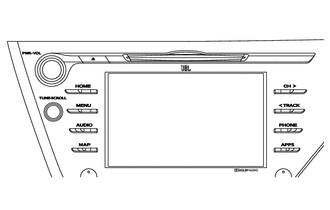
-
8-inch Wide Liquid Crystal Display (WVGA Type)
-
Display language supported: Hangul
-
AM/FM Tuner
-
Mobile Assistant
-
Digital Sound Processor (DSP)
-
Automatic Sound Levelizer (ASL)
-
Clari-Fi Music Restoration Technology
-
CD/DVD Player: Compatible with MP3, Windows Media Audio (WMA) and Advanced Audio Coding (AAC) files
-
CD-TEXT Display Function
-
Bluetooth Audio System
-
Bluetooth Hands-free System
-
Portable Audio Player (USB type) Interface
-
iPod/iPhone Interface
-
USB Memory Device Interface
-
MirrorLink Function
-
Miracast Function
-
USB Video
-
Voice Recognition System
-
Stereo Jack Adapter
-
Customizable vehicle settings can be changed
-
9-speaker System
-
Unit: Pioneer
-
Stereo Amplifier: JBL
9-speaker Surround Sound System:
South Korea Radio and Display Receiver Assembly 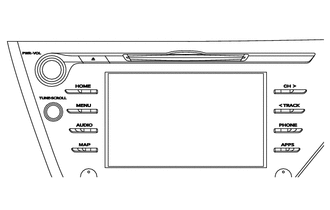
-
8-inch Wide Liquid Crystal Display (WVGA Type)
-
Display Language Supported: English, Spanish and Portuguese
-
AM/FM Tuner
-
Digital Terrestrial Television Broadcast (Digital TV) Tuner
-
Mobile Assistant
-
Automatic Sound Levelizer (ASL)
-
CD/DVD Player: Compatible with MP3, Windows Media Audio (WMA) and Advanced Audio Coding (AAC) files
-
CD-TEXT Display Function
-
Bluetooth Audio System
-
Bluetooth Hands-free System
-
Portable Audio Player (USB type) Interface
-
iPod/iPhone Interface
-
USB Memory Device Interface
-
MirrorLink Function
-
Miracast Function
-
USB Video
-
Stereo Jack Adapter
-
Wi-Fi Connection
-
Customizable vehicle settings can be changed
-
6-speaker System
-
Unit: Pioneer
-
Navigation ECU: Pioneer
Navigation System:
Brazil Radio and Display Receiver Assembly
-
8-inch Wide Liquid Crystal Display (WVGA Type)
-
Display Language Supported: English, Spanish and Portuguese
-
AM/FM Tuner
-
Digital Terrestrial Television Broadcast (Digital TV) Tuner
-
Mobile Assistant
-
Automatic Sound Levelizer (ASL)
-
CD/DVD Player: Compatible with MP3, Windows Media Audio (WMA) and Advanced Audio Coding (AAC) files
-
CD-TEXT Display Function
-
Bluetooth Audio System
-
Bluetooth Hands-free System
-
Portable Audio Player (USB type) Interface
-
iPod/iPhone Interface
-
USB Memory Device Interface
-
MirrorLink Function
-
Miracast Function
-
USB Video
-
Stereo Jack Adapter
-
Wi-Fi Connection
-
Customizable vehicle settings can be changed
-
6-speaker System
-
Unit: Pioneer
-
Navigation ECU: Pioneer
Navigation System:
Argentina RHD Models Audio Head Unit Design Specification Destination Radio and Display Receiver Assembly 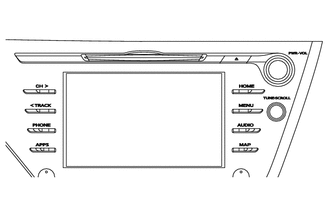
-
8-inch Wide Liquid Crystal Display (WVGA Type)
-
Display Language Supported: English
-
AM/FM Tuner
-
Digital Audio Broadcast (DAB) Tuner
-
Radio Data System Traffic Message Channel (RDS-TMC) Tuner
-
TOYOTA Link Service Function
-
Mobile Assistant
-
Automatic Sound Levelizer (ASL)
-
CD Player: Compatible with MP3, Windows Media Audio (WMA) and Advanced Audio Coding (AAC) files
-
CD-TEXT Display Function
-
Bluetooth Audio System
-
Bluetooth Hands-free System
-
Portable Audio Player (USB type) Interface
-
iPod/iPhone Interface
-
USB Memory Device Interface
-
Miracast Function
-
USB Video
-
Voice Recognition System
-
Voice Recognition Search (USB Audio System)
-
Stereo Jack Adapter
-
Customizable vehicle settings can be changed
-
6-speaker System
-
Unit: Pioneer
-
Navigation ECU: Pioneer
Navigation System:
Australia -
-
6-speaker System
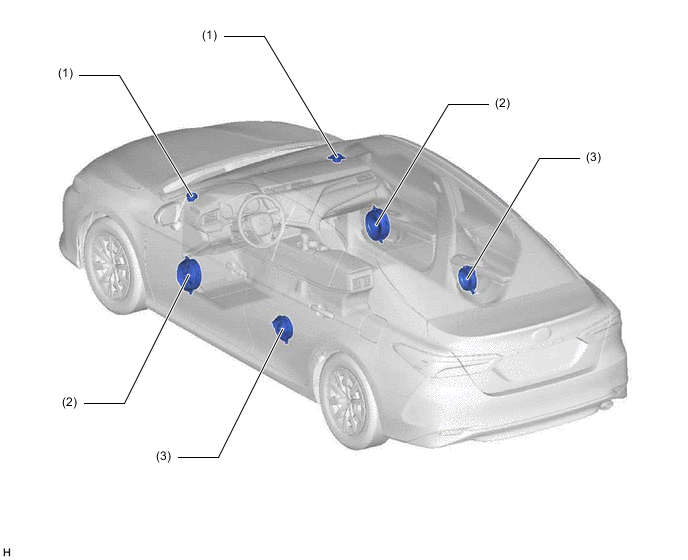
Location Speaker Name Quantity Size Impedance Rated Input Power (1) Front No. 2 Speaker Assembly 2 6.5 cm (2.6 in.) 4 Ω 20 W (2) Front No. 1 Speaker Assembly 2 18 cm (7.1 in.) 4 Ω 20 W (3) Rear Speaker Assembly 2 16 cm (6.3 in.) 4 Ω 20 W -
9-speaker System
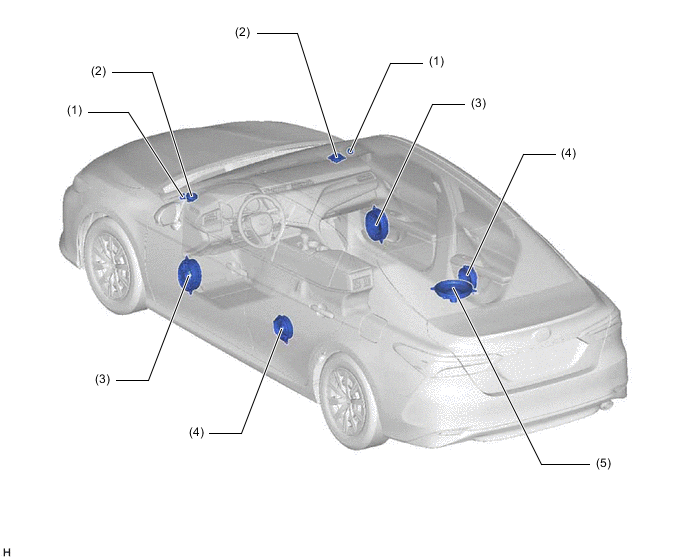
Location Speaker Name Quantity Size Impedance Rated Input Power (1) Front No. 3 Speaker Assembly 2 2.5 cm (1.0 in.) 4 Ω 1 W (2) Front No. 2 Speaker Assembly 2 8 cm (3.1 in.) 2.8 to 3.8 Ω 4 W (3) Front No. 1 Speaker Assembly 2 20.3 x 22.9 cm (8 x 9 in.) Rated 6 Ω
(4.5 to 6.7 Ω)
4 W (4) Rear Speaker Assembly 2 15 cm (6 in.) Rated 8 Ω
(6.2 to 9.4 Ω)
8.4 W (5) Rear Stereo Component Speaker Assembly 1 25 cm (9.8 in.) Rated 6 Ω
(4.2 to 6.4 Ω)
2 W -
Steering Pad Switch Assembly
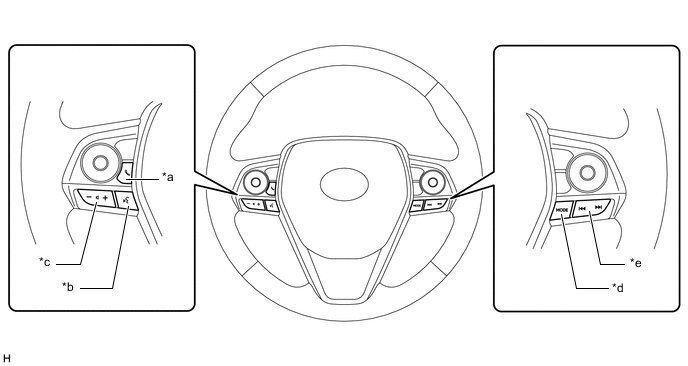
*a Telephone Switch *b Voice Switch *c Volume +/- Switch *d MODE Switch *e Seek +/- Switch - - -
Rear Seat Audio Control Panel (Cooler Control Switch Assembly)
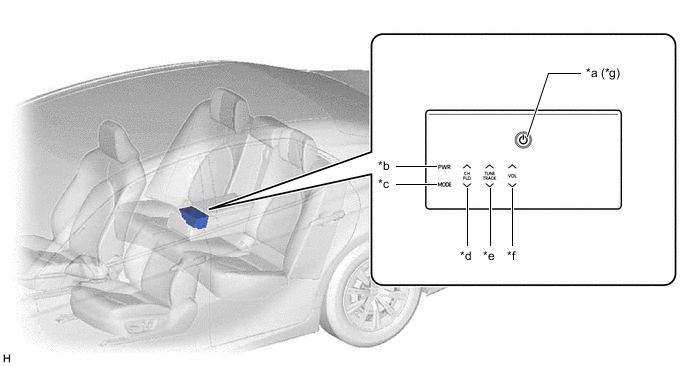
*a Home Switch *b Power Switch *c Mode Switch *d Channel Up/Down Switch *e Tune Up/Down Switch *f Volume Up/Down Switch *g By turning the home switch on, each switch of the cooler control switch assembly can be operated. - -
-
-
MAIN FEATURES
-
MirrorLink*1 Function
-
To utilize the MirrorLink function, it is necessary to connect a compatible smartphone*2*3*4 to the radio and display receiver assembly using a USB cable or Wi-Fi (P2P mode)*5*6*7.
-
After a connection is established, the screen of the smartphone is displayed on the multi-display. Using this screen, the user can operate applications installed on the smartphone and listen to the audio of the smartphone via the vehicles speakers.
Tech Tips
*1: MirrorLink is a registered trademark of Car Connectivity Consortium LLC.
*2: The MirrorLink function is not available if the connected device is not compatible with MirrorLink.
*3: Smartphones which passed the CCC (Car Connectivity Consortium) MirrorLink 1.1 or later (including MirrorLink 1.2) Certification Program. For details, refer to http://carconnectivity.org/ and http://www.mirrorlink.com/.
*4: Confirm with the mobile smartphone manufacture for the MirrorLink compatibility. It is different for each model of smartphone about the confirmation method and the release schedule.
*5: Wi-Fi (P2P mode) performs wireless communication using the same 2.4 GHz radio frequency band as Bluetooth. Depending on the usage environment, radio wave interference may occur, resulting in image distortion and audio stuttering.
*6: When Wi-Fi communication is set to on, the Wi-Fi communication and Wi-Fi (P2P mode) interfere with each other resulting in image distortion and audio stuttering. (Except models for Australia)
*7: When using the MirrorLink function via Wi-Fi (P2P mode), the Miracast function cannot be used.
Figure 3. MirrorLink Image
-
-
Miracast Function
-
Before using the Miracast function, it is necessary to connect a Miracast compatible smartphone*1 to the radio and display receiver assembly via the Wi-Fi (P2P mode)*2*3*4 connection.
-
After a connection is established, the screen of the smartphone is displayed on the multi-display. Using the smartphone, the user can operate the multi-display. If the display of the smartphone is vertical, it will also be displayed on the multi-display vertically.
-
When using the Miracast function, video played on the smartphone is displayed on the multi-display and audio is played from the vehicle speakers. When the vehicle is being driven, video will not be displayed but the audio will continue playing from the vehicle speakers.
Tech Tips
*1: This function is not available if the smartphone is not certified by Wi-Fi Alliance as Miracast device. Confirm with the mobile smartphone manufacture for the Miracast compatibility.
*2: Wi-Fi (P2P mode) performs wireless communication using the same 2.4 GHz radio frequency band as Bluetooth. Depending on the usage environment, radio wave interference may occur, resulting in image distortion and audio stuttering.
*3: When Wi-Fi communication is set to on, the Wi-Fi communication and Wi-Fi (P2P mode) interfere with each other resulting in image distortion and audio stuttering. (Except models for Australia)
*4: When using the MirrorLink function via the Wi-Fi (P2P mode) connection, the Miracast function cannot be used. (Models with MirrorLink function)
Figure 4. Miracast Image
-
-
Toyota Link Service
-
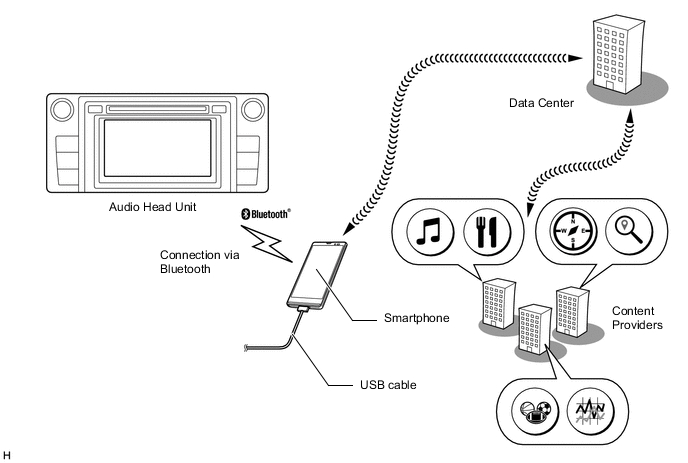
Toyota Link service is available by connecting a smartphone*1 with Toyota Link apps installed to the audio head unit via Bluetooth or Bluetooth and USB cable*2.*3*4 It is possible to communicate between the audio head unit, application server and content provider via the Toyota Link apps installed to the smartphone.
-
Using Toyota Link App Suite Connect, applicable apps can be operated via the multidisplay.*4 Also, updates of apps can be performed immediately via the multi-display.
Figure 5. Toyota Link Service Image
-
Apps can be accessed by on-screen commands on the multi-display and voice recognition.
-
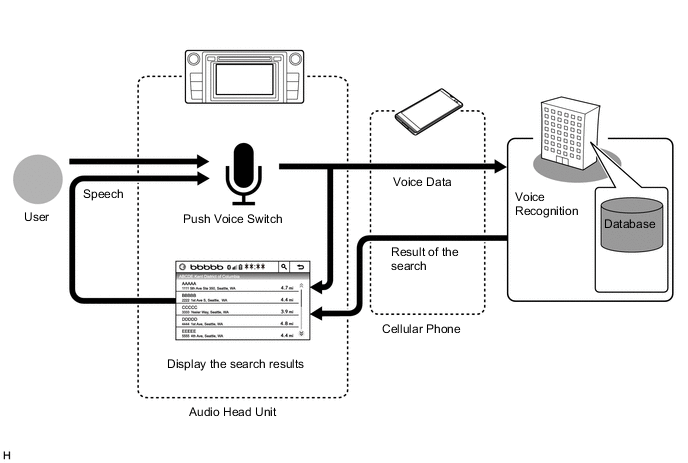
Some applications support the off-board voice recognition system, enabling spoken words that are not included in the voice recognition database of the multimedia system to be recognized. The center voice recognition system has a database within itself, thus more voice data can be recognized than usual.
-
Based on the result of the words spoken while the user is using apps, this system displays the information the user requested on the screen. Depending on the spoken words, the system may connect to the center voice recognition system. The center voice recognition system will send back information based on the voice recognition result of the spoken words, This information will be displayed on the apps screen. This allows the user to operate apps as if they are having a conversation.
Tech Tips
*1: For known compatible phones, refer to https://www.toyota.com.au/owners/toyotalink.
*2: By connecting a USB cable, the function which displays images and video used by applications is available.
*3: When using Toyota Link service for the first time, it is necessary to install Toyota Link apps to the smartphone and to complete user registration via the application. The initial infotainment apps package will be automatically installed to the audio head unit via the smartphone.
*4: For details about Toyota Link service, go to https://www.toyota.com.au/owners/toyotalink or call 1-800-869-682.
Figure 6. Apps Voice Recognition Image
-
-
Fuel Consumption Screen
-
The fuel consumption screen displays information or history of the fuel consumption per minute or per trip, drivable distance, etc. This screen has the display functions listed below.
Tech Tips
Information displayed on the screen may slightly differ from the actual.
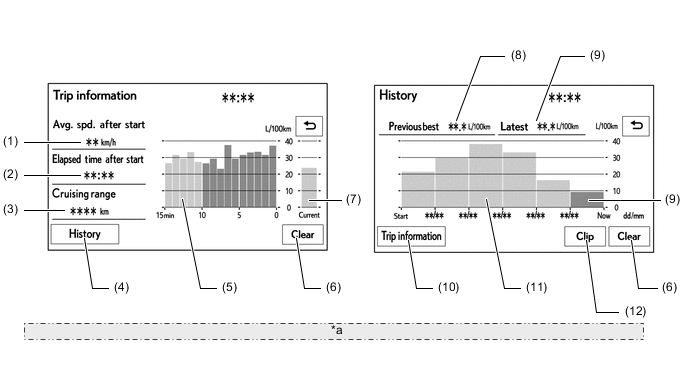
*a The illustrations shown are examples only. The illustrations may differ from the actual vehicle screens. Item Outline (1) Avg. Spd. After Start Displays an average speed value that has been calculated by the combination meter assembly, which is based on the distance driven and time elapsed since the ignition switch was turned to ON. (2) Elapsed Time After Start Displays an elapsed time value that has been calculated by the combination meter assembly, which is based on the time elapsed since the ignition switch was turned to ON. (3) Cruising Range Displays the approximate drivable distance. (4) History Switch Changes the screen to the history (fuel consumption per trip) screen. (5) Average Fuel Consumption Per Minute
-
Displays the value that has been calculated by the combination meter assembly, which is based on the driven distance and the volume of fuel consumed (fuel injection signal) since the ignition switch was turned to ON.
-
Displays the average fuel consumption for the last minute, or since clear was last selected.
(6) Clear Switch Clears all past information. (7) Current Fuel Consumption Displays the instantaneous (current) fuel consumption value that has been calculated based on the driven distance and the volume of fuel consumed (fuel injection signal) since the ignition switch was turned to ON. (8) Previous Best Displays the best (most economical) per trip fuel consumption. (9) Latest Displays the average fuel consumption for this trip. (10) Trip Information Switch Changes the screen to the trip information (average fuel consumption per minute) screen. (11) Average Fuel Consumption Per Trip
-
Displays the current record and the last 5 average per trip fuel consumption records or the current record and those since clear was last selected.
-
Starts calculating the average fuel consumption when the average fuel consumption displayed on the combination meter assembly is reset.
(12) Clip Switch
-
Restarts calculation of the average fuel consumption value.
-
Sends the average fuel consumption reset signal to the combination meter assembly to update the graph.
-
-
-