NAVIGATION SYSTEM / MULTI INFORMATION SYSTEM
-
FUNCTION OF MAIN COMPONENTS
Component Function Multi-display
-
Controls image signals received from the radio receiver assembly and sends them to the built-in display panel.
-
Can be used to adjust the color balance of the display panel.
-
Displays the map screen, audio screen, etc. according to image signals received from the radio receiver assembly.
Remote Touch (Remote Operation Controller Assembly)
-
Sends operation signals to the radio receiver assembly.
-
Vibrates the touch pad to provide feedback according to signals received from the radio receiver assembly.
Air Conditioning Control Assembly Adjusts the volume of a call when the VOL switch is operated while making a hands-free call with the Bluetooth hands-free system or using the mobile assistant. Radio Receiver Assembly
-
Has a built-in audio head unit, etc.
-
Receives various navigation data and voice recognition data from the navigation ECU and sends it to related parts, such as the multi-display assembly.
-
Outputs operation signals that are input by remote touch operations to the navigation ECU.
-
Sends microphone voice signals sent from the DCM to the navigation ECU.*1
Navigation ECU
-
Has a built-in gyro sensor, GPS receiver, eMMC, etc.
-
Receives and processes data from components positioned all over the vehicle, controls the navigation system and outputs various information and the operation status to the radio receiver assembly.
Major Components of Navigation ECU ECU
-
Calculates and corrects the vehicle position based on position information measured by Global Positioning System (GPS) satellites, and if necessary, by using other information such as the vehicle speed, built-in sensor information and shift information.
-
Outputs map information data and the calculated/corrected vehicle location to the radio receiver assembly.
-
Outputs navigation guidance audio signals to the radio receiver assembly.
-
Sends navigation information (direction and route guidance information) to the radio receiver assembly.
Gyro Sensor Detects the vehicle's vertical axis rotation speed (yaw rate and rotation movement) and sends it to the navigation ECU. GPS Receiver Demodulates GPS information received by the navigation antenna assembly, calculates the vehicle position and sends the position signal to the navigation ECU. eMMC*2 Contains map data and the navigation system control program, etc. Navigation Antenna Assembly
-
GPS Antenna
Receives GPS signals from satellites in orbit around the Earth, at an altitude of approximately 20200 km (12600 miles), and sends them to the navigation ECU. Roof Antenna Assembly
-
Telephone Antenna*3, *4
Sends and receives the data and voice signals used for the telematics system through a communication network. Back Window Glass Print Antenna
-
AM/FM-main
-
FM-sub
-
DAB-main*5
-
DAB-sub*5
-
Receives radio broadcasting signals (AM/FM).
-
Receives radio broadcasting signals (DAB).*5
-
Amplifies radio broadcasting signals from the radio antenna and sends them to the radio receiver assembly.
No. 1 Amplifier Antenna Assembly Amplifies radio broadcasting signals from the radio antenna and sends them to the radio receiver assembly. No. 2 Amplifier Antenna Assembly Digital Audio Broadcasting Antenna Assembly*5 Amplifies DAB signals from the radio antenna and sends them to the radio receiver assembly. Steering Pad Switch Assembly Sends operation signals from switches such as the volume switch, mode switch, seek switch and voice switch, to the spiral cable with sensor sub-assembly. Spiral Cable with Sensor Sub-assembly Sends operation signals from the steering pad switch assembly to the radio receiver assembly. No. 1 Stereo Jack Adapter Assembly
-
Sends audio and/or video signals to the radio receiver assembly when an auxiliary device is connected.
-
Communicates with the radio receiver assembly via a USB communication line when a USB memory device, portable audio player (USB type) or Apple product is connected.
Telephone Microphone Assembly Recognizes speech during voice recognition system operation and sends the audio signal to the radio receiver assembly. Combination Meter Assembly
-
Sends vehicle speed signals to the radio receiver assembly and stereo component amplifier assembly.
-
Displays navigation information, such as directions and route guidance sent from the radio receiver assembly, on the multi-information display.
Headup Display (Meter Mirror Sub-assembly)*6 Displays navigation information, such as directions and route guidance sent from the radio receiver assembly, on the headup display. Stereo Component Amplifier Assembly Amplifies audio signals sent from the radio receiver assembly and sends them to the speakers. Skid Control ECU Assembly*7 Sends vehicle speed signals to the radio receiver assembly. Skid Control ECU*8 Parking Brake ECU Assembly Sends parking brake operation signals to the radio receiver assembly. ECM Sends information such as the shift position, engine speed and rate of fuel consumption to the radio receiver assembly. Main Body ECU (Multiplex Network Body ECU) Sends vehicle-related information to the radio receiver assembly. Air Conditioning Amplifier Assembly Sends air conditioning-related information such as the ambient temperature and information about air conditioning settings to the radio receiver assembly. DCM (Telematics Transceiver)
-
A part of audio signals are sent from the radio receiver assembly to the speakers via the DCM.
-
Sends microphone voice signals sent from the telephone microphone assembly to the radio receiver assembly.
Multi-display Controller Sub-assembly*9 Relays sent and received information via MOST communication. Central Gateway ECU (Network Gateway ECU) Relays the signal between the CAN communication. DLC3 Can read the Diagnostic Trouble Codes (DTCs) of malfunctions by connecting the Global TechStream (GTS). *1: Models for China
*2: eMMC: enbedded Multi Media Card
*3: Models with ERA-GLONASS
*4: Models with G-BOOK
*5: Models with Digital Audio Broadcast (DAB) tuner
*6: Models with headup display
*7: Models with electronically controlled brake system
*8: Models with vacuum brake booster
*9: Models with rear seat entertainment system
-
-
FUNCTION
-
Navigation Screen
-
The navigation ECU calculates the present position and direction of travel, then determines a route and calculates the driving distance based on the following information sources:
-
Map data in the eMMC
-
Global Positioning System (GPS) satellites
-
Built-in gyro sensor
-
Vehicle speed signal
-
Reverse signal
-
Parking brake signal
-
Radio Data System Traffic Message Channel (RDS-TMC) and Transport Protocol Experts Group (TPEG) signal*1
-
Radio Data System Traffic Message Channel (RDS-TMC) signal*2, *3, *4
-
Real-time Traffic Information of China (RTIC) signal*5, *6
-
Telematics data (G-BOOK) signal*6
Tech Tips
*1: For Europe and Russia
*2: For Oceania
*3: For South Africa
*4: For Taiwan
*5: For Thailand
*6: For China
Item Function Map Display Taillight-interlocked Map Color Change Changes the color of the map screen that is displayed when the taillights are turned on. North Up/Heading Up
-
If North Up is selected, regardless of the direction of vehicle travel, north is always up.
-
If Heading Up is selected, the direction of vehicle travel is always up.
3D Display Displays a 3-dimensional (3D) view of the map. 2D and 3D City Map*3
-
Displays some areas of major cities with a 3-dimensional (2D and 3D) city map when the map scale is set to 50 m or less.
-
Always displayed in Heading Up mode.
Multi-step Scale Display Changes the map scale in 13 steps.*12 Changes the map scale in 14 steps.*4, *5, *6, *7, *8, *9, *10, *11 Changes the map scale in 16 steps.*3 Direct Scale Change Directly selects and displays the map scale. Street Name Indication on Scrolled Map Displays the street name and city name even when the map screen is being scrolled. Footprint Map*5, *9 Displays a major city in a scale of 25 m. Stepless Scale Display Changes the scale of the map from the basic 13 steps to an even finer range of scales.*12 Changes the scale of the map from the basic 14 steps to an even finer range of scales.*4, *5, *6, *7, *8, *9, *10, *11 Changes the scale of the map from the basic 16 steps to an even finer range of scales.*3 Road Number Sign Board Displays the road number on the map. Point of Interest Display Displays selected types of points of interest as marks on the map. Split-view Display Displays different screens on a screen that is split into 2 views. Compass Mode Screen*3, *4, *5, *6, *7, *8, *9, *10, *11 Displays the direction of travel and detailed data of the present location. Route Trace*3, *4, *5, *6, *7, *8, *9, *10, *11
-
Stores up to the last 200 km (124 miles) of a traveled route and retraces the route on the display.
-
Available when the map scale is set to 50 km (30 miles) or less.
Route Trace Registration*4, *5, *6, *7, *8, *9, *10, *11
-
A traveled route (up to 200 km (124 miles)) can be stored with a name by setting a start point and end point.
-
The stored traveled route can be displayed on the map screen.
-
Available when the map scale is set to 50 km (30 miles) or less.
G-information Mark*12 Displays the G-information marks on the map screen. RDS-TMC and TPEG Service Information Display*3 Displays the traffic icons, arrows and indicators when RDS-TMC or TPEG service information is being received. (This function is not made available in countries/areas where the necessary information service is not provided.) RDS-TMC Display*5, *8, *9 Displays RDS-TMC icons, arrows, pop-up messages and indicators when RDS-TMC service is being received. (This function is not made available in countries/areas where the necessary information service is not provided.) RTIC Traffic Information Display*6, *11, *12 Displays RTIC icons, arrows and indicators when RTIC service is being received. Destination Search (For Europe and Russia) Search When the desired search term is input into the search box, search candidates that include the search term are pulled from the following databases and a maximum of 4 pages of search results are displayed.*1 Selecting a desired destination from the displayed list sets it as the current destination. In addition, a "Search online" item is displayed in the search results list. Selecting it searches for the input search term online.
-
Favorites list
-
Recent list
-
Phonebook
-
POI database
-
Navigation database (street names, city names and country names)
Favourites A destination from within the 4 favorites destinations (home, work and 2 favorites) displayed can be set as the immediate destination. Recent A destination from the history of destinations that have been searched for can be set as the immediate destination. A maximum of 100 history entries can be displayed. If this limit is exceeded, the entries are removed, starting with the oldest entries. Other A destination can be set using the following methods:
-
Address: A destination can be searched for using an address.
-
POI: A destination can be searched for through points of interest.
-
Phonebook: A destination can be searched for through the phonebook.
-
Geo coordinates: A destination can be searched for using geo coordinates.
Online Search Allows use of an internet search engine to set a destination using the most up-to-date information. Hybrid Point of Interest Narrows the search by names of the point of interest, category and areas. Phone Number Search A destination can be input by entering its phone number. Postal Code A destination can be input by entering its postal code. Point of Interest Near Cursor Search A destination can be set by selecting the search point and point of interest category. Voice Recognition Search A destination can be set by voice command input. Automatic Navigation for Commuting Frequently used destinations (such as the home and office) can be registered in the navigation system in advance. The next time that the user turns the engine switch on (ACC) or on (IG) at a certain time, the set destination is automatically displayed. As a result, the user can obtain traffic information for the route without having to set routes they use every day as destinations, such as when commuting. Destination Search (For China) Name Search The name of a destination can be entered with the screen keyboard and searched for. Then a destination is selected using the area or POI category. Address/Intersection Search Information can be entered in the order of: province, city name, street name, house number and intersection. Point of Interest Search Searches for a point of interest by selecting the area from the category. Memory Point Search Sets a destination from an item in the registered memory point. Nearby Facility Search Sets nearby interest points as destinations. Previous Destination Search Stores the coordinates, names and dates of up to 100 locations that have been set as destinations in the past. Go Home A location that has been registered as the user's house can also be set as a destination. Special Memory Location Search Sets a pre-registered point as a destination point while driving. Map Search A destination can be set by using the cursor on the map screen. G Search A destination can be set using information from the website (G-memory point). POI Smartphone Search The POI searched for using a smartphone can be obtained and set as a destination. Voice Recognition Search A destination can be set by voice command input. Automatic Destination List Search
-
By registering home and favorite destinations (up to 2 locations) in advance, when turning the engine switch to on (ACC) or on (IG), the destination list together with the required time based on route search results is displayed.
-
Starts route guidance when a destination is selected from the list.
Destination Search (Except for Europe, Russia and China) Search*5, *6, *11 When the desired search term is input into the search box, search candidates that include the search term are pulled from the following databases and a maximum of 50 search results are displayed.*1 Selecting a desired destination from the displayed list sets it as the current destination.
-
Favorites list
-
POI database
-
Navigation database (street names, city names and country names)
Address A destination can be set in 2 ways*5:
-
Information can be entered in the order of: suburb name, street name and house number.
-
Information can be entered in the order of: house number, street name and suburb name.
A destination can be set in 2 ways*4, *6, *7, *8, *10, *11:
-
Information can be entered in the order of: city name, street name and house number.
-
Information can be entered in the order of: house number, street name and city name.
Information can be entered in the order of: province, town name, street name and block number.*9 Recent Stores the coordinates, names and dates of up to 100 locations that have been set as destinations in the past. Favourites A destination that has been registered in the Favorites list can be selected and set as a destination. Go Home A location that has been registered as the user's house can also be set as a destination. Point of Interest A destination can be set in 3 ways*5:
-
The name of a POI can be entered and then searched for from Suburb Name or Category or on the web search using the Enform App Suite.
-
A POI category can be selected and a point of interest searched for near the present location, along the current route, near the suburb or near the destination.
-
The phone number of a point of interest can be entered to search for it.
A destination can be set in 3 ways*4, *6, *7, *8, *9, *10, *11:
-
The name of a POI can be entered and then searched for from City Name or Category.
-
A POI category can be selected and a point of interest searched for near the present location, along the current route, near the city center or near the destination.
-
The phone number of a point of interest can be entered to search for it.
Web Search*5 A point searched for using Enform App Suite app content can be set as a destination. Coordinates A destination can be input by entering its coordinates. Emergency Performs a specific search for police stations, hospitals, car dealers and fire stations. Postal Code*6, *11 A destination can be input by entering its postal code. Map Search A destination can be set by using the cursor on the map screen. POI Smartphone Search The POI searched for using a smartphone can be obtained and set as a destination. Voice Recognition Search*5, *6, *8, *10, *11 A destination can be set by voice command input. Automatic Destination List Search
-
By registering home and favorite destinations (up to 2 locations) in advance, when turning the engine switch on (ACC) or on (IG), the destination list together with the required time based on route search results is displayed.
-
Starts route guidance when a destination is selected from the list.
Route Search Multiple Destination Setting Multiple destinations can be set. The sequence of the destinations can be rearranged as well. Multiple Route Search Searches for multiple routes. G Route Search*12 Searches for a route based on expected congestion information provided via the G-BOOK service. Search Condition Designation Searches for fast, short and eco routes.*3 Searches for quick, short and alternate routes.*4, *5, *6, *7, *8, *9, *10, *11 Searches for the recommended route, a route that prioritizes the use of highways, a route that prioritizes the use of general roads, the shortest route and other route.*12 Detour Search Changes the route to detour around a section of the route. Regulated Road Consideration*3 Performs searches which consider regulated roads. Avoidance Area Searches for a route that avoids a designated area. Adjacent Road Search Searches for a route adjacent to the current road. Auto Avoid Traffic Search*5, *6, *8, *9, *11 Automatically changes the route to avoid heavy congestion when the "Avoid Traffic" setting is set to "Auto". Auto Avoid Traffic Search*12 Automatically changes the route to avoid heavy congestion when the "Avoid Traffic" setting is set to "On". Guidance (For Europe and Russia) Voice Guidance Provides voice guidance about the distance and the direction of travel to a destination point based on road conditions and vehicle speed. Signposts Display Displays the signpost on the right side of the 2-screen display when approaching a turn. Street Name Display Displays the current street name or the next street name when approaching a turn. Next Turn Guidance Provides guidance about the distance to the next turn and indicates the direction of the turn using an arrow. Distance-to-destination Display Displays the distance from the present location to the destination. Motorway (Freeway, Highway) Mode Display Displays the distance to the next junction and exit, or POIs in the area around the motorway exit. Motorway (Freeway, Highway) Exit or Junction Display Displays the motorway guidance screen on the right side of the 2-screen display when approaching an exit or junction. Importing Stored Route Guidance Provides guidance for the route set using route information imported at a Lexus center. Direction Sign Display Displays direction signs, similar to overhead highway signs, with route guidance information overlaid. Roundabout Guidance Displays detailed guidance for roundabouts. Intersection Guidance Displays detailed guidance for intersections. Lane Recommendation Display Displays the recommended lane below the map when approaching a turn. Route Information Bar Display Displays the distance, estimated travel time and estimated arrival time to the destination. Guidance (Except for Europe and Russia) Voice Guidance Provides voice guidance about the distance and the direction of travel to a destination point based on road conditions and vehicle speed. Next Turn Guidance Provides guidance about the distance to the next turn and indicates the direction of the turn using an arrow. Turn List Display*4, *5, *6, *7, *8, *9, *10, *11 Displays a turn list on the right side of the 2-screen display. Arrow (Turn-by-Turn) Display*4, *5, *6, *7, *8, *9, *10, *11 Displays the direction of the next turn and the distance to the turn on the right side of the 2-screen display. Lane List Display*5, *6, *11, *12 Display a lane list on the right side of the 2-screen display. Distance-to-destination Display Displays the distance from the present location to the destination. Motorway (Freeway, Highway) Mode Display Displays motorway information (names of road traffic facilities, distance to road traffic facilities from current location, points of interest around the motorway exit, etc.) on the right side of the 2-screen display. Motorway (Freeway, Highway) Exit or Junction Display Displays the motorway guidance screen on the right side of the 2-screen display when approaching an exit or junction. Motorway (Freeway, Highway) Direction of Travel Display Displays the direction of travel to take on the motorway. Tollgate Display*4, *6, *7, *8, *10, *11 Displays the distance from the tollgate on the 2-screen display when approaching a tollgate. Real Freeway (Highway) Junction Display Displays the junction and signage in 3D in the area around a major junction while driving. Route Information Bar Display Displays the distance, estimated travel time and estimated arrival time to the destination. Driver Support Information Icon Display*5 Displays warning icons when the vehicle approaches areas such as school zones, railway crossings or high accident zones. Traffic Bar Display*5, *6, *8, *9, *12 Displays traffic information of congestions and accidents on the route using the traffic bar. Others Voice Recognition*2 Recognizes pre-programmed system commands spoken to operate the navigation system. Shortcut Button for Operator Service*12 The G-BOOK operator service can be connected via the button on the map screen in addition to the G-BOOK menu screen. Map Coverage Information Display Displays the map area that is stored on the navigation ECU. *1: When the "More results" item at the end of the list is selected, even more results can be displayed.
*2: Models with voice recognition system
*3: For Europe and Russia
*4: For Near and Middle East
*5: For Oceania
*6: For Southeast Asia
*7: For South and Central America
*8: For South Africa
*9: For Taiwan
*10: For Hong Kong
*11: For Thailand
*12: For China
-
-
-
Information Screen
-
The functions of the information screen display are listed below. (except for China)
Tech Tips
The display order of the menu icons may vary depending on the country where the vehicle is sold.
Item Outline Fuel Consumption Information about fuel consumption per minute or per trip can be displayed. Traffic Information*2, *4, *5, *6 By receiving the RDS-TMC and TPEG services, a list of the current traffic incidents is displayed along with information on an incident's distance and position relative to the vehicle. *1, *2 By receiving the RDS-TMC service, a list of the current traffic incidents is displayed along with information on an incident's distance and position relative to the vehicle. *1, *4, *5 By receiving the RTIC service, a list of the current traffic incidents is displayed along with information on an incident's distance and position relative to the vehicle.*1, *6 Traffic Incidents*3 By receiving the RDS-TMC service, a list of the current traffic incidents is displayed along with information on an incident's distance and position relative to the vehicle.*1 *1: This function is not made available in countries/areas where the necessary information service is not provided.
*2: For Europe and Russia
*3: For Oceania
*4: For South Africa
*5: For Taiwan
*6: For Thailand
-
The functions of the information screen display are listed below (for China).
Item Outline Fuel Consumption Information about fuel consumption per minute or per trip can be displayed. G-BOOK.com G-BOOK on-line services can be operated. MY Request Contents can be registered and registered contents can be accessed. Operator Service Display of Information Acquired from the Operator Service Acquired information can be displayed and manually updated. Operator Service Use the operator service A telephone call can be made to the operator service. G-memory
-
POIs searched for via a website can be registered as a G-memory point.
-
A list of G-memory points can be displayed if registered.
Weather Forecast Contents By connecting to the G-BOOK center, the latest weather information can be displayed. News Contents By connecting to the G-BOOK center, the latest news can be displayed. Nearest POI By connecting to the G-BOOK center, information of POIs located around the current vehicle position can be obtained. Remote Maintenance Service Contents
-
Remote maintenance mail can be displayed and its settings can be changed.
-
Warning notifications received from the G-BOOK center can be displayed.
E-mail Received e-mails can be displayed. Notification Notifications from the G-BOOK center can be displayed. Up-to-date Information By connecting to the G-BOOK center, the latest information can be displayed. G-Security Contents Theft tracking (G-Security) settings can be changed. Safety Drive Information By connecting to the G-BOOK center, the speed limit and accident information of the road the vehicle is currently traveling on can be displayed. G-BOOK Contents The display of selected icons of the G-BOOK contents can be turned on/off. Display Order of G-BOOK Contents The display order of the G-BOOK contents icons can be changed. -
-
The fuel consumption screen is displayed as illustrated below. This screen has the display functions listed below.
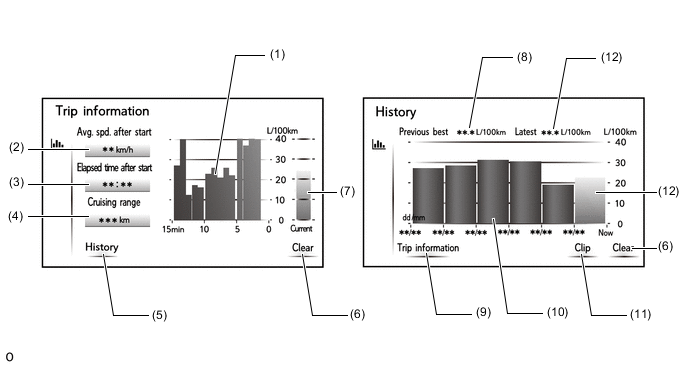
Item Outline (1) Average Fuel Consumption Per Minute
-
Displays the value that has been calculated by the radio receiver assembly, which is based on the driven distance and the volume of fuel consumed (fuel injection signal), since the engine switch was turned on (IG).
-
Displays the average fuel consumption for the last minute, or since clear was last selected.
(2) Average Speed Displays an average speed value that has been calculated by the combination meter assembly, which is based on the distance driven and time elapsed since the engine switch was turned on (IG). (3) Elapsed Time Displays an elapsed time value that has been calculated by the combination meter assembly, which is based on the time elapsed since the engine switch was turned on (IG). (4) Cruising Range Displays the approximate drivable distance. (5) History Switch Changes to the fuel consumption history screen. (6) Clear Switch Clears all past information. (7) Current Fuel Consumption Displays the instantaneous (current) fuel consumption value that has been calculated by the combination meter assembly, which is based on the driven distance and the volume of fuel consumed (fuel injection signal), since the engine switch was turned on (IG). (8) Best Fuel Consumption Displays the best (most economical) per trip fuel consumption. (9) Trip Information Switch Changes to the fuel consumption trip information screen. (10) Average Fuel Consumption Per Trip
-
Displays the current record and the last 5 average per trip fuel consumption records or the current record and those since clear was last selected.
-
Starts calculating the average fuel consumption when the average fuel consumption displayed on the combination meter assembly is reset.
(11) Clip Switch
-
Restarts calculation of the average fuel consumption value.
-
Sends the average fuel consumption reset signal to the combination meter assembly to update the graph.
(12) Average Fuel Consumption Displays the average fuel consumption for this trip. -
-
-
Setup Screen
-
The settings for the functions of the multi-display are available from the setup screen.
Tech Tips
The display order of the menu icons may vary depending on the country where the vehicle is sold.
Item Function General Settings
-
Clock: The time zone, the on/off setting of daylight saving time and automatic adjustment of the clock can be changed. The time can be adjusted manually or by the GPS signal-linked function.*1, *2, *3, *4, *5, *6
-
Clock: The automatic adjustment of the clock can be changed. The time can be adjusted manually or by the GPS signal-linked function.*7, *8, *9
-
Language: The language can be selected.*1, *2, *4, *5, *8, *9
-
Display: The contrast and brightness of the screen can be adjusted, and the screen can be turned off.
-
Voice recognition lang.: The voice recognition language can be selected.*1
-
Theme setting: The screen theme can be changed.
-
Units of measurement: The unit of measurement for fuel consumption can be changed.
-
Auto change to screen: Automatic return from the audio or air conditioning screen to the previous screen after audio or air conditioning operation can be changed.
-
Selection sound: The selection sound can be set.
-
Pointer sound: The pointer sound can be set.
-
Error sound: The error sound can be set.
-
Pointer sound volume: The pointer sound volume can be adjusted.
-
Feedback force: The strength of the feedback force which pulls the cursor toward the buttons can be adjusted.
-
Cursor speed: The pointer speed can be adjusted.
-
Multi-touch command: Multi-touch command settings can be changed.
-
Delete keyboard history: The keyboard history can be deleted.
-
Keyboard layout: The keyboard layout can be changed.*3
-
Memorize keyboard history: The keyboard history saving settings can be changed.
-
Delete search history: The keyboard history saving history can be cleared.
-
Delete personal data: Registered information (personal data) can be cleared.
-
Software update: The software version can be updated.
-
Gracenote database update: The gracenote database can be updated.*1
-
Security mode: The security mode setting can be turned on or off.*7
-
Software information: Third party software information used in the navigation system, such as notices, can be displayed.
Bluetooth Settings
-
Registered device: The list of the registered Bluetooth devices can be displayed, the registered Bluetooth devices can be connected/disconnected and the following items can be set.
-
Bluetooth device name display and editing
-
Bluetooth audio player connection method setting
-
Bluetooth device address display
-
Bluetooth device phone number display
-
Smartphone collaboration on or off setting*2, *3, *4, *5, *6, *7, *8, *9
-
Bluetooth device profile display
-
Add new device: Bluetooth devices can be added.
-
Remove device: Bluetooth devices can be deleted.
-
Detailed settings: The following items can be set and displayed.
-
The Bluetooth connection can be set to on or off.
-
The automatic connection priority level of registered Bluetooth devices can be changed.
-
The Bluetooth system name can be changed.
-
The PIN code can be changed.
-
The Bluetooth device address can be displayed.
-
The cellular phone connection status display can be set to on or off.
-
The Bluetooth audio player connection status display can be set to on or off.
-
Supported profiles can be displayed.
Audio Settings
-
Common: Common items can be set.
-
Display cover art: The cover art display can be set to on or off.
-
Priority display of Gracenote: The priority display of information from the Gracenote database can be set to on or off.*1
-
Screen format: The screen size can be changed.
-
Display: The image quality adjustment screen is displayed.
-
Rear System Lock: The rear seat entertainment system can be locked to prevent rear passengers from operating the system.*13
-
FM: FM radio items can be set.
-
Station list: The order of the station list can be switched between "Broadcaster" and "Alphabetical".*1, *6, *8
-
FM traffic announcement: The system can automatically search for a station broadcasting a traffic information program and broadcast it when the traffic information program starts.*1, *6
-
FM alternative frequency: The system can be set to automatically switch to a station offering good reception when the reception for the current station is poor.*1, *6, *8
-
Regional code change: The system can switch to a station within the same local programming network.*1, *6, *8
-
FM radio text: The FM radio text function can be set to on or off.*1, *2, *3, *4, *5, *6, *7
-
Refresh station list: The list of FM stations can be updated.*8
-
DAB: DAB items can be set.
-
L-Band: The tune range can be set to include or exclude the L-band.*1, *3, *6, *8
-
DAB traffic announcement / DAB: The system can automatically search for a station broadcasting a traffic information program and broadcast it when the traffic information program starts.*1, *3, *6, *8
-
DAB alternative frequency: The system can be set to automatically switch to a station offering good reception when the reception for the current station is poor.*1, *3, *6, *8
-
DAB radio text: The DAB radio text function can be set to on or off.*1, *3, *6
-
DVD: DVD items can be set.
-
Audio language: The audio language can be changed.
-
Subtitle language: The subtitle language can be changed.
-
Menu language: The menu language of the DVD video can be changed.
-
Angle mark: The angle mark can be set to on or off.
-
Parental control level: The parental control level settings can be changed.
-
Auto start playback: The auto start playback can be set to on or off.
-
Sound dynamic range: The dynamic range settings can be changed.
Phone Settings
-
Connect phone: Refer to "Registered device" in "Bluetooth Settings".
-
Sounds: Phone sound settings can be changed:
-
Ringtone: Sets the desired ringtone.
-
Ringtone volume: Adjusts the ringtone volume.
-
In-call volume: Adjusts the default volume of the other party's voice.
-
Incoming E-mail tone: Sets the desired incoming e-mail tone.*1, *3, *6
-
Incoming SMS/MMS tone: Sets the desired incoming SMS/MMS tone.*1, *3, *6
-
Incoming SMS/MMS volume: Adjusts the incoming SMS/MMS volume.*1, *3, *6
-
Incoming E-mail volume: Adjusts the incoming e-mail tone volume.*1, *3, *6
-
Message readout volume: Adjusts the message readout volume.*1, *3, *6
-
Notifications: Notification settings can be changed:
-
Incoming call display: Changes where the screen is displayed between the main display and side display.
-
SMS/MMS notification pop-up: Sets the SMS/MMS notification popup on/off.*1, *3, *6
-
Incoming SMS/MMS display: Changes the incoming SMS/MMS display.*1, *3, *6
-
E-mail notification pop-up: Sets the e-mail notification popup on/off.*1, *3, *6
-
Incoming E-mail display: Changes the incoming e-mail display.*1, *3, *6
-
Display contacts/call history transfer status: Sets the display of the contact/history transfer completion message on/off.
-
Contacts/Call history: Contact/Call history settings can be changed:
-
Automatic transfer: Changes automatic contact/history transfer function settings when a PBAP compatible Bluetooth phone is connected.
-
Transfer contacts from device: Updates contacts from the connected device.
-
Sort contacts: Sort contacts by the first name or last name field.*1, *2, *3, *4, *5, *6, *7
-
Add favorite: Adds contacts to the favorites list.
-
Remove favorite: Deletes contacts from the favorites list.
-
Clear call history: Clears contacts from the call history.
-
New contact: Adds new contacts to the contact list.
-
Edit contact: Edits contacts in the contact list.
-
Delete contacts: Delete contacts from the contact list.
-
Manage Voice Tag: Adds, edits and deletes voice tags.*2, *5, *7
-
Messaging: Message function settings can be changed:
-
Automatic message transfer: Sets automatic message transfer on/off.*1, *3, *6
-
Automatic message readout: Sets automatic message readout on/off.*1, *3, *6
-
Update message read status on phone: Sets updating message read status on phone on/off.*1, *3, *6
-
Use messaging account names from phone: Sets display of messaging account names on the inbox on/off.*1, *3, *6
-
Vehicle signature: Sets the vehicle signature addition to outgoing messages on/off.*1, *3, *6
-
Lexus Euro assistance 24 settings: The country where the user uses the Lexus Euro assistance 24 service can be selected.*1
Voice Settings
-
Voice volume: The voice guidance volume can be adjusted.
-
Voice Recognition Prompts: Voice recognition prompts can be set.*1, *3, *4, *6, *8, *9
-
Street name guidance: Street name guidance can be set.*1
-
Avoidable route announcement: Avoidable route announcement can be set.*1
-
Automatic navigation guidance: Voice guidance during route guidance can be set.*2, *3, *4, *5, *6, *7, *9
-
Voice guidance in all modes: Voice guidance while the audio and air conditioning systems are in use can be set.*2, *3, *4, *5, *6, *7, *8, *9
-
Guidance tone type: Beep sounds while the navigation guidance is operating can be set.*2, *3, *4, *5, *6, *7, *8, *9
-
Auto hi-speed vol. switch: Automatic volume adjustment of voice guidance while driving at high-speeds can be set.*8, *9
Vehicle Settings
-
Settings can be changed for the following maintenance items*2, *3, *4, *5, *6, *7, *8, *9:
-
Reminder
-
Engine oil
-
Oil filter
-
Rotation
-
Tyres
-
Battery
-
Brake pad
-
Wipers
-
Coolant
-
Brake fluid/Brake oil
-
Trans. fluid
-
Service
-
Air filter
-
Personal
-
Delete all
-
Reset all
-
Dealer Info.
-
Customizable vehicle settings can be changed.
-
Customizable drive mode settings can be changed.*14
-
The valet mode setting can be turned on and off.*1
Navigation Settings (For Europe and Russia)
-
Map: Map settings can be changed:
-
Map layout: The map layout can be set to 3D heading-up, 2D heading-up or 2D north up.
-
Day/Night mode: The map screen brightness can be set.
-
Arrival information: The arrival information display can be set to the estimated arrival time or remaining arrival time, or off.
-
Speed limits*10: The speed limit of the road currently being used can be displayed.
-
Automatic map zoom: Automatic map zoom settings can be changed.
-
POIs on map: Detailed navigation settings such as displayed POI icon categories can be set.
-
Show guidance arrow: The route guidance arrow can be set to on or off.
-
Show street name: The name display of the current street or next street can be set to on or off.
-
Show 3D buildings: The 3D buildings display can be set to on or off.
-
Show 3D landmarks: The 3D landmarks display can be set to on or off.
-
Show signposts: The signposts display can be set to on or off.
-
Show junction view: The junction view display can be set to on or off.
-
Show lane recommendation: The recommended lane display can be set to on or off.
-
Show traffic bar: The traffic bar display can be set to on or off.
-
Show traffic icons: The traffic message icons display can be set to on or off.
-
Show speed cameras: The safety camera icons display can be set to on or off.
-
Use online data for speed cameras: The usage of online data to display the safety camera icons can be set.
-
Save recent route: A trail of breadcrumbs can be displayed.
-
Show highway mode: The highway mode display can be set to on or off.
-
Country information: Country information for the desired country can be displayed.
-
Traffic: Traffic message settings can be changed:
-
Traffic messages: The traffic message reception method can be changed.
-
Traffic via internet settings: Traffic via internet settings can be changed.
-
Radio traffic settings: Traffic Message Channel (TMC) settings can be changed.
-
Traffic message radius: The radius of the traffic message display area can be set.
-
Dynamic reroute: The dynamic reroute method can be changed.
-
Route preference: Route preference settings can be changed:
-
Route type: The recommended route type can be switched between the fastest route, shortest route and ecological route.
-
Use traffic patterns: Historical traffic information can be used when calculating routes.
-
Show alternative: The display of 3 routes after calculating routes (FAST, SHORT and ECO) can be set to on or off.
-
Avoidance criteria: The avoidance criteria used when calculating routes can be set.
-
Manage stored destinations: Manage stored destinations function settings can be changed:
-
Delete all favorites: All favorites can be deleted.
-
Delete all recent destinations: All recent destinations can be deleted.
-
Restore favorites from USB: Navigation system favorites information can be sent to a USB device.
-
Backup favorites to USB: Favorites information that has been backed up on a USB device can be sent to the navigation system.
Navigation Settings (Except for Europe, Russia and China)
-
Home: Home information can be registered, edited and deleted.
-
Favorites: Favorites can be registered to the favorite list, edited and deleted from the favorite list.
-
Areas to avoid: Areas to avoid when searching for a route can be registered, edited and deleted.
-
Detailed navigation settings: Detailed navigation settings can be changed.
-
Auto hide buttons: The auto hide function for buttons on the map screen can be set to on or off.
-
Pop-up information: The pop-up information display can be set to on or off.
-
Favorite POI categories: Up to 6 POI icons that are displayed on the map screen can be selected.
-
Guidance on unverified roads: Guidance on unverified roads can be set to on or off.
-
Unverified roads guidance warning: The unverified road guidance warning can be set to on or off.
-
Guidance with street names: Voice guidance of the next street name can be set to on or off.
-
Intersection zoom map: The intersection zoom map display can be set to on or off.*3, *4
-
Intersection zoom map: The intersection guide map display can be set to on or off.*2, *5, *6, *7, *8
-
Automatic zoom: The automatic zoom function that operates when nearing a guidance point can be set to on or off.
-
Map color customization: The map color can be set.
-
Map animation: Map animations can be set to on or off.
-
Reset adaptive route: The adaptive route can be deleted.
-
Calibration: The position of the current position mark can be adjusted.
-
3D suburb model map: The 3D suburb model map can be set to on or off.*3
-
3D city model map: The 3D city model map can be set to on or off.*2, *4, *5, *6, *7, *8
-
ERP notification: ERP notifications can be set to on or off.*4
-
Rodizio notification: Rodizio notifications can be set to on or off.*5
-
Guidance level for petrol stations/Guidance level for gas stations: The warning display when the fuel level is low can be set to on or off.
-
My memory: My memory settings can be changed.
-
Speed limit display: The speed limit information display can be set to on or off.
-
Speed limit settings: Speed limit settings can be changed.
-
Time restriction notification: Time restriction notifications can be set to on or off.
-
Private road notification: Private road notifications can be set to on or off.
-
Automatic destination list info: Automatic destination list information can be set to on or off.
-
SALIK notification: SALIK notifications can be set to on or off.*2
-
E-toll notification: E-toll notifications can be set to on or off.*6
-
Adaptive route: The adaptive route function can be set to on or off.
-
Driver support information: Driver support information can be set to on or off.*3
-
Safety zone: A safety zone can be displayed on the map screen.*3, *4
-
High accident zone guidance: High accident zone guidance can be set to on or off.*4
-
Map flick: Drag and flick operations on the map screen can be set to on or off.
-
Seasonal restriction notification: Seasonal restriction notifications can be set to on or off.*12
-
Voice guidance language: The voice guidance language can be changed.
-
Restore default settings: All settings can be reset.
Navigation Settings (For China)
-
Home: Home information can be registered, edited and deleted.
-
Set preset destinations: Preset destination settings can be changed.
-
Set memory points: Memory point settings can be changed.
-
Delete previous destinations: Previous destinations can be deleted.
-
Areas to avoid: Areas to avoid when searching for a route can be registered, edited and deleted.
-
Detailed navigation settings: Detailed navigation settings can be changed.
-
Visual city map display: The visual city map display can be set to on or off.
-
Show 3-dimensional landmarks: The 3D landmark display can be set to on or off.
-
Customize Map: The map color and character size can be changed.
-
Auto-hide buttons: The auto hide function for buttons on the map screen can be set to on or off.
-
Map Animation: Map animation settings can be changed.
-
Map Flick: Drag and flick operations on the map screen can be set to on or off.
-
Screen-Change Animations: Screen change animation settings can be changed.
-
Scale Change Msg Display: The scale switching message display can be set to on or off.
-
Merging guidance: Merging lane guidance can be set to on or off.
-
Danger information guidance: Warning point guidance can be set to on or off.
-
Border Crossing Guidance: Cross-border guidance can be set to on or off.
-
G info mark linked service: The G-information mark synchronized service can be set to on or off.
-
Enlarged 3D Intersection Diagrams: The 3D intersection zoomed map can be set to on or off.
-
Auto map zoom: The automatic zoom function that operates when nearing a guidance point can be set to on or off.
-
Speed setting for when est. arrival time: Average vehicle speed settings can be changed.
-
Nearby facil. call-out genre while driving: Favorite POI icon category display settings can be changed.
-
Real 3D map disp.: The 3D city map display can be set to on or off.
-
3D map angle settings: The 3D map display angle can be changed.
-
Customize Destination Menu: The destination search menu layout can be changed.
-
Memory location import: Memory points can be copied from a USB memory device.
-
Export memory location data: Memory points can be backed up to a USB memory device.
-
Navigation correction: The position of the current position mark can be adjusted.
-
Initial setup: All settings can be reset.
Wi-Fi Settings
-
The Wi-Fi function can be switched on/off.
-
Network access can be turned on and off.*1, *2, *4, *5, *6, *9
-
Available networks that can be connected can be displayed.*1, *2, *4, *5, *6, *9
-
Available networks that can be connected can be searched for.*1, *2, *4, *5, *6, *9
-
A Wi-Fi Protected Setup (WPS) compatible Wi-Fi device can be connected quickly.*1, *2, *4, *5, *6, *9
-
Wi-Fi settings can be changed*1, *2, *4, *5, *6, *9:
-
The networks list can be edited.
-
An automatic connection to a preferred network can be set.
-
An automatic connection message can be set.
-
The MiracastTMconnection status is displayed. *11
Online Settings (For Europe and Russia) Items necessary for online services can be set or changed:
-
Lexus web account: A Lexus portal site account can be acquired.
-
Map update information: Information for map update can be displayed.
-
Search provider: A search provider can be selected.
-
Fuel grade: A fuel type can be set.
-
Application details: All applications downloaded to the system can be listed.
-
Reorder applications in main menu: The application order can be changed.
-
Autostart applications: Applications that are automatically started after the system starts can be set.
Enform App Suite Settings (For Oceania) Items necessary for the Enform App Suite can be set or changed:
-
Data usage message: The pop-up display for when a cellular telephone communication fee could occur can be set to on or off.
-
Auto detect iPhone app: Automatic detection of the iPhone application can be set.
-
Connect USB device in enhanced mode: The usage of enhanced mode when a USB device is connected can be set.
-
App Suite USB installation: Enform App Suite can be installed using a USB memory device.
App Suite Settings (Except for Europe, Russia, Oceania, Taiwan and Hong Kong) App Suite settings can be changed. G-BOOK Settings (For China) The G-BOOK settings can be used to:
-
Set detailed functions:
-
Communication devices used with the navigation system can be set.
-
The confirmation message display can be set to on or off.
-
The automatic communication settings can be set to on or off.
-
Set privacy setting:
-
The communication lock can be set.
-
The PIN number can be changed.
-
The PIN number can be confirmed.
-
Set detailed G-BOOK settings
Traffic Settings (For Oceania, Southeast Asia, South Africa and Taiwan)
-
My traffic route: Sets specific routes (such as frequently used routes) on which the user wishes to receive traffic information.*3, *6, *7
-
Avoid traffic: Sets the avoid traffic function auto/manual.
-
Consider traffic info for ETA: Sets the usage of traffic information for the estimated arrival time on/off.*3, *6, *7
-
Show free flowing traffic: Sets the display of an arrow of free flowing traffic on/off.
-
Use predictive traffic: Sets to on/off whether to consider the predictive traffic information with the estimated arrival time and detoured route search.*3
-
Traffic incident warning: Sets traffic incident voice warning on/off.*3, *6, *7
-
Show traffic info: Displays the traffic information display.*3, *6, *7
Traffic Settings (For China)
-
Avoid traffic: The traffic congestion consideration search can be set to on or off.
-
RTIC tuning: An FM station broadcasting traffic information can be selected.
-
Traffic info: The traffic information screen can be displayed.
-
RTIC auto audio announcement: Voice guidance of the RTIC/traffic information can be set to on or off.
-
Upload drive log information: Driving record uploading can be set to on or off.
-
Auto scrape info. for Rt. Calc.: The G-route search can be set to on or off.
*1: For Europe and Russia
*2: For Near and Middle East
*3: For Oceania
*4: For Southeast Asia
*5: For South and Central America
*6: For South Africa
*7: For Taiwan
*8: For Hong Kong
*9: For China
*10: Models without road sign assist system
*11: Models with MiracastTM
*12: Models with navigation ECU including map data for Argentina
*13: Models with rear seat entertainment system
*14: Models with Adaptive Variable Suspension system (AVS)
-
-
-
-
DIAGNOSIS
-
For details on the procedure required to enter the Service Menu screen, refer to the Repair Manual.
-