NAVIGATION SYSTEM / MULTI INFORMATION SYSTEM
-
OUTLINE
-
A 10.3-inch type multi-display is provided to display screens such as a map screen and menu screen.
-
Light Emitting Diodes (LEDs) are used to provide mercury-free backlighting for the multi-display. This reduces the burden on the environment and ensures brightness.
-
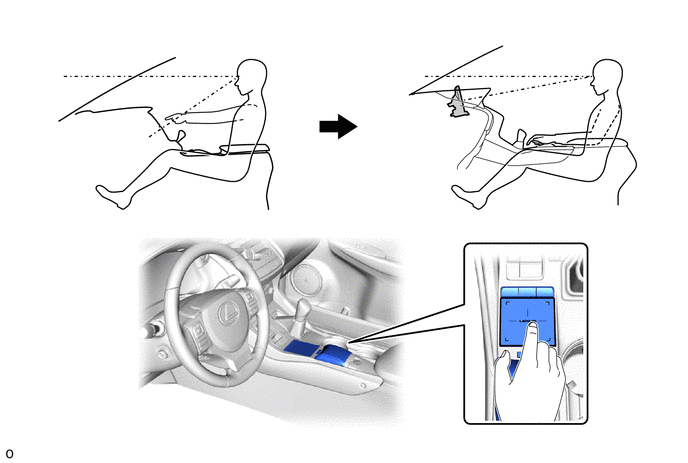
The multi-display is provided at the same height as the combination meter assembly to minimize changes in the driver's line of sight and ensure visibility while driving.
-
Due to the change in the multi-display assembly location, the remote touch is used to ensure operability.
-
A fuel consumption screen is provided in consideration of the environment.
-
The navigation system sends navigation information to the combination meter assembly or headup display*. The user can view a compass display and turn-by-turn directions to the destination, etc. on the multi-information display or headup display*.
*: Models with headup display
-
A split display function is provided. Due to this function, the map screen and the audio screen or vehicle information screen can be displayed on the single screen simultaneously.
-
For high altitude areas, the real terrain map, which enhances the map quality using gradient data in predetermined scales, is displayed.*
*: Except for Europe and Russia
-
The Enform App Suite service is supported. This service makes it possible to operate specified applications on the navigation system by using Bluetooth and USB to connect the navigation system to a cellular phone with the Enform App Suite application installed.*
*: Enform App Suite service is available in the contiguous Oceania.
-
During route guidance, the user can confirm traffic information, such as congestion and accidents, by using the traffic bar on the map screen. The traffic bar shows information in the area from the current position to the destination or stopover (maximum: 100 km (65 miles)).*
*: For Europe, Russia, Oceania, China, Thailand, South Africa and Taiwan
-
Reception of the Transport Protocol Experts Group (TPEG) service, which shows Traffic Flow and Traffic Prediction (TFP) information on the map screen, is available. This service makes it possible to show a route with consideration of TFP information and display the location, fee and status (occupied or vacant) of parking lots.*
*: For Europe and Russia (can be used with networks that can receive TPEG information)
-
Connected Services are supported. This allows the user to search for new establishments or establishments that are not registered to the map and set them as a destination. In addition, it is possible to download Point Of Interest (POI) and route information that was searched for on the Lexus portal site and set it as a destination or register it to the map.*
*: For Europe and Russia
-
The navigation system supports a function used for the export/import of memory points. This function enables memory point data stored on the radio receiver assembly to be transferred to another navigation system (such as another radio receiver assembly) via a USB memory device.
-
The G-BOOK system can be used to link the vehicle to the G-BOOK communication center.*
*: Models with G-BOOK system
-
POIs that are searched for using a smartphone application can be sent to the radio receiver assembly via Bluetooth and set as a destination.
-
Wi-Fi Communication (For Europe, Russia, Near and Middle East, China, India, South Africa and Thailand )
-
A wireless LAN antenna is integrated into the radio receiver assembly, enabling Wi-Fi communication to the user's tethering-compatible cellular phone or mobile Wi-Fi router.
Tech Tips
Wi-Fi communication may be unavailable depending on the condition of the vehicle, device and surroundings (such as the presence of radio waves around the radio receiver assembly) and the distance to the device. In addition, during Wi-Fi communication, communication may be cut or become unstable due to the conditions described above.
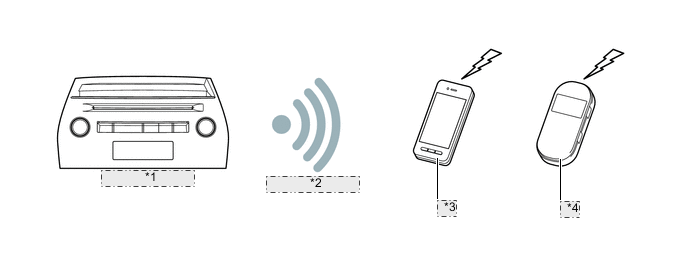
*1 Radio Receiver Assembly *2 Connection via Wi-Fi *3 Cellular Phone *4 Mobile Wi-Fi Router
-
-
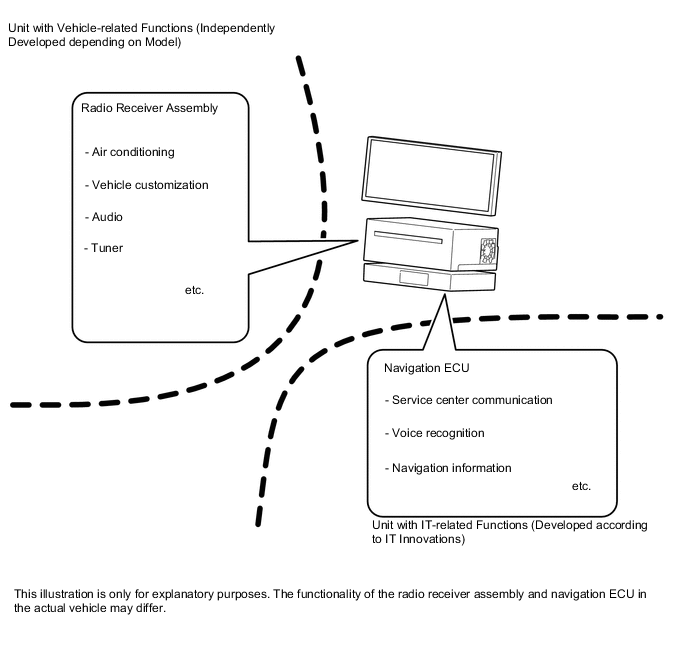
The onboard device is composed of a unit with vehicle-related functions (radio receiver assembly) and a unit with IT-related functions (navigation ECU).
-
-
PRECAUTION
-
Read the following precautions before operating the remote touch.
-
Touch operations
-
Operate using a finger (the pad of the finger).
-
Move the pointer and cursor by using one finger. The pointer and cursor cannot be moved using two or more fingers.
-
The system does not respond to pens, etc.
-
When performing a touch operation, make sure that other fingers do not touch the touch pad.
-
Do not use excessive force or pointed objects when pressing on the touch pad.
-
In the following situations, touch operations may not be possible. In such situations, temporarily remove your finger from the touch pad, and then perform the touch operation again.
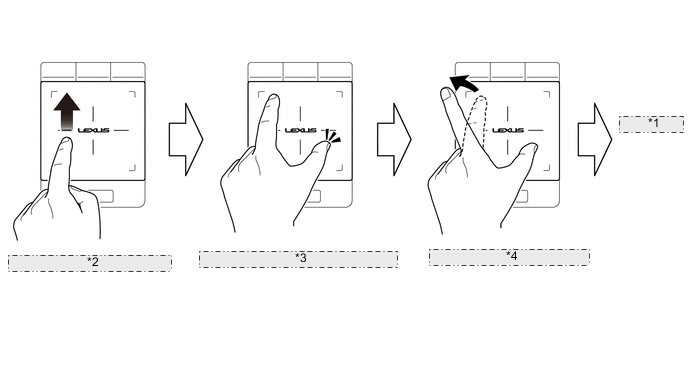
*1 Operation not possible *2 Touch and move operation using index finger *3 With index finger in same position, tap touch pad with thumb to perform pinch operation *4 After performing pinch operation, remove index finger from touch pad
-
-
Situations when normal response may not occur from touch operation
-
Gloves, etc. are worn.
-
The touch pad is operated with wet hands.
-
A coating, film, etc. is applied to the surface of the touch pad.
-
The touch pad is dirty or has liquid or other foreign matter attached to it.
-
The vehicle is in an area where strong electrical waves or noise are emitted, such as near a television tower, power plant, gasoline station, broadcasting station, large display or airport.
-
Wireless devices such as radios, cell phones, etc. are carried.
-
The temperature is -20°C (-4°F) or less.
-
The touch pad is in contact with, or covered by, the following metallic objects.
-
Coins
-
Car keys or house keys
-
A wallet or bag that is made of metal
-
A card that has metal on it, such as aluminum foil
-
A pack of cigarettes that uses aluminum foil
-
A heating pad
-
CDs, DVDs or other media, or cables such as USB cables
-
Non-response may occur if the power switch is turned on (ACC) or on (IG) while the touch pad is touched, a hand is close to the touch pad, foreign matter is on the touch pad, or the touch pad is wet. In this situation, after removing any foreign matter or water, wait approximately 30 seconds before performing any operations. Or, turn the power switch off once, and then turn it to on (ACC) or on (IG) to return the system to normal.
-
-
Other
-
When the touch pad is dirty, non-response may occur. Clean it frequently. Turn the power switch off before cleaning.
-
While the touch pad is waterproof, do not apply a large amount of water to the remote touch, as doing so may result in a malfunction.
-
If a sugary drink, such as coffee, is spilled onto the touch pad, sugar in the drink may remain in the gaps around the touch pad once the drink dries and result in non-response. Therefore, make sure to immediately wipe up any spills.
-
-
-
-
SPECIFICATION
Component Destination Europe and Russia Near and Middle East Oceania Multi-display 10.3-inch Wide LCD Navigation Computer Harman/Becker Automotive Systems Pioneer Pioneer Gyro Sensor Piezoelectric Ceramic Element Map Data Media eMMC*1 Language Supported Voice Guidance English, German, French, Spanish, Italian, Portuguese, Dutch, Swedish, Norwegian, Danish, Russian, Finnish, Greek, Polish, Flemish, Hebrew, Turkish, Hungarian, Czech, Slovak, Ukrainian and Romanian English and Arabic English Voice Recognition English, German, French, Spanish, Italian, Portuguese, Dutch, Swedish, Norwegian, Danish, Russian, Finnish, Greek, Polish, Flemish, Turkish and Czech - English Component Destination Southeast Asia South and Central America South Africa Multi-display 10.3-inch Wide LCD Navigation Computer Pioneer Pioneer Pioneer Gyro Sensor Piezoelectric Ceramic Element Map Data Media eMMC*1 Language Supported Voice Guidance English, Thai, Indonesian, Vietnamese and Malayan English, Spanish and Portuguese English Voice Recognition English and Thai*2 - English Component Destination China India Taiwan Multi-display 10.3-inch Wide LCD Navigation Computer Pioneer Pioneer Pioneer Gyro Sensor Piezoelectric Ceramic Element Map Data Media eMMC*1 Language Supported Voice Guidance English, Simplified Chinese and Traditional Chinese English, Hindi, Panjabi, Malayalam, Tamil, Telugu, Kannada, Bengali, Gujarati and Marathi Taiwanese Voice Recognition English and Chinese (Cantonese), Chinese (Mandarin Chinese) - - Component Destination Hong Kong Multi-display 10.3-inch Wide LCD Navigation Computer Pioneer Gyro Sensor Piezoelectric Ceramic Element Map Data Media eMMC*1 Language Supported Voice Guidance English, Simplified Chinese and Traditional Chinese Voice Recognition English and Chinese (Cantonese), Chinese (Mandarin Chinese) Tech Tips
*1: eMMC: enbedded Multi Media Card
*2: Thai is the only language available for the navigation system.
-
MAIN FEATURES
-
10.3-inch Display
-
With the wide viewing angle high contrast 10.3-inch display, a wide range map can be displayed.
-
In addition to the full screen mode in which a map or menu screen is displayed at full size, the 10.3-inch display also has a split-screen display mode to display the main screen and a side screen.
-
In full screen mode, the main screen is displayed at 1920 x 720. In split-screen display mode, the main screen is displayed at 1200 x 720 and the side screen is displayed at 720 x 720.
Figure 1. 10.3-inch Display Monitor Size
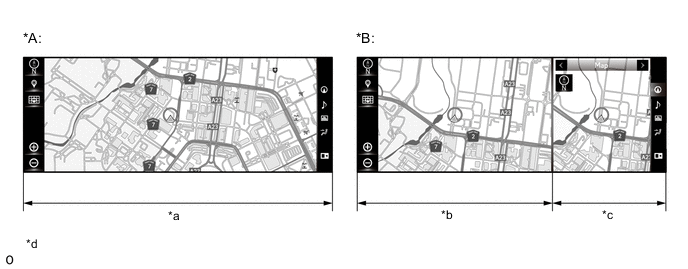
*A Full Screen Mode *B Split-screen Display Mode *a Full Screen (1920 x 720) *b Main Screen (1200 x 720) *c Side Screen (720 x 720) *d The illustration shown is an example only. The illustration may differ from the actual vehicle screen. -
The side screen menu bar is located on the right side of the screen. Using the side screen menu bar, the user can operate the side screen, such as selecting which screen is displayed.
Figure 2. Split-screen Display Mode
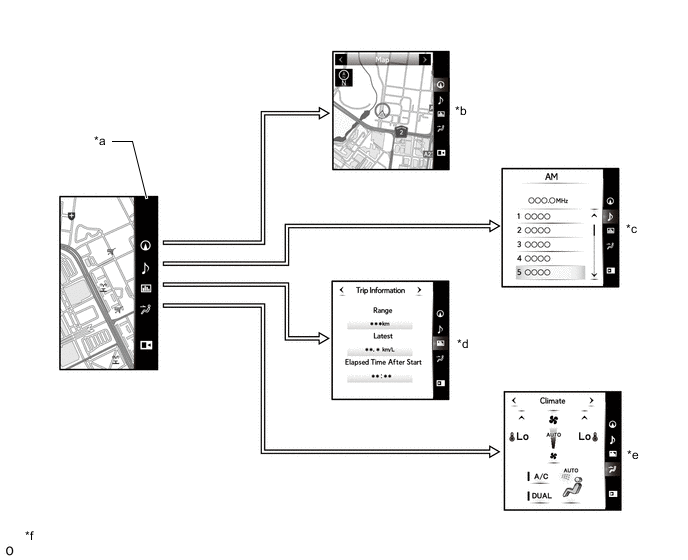
*a Side Screen Menu Bar *b Map Screen Mode *c Audio Screen Mode *d Vehicle Information Screen Mode *e Air Conditioning Control Screen Mode *f The illustration shown is an example only. The illustration may differ from the actual vehicle screen. Functions of Side Screen Menu Bar Icon Side Screen Menu Bar Icon Split-screen Display Mode Outline 
Map Screen Mode
-
By selecting this icon, the user can display the map screen on the side screen.
-
In map screen mode, the user can perform operations regarding the map, such as displaying or zooming in on a map.

Audio Screen Mode
-
By selecting this icon, the user can display the audio screen on the side screen.
-
In audio screen mode, the user can perform operations regarding the audio, such as displaying audio status information or radio station list.

Vehicle Information Screen Mode
-
By selecting this icon, the user can display the vehicle information screen on the side screen.
-
In vehicle information screen mode, the user can display vehicle information such as trip information and past records on the side screen.

Air Conditioning Control Screen Mode
-
By selecting this icon, the user can display the air conditioning control screen on the side screen.
-
In air conditioning control screen mode, the user can perform operations regarding the air conditioning system, such as turning on or off the air conditioning system, setting the desired temperature and selecting air outlets.

Side Screen Open By selecting this icon, the user can open the side screen. 
Side Screen Close By selecting this icon, the user can close the side screen. -
-
A cursor shortcut function is provided that automatically displays some functions as cursor shortcut switches when the cursor is placed on a switch on the menu. When the switch is pressed, the screen transitions directly to the operation screen.
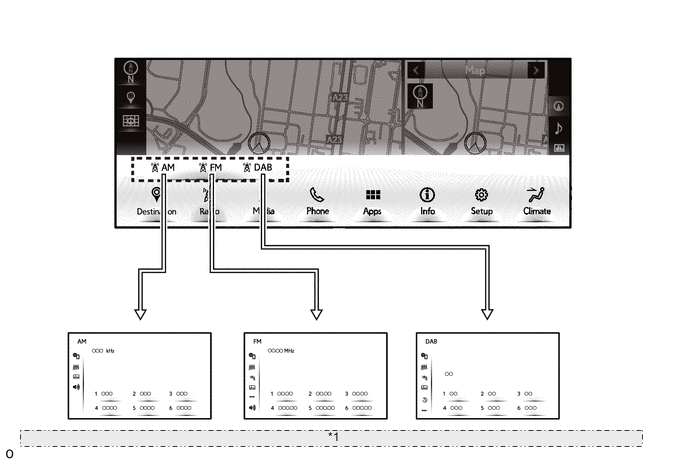
*1 The illustration shown is an example only. The illustration may differ from the actual vehicle screen. Cursor Shortcut Functions Chart Menu Switch Cursor Shortcut Destination*1
-
Search
-
Favourites
-
Recent
-
Home
Destination*2
-
Search*5, *7
-
Go Home
-
Recent
-
Favorite
Destination*10
-
Go Home
-
Set Home
-
Prest 1
-
Prest 2
-
Recent
-
Operator
-
Delete Dest.
Radio
-
AM
-
FM
-
DAB*3
-
Audio Source Application*5, *8
Media
-
Bluetooth
-
iPod/USB
-
iPod/USB2
-
Sound library*10
-
DISC
-
AUX
-
Miracast
Phone
-
Call History
-
Favourites
-
Contacts
-
Keypad
-
Message*4, *5
Apps*9
-
Infotainment*1, *5
-
APP*6, *7
Info No shortcut functions Setup Display Climate
-
Front Climate
-
Option
*1: For Europe and Russia
*2: Except for Europe and Russia
*3: Models with Digital Audio Broadcast (DAB) tuner
*4: For Europe, Russia and South Africa
*5: For Oceania
*6: For Near and Middle East
*7: For Southeast Asia
*8: Displayed only when an audio source application that is distributed by a content provider is downloaded using the Enform App Suite service.
*9: May not be available depending on the model even when this switch is displayed.
*10: For China
-
-
Other screens, such as the hands-free system call receive screen* or drive mode display can also be displayed on the side screen as a cut-in screen.
*: The user can select the dial screen and call receive screen to cut in on either the main screen or side screen.
-
A sub-menu display is used to display the icon or item name of each menu function on the left side of the multi-display. The sub-menu is displayed differently according to whether the full-screen display or split-screen display is being used.
-
When using the full-screen display, the sub-menu display always displays the item name regardless of the cursor position.
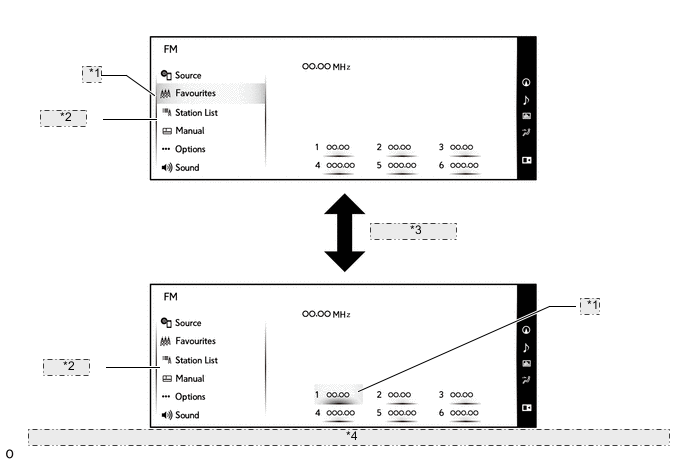
*1 Cursor *2 Sub-menu *3 Cursor Movement *4 The illustration shown is an example only. The illustration may differ from the actual vehicle screen. -
When using the split-screen display, if the cursor is outside of the sub-menu display area, only icons are displayed in the sub-menu. Once the cursor is moved into the sub-menu display area, item names are displayed. When an item is selected or the cursor is moved out of the sub-menu display area, the item names disappear and only the icons are displayed.
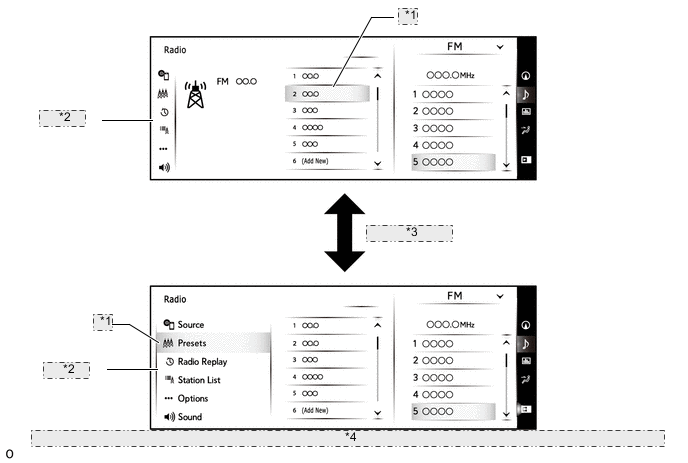
*1 Cursor *2 Sub-menu *3 Cursor Movement *4 The illustration shown is an example only. The illustration may differ from the actual vehicle screen.
-
-
-
Remote Touch Operation
-
An exclusive hierarchical structure is used for each screen displayed on the multi-display in consideration of the remote touch.
Figure 3. Main Screen
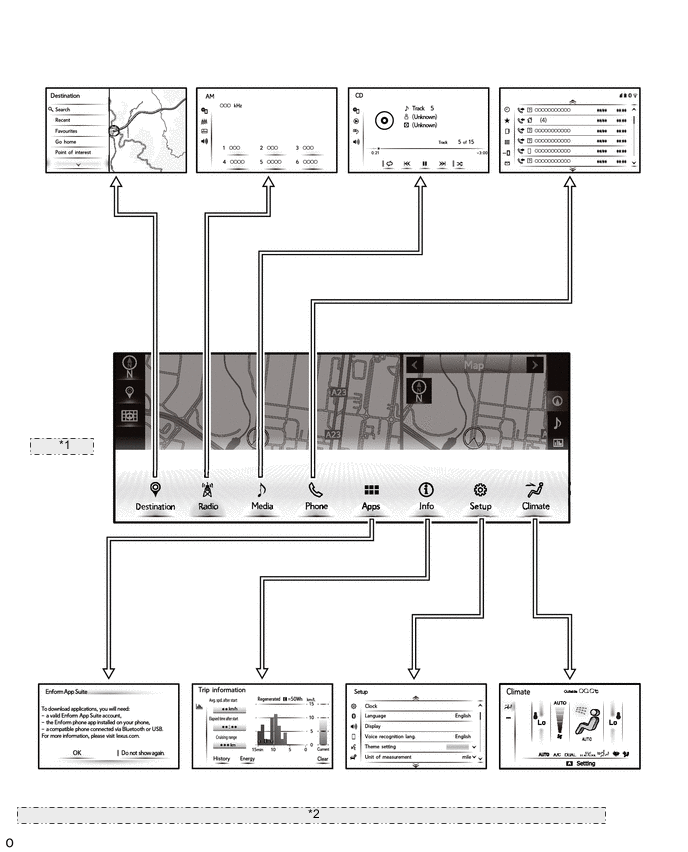
*1 Menu Screen *2 The illustration shown is an example only. The illustration may differ from the actual vehicle screen. Figure 4. Side Screen
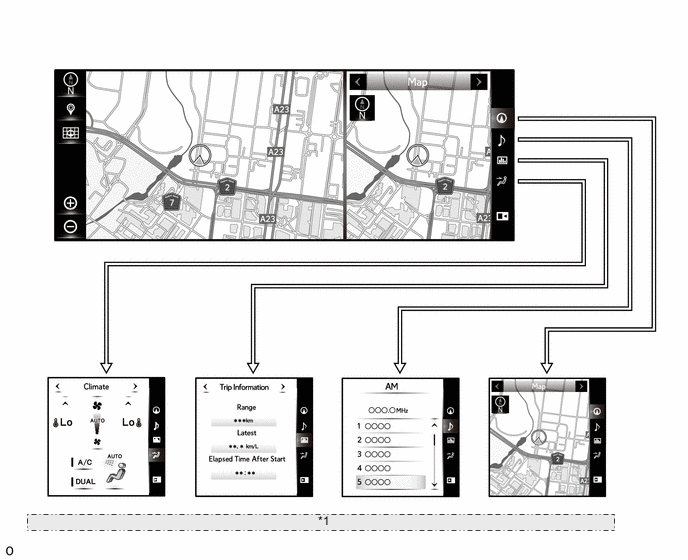
*1 The illustration shown is an example only. The illustration may differ from the actual vehicle screen. -
The following controls are performed by operating the switches positioned on the remote touch.
-
When the remote touch MENU switch is pressed, the menu screen is displayed superimposed on the currently displayed screen.
-
When the remote touch MAP switch is pressed, the map screen is displayed on the multi-display.
-
When sub-function switch operations are enabled for the remote touch, the sub-function icon is displayed on the multi-display. When the sub-function switch is pressed while the sub-function icon is displayed, the list is sorted or the option menu is displayed.
-
When the remote touch BACK switch is pressed, the screen that was displayed before the currently displayed screen is displayed.
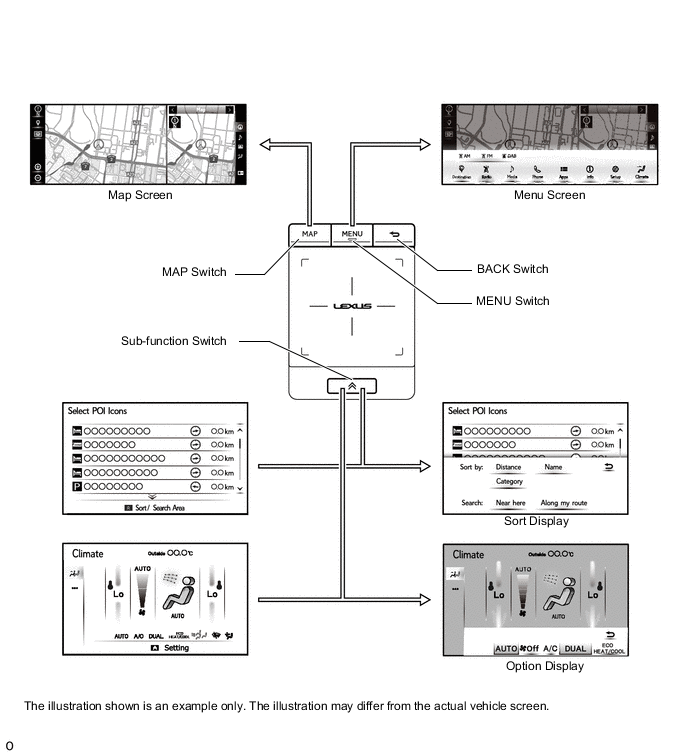
-
-
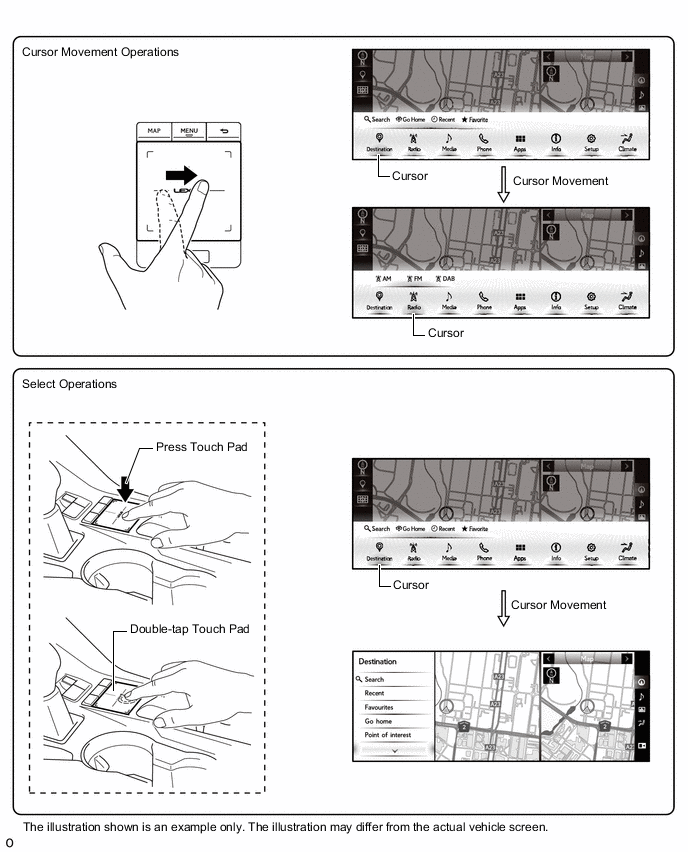
The touch pad of the remote touch supports the following operations.
-
The pointer and cursor can be moved by touching the touch pad with a finger, and then moving the finger.
-
A selection operation can be performed by pressing or double-tapping the touch pad.
-
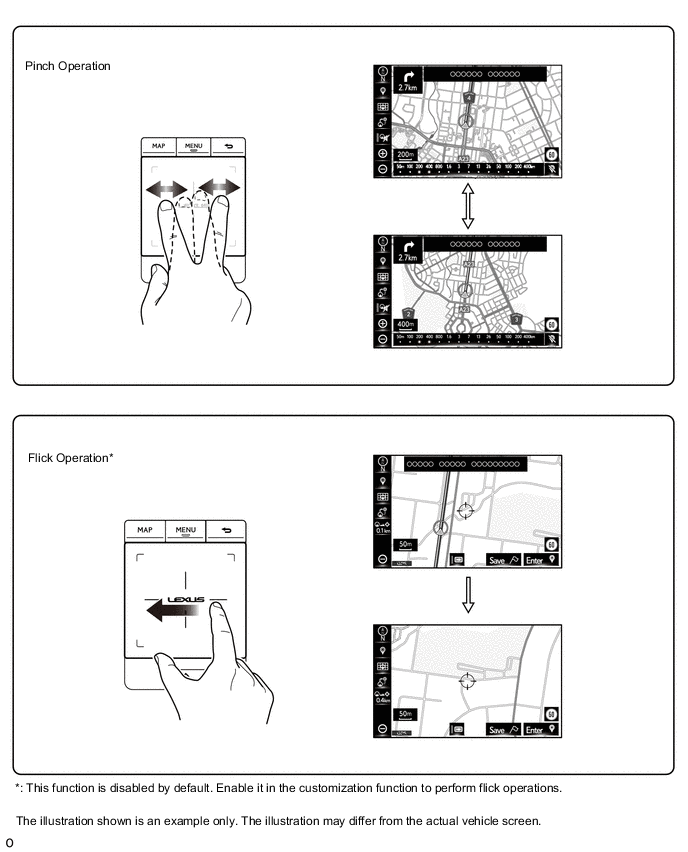
Flick operations* can be used to scroll the map or page, and pinch operations can be used to change the map scale.
Tech Tips
*: This function is disabled by default. Enable it in the customization function to perform flick operations.
-
-
-
Connected Services (For Europe and Russia)
-
The following services are available by accessing the Lexus portal site from a tethering compatible cellular phone or mobile Wi-Fi router connected to the radio receiver assembly via Bluetooth or Wi-Fi communication.
-
To use these connected services, a Bluetooth or Wi-Fi connection and a portal account are required.
-
To get a portal account, access the Lexus portal site (URL: www.my.lexus.eu).
Contents Outline Online Search New establishments, such as restaurants and bars, that are not registered in the navigation system can be set as destinations. Live Traffic System receives traffic information from an online server. Importing Memory Points and Routes Downloading via a cellular phone or mobile Wi-Fi router Memory points and routes that were searched for using a personal computer can be set as destinations and can be registered as memory points. Downloading from a USB memory device Street View Viewing street view images of selected locations Street view images can be accessed from points on the map or other locations in the system where the street view icon is available. 6 pictures of the selected location can be viewed. Parking Searching for parking and price information Parking locations and price information can be searched for. Fuel Price Searching for fuel stations and price information Fuel stations and price information can be searched for. 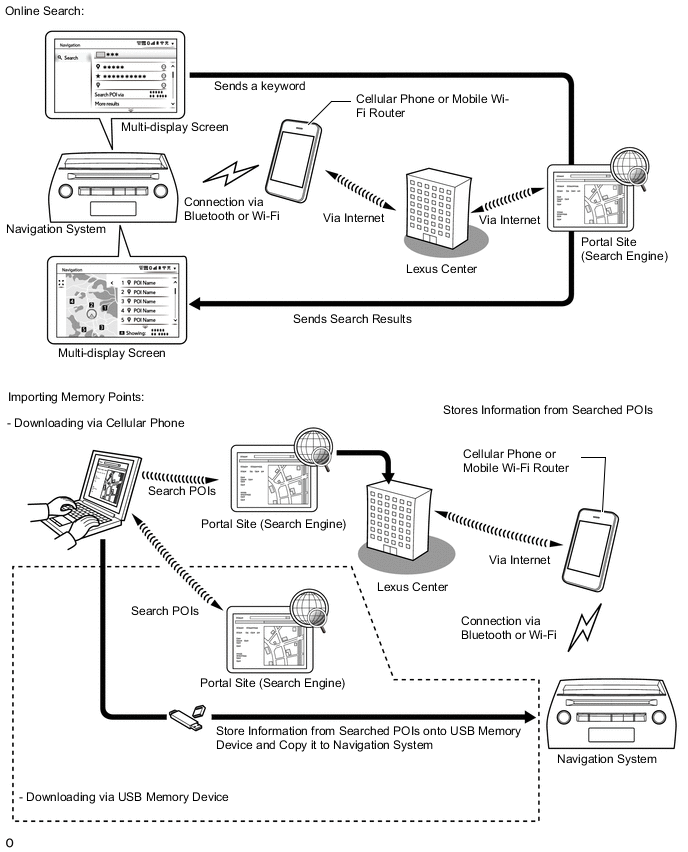
-
-
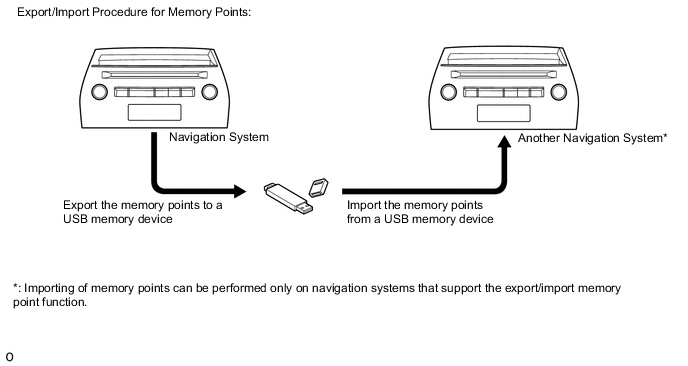
Export/Import Memory Point Function
-
Memory point data stored in the radio receiver assembly can be transferred to another navigation system, enabling information sharing.
-
-
Voice Recognition System (For Europe and Russia)
-
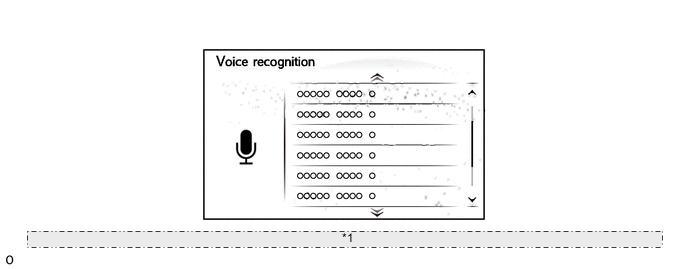
When the voice switch positioned in the steering pad switch assembly is briefly pressed, the voice recognition screen is displayed on the multi-display. When the voice recognition condition display on the voice recognition screen indicates that voice recognition is possible, the navigation system, etc., can be operated by speaking a voice command into the telephone microphone assembly.
-
The voice recognition condition is displayed on the voice recognition screen of the multi-display to clearly indicate when voice recognition is possible.
-
The voice recognition system is linked with the combination meter assembly. Therefore, the voice recognition icon is also displayed on the multi-information display of the combination meter assembly.
-
The voice recognition screen displays examples of frequently-used voice commands. Also, when the voice recognition function starts, examples of voice commands for functions that are used extremely often are displayed on the screen. When "More Commands" is selected or the "More Commands" voice command is spoken, examples of voice commands for other frequently-used functions are displayed.
Figure 5. Voice Recognition Screen:
*1 The illustration shown is an example only. The illustration may differ from the actual vehicle screen.
-
-
Voice Recognition System (For Oceania, Southeast Asia, South Africa, China and Hong Kong)
-
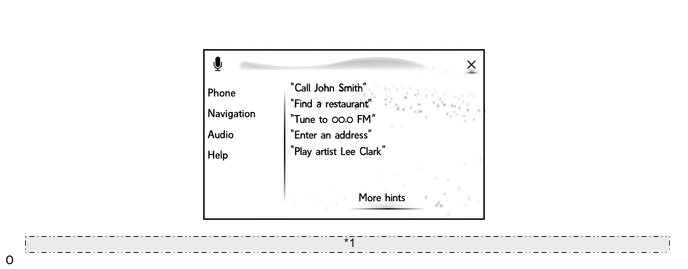
When the voice switch positioned in the steering pad switch assembly is briefly pressed, the voice recognition screen is displayed on the multi-display. When the voice recognition condition display on the voice recognition screen indicates that voice recognition is possible, the navigation system, etc., can be operated by speaking a voice command into the telephone microphone assembly.
-
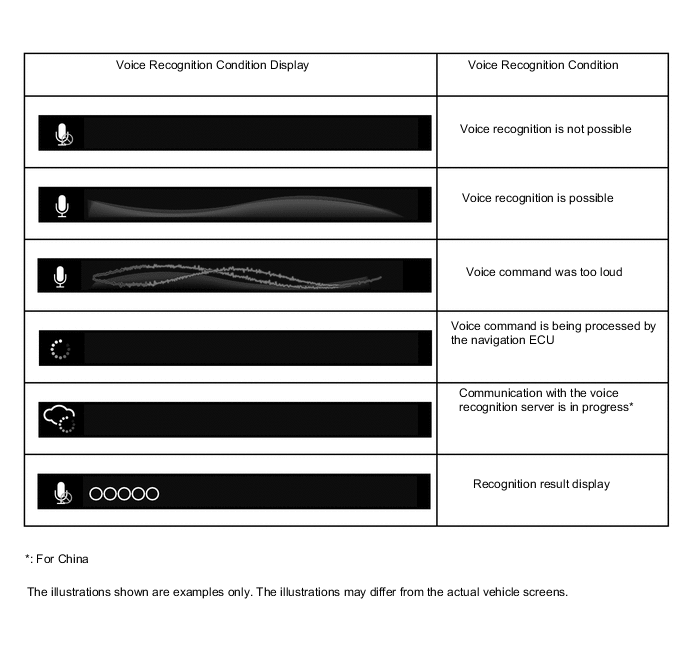
The voice recognition condition is displayed on the voice recognition screen of the multi-display to clearly indicate when voice recognition is possible and display the recognition result.
-
The voice recognition system is linked with the combination meter assembly. Therefore, the voice recognition icon, guide text* and recognition result* are also displayed on the multi-information display of the combination meter assembly.
*: For Oceania
-
The voice recognition screen displays examples of frequently-used voice commands. Also, when the voice recognition function starts, examples of voice commands for functions that are used extremely often are displayed on the screen. When "More Hints" is selected or the "More Hints" voice command is spoken, examples of voice commands for other frequently-used functions are displayed.*
*: Except for Southeast Asia
-
The voice recognition screen displays examples of frequently-used voice commands. Also, when the voice recognition function starts, examples of voice commands for functions that are used extremely often are displayed on the screen.*
*: For Southeast Asia
-
Examples of frequently-used voice commands for the selected functions are displayed in each guide menu. Also, when "More Hints" is selected or the "More Hints" voice command is spoken, examples of frequently-used voice commands for the selected function are displayed.*
*: Except for Southeast Asia
-
Examples of frequently-used voice commands for the selected functions are displayed in each guide menu.*
*: For Southeast Asia
-
By sending voice recognition data that has been processed by the navigation ECU to the voice recognition server via the DCM (telematics transceiver), Bluetooth or Wi-Fi communication confirmation accuracy of the voice recognition system is increased. (For China)*
Tech Tips
*: The system operates as commanded by the user even when a command not shown on the voice recognition screen is spoken.
Figure 6. Voice Recognition Screen:
*1 The illustration shown is an example only. The illustration may differ from the actual vehicle screen. Figure 7. Voice Recognition Condition Display
-
-
The main functions of the multi-display are listed below.
Function Outline Navigation System Through the use of the Global Positioning System (GPS) and map data, which is stored on a navigation ECU, the navigation system analyzes the position of the vehicle and indicates the position on the map that is displayed on the screen.
In addition, it is possible to use the system to register memory points and navigate to a destination.
Audio/Video System Serves as the display and controls for the following:
-
Radio operation
-
CD/DVD player operation
-
Bluetooth-compatible portable player operation
-
iPod/iPhone operation
-
USB memory device operation
Air Conditioning System Operation and control of the air conditioning system can be performed through the use of the automatic air conditioning switches displayed on the multi-display. Hands-free System When a Bluetooth-compatible cellular phone is registered to the navigation system, the driver can make and receive calls or talk hands-free on the cellular phone by operating the switches on the screen/steering pad. Speech Command System*1 Operation of systems such as the navigation, audio and hands-free system can be performed through the use of voice commands. Parking Assist Monitor System*3 Displays a view of the area behind the vehicle that is captured by the rear television camera mounted on the luggage compartment door when the shift lever is moved to R. Panoramic View Monitor System*4 Displays a panoramic view on the multi-display to provide the driver with an image of the area surrounding the vehicle. LEXUS Parking Assist-sensor System*5 If the LEXUS parking assist-sensor system is operated while the parking assist monitor screen is displayed, the LEXUS parking assist-sensor icon is displayed superimposed on the screen. Blind Spot Monitor System*6 If the RCTA function is operated while the parking assist monitor screen is displayed, the RCTA icon is displayed superimposed on the screen. Others Fuel Consumption Screen Fuel consumption information such as average fuel consumption per minute, current fuel consumption and fuel consumption history is displayed. Remote Touch Setting The following settings of each function of the remote touch can be changed:
-
Pointer sound
-
Selection sound
-
Error sound
-
Pointer sound volume
-
Feedback force
-
Cursor speed
-
Multi-touch command
Maintenance Information*8, *9, *10, *11, *12, *13, *14, *15, *16 The maintenance information function can be used to inform the driver of the inspection or replacement timing of the following items based on the calendar function and distance driven.
-
ENGINE OIL: Replace engine oil
-
OIL FILTER: Replace engine oil filter
-
ROTATION: Rotate tires
-
TYRE/Tires: Replace tires
-
BATTERY: Replace battery
-
BRAKE PAD: Replace brake pads
-
WIPERS: Replace wiper blades
-
LLC/Coolant: Replace engine coolant
-
BRAKE OIL: Replace brake fluid
-
ATF/Trans. Fluid: Replace ATF
-
SERVICE: Scheduled maintenance
-
AIR FILTER: Replace air filter
-
PERSONAL: New information items can be created separately from the provided items
Language Select*7, *8, *10, *11, *14, *16 The language of the screens, pop-up messages and the voice guidance can be changed. Theme Setting The button color can be changed. Screen Setting This enables automatic return to the navigation screen from the audio screen/air conditioning screen. Keyboard Layout*9 The keyboard layout can be changed. Delete Personal Data Deletes or returns registered or changed personal settings to their default conditions.
For example:
-
Navigation settings
-
Audio settings
-
Telephone/Phone settings
-
Connected services settings*7
-
Enform App Suite settings*9
-
G-BOOK settings*16
Screen Adjustment The brightness or contrast of the screen can be adjusted to suit the brightness of the surroundings. Map Database Update The map database can be updated by using media containing map update data. Valet Mode*7 The screen can be locked so that personal information such as the user's home address cannot be viewed. When locking the screen, the user enters 4 numbers. Entering the same 4 numbers unlocks the screen.*2 Diagnosis This menu contains the following items:
-
Failure Diagnosis
-
System Check
-
Storage Check
-
Diagnosis Recorder
-
MEU Check
-
Function Check/Setting
-
Panel & Steering Switch
-
Microphone Check
-
Vehicle Signal
-
HF Voice Quality Setting
-
Camera Setting
-
DTV Reception Check*11
-
DAB Reception Check*7, *9, *12
-
MEU Inspection
-
Service Information
-
MEU Information
-
Version Information
-
Product Information
Tech Tips
*1: Models with voice recognition system
*2: If the wrong code is entered 6 times while attempting to unlock the system, no codes can be entered for 10 minutes. In this situation, wait 10 minutes or more, and then enter the code again. However, if the code is forgotten, the screen can be unlocked using the Global TechStream (GTS).
*3: Models with parking assist monitor system
*4: Models with panoramic view monitor system
*5: Models with LEXUS parking assist-sensor system
*6: Models with blind spot monitor system
*7: For Europe and Russia
*8: For Near and Middle East
*9: For Oceania
*10: For Southeast Asia
*11: For South and Central America
*12: For South Africa
*13: For Taiwan
*14: For Hong Kong
*15: For India
*16: For China
-
-