NAVIGATION SYSTEM / MULTI INFORMATION SYSTEM
-
OUTLINE
-
Light Emitting Diodes (LEDs) are used to provide mercury-free backlighting for the multi-display. This reduces the burden on the environment and ensures brightness.
-
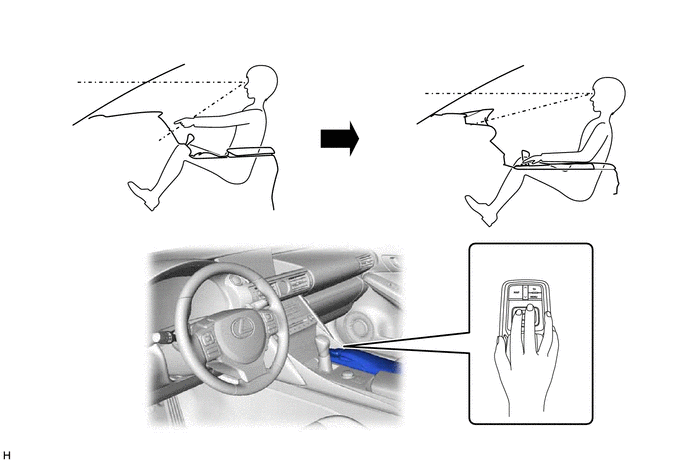
The multi-display is provided at the same height as the combination meter assembly to minimize changes in the driver's line of sight and ensure visibility while driving.
-
Due to the change in the multi-display location, the remote touch is used to ensure operability.
-
A 2-axis mechanism is used in the remote touch. Motors in the remote operation board portion of the device provide feedback (feedback force) which is similar to a click. This feedback is transmitted to the users hand according to the operation of the cursor on the screen to facilitate selecting buttons or icons and ensure operability while driving.
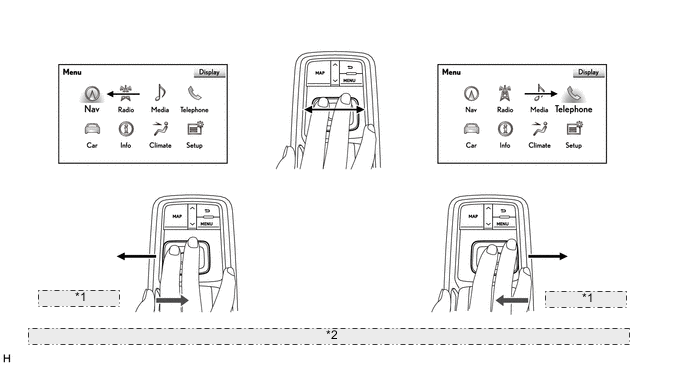
*1 Feedback Force *2 The illustrations shown are examples only. The illustrations may differ from the actual vehicle screens. -
The map database of the navigation system is stored on the microSD card (disc player disc) installed in the radio receiver assembly. A microSD card (disc player disc), which has the latest map database stored, can be purchased to replace the old one and update to the latest map database.
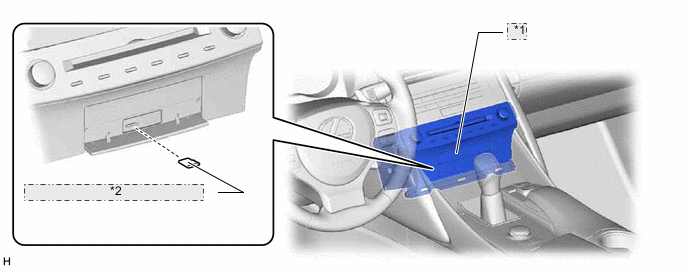
*1 Radio Receiver Assembly *2 microSD Card (Disc Player Disc) -
A fuel consumption screen is provided in consideration of the environment.
-
A split display function is provided. Due to this function, the map screen and the audio screen or vehicle information screen can be displayed on the single screen simultaneously.
-
For high altitude areas, the real terrain map, which enhances the map quality using gradient data in predetermined scales, is displayed.*
*: Models for Europe and destination package for South Africa
-
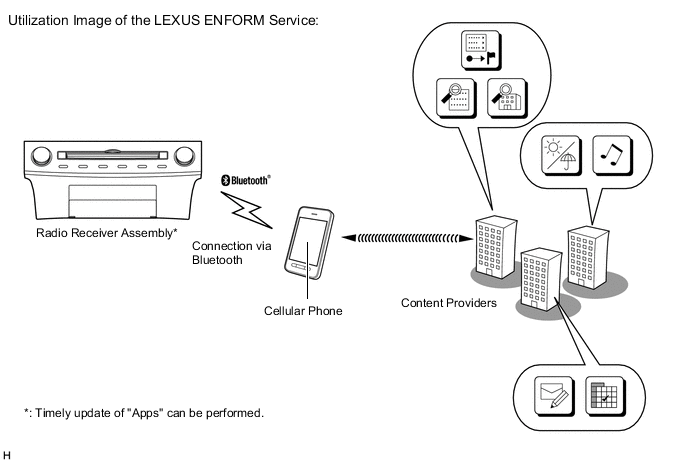
The LEXUS ENFORM service is supported. This service makes it possible to operate specified applications on the navigation system by using Bluetooth to connect the navigation system to a cellular phone with the LEXUS ENFORM application installed.*
*: Models for Australia
-
During route guidance, the user can confirm traffic information, such as congestion and accidents, by using the traffic bar on the map screen. The traffic bar shows information in the area from the current position to the destination or stopover (maximum: 100 km (65 miles)).*
*: Models for Europe and destination packages for South Africa, Southeast Asia and Taiwan
-
Reception of the Transport Protocol Experts Group (TPEG) service, which shows Traffic Flow and Traffic Prediction (TFP) information on the map screen, is available. This service makes it possible to show a route with consideration of TFP information and display the location, fee and status (occupied or vacant) of parking lots.*
*: Models for Europe (Only available in Transport Protocol Experts Group (TPEG) broadcast areas)
-
Connected Services is supported. This allows the user to search for new establishments or establishments that are not registered to the map and set them as a destination. In addition, it is possible to download Point of Interest (POI) and route information that was searched for on the Lexus portal site and set it as a destination or register it to the map.*
*: Models for Europe
-
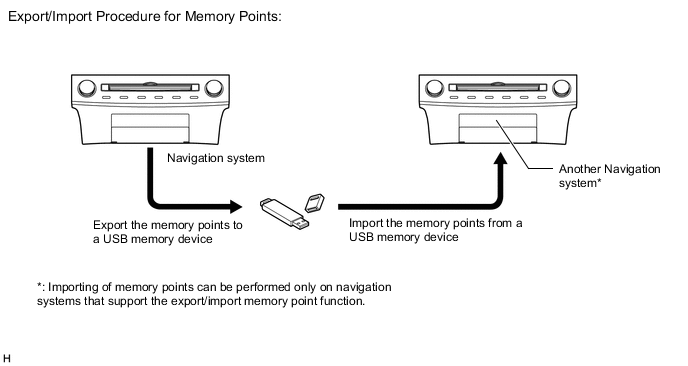
The navigation system supports a function used for the export/import of memory points. This function enables memory point data stored on the radio receiver assembly to be transferred to another navigation system (such as another radio receiver assembly) via a USB memory device.*
*: Except destination package for Southeast Asia
-
Google Sync Function (Models for Europe)
-
The Google sync function is supported, enabling the user to view and operate the following Google-provided web services on the navigation system. To use this function it is necessary to access the internet from a tethering-compatible cellular phone or mobile Wi-Fi router, which is connected to the radio receiver assembly via Bluetooth or Wi-Fi communication.
-
Google street view, which shows panoramic images along streets, is available. The street view of the desired location can be downloaded to the radio receiver assembly and displayed on the multi-display.
-
The Panoramio Photo sharing site, which provides photos with location information and comments, is available. Panoramio photos of the desired location can be downloaded to the radio receiver assembly and displayed on the multi-display. Due to location information contained in the photos, it is possible to set a certain point in the displayed photo as a destination.
-
-
-
Weather Information (Models for Europe)
-
Weather information for the selected areas, such as present vehicle position, destination or a searched areas, for the next 5 days can be displayed on the multi-display. To use this function it is necessary to access the internet from a tethering-compatible cellular phone or mobile Wi-Fi router, which is connected to the radio receiver assembly via Bluetooth or Wi-Fi communication.
-
-
Fuel Price Information (Models for Europe)
-
Fuel price information for an area around a selected point, such as the present vehicle position, destination or a searched area, can be displayed on the multi-display. To use this function it is necessary to access the internet from a tethering-compatible cellular phone or mobile Wi-Fi router, which is connected to the radio receiver assembly via Bluetooth or Wi-Fi communication.
-
-
Wi-Fi Communication (Models for Europe)
-
A wireless LAN antenna is integrated into the radio receiver assembly, enabling Wi-Fi communication to user's tethering-compatible cellular phone or mobile Wi-Fi router.
Tech Tips
Wi-Fi communication may be unavailable depending the vehicle conditions, condition of the surroundings such as radio wave conditions around the radio receiver assembly, the distance to the device or device conditions. In addition, during Wi-Fi communication, communication may be cut or become unstable due to the conditions described above.
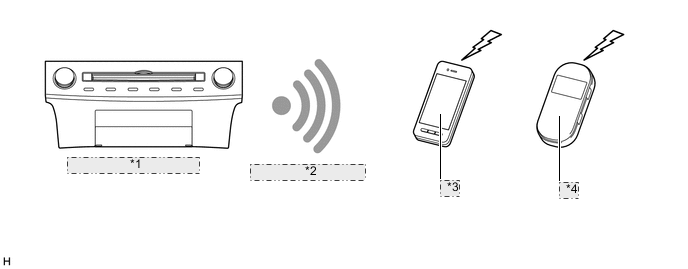
*1 Radio Receiver Assembly *2 Connection Via Wi-Fi *3 Cellular Phone *4 Mobile Wi-Fi Router
-
-
-
PRECAUTION
-
microSD Card (Disc Player Disc)
-
When ejecting the microSD card, observe the following precautions to avoid damaging it.
-
The microSD card (disc player disc) stores map data or various programs which are required to operate the navigation system. With the microSD card (disc player disc) removed, the navigation system will not operate properly. Do not remove the microSD card (disc player disc) unless necessary, such as for a map update.
-
Do not insert anything other than a microSD card (disc player disc) into the microSD card slot after removing the microSD card (disc player disc).
-
Do not insert a dusty or dirty microSD card (disc player disc) into the microSD card slot, as it may cause a malfunction.
-
After the microSD card (disc player disc) is inserted, make sure that it is secure in the microSD card slot.
-
-
When handling a microSD card (disc player disc), observe the following precautions. Failure to do so may cause a malfunction.
-
Do not touch the metal contacts of the microSD card (disc player disc) with your fingers or metal objects.

-
Do not bend, drop or strike a microSD card (disc player disc), as it is a precision electronic component and may become damaged.
-
Avoid the following environments when storing a removed microSD card (disc player disc). Failure to do so may cause the microSD card (disc player disc) to malfunction and generate errors in the navigation system.
-
Areas where static electricity or electrical noise is present
-
In extremely hot or humid areas
-
Areas exposed to direct-sunlight
-
Areas where condensation may form
-
Areas where corrosive gases may be generated
-
Do not peel the label on the microSD card or attach a new label or sticker.
-
-
-
-
SPECIFICATION
Component Destination Europe
(including destination package for Russia)
Australia South Africa Multi-display 10.3-inch Wide LCD Navigation Computer Pioneer Pioneer Pioneer Gyro Sensor Piezoelectric Ceramic Element Map Data Media microSD Card (Disc Player Disc) microSD card Aisin AW DENSO Aisin AW Language Supported Voice Guidance English, German, French, Spanish, Italian, Portuguese, Dutch, Swedish, Norwegian, Danish, Russian, Finnish, Greek, Polish, Ukrainian, Turkish, Hungarian, Czech, Slovak and Romanian English English Voice Recognition English, German, French, Spanish, Italian, Portuguese, Dutch, Swedish, Danish, Russian, Finnish, Greek, Polish, Turkish and Czech English English Component Destination Taiwan Southeast Asia Multi-display 10.3-inch Wide LCD Navigation Computer Pioneer Pioneer Gyro Sensor Piezoelectric Ceramic Element Map Data Media microSD Card (Disc Player Disc) microSD card Aisin AW Aisin AW Language Supported Voice Guidance Taiwanese English, Thai, Malay and Indonesian Voice Recognition - - -
MAIN FEATURES
-
10.3-inch Display
-
With the wide viewing angle high contrast 10.3-inch display, a wide range map can be displayed.
-
In addition to the full screen mode* in which a map or menu screen is displayed at full size, the 10.3-inch display also has a split-screen display mode to display the main screen and a side screen.
*: Except models for Australia, all screens can be displayed in full screen mode.
-
In full screen mode, the main screen is displayed at 1920 x 720. In split-screen display mode, the main screen is displayed at 1200 x 720 and the side screen is displayed at 720 x 720.
Tech Tips
A full screen mode switch is displayed in map mode when a split-screen is displayed. Split-screens can be cancelled by the full screen mode switch. (Models for Australia)
Figure 1. 10.3-inch display monitor size
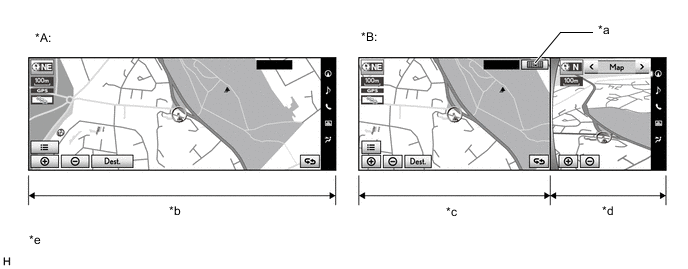
*A Full Screen Mode *B Split-screen Display Mode *a Full Screen Mode Switch *b Full Screen (1920 x 720) *c Main Screen (1200 x 720) *d Side Screen (720 x 720) *e The illustrations are examples only. The illustrations may differ from the actual vehicle screens. - - -
The side screen menu bar is located on the right side of the screen. Using the side screen menu bar, the user can operate the side screen, such as selecting which screen is displayed.
Figure 2. Side Screen Display Mode
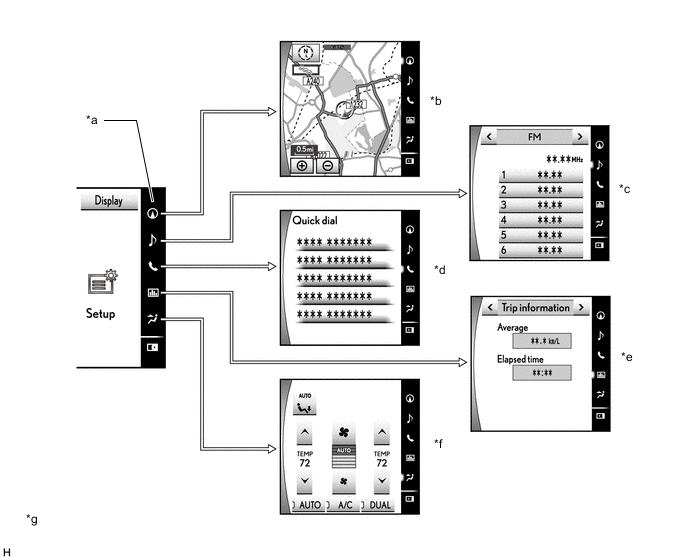
*a Side Screen Menu Bar *b Map Screen Mode *c Audio Screen Mode *d Quick Dial Screen Mode *e Vehicle Information Screen Mode *f Air Conditioning Control Screen Mode *g The illustrations are examples only. The illustrations may differ from the actual vehicle screens. - - Functions of Side Screen Menu Bar Switch Side Screen Menu Bar Screen Side Screen Display Mode Outline 
Map Screen Mode
-
By selecting this icon, the user can display the map screen on the side screen.
-
In map screen mode, the user can perform operations regarding the map, such as displaying or zooming in on a map.

Audio Screen Mode
-
By selecting this icon, the user can display the audio screen on the side screen.
-
In audio screen mode, the user can perform operations regarding the audio, such as displaying audio status information, selecting the audio source or selecting a music or radio station.

Quick Dial Screen Mode
-
By selecting this icon, the user can display the quick dial screen on the side screen.
-
In quick dial screen mode, the user can make a call to any quick dial contacts which the user selected from the favorites list.

Vehicle Information Screen Mode
-
By selecting this icon, the user can display the vehicle information screen on the side screen.
-
In vehicle information screen mode, the user can display vehicle information such as trip information and past records on the side screen.

Air Conditioning Control Screen Mode
-
By selecting this icon, the user can display the air conditioning control screen on the side screen.
-
In air conditioning control screen mode, the user can perform operations regarding the air conditioning system, such as turning on or off the air conditioning system, setting the desired temperature and selecting air outlets.

Side Screen Open* By selecting this icon, the user can open the side screen. 
Side Screen Close* By selecting this icon, the user can close the side screen. *: Except models for Australia
-
-
Other screens, such as the hands-free system dial screen*, call receive screen* or drive mode display can also be displayed on the side screen as a cut-in screen.
*: The user can select the dial screen and call receive screen to cut in on either the main screen or side screen.
-
-
Remote Touch Operation
-
An exclusive hierarchical structure is used for each screen displayed on the multi-display in consideration of the remote touch.
Figure 3. Level Category
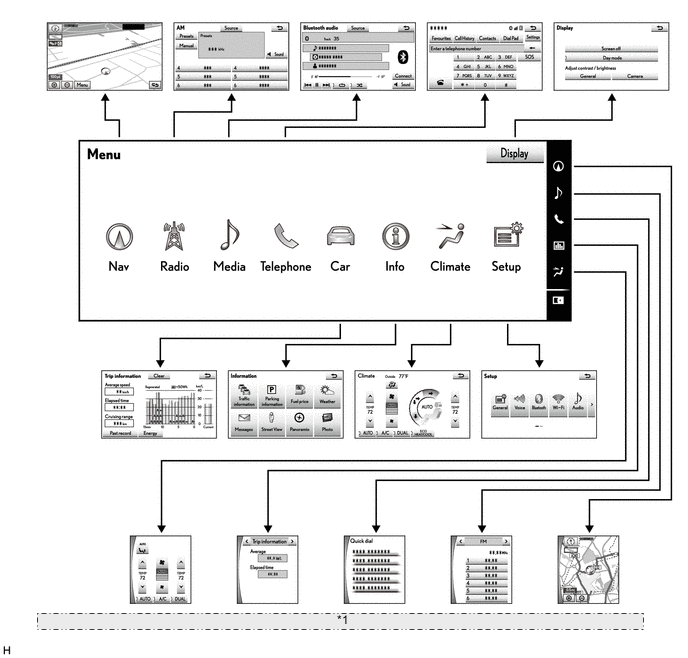
*1 The illustrations shown are examples only. The illustrations may differ from the actual vehicle screens. -
All panel buttons that were previously provided on the touch panel are brought together on the remote touch. In addition, a seesaw switch is provided to make it easier to change the map scale and scroll the screen.
-
To operate the remote touch, the MENU button is pressed to display the Menu screen. From the Menu screen, Nav, Radio, Media, Telephone, Car, Info, Climate, Setup or Display, can be selected to operate each function.
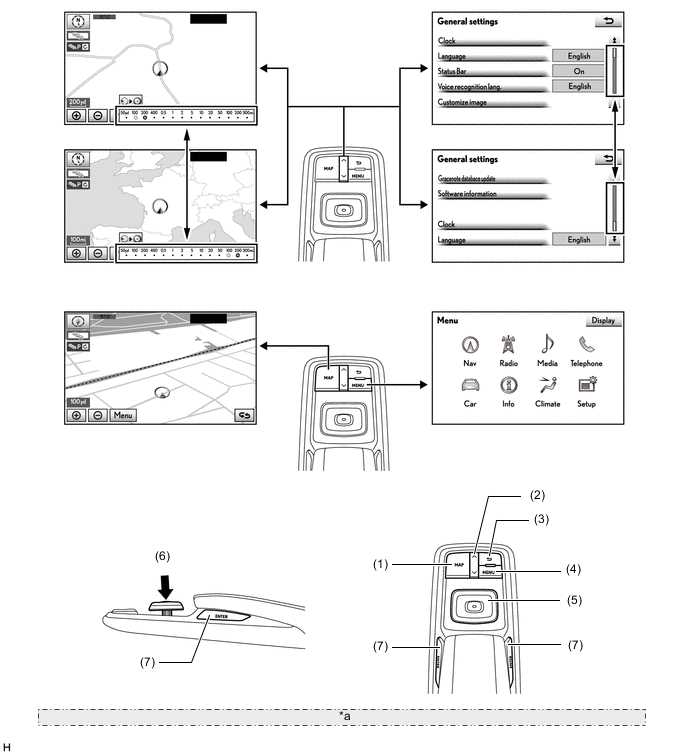
*a The illustrations shown are examples only. The illustrations may differ from the actual vehicle screens. NO. Switch Function (1) MAP Displays the present location screen. (2) Seesaw Switch
-
Changes the map scale.
-
Scrolls the list screen.
(3) Back Switch Goes back to the parent screen. (4) MENU Displays the menu screen. (5) Switch Knob Moves the pointer displayed on the screen. (6) Press in (Enter) Selects the icon highlighted by the pointer. (7) ENTER Switch -
-
-
Connected Services
-
The following services are available by accessing the Lexus portal site from a tethering compatible cellular phone or mobile Wi-Fi router, which is connected to the radio receiver assembly via Bluetooth or Wi-Fi communication.
-
To use these connected services, a Bluetooth or Wi-Fi connection and a portal account are required.
-
To get a portal account, access the Lexus portal site (URL:www.my.lexus.eu).
Contents Outline Online search New establishments, such as restaurants and bars, that are not registered in the navigation system can be set as a destination. Importing memory points and routes Downloading via a cellular phone or mobile Wi-Fi router Memory points and routes that were searched for using a personal computer can be set as a destination and can be registered as memory points. Downloading from a USB memory device 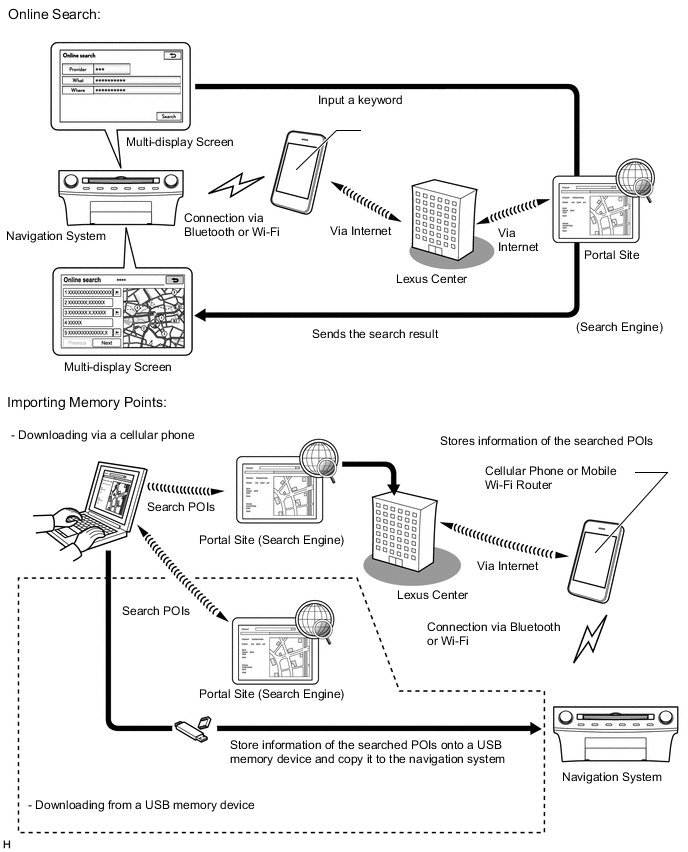
-
-
Export/Import Memory Point Function
-
Memory point data stored in the radio receiver assembly can be transferred to another navigation system, enabling information sharing.
-
-
LEXUS ENFORM Service
-
The LEXUS ENFORM service makes it possible to operate specified applications on the multi-display assembly by using Bluetooth to connect the navigation system to a cellular phone with the LEXUS ENFORM application installed.
-
The LEXUS ENFORM service enables communication between the navigation system, application server and content provider utilizing the LEXUS ENFORM application installed on a cellular phone.
-
-
Voice Recognition System
-
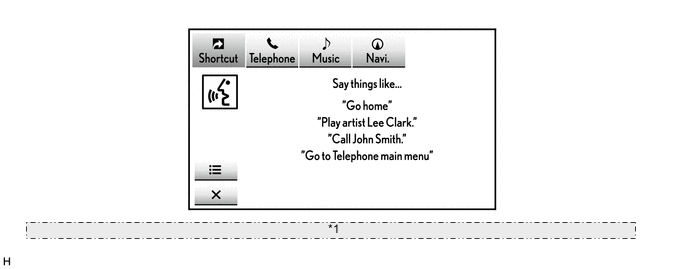
When the voice recognition system starts operating, the commands that the system is able to recognize are displayed on the multi-display.
-
In the aim of enabling the user to operate the system with minimal spoken words, the recognition command screen is designed to show not only sample spoken words for short-cut commands, but also tabs for the major functions such as Telephone, Music and Navi. When a tab is selected, a detailed list of the voice recognition commands will be displayed for the corresponding function. (Models for Australia)
Tech Tips
Other functions still can be operated by voice recognition commands when a tab is selected for a specific function.
*1 The illustration shown is an examples only. The illustration may differ from the actual vehicle screens.
-
-
The main functions of the multi-display are listed below.
Function Outline Navigation System Through the use of the Global Positioning System (GPS) and map data which is stored on a microSD card, the navigation system analyzes the position of the vehicle and indicates the position on the map that is displayed on the screen.
In addition, it is possible to use the system to register memory points and navigate to a destination.
Audio/Video System Serves as the display and controls for the following:
-
Radio operation
-
CD/DVD player operation
-
Bluetooth-compatible portable player operation
-
iPod/iPhone operation
-
USB memory device operation
Air Conditioning System Operation and control of the air conditioning system can be performed through the use of the automatic air conditioning switches displayed on the multi-display. Hands-free System When a Bluetooth-compatible cellular phone is registered to the navigation system, the driver can make and receive calls or talk hands-free on the cellular phone by operating the switches on the screen/steering pad. Speech Command System (Models with Voice Recognition System) Operates the navigation, audio, and hands-free systems based on voice commands. Parking Assist Monitor System (Models with Parking Assist Monitor System) Displays a view of the area behind the vehicle that is captured by the rear television camera mounted on the back door when the shift lever is moved to R. LEXUS Parking Assist-sensor System (Models with LEXUS Parking Assist-sensor System) Detects obstacles and displays information on the multi-display to inform the driver. Others Fuel Consumption Screen Fuel consumption information such as average fuel consumption per minute, current fuel consumption per minute and past fuel consumption record is displayed. Remote Touch Setting The following settings of each function of the remote touch can be changed:
-
Pointer sound
-
Selection sound
-
Error sound
-
Pointer sound volume
-
Feedback force
Maintenance Information The maintenance information function can be used to inform the driver of the inspection or replacement timing of the following items based on the calendar function and distance driven.
-
ENGINE OIL: Replace engine oil
-
OIL FILTER: Replace engine oil filter
-
ROTATION: Rotate tires
-
TYRE/Tires: Replace tires
-
BATTERY: Replace battery
-
BRAKE PAD: Replace brake pads
-
WIPERS: Replace wiper blades
-
LLC/Coolant: Replace engine coolant
-
BRAKE OIL: Replace brake fluid
-
ATF/Trans. Fluid: Replace ATF
-
SERVICE: Scheduled maintenance
-
AIR FILTER: Replace air filter
-
PERSONAL: New information items can be created separately from the provided items
Language Select
(Models for Europe and Destination Package for Southeast Asia)
The language of the screen buttons, pop-up messages and the voice guidance can be changed. Button Color Setting The button color can be changed. Screen Setting This enables automatic return to the navigation screen from the audio screen. Keyboard Layout The keyboard layout can be changed. Delete Personal Data Deletes or returns registered or changed personal settings to their default conditions.
For example:
-
General settings
-
Navigation settings
-
Audio settings
-
Telephone/Phone settings
-
Connected services settings (Models for Europe)
-
LEXUS ENFORM settings (Models for Australia)
Screen Adjustment The brightness or contrast of the screen can be adjusted to suit the brightness of the surroundings. Map Database Update Replace the old microSD card with a microSD card which has the latest map database stored to entirely update the map database. Diagnosis This menu contains the following items:
-
Failure Diagnosis
-
System Check
-
SD Check
-
Diagnosis Recorder
-
Function Check/Setting
-
Panel & Steering Switch
-
Remote Touch Switch
-
Microphone Check
-
System Sensors Check
-
Vehicle Signal
-
HF Voice Quality Setting
-
Camera Setting (Models with Parking Assist Monitor System)
-
DAB Reception Check (Models with Digital Audio Broadcast (DAB) Tuner)
-
Service Information
-
Program Update
-
Version Information
-
Memory point backup (Except Destination Package for Southeast Asia)
-
Repro Info
-
Product Information
-
-