NAVIGATION SYSTEM / MULTI INFORMATION SYSTEM
-
FUNCTION OF MAIN COMPONENTS
Component Function Radio and Display Receiver Assembly
-
Extension Box (Navigation ECU)
Receives and processes the data that is input from various components, displays various pieces of information and operating conditions on the screen, and provides voice guidance. Navigation Antenna Assembly Receives signals from GPS satellites and transmits them to the radio and display receiver assembly. Combination Meter Assembly Transmits vehicle speed signals to the radio and display receiver assembly. Steering Pad Switch Assembly Enables the driver to operate the navigation system from the steering pad switches. Map Light Assembly
-
Telephone Microphone Assembly
Transmits voice signals to the radio and display receiver assembly. Back-up Light Switch Assembly*1 Transmits the on/off signal of the back-up light switch assembly to the radio and display receiver assembly. Park/Neutral Position Switch Assembly*2 Transmits the R position signal to the radio and display receiver assembly. Rear Television Camera Assembly*3 Captures the view behind the vehicle and transmits the image to the radio and display receiver assembly. No. 1 Stereo Jack Adapter Assembly Transmits information from the portable audio player connected to the USB port or AUX port to the radio and display receiver assembly.
-
*1: Models with manual transaxle
-
*2: Models with automatic transmission
-
*3: Models with monitor system
-
-
FUNCTION
-
Navigation Screen
-
The navigation computer calculates the present position and direction of travel, determines a route and calculates the driving distance based on the following information sources:
-
Map data in the extension box
-
Global Positioning System (GPS) satellites
-
Built-in gyro sensor
-
Vehicle speed signal
-
Reverse signal
-
Parking brake signal
-
Radio Data System Traffic Message Channel (RDS-TMC) signal
Item Outline Map Display Taillight-interlocked Map Color Change Changes the color of the map screen when the taillights are turned on. North Up/Heading Up
-
If North Up is selected, north is always at the top of the map.
-
If Heading Up is selected, the direction the vehicle is traveling is at the top of the map.
3D Display Displays a 3-dimensional (3D) view of the map. Zoom In/Zoom Out Change the area of the map displayed on the screen. Street Name Indication on Scrolled Map Displays the street name and city name even when the map screen is being scrolled. Road Number Sign Board Display Displays the road number on the map. Point Of Interest (POI) Display Displays selected types of POI as marks on the map. RDS-TMC Display Displays RDS-TMC icons, arrows, popup messages and indicators when the RDS-TMC service is being received. Destination Search Preset Destination Memory Search Sets a pre-registered point as a destination point while driving. Address Search Destination information can be entered in the following order: area, town name, street name and house number. Previous Destination Search Stores the coordinates, names, and dates of up to 100 locations that have been set as destinations. Online Database Destination Search The navigation system can use an internet search engine to set a destination using the most up-to-date information. Point Of Interest Search A destination can be set in 4 ways:
-
By selecting a category and then a location.
-
By entering a name and then selecting a location.
-
By selecting a POI on the map.
-
By using the online search through connected services.
Map Search A destination can be set by scrolling the cursor on the map. Address Book (Memory Point) Search A destination can be set from the registered Address Book (Memory Point). Coordinate Search A destination can be input by entering its coordinates. Route Search Multiple Destination Setting Multiple destinations can be set. The sequence of the destinations can be rearranged as well. Search Condition Designation Searches for fast, short and ecological routes. Destination Reordering Changes the order of destinations when more than one destination is selected. Detour Search Changes the route to detour around a section of the route. Avoidance Area Searches for a route that avoids a designated area. Auto Avoid Traffic Search Automatically changes to another route to avoid heavy congestion. Guidance Voice Guidance Provides voice guidance about the distance and the direction of travel to a destination point based on road conditions and vehicle speed. Next Turn Guidance Provides guidance about the distance to the next turn and indicates the direction of the turn using an arrow. Motorway Exit or Junction Display When the vehicle approaches an exit or junction, the motorway guidance screen will be displayed. Distance-to-destination Display Displays the distance from the present location to the destination. Route Information Bar Display Displays the following information:
-
Street name of the current location
-
Distance and travel time to the destination
-
Distance to the destination and estimated time of arrival
-
Distance to the destination and an arrow facing the destination (when off the route during the guidance)
Traffic Bar Display Displays traffic information of congestions or accidents on the route using the traffic bar. Other Voice Recognition Recognizes pre-programmed system commands spoken to operate the navigation system. -
-
The fuel consumption screen is displayed as illustrated below. This screen has the display functions listed below:
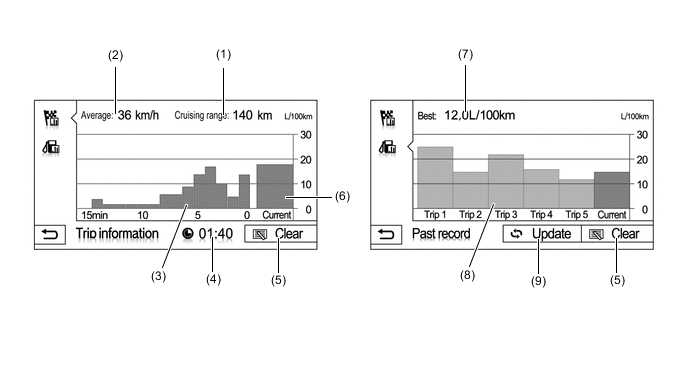
Item Outline (1) Cruising Range Displays the approximate drivable distance. (2) Average Speed Displays the value that has been calculated by the combination meter assembly, which is based on the distance driven and the time elapsed since the ignition switch was turned to ON. (3) Average Fuel Consumption per Minute
-
Displays the value that has been calculated by the combination meter assembly, which is based on the driven distance and the volume of fuel consumed (fuel injection signal), provided that the ignition switch is ON.
-
Displays the average fuel consumption for the last 15 minutes or since clear was last selected.
(4) Elapsed Time Displays the value that has been calculated by the combination meter assembly, which is based on the time elapsed since the ignition switch was turned to ON. (5) Clear Switch Clears all of the past information. (6) Current Fuel Consumption per Minute Displays the instantaneous (current) fuel consumption value that has been calculated by the combination meter assembly, which is based on the driven distance and the volume of fuel consumed (fuel injection signal), provided that the ignition switch is ON. (7) Best Fuel Consumption Displays the best (the most economical) fuel consumption per trip. (8) Average Fuel Consumption per Trip
-
Displays the current record and the last 5 average fuel consumption per trip records or the current record and those since clear was last selected.
-
Starts calculating the average fuel consumption when the average fuel consumption displayed on the combination meter assembly is reset.
(9) Update Switch
-
Restarts calculation of the average fuel consumption value.
-
Sends the average fuel consumption reset signal to the combination meter assembly to update the graph.
-
-
-
-
DIAGNOSIS
-
For details on the procedure required to enter the Service Menu screen, refer to the Repair Manual.
-