NAVIGATION SYSTEM / MULTI INFORMATION SYSTEM DETAILS
-
FUNCTION OF MAIN COMPONENTS
Component Function Navigation Receiver Assembly
-
Receives and processes data from the built-in components, such as the electrostatic capacitive display panel which allows flick or drag operation, navigation computer, gyro sensor or GPS receiver and various components positioned in different parts of the vehicle, controlling the navigation system and providing various information and the operation status via the multi-display using images, voice and sounds.
-
Is equipped with an application player to run applications.
Major Components of Navigation Receiver Assembly Multi-display Panel
-
Displays a map screen or an operation screen based on image signals from the navigation computer.
-
Sends operation signals input by touch to the navigation computer.
Navigation Computer
-
Corrects the vehicle position based on location information calculated from GPS information, vehicle speed signals, information from the built-in sensors and the shift status.
-
Applies the mark of the calculated vehicle position to the map data in the microSD card (disc player disc) and sends the data to the multi-display.
-
Sends voice guidance audio signals to the speakers*1, stereo component amplifier assembly*2.
Gyro Sensor Detects the vehicle's vertical axis rotation speed (yaw rate and rotation movement) and sends it to the navigation computer. GPS Receiver Demodulates GPS information received by the navigation antenna assembly, calculates the vehicle position and sends the position signal to the navigation computer. microSD Card Slot Interfaces with the microSD card (disc player disc), which contains map data, the navigation system control program, etc. microSD Card (Disc Player Disc) Contains map data and the navigation system control program, etc. Navigation Antenna Assembly Receives GPS signals from satellites in orbit around the Earth, at an altitude of approximately 20000 km, and sends them to the navigation receiver assembly. Parking Brake Switch Assembly Sends the parking brake position signal to the navigation receiver assembly. Park/Neutral Position Switch Assembly Sends the R shift position signal to the navigation receiver assembly. Window Glass Antenna Wire
-
AM
-
FM
-
FM-sub
Receives radio broadcasting signals (AM/FM/FM-sub). No. 1 Amplifier Antenna Assembly Amplifies radio broadcasting signals from the radio antenna and sends them to the navigation receiver assembly. Steering Pad Switch Assembly Sends operation signals from switches such as the volume switch, mode switch and voice switch operation to the spiral with sensor cable sub-assembly. Spiral with Sensor Cable Sub-assembly Sends operation signals from the steering pad switch assembly to the navigation receiver assembly. Roof Console Box Assembly Houses the telephone microphone assembly. Telephone Microphone Recognizes speech during voice recognition system operation and sends the audio signal to the navigation receiver assembly*3 or DCM (telematics transceiver)*4. No. 1 Stereo Jack Adapter Assembly
-
Sends audio or image signals to the navigation receiver assembly when an auxiliary device is connected.
-
Communicates with the navigation receiver assembly via a USB communication line when a USB memory device, portable audio player (USB type) or Apple product is connected.
Combination Meter Assembly Sends vehicle speed signals to the navigation receiver assembly. Roof Antenna Assembly
-
Telephone and GPS Antenna*4
-
Satellite Radio
Receives radio broadcasting signals (Satellite Digital Audio Radio) and sends them to the stereo component tuner assembly. Stereo Component Tuner Assembly Sends audio signals or various satellite digital audio radio broadcasting signals received by the roof antenna assembly to the navigation receiver assembly. Stereo Component Amplifier Assembly*2 Amplifies audio signals sent from the navigation receiver assembly and sends them to the speakers. DCM (Telematics Transceiver)*4
-
Sends a part of audio signals sent from the navigation receiver assembly.
-
Sends microphone voice signals sent from the telephone microphone assembly to the navigation receiver assembly.
-
*1: Models with Entune premium audio with navigation and App Suite system
-
*2: Models with Entune premium JBL audio with navigation and App Suite system
-
*3: Models without manual (SOS) switch
-
*4: Models with manual (SOS) switch
-
-
FUNCTION
-
Navigation Screen
-
The navigation computer calculates the present position and direction of travel, then determines a route and calculates the driving distance based on the following information sources:
-
- Map data in the microSD card (disc player disc)
-
- Global Positioning System (GPS) satellites
-
- Built-in gyro sensor
-
- Vehicle speed signal
-
- Reverse signal
-
- Parking brake signal
-
- Traffic information signal* (Models for U.S.A.)
-
- Weather information signal* (Models for U.S.A.)
-
*: Accessible using HD radio or Entune contents.
-
-
The functions of the navigation screen are listed below.
Item Function Map Display Taillight-interlocked Map Color Change Changes the color of the map screen that is displayed when the taillights are turned on. North Up/Heading Up
-
If North Up is selected, regardless of the direction of vehicle travel, north is always up.
-
If Heading Up is selected, the direction of vehicle travel is always up.
Multi-step Scale Display Changes the map scale in 14 steps. Direct Scale Change Directly selects and displays the map scale. Street Name Indication on Scrolled Map Displays the street name and city name even when the map screen is being scrolled. Footprint Map Displays a major city in a scale of 50 m (150 ft.). Road Number Sign Board Displays the road number on the map. Point of Interest Display Displays selected types of points of interest as marks on the map. Speed Limit Display Displays a speed limit icon on the map screen when driving on a major road. Multiple Display Function Displays different mode screens on a screen that is split into 3 views or 2 views. Compass Mode Screen Displays the direction of travel and detailed data of the present location. Route Guidance Demonstration Demonstrates the route guidance to the destination. Route Trace
-
Stores up to the last 124 miles (200 km) of a traveled route and retraces the route on the display.
-
Available when the map scale is set to 30 miles (50 km) or less.
Traffic Information Display*1 Displays traffic data such as icons, arrows and indicators received using HD radio or Entune*2 contents. Weather Information Display*1 Displays realistic Doppler weather images received using HD radio or Entune*2 contents. Destination Search Preset Destination Memory Search Sets a pre-registered point as a destination point while driving. Address Search A destination can be set in 2 ways:
-
Information can be entered in the order of: city name, street name and house number.
-
Information can be entered in the order of: house number, street name and city name.
Point of Interest Search Name /
Category /
Phone No.
A destination can be set in 3 ways:
-
The name of a POI can be entered and then searched for from City or Category.
-
A POI category can be selected and a point of interest searched for near the present location, along the current route, near the city center or near the destination.
-
The phone number of a point of interest can be entered to search for it.
Previous Destination Search Stores the coordinates, names, and dates of up to 100 locations that have been set as destinations in the past. Address Book (Memory Point) Search Sets a destination from an item in the Address Book (Memory Point). Emergency Search Performs a specific search for police stations, hospitals, Toyota dealers and fire stations. Intersection or Freeway Entrance/Exit Search A destination can be set in 2 ways:
-
By specifying 2 streets, the point at which they intersect is set as the destination point.
-
Searching for the destination by the name of a street that connects to a freeway entrance or exit.
Map Search A destination can be set by using the cursor on the map screen. Coordinate Search A destination can be input by entering its coordinates. Voice-recognition Search A destination can be set by voice command input. Entune App Suite Search*2 A point searched for using Entune content can be set as a destination. Route Search Multiple Destination Setting Sets multiple destinations. Can also rearrange the sequence of destinations. Multiple Route Search Searches for multiple routes. Search Condition Designation Searches for the quick, alternate, and short routes. Reordering Destinations Changes the order of destinations when more than one destination is selected. Detour Search Changes the route to detour around a section of the route. Regulated Road Consideration Performs searches which consider regulated roads. Traffic Congestion Information Consideration Performs searches which consider traffic congestion information. Avoidance Area Searches for a route that avoids a designated area. Avoid Traffic Search Automatically changes the route to avoid heavy congestion. National Border Conscious Search Searches for routes that do not cross the border of U.S.A., Canada or Mexico. Guidance Voice Guidance Provides voice guidance about the distance and the direction of travel to a destination point based on road conditions and vehicle speed. Next Turn Guidance Provides guidance about the distance to the next turn and indicates the direction of the turn using an arrow. Freeway Mode Display Displays the distance to the next junction and exit, or POIs in the vicinity of the freeway exit. Real Freeway Junction Display Displays the junction and signage in 3D in the vicinity of a major junction while driving. Tollgate Guidance Displays the junction and signage in 3D in the vicinity of a major tollgate while driving. Freeway Shield Icon Display Freeway shield icons will be displayed on the 3D guidance screen. Intersection Zoom-in Display Zooms in the map display when approaching an intersection. Turn List Display Displays a turn list on the right side of the 2-screen display. Arrow (Turn-by-Turn) Display Displays the direction of the next turn and the distance to the turn on the right side of the 2-screen display. Route Information Bar Display Displays the following information:
-
Street name of the current location
-
Distance and travel time to the destination
-
Distance to the destination and estimated time of arrival
-
Distance to the destination and an arrow facing the destination (when off the route during guidance)
Others Voice Recognition Recognizes pre-programmed system commands spoken to operate the navigation system. Map Coverage Information Display Displays the map area that is stored on the microSD card.
-
*1: Only available in HD Radio broadcast areas.
-
*2: Entune App Suite is available in the contiguous United States, D.C. and Alaska.
-
-
-
Setup Screen
-
The settings for the functions of the multi-display are available from the setup screen.
Item Function General Settings
-
The time zones and the on/off setting of daylight saving time can be changed.
-
The language can be selected.
-
Distance/fuel consumption units can be changed.
-
Temperature units can be changed.
-
The beep sound can be turned off.
-
The color of the screen buttons can be changed.
-
Keyboard layout can be changed.
-
Automatic return from the audio screen to the home screen after audio operation can be changed.
-
Animations can be set to on/off.
-
The opening image can be changed.
-
The screen off image can be changed.
-
Registered information (personal data) can be cleared.
-
The navigation system program can be updated.
-
The Gracenote database can be updated.
-
Third party software information used in the navigation system, such as notices, can be displayed.
Home Screen Settings The display items/area on the home screen can be changed. Voice Settings
-
The voice guidance volume can be adjusted or switched off.
-
Voice guidance during route guidance can be set.
-
Voice recognition prompts can be set.
-
Voice recognition training can be performed to apply the user's accent to the system.
-
Voice recognition prompt interruption can be set to on/off.
-
A web search engine can be selected.
-
A voice recognition tutorial can be set.
Display Settings
-
Map Menu and Camera screens can be adjusted.
-
Depending on the position of the headlight switch, the screen changes to day or night mode.
Bluetooth Settings
-
Bluetooth devices can be registered.
-
Bluetooth devices can be deleted.
-
Bluetooth devices can be selected.
-
Bluetooth devices can be edited.
-
Bluetooth system settings can be changed:
-
Automatic connection to a Bluetooth device
-
Bluetooth device name
-
Bluetooth device PIN-code
-
Bluetooth device address
-
Display of Bluetooth device connection status
-
Bluetooth device profile
Phone Settings
-
A Bluetooth phone can be registered or connected.
-
Phone sound settings can be changed:
-
Ring Tone
-
Ring Tone Volume
-
Message Readout volume
-
SMS/MMS Incoming Tone
-
SMS/MMS Incoming Tone Volume
-
E-mail Incoming Tone
-
E-mail Incoming Tone Volume
-
In-call Volume
-
Contact/Call history settings can be changed:
-
Automatic contact/history transfer function settings when a PBAP compatible Bluetooth phone is connected
-
Contacts Update
-
Contacts Sorting
-
Favorites list registration
-
Contacts deletion from the favorites list
-
Contact image display
-
Call history deletion*1
-
New contact addition to the contact list*1
-
Contact list editing*1
-
Contact deletion from the contact list*1
-
Message function settings can be changed:
-
Message forwarding from cellular phones
-
Automatic message readout
-
SMS/MMS notification popup
-
E-mail notification popup
-
Vehicle signature on outgoing messages
-
Message read status on phone update
-
Incoming SMS/MMS display when an SMS/MMS message is received "Full Screen": The incoming SMS/MMS display screen is displayed and can be operated on the screen. Drop-Down": A message is displayed on the upper side of the screen and can be operated only via the steering wheel switches.
-
Incoming E-mail display when an E-mail is received Full Screen": The incoming E-mail display screen is displayed and can be operated on the screen. Drop-Down": A message is displayed on the upper side of the screen and can be operated only via the steering wheel switches.
-
Display of messaging account names on the inbox tab
-
Phone display settings can be changed:
-
Incoming call display
-
Display of the automatic contact/history transfer completion message
Audio Settings
-
The total number of radio stations that can be stored as a preset can be changed.
-
The iPod audio signal input settings can be changed.
-
Cover art settings can be changed.
-
The automatic sound levelizer can be adjusted.
-
The surround function can be set to on/off.*2
-
The cache function of the radio programs can be set to on/off.
Navigation Settings The Navigation Settings can be used to:
-
Set up Home
-
Set up Preset Destinations
-
Set up the Address book
-
Set up Areas to Avoid
-
Delete previous destinations
-
Set detailed navigation settings such as:
-
Voice guidance for the next street name
-
Guidance for IPD roads
-
Display of POI icon categories
-
Manual adjustment of the current vehicle position mark
-
Display of pop-up messages
-
Display of low fuel warning
Entune App Suite Settings*3
-
The voice guidance volume can be adjusted or switched off.
-
The pop up reminder for cellular phone data usage can be set.
HD Data Services Settings The data service information download method can be selected between either via both the HD radio and the Entune application on a Bluetooth phone, or via only the HD radio. Driver Settings The system can link some preferences (such as audio presets, button colors, language, etc.) to a paired Bluetooth phone. Vehicle Information
-
Guide lines, which are displayed on the parking assist monitor, can be selected.*4
-
The fuel consumption screen can be displayed.
Traffic Information Settings
-
The traffic information reception for the specified routes, such as frequently used routes, can be set.
-
The auto avoid traffic function can be set to on/off.
-
The usage of traffic information for the estimated arrival time can be set to on/off.
-
An arrow display for free flowing traffic can be set to on/off.
-
Consideration of the predictive traffic information for the estimated arrival time and detoured route search can be set to on/off.
-
Voice warning when a traffic incident is displayed can be set to on/off.
Screen Off The screen can be turned off.
-
*1: For PBAP compatible models
-
*2: Models with Entune premium JBL audio with navigation and App Suite system
-
*3: Entune App Suite is available in the contiguous United States, D.C. and Alaska.
-
*4: Models with parking assist monitor system
-
-
-
Fuel Consumption Screen
-
The fuel consumption screen is displayed as illustrated below. This screen has the display functions listed below.
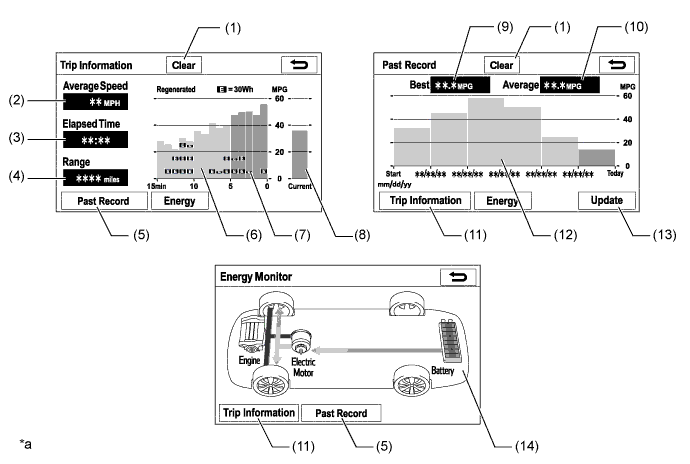
Text in Illustration *a The illustrations shown are examples only. The illustrations may differ from the actual vehicle screens. - - Item Outline (1) Clear Switch Clears all past information. (2) Average Speed Displays the value that has been calculated by the combination meter assembly, which is based on the distance driven and time elapsed since the power switch is turned on (IG). (3) Elapsed Time Displays the value that has been calculated by the combination meter assembly, which is based on the time elapsed since the power switch is turned on (IG). (4) Cruising Range Displays the approximate drivable distance. (5) Past Record Switch Changes the screen to the Past Record (per trip) fuel consumption screen. (6) Average Per Minute Fuel Consumption
-
Displays the value that has been calculated by the combination meter assembly, which is based on the driven distance and the volume of fuel consumed (fuel injection signal), since the power switch was turned on (IG).
-
Displays the average fuel consumption for the last minute, or since clear was last selected.
(7) Recovered Energy
-
Indicates the recovered energy for 1 minute with "E" symbols.
-
The recovered energy status is calculated by the power management control ECU.
(8) Current Per Minute Fuel Consumption Displays the instantaneous (current) fuel consumption value that has been calculated by the combination meter assembly, which is based on the driven distance and the volume of fuel consumed (fuel injection signal), since the power switch was turned on (IG). (9) Best Fuel Consumption Displays the best (most economical) per trip fuel consumption. (10) Average Fuel Consumption Displays the average fuel consumption for this trip and the previous 5 trips. (11) Trip Information Switch Changes the screen to the average per minute fuel consumption screen. (12) Average Per Trip Fuel Consumption
-
Displays the current record and the last 5 average per trip fuel consumption records or the current record and those since clear was last selected.
-
Starts calculating the average fuel consumption when the average fuel consumption displayed on the combination meter assembly is reset.
(13) Update Switch
-
Resets the average fuel consumption to measure the current fuel consumption again.
-
Sends the average fuel consumption reset signal to the combination meter assembly to update the graph.
(14) Energy Monitor Indicates the energy transmission direction, making it possible to confirm the current drive method (engine, motor or both), the power generation status by the engine and status of regenerative energy use.
-
The State Of Charge (SOC) of the battery can be checked on the meter. The meter shows the SOC in 8-levels.
-
Displays the energy monitor status that has been calculated by the power management control ECU.
-
-
-
-
DIAGNOSIS
-
For details on the procedure required to enter the Service Menu screen, refer to the Repair Manual.
-