NAVIGATION SYSTEM / MULTI INFORMATION SYSTEM GENERAL
-
OUTLINE
-
A multiple display function is provided. This function allows items such as a map screen and audio screen to be displayed on the navigation system screen simultaneously. The screen layout and displayed items are customizable, and by touching an item, it can be displayed full-screen.
-
The map database of the navigation system is stored in the micro SD card in the navigation receiver assembly. To update the map database, purchase a new micro SD card with the latest map database and replace the old micro SD card.*
-
*: Except destination packages for China and models for Europe
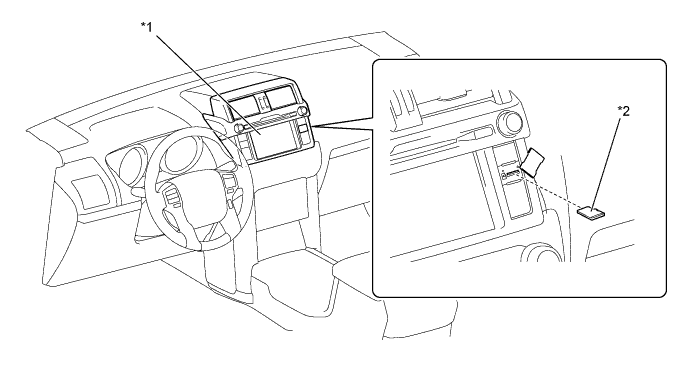
Text in Illustration *1 Navigation Receiver Assembly *2 Micro SD Card
-
-
A fuel consumption screen is provided in consideration of the environment.
-
Google Sync Function*
-
The Google sync function is supported, enabling the user to view and operate the following Google-provided web services on the navigation system. This function requires access to the internet from a tethering-compatible cellular phone, which is connected to the radio and display receiver assembly via Bluetooth communication.
-
Google street view shows panoramic images along streets. The street view of the desired location can be downloaded to the radio and display receiver assembly.
-
The Panoramio photo sharing site offers photos with location information and comments. The panoramio photos of the desired location can be downloaded to the radio and display receiver assembly and displayed on the multi-display. Due to location information contained in the photos, it is possible to set a certain point in the displayed photo as a destination.
Tech Tips
*: Updates are necessary depending on the model.
-
-
-
On destination packages for China, a hand-writing input function which allows characters to be input by writing on the screen is used as a destination search method.
-
-
SPECIFICATION
Item Destination General Countries*1 G.C.C. Countries*1 Australia or New Zealand*1 Europe*1 Multi-display 7.0-inch Wide Video Graphics Array (WVGA) Navigation Computer Pioneer Panasonic Panasonic AISIN AW FUJITSU TEN Panasonic FUJITSU TEN Gyro Sensor Piezoelectric Ceramic Element Map Data Media*2 Micro SD Card Built-in Memory Micro SD Card - Micro SD Card Micro SD Card*2 Pioneer AISIN AW AISIN AW - FUJITSU TEN - FUJITSU TEN Extension Box*3 - - - - - Harman Becker - Language Supported Voice Guidance English, Spanish and Portuguese English English and Arabic English and Chinese English English, German, French, Spanish, Italian, Portuguese, Dutch, Swedish, Norwegian, Danish, Russian, Finnish, Greek, Polish, Ukrainian, Turkish, Hungarian, Czech, Slovak and Romanian Taiwanese Voice Recognition - (Voice Tag) English - (Voice Tag) - English - - (Voice Tag) Tech Tips
*1: Including all destination packages
*2: Models without extension box
*3: Models with extension box
-
MAIN FEATURES
-
Voice Recognition System (Models with Voice Recognition System)
-
When the voice recognition system starts operating, the commands that the system is able to recognize are displayed on the navigation receiver assembly.
-
-
Hand-writing Input Function (Destination Package for China)
-
In addition to a keyboard input method, a hand-writing input method is also supported for the facility name (Pin Yin) search and the address/intersection search during a destination search. Characters can be entered by writing a character with a finger on the input zone of the multi-display. Additionally, this method has a character prediction function that predicts and displays potential matches when the user starts writing the character on the input zone.
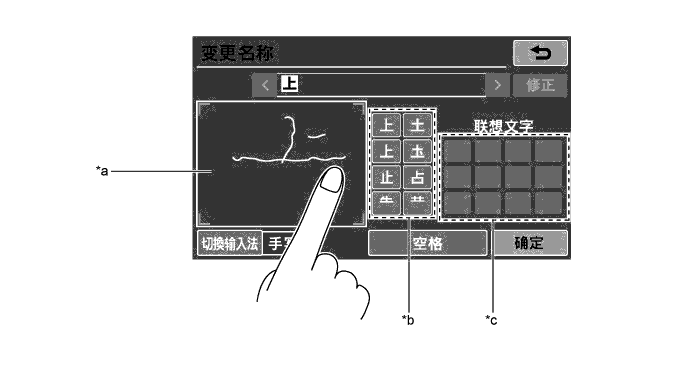
Text in Illustration *a Input Zone *b Potential Matches for Character Currently being Entered *c Potential Matches for Next Character - -
-
-
Connected Service (Models for Europe)
-
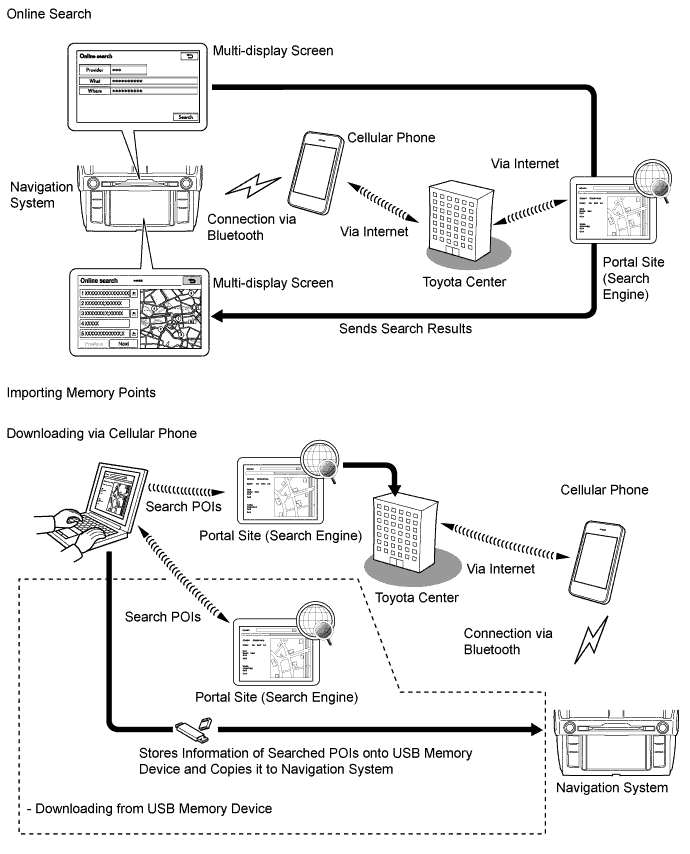
The following services are available by accessing the Toyota portal site from a tethering compatible cellular phone, which is connected to the radio and display receiver assembly (with extension box) via Bluetooth communication.
-
To use these connected services, Bluetooth settings are required and a portal account is required.
-
To get a portal account, access the Toyota portal site (URL: www.my.toyota.eu).
Contents Outline Online Search New establishments, such as restaurants and bars, that are not registered in the navigation system can be set as a destination. Street View* The street view of a desired location can be displayed. Panoramio* The available pictures on the network, comments and other information can be displayed. Importing memory points and routes Downloading via a cellular phone Memory points and routes that were searched for using a personal computer can be set as a destination and can be Downloading from a registered as memory points. Downloading from a USB memory device Vehicle Customization The vehicle equipment operation settings can be partially changed by remote operation via the Toyota portal site. Tech Tips
*: Updates are necessary depending on the model.
-
-
The main functions of the navigation system are listed below:
Models with Unit of Pioneer Function Outline Navigation System Through the use of the Global Positioning System (GPS) and map data stored on a micro SD card, the navigation system analyzes the position of the vehicle and indicates the current position on the map displayed on the screen. In addition, the user can use the system to register memory points and navigate to a destination. Audio/Video System Serves as the display and controls for the following operations:
-
Radio operation
-
CD/DVD player operation
-
Bluetooth-compatible portable player operation
-
iPod/iPhone operation
-
USB memory operation
-
Portable audio player operation (AUX type)
Customization Screen The user can display and select the operation history, and can register, set up or switch the user. Hands-free System When a Bluetooth-compatible cellular telephone is registered with the navigation receiver assembly, the driver can make and receive hands-free calls by operating the switches on the screen and steering pad. Hands-free Dialing by Voice When a Bluetooth-compatible cellular telephone is registered with the navigation receiver assembly, the driver can use the voice tag function. Monitor System When the shift lever is moved to R, a view of the area behind the vehicle captured by the rear television camera assembly mounted on the back door or back door spare tire carrier is displayed on the screen. System Setting Language Setting The user can set the language for the menu screen, each message display and some instances of voice guidance. Time Setting The GMT time zone and the daylight saving time can be set. Screen Adjustment (Display) The user can adjust screen brightness and contrast to suit the brightness of the surroundings. Theme Color Setting The user can select a color used when displaying some parts of the screens, such as the OK button and the progress bar. Fuel Consumption Setting The user can specify base values for fuel consumption that will be used for calculating the Eco route. Software Update The user can update the navigation system software or check on the update history. Animation Setting The user can turn some of the animations displayed on the screen on or off, such as those used for list scrolling. Restore Default Settings The user can restore the system settings to their default values. Quick Setup The user can set the basic settings by following the instructions on the screen. Audio Settings The user can customize the audio sound function as desired. Bluetooth Setting
-
Register Device: The user can register a Bluetooth device for use with the navigation system.
-
Connection: When two or more cellular phones are registered with the navigation system, the user can manually set the cellular phone to be used. The user can also delete a registered cellular phone.
-
Device Name: The user can change the name shown on the Bluetooth device.
-
Passkey: The user can change the passkey of the navigation system.
Volume Settings The following volume settings are available:
-
Guidance: The user can adjust the volume of the voice guidance from the audio system.
-
Beep: The user can turn the beep sound on or off.
-
In-call: The user can adjust the incoming call volume.
-
Ringtone: The user can adjust the ringtone volume.
-
Select Ringtone: The user can set the ringtone.
-
Transmit: The user can adjust the volume of outgoing calls.
Position/Direction The user can correct any deviation of the current vehicle position. Location Fix When driving on a road that can be either a local road or a toll road, and the system sets the incorrect type of road, the user can change the vehicle position to use the correct type. Navigation Function Settings*
-
Change Map Color: The map color can be set to Automatic or Day mode.
-
Road Color: The road color can be set to red or blue.
-
Track Log Auto Delete: The user can set whether to automatically delete travel routes near home or when powering off, or to disable automatic deletion.
-
Display Track Log: Travel route display on the screen can be turned on or off.
-
2D View-locked Scrolling: The 2D view-locked scrolling can be turned on or off.
-
Current Location Info: The present location can be displayed as a road name or as coordinates.
-
3D Landmark Display: The display of 3D landmarks can be turned on or off.
-
Map Scroll Settings: Flick scrolling or point scrolling can be selected as the map scrolling method.
-
Route Options: Recommended, Short or Main Road can be selected for route search.
-
Toll Route: Normal or Avoid can be selected for route search.
-
Ferry Route: Normal or Avoid can be selected for route search.
-
Motorway Route: Normal or Avoid can be selected for route search.
-
Time Restrictions: Performing a route search that avoids roads and bridges that have time restrictions for certain periods of time can be turned on or off.
-
Learned Route: Route searching which takes previously-driven routes into consideration can be turned on or off.
-
Traffic Avoidance: The use of traffic information when performing a route search can be turned on or off.
-
Auto Reroute: The option to automatically reroute when traffic information is received can be turned on or off.
-
Auto Reroute Choice: The user can set how the route is displayed after the system receives traffic information and recommends a new route. If a selection is not made or the operation is canceled, the system can be set to display either the current route or the new route.
-
Distance and ETA: The destination or next waypoint can be selected for use on the distance and ETA display.
-
Minor Ordinary Road: 20 km/h, 30 km/h, 40 km/h, 60 km/h, 80 km/h, 10 mph, 20 mph, 25 mph, 40 mph or 50 mph is selectable as an average traveling speed to calculate the ETA.
-
Major Ordinary Road: 40 km/h, 60 km/h, 80 km/h, 100 km/h, 120 km/h, 25 mph, 40 mph, 50 mph, 60 mph or 75 mph is selectable as an average traveling speed to calculate the ETA.
-
Motorway: 60 km/h, 80 km/h, 100 km/h, 120 km/h, 140 km/h, 40 mph, 50 mph, 60 mph, 75 mph or 90 mph is selectable as an average traveling speed to calculate the ETA.
-
km/mile: "km, km/l", "km, l/100 km", "mile, mpg", or "mile and yard, mpg" can be selected for the distance display and the fuel consumption display.
-
Close Up View: The Close Up View can be set to use 2D or 3D, or turned off.
-
AV Guide Mode: AV guide mode can be turned on or off.
-
Electronic Road Pricing (ERP) Notification Display: The user can turn a warning displayed when route guidance starts and the route passes through an Electronic Road Pricing (ERP) system on or off.
-
IPD Road Guidance: IPD road guidance can be turned on or off.
-
Road with Traffic Info Display: The user can choose to display traffic information for both highways and general roads, only highways, only general roads, or no traffic information.
-
Display Traffic Information (RTIC): The display of traffic information can be turned on or off.
-
Display Clear Traffic Information: The display showing the route with smooth traffic according to traffic conditions can be turned on or off.
-
Display Traffic Restriction: The display of traffic restriction information can be turned on or off.
Edit Navi Data Edit Favorite
-
Edit: The user can edit the registered information.
-
Delete: The user can delete the registered location.
-
Delete All: The user can delete all the registered locations.
Edit special favorites
-
Edit: The user can edit the registered information.
-
Delete: The user can delete the registered location.
Delete Search History The user can delete the search history. Delete Learned Routes The user can delete the learned routes. Delete Track Log The user can delete the track log. DVD Video Settings
-
Basic Subtitle Language: The user can assign the top-priority language for the subtitles initially used during playback (multi-subtitle language).
-
Basic Sound Language: The user can assign the top-priority language for the audio initially used during playback.
-
Menu Language: The user can assign the top-priority language used for menus.
-
TV Aspect Ratio: The aspect ratio (width-to-height) of the connected TV can be changed.
-
Limit View: The user can utilize the parental lock to set restrictions for some DVD-Video discs to prevent children from watching violent or adult-oriented scenes.
-
Auto Play: When a DVD disc with a DVD menu is inserted, the navigation system automatically starts playback from the first chapter of the first title.
Diagnosis This menu contains the following items:
-
Failure Diagnosis
-
System Check
-
Diagnosis Recorder
-
Function Check/Setting
-
Panel and Steering Switch
-
Microphone Check
-
Vehicle Signal
-
HF Voice Quality Setting
-
Touch Switch
-
System Sensors Check
-
Service Information
-
Program Update
-
Version Information
-
Product Information
Tech Tips
*: Some functions can not be use depending on models.
Models with Unit of FUJITSU TEN or Panasonic (Except Models with Extension Box) Function Outline Navigation System Through the use of the Global Positioning System (GPS) and map data stored on a micro SD card, the navigation system analyzes the position of the vehicle and indicates the current position on the map displayed on the screen. In addition, the system can be used to register memory points and navigate to a destination. Audio/Video System Serves as the display and controls for the following operations:
-
Radio operation
-
CD/DVD*1 player operation
-
Bluetooth-compatible portable audio player operation
-
iPod/iPhone operation
-
USB memory operation
-
Portable audio player operation (AUX type)
Hands-free System When a Bluetooth-compatible cellular telephone is registered to the navigation receiver assembly, the driver can make and receive calls or talk hands-free on the cellular telephone by operating the switches on the screen and steering pad. Speech Command System (Models with Voice Recognition System) This system operates the navigation system and audio system based on voice commands. Monitor System When the shift lever is moved to R, a view of the area behind the vehicle captured by the television camera mounted on the back door is displayed on the screen. Others Fuel Consumption Screen Fuel consumption information such as average fuel consumption per minute is displayed. Maintenance Information The maintenance information function can be used to inform the driver of the inspection or replacement timing for the following items based on the calendar function and distance driven:
-
ENGINE OIL: Replace engine oil
-
OIL FILTER: Replace engine oil filter
-
ROTATION: Rotate tires
-
TIRES: Replace tires
-
BATTERY: Replace battery
-
BRAKE PAD: Replace brake pads
-
WIPERS: Replace wiper blades
-
LLC/Coolant: Replace engine coolant
-
BRAKE OIL: Replace brake fluid
-
AT FLUID/Trans. Fluid: Replace ATF
-
SERVICE: Scheduled maintenance
-
AIR FILTER: Replace air filter
-
PERSONAL: New information items can be created separately from the provided items
Language Select*2 The language of the screen buttons, pop-up messages and the voice guidance can be changed. Screen Adjustment The brightness and contrast of the screen can be adjusted to suit the brightness of the surroundings. Map Database Update Replace the old micro SD card with an micro SD card, which stores the latest map database to entirely update the map database. General Setting
-
System Time: Select to change the time zone and set the daylight saving time on/off.
-
Language*: Select to change the language.
-
Units of Measurement: Select to change the unit of measure for distance/fuel consumption.
-
Beep: Select to sound beeps.
-
Color Theme: Select to change the screen button color.
-
Auto Change to Home Screen: Select to set automatic screen changes from the audio control screen to the home screen to on/off. When set to on, the screen will automatically return to the home screen from the audio control screen after 20 seconds.
-
Animation: Select to turn the animations on/off.
-
Customize Startup Image: Select to customize the startup images.
-
Customize Screen Off Image: Select to customize the screen off image.
-
Delete Personal Data: Select to delete personal data.
-
Software Update: Select to update software versions.
-
Software Information: Select to display the software information. Notices related to third party software used in this product are enlisted.
-
Default: Select to reset all setup items.
Voice Setting
-
Voice Volume: Select to adjust the voice guidance.
-
Automatic Navigation Guidance: Select to set the voice guidance during route guidance on/off.
-
Voice Recognition Prompts: Select to set the voice recognition prompts.
-
Train Voice Recognition: Select to train voice recognition. The speech command system adapts to the user's accent.
-
Voice Prompt Interrupt: Select to set the voice prompt interrupt on/off.
-
Default: Select to reset all setup items.
Diagnosis This menu contains the following items:
-
Failure Diagnosis
-
System Check
-
SD Check
-
Diagnosis Recorder
-
Function Check/Setting
-
Panel and Steering Switch
-
Microphone Check
-
Vehicle Signal
-
HF Voice Quality Setting
-
Camera Setting
-
DAB Reception Check (Models with Digital Audio Broadcast (DAB) Tuner)
-
Service Information
-
Program Update
-
Version Information
-
Memory Point Backup
-
Product Information
-
*1: Models with DVD player
-
*2: Models with language selection
Models with Unit of Panasonic (Models with Extension Box) Function Outline Navigation System Through the use of the Global Positioning System (GPS) and map data stored on an extension box, the navigation system analyzes the position of the vehicle and indicates the current position on the map displayed on the screen. In addition, the user can use the system to register memory points and navigate to a destination. Audio/Video System Serves as the display and controls for the following operations:
-
Radio operation
-
CD player operation
-
Bluetooth-compatible portable audio player operation
-
iPod/iPhone operation
-
USB memory operation (USB type)
-
Portable audio player operation (AUX type)
Hands-free System When a Bluetooth-compatible cellular telephone is registered to the radio and display receiver assembly, the driver can make and receive calls or talk hands-free on the cellular telephone by operating the switches on the screen/steering pad. Monitor System When the shift lever is moved to R, a view of the area behind the vehicle captured by the television camera mounted on the back door is displayed on the screen. Vehicle Information Trip Information Screen Fuel consumption information such as average fuel consumption per minute is displayed. General Settings Language Select The language of the screen buttons, pop-up messages and the voice guidance can be changed. Volume Settings
-
Navigation prompt volume (Nav): Select to adjust the volume of voice guidance.
-
Phone volume - incoming: Select to adjust the volume of phone volume.
-
Phone volume - outgoing: Select to adjust the volume of phone volume.
-
Ringtone volume: Select to adjust the volume of ringtone volume.
Unit of Measurement Select Select to change the unit of measure for distance. Beep Select Select to sound beeps. Automatic Text Scrolling Select to set the automatic text scrolling on/off. This function is not available while driving. Backup stored contacts to USB The entries stored in the "Stored" list on the "My destinations" screen and "Contacts" screen can be transferred to a USB memory device. Restore Contact Backup from USB Backed-up data can be transferred from a USB memory device to the navigation system. Transferred entries will be stored in the "Stored" list on the "My Destinations" screen and "Contacts" screen. Delete All Personal Data Select to delete all personal data stored in this system. System Information Select Select to display the system information and select the "Audio information" on the screen to switch the system information screen. Open Source Information Select
-
Select to display an open source information.
-
Notices related to third party software used in this product are enlisted. (This includes instructions for obtaining such software, where applicable.)
Display Settings The brightness, contrast and day/night mode of the screen can be adjusted. Diagnosis This menu contains the following items:
-
Failure Diagnosis
-
System Check
-
Diagnosis Recorder
-
Function Check/Setting
-
Panel and Steering Switch
-
Microphone Check
-
Vehicle Signal
-
HF Voice Quality Setting
-
Camera Setting
-
DAB Reception Check
-
Service Information
-
Program Update
-
Version Information
-
Memory Point Backup
-
Product Information
Destination Package for China Function Outline Navigation System Through the use of the Global Positioning System (GPS) and map data which is stored on a memory card, the navigation system analyzes the position of the vehicle and indicates the position on the map that is displayed on the screen. In addition, it is possible to use the system to register memory points and navigate to a destination. Audio/Video System Serves as the display and controls for the following operations:
-
Radio operation
-
CD/DVD player operation
-
Bluetooth-compatible portable audio player operation
-
iPod/iPhone operation
-
USB memory operation
-
Portable audio player operation (AUX type)
Hands-free System When a Bluetooth-compatible cellular telephone is registered to the navigation receiver assembly, the driver can make and receive calls or talk hands-free on the cellular telephone by operating the switches on the screen/steering pad. Parking Assist Monitor System This system displays a view of the area behind the vehicle that is captured by the television camera mounted on the back door when the shift lever is moved to R. Others Fuel Consumption Screen Fuel consumption information such as average fuel consumption per minute is displayed. Maintenance Information The maintenance information function can be used to inform the driver of the inspection or replacement timing for the following items based on the calendar function and distance driven:
-
ENGINE OIL: Replace engine oil
-
OIL FILTER: Replace engine oil filter
-
ROTATION: Rotate tires
-
TIRES: Replace tires
-
BATTERY: Replace battery
-
BRAKE PAD: Replace brake pads
-
WIPERS: Replace wiper blades
-
LLC/Coolant: Replace engine coolant
-
BRAKE OIL: Replace brake fluid
-
AT FLUID/Trans. Fluid: Replace ATF
-
SERVICE: Scheduled maintenance
-
AIR FILTER: Replace air filter
-
PERSONAL: New information items can be created separately from the provided items
Button Color Setting The button color can be changed. Screen Setting This enables automatic return to the navigation screen from the audio screen. Delete Personal Data The following personal data can be deleted or returned to their default settings:
-
Maintenance conditions
-
Maintenance information "off" settings
-
Memory points
-
Areas to avoid
-
Previous points
-
Route guidance
-
Phonebook data
-
Call history data
-
Speed dial data
-
Bluetooth phone data
-
Phone sound settings
-
Phone display settings
-
Audio settings
-
Bluetooth audio settings
-
G-BOOK data
-
G-BOOK settings
Screen Adjustment The brightness and contrast of the screen can be adjusted to suit the brightness of the surroundings. Diagnosis This menu contains the following items:
-
Failure Diagnosis
-
System Check
-
SD Check
-
Diagnosis Recorder
-
Function Check/Setting
-
Panel and Steering Switch
-
Microphone Check
-
Vehicle Signal
-
HF Voice Quality Setting
-
Camera Setting
-
Service Information
-
Program Update
-
Version Information
-
Memory Point Backup
-
Product Information
-
-