PARKING ASSIST MONITOR SYSTEM DETAILS
-
FUNCTION OF MAIN COMPONENTS
Component Function Multi-media Module Receiver Assembly Displays images of the area behind the vehicle sent from the rear television camera assembly using the multi-display. The image is combined with the parking assist guide lines that are calculated based on signals from the steering sensor. Multi-media Module Display Multi-display Receives visual signals composed of the area behind the vehicle with parking assist guide lines overlaid from the multi-media module receiver assembly, and displays them on the multi-display. Rear Television Camera Assembly Captures images of the area behind the vehicle and outputs visual signals to the multi-media module receiver assembly. Steering Sensor Detects the angle of the steering wheel and sends the resulting signals to the multi-media module receiver assembly. Park/Neutral Position Switch Assembly Transmits the shift position signal to the ECM. ECM Transmits the shift position signal to the multi-media module receiver assembly. Brake Actuator Assembly Skid Control ECU Sends the wheel speed signal to the multi-media module receiver assembly. Luggage Door Closer Assembly Luggage Door Courtesy Switch Sends the luggage door courtesy switch signal to the luggage closer motor assembly (multiplex network door ECU). Luggage Closer Motor Assembly Multiplex Network Door ECU Transmits the luggage door courtesy switch signal to the main body ECU (multiplex network body ECU). Main Body ECU (Multiplex Network Body ECU) Transmits the luggage door courtesy switch signal to the multi-media module receiver assembly. -
OPERATING CONDITION
-
The parking assist monitor system operates when both of the following conditions are met:
-
The engine switch is on (IG).
-
The shift lever is in R.
-
-
-
FUNCTION
-
Area Displayed on Screen
-
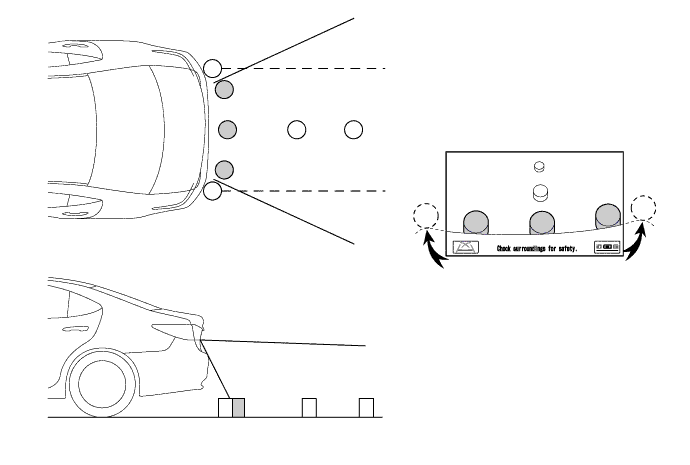
Objects on the right of the vehicle appear on the right side of the multi-display, and objects on the left of the vehicle appear on the left side of the multi-display.
-
The television camera uses a wide-angle lens. The perceived distance from images that appear on the screen differs from the actual distance.
Note
The area displayed on the screen may vary according to vehicle status or road conditions. The area covered by the rear television camera assembly is limited. The rear television camera assembly does not show objects close to either corner of the bumper or show the area under the bumper.
-
-
Warning Message
-
A warning message appears at the bottom or center of the screen under the following conditions. The warning message appears in the same language that has been selected by the language selector of the multi-display.
Messages Appearing at Bottom of Screen Warning Message Condition Check surroundings for safety. This message always appears during system operation. System initializing. This message appears when the steering wheel is operated while the battery terminal (-) is disconnected and then the terminal is reconnected. Guidance is unavailable. This message appears if there is a malfunction in this system. Message Appearing at Center of Screen Warning Message Condition System not ready. This message appears if the system is not initialized.
-
-
Calibration Following Parts Replacement
-
The items listed below must always be adjusted whenever one of the following conditions occurs. For details, refer to the Repair Manual.
Adjustment Items Condition Neutral steering point in memory System initializing is displayed. Steering angle setting
-
After the spiral cable sub-assembly or steering sensor is removed and installed or after a connector is disconnected and reconnected, system initializing is displayed.
-
Steering sensor replacement.
Backing-up camera position setting
-
Vehicle height has changed due to replacement of suspension parts or tires.
-
The installation angle of the rear television camera assembly has changed.
Parking assist monitor system initialization Multi-media module receiver assembly is replaced. -
-
-
-
CONSTRUCTION
-
Rear Television Camera Assembly
-
The rear television camera assembly consists of a wide-angle lens and a Complementary Metal Oxide Semiconductor (CMOS).
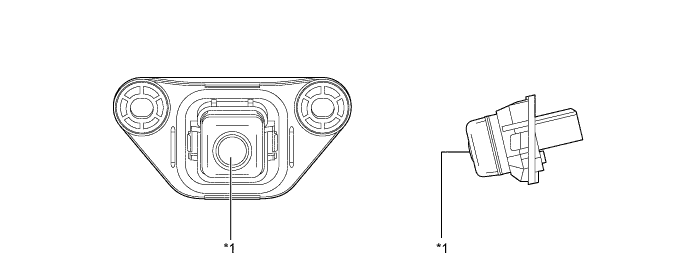
Text in Illustration *1 Wide-angle Lens - -
-
-
Multi-display (Multi-media Module Display)
-
Perpendicular Parking Mode
-
Perpendicular parking mode consists of A: parking assist guide line display mode, B: course line deletion mode and C: estimated course line display mode. The initial (default) setting for perpendicular parking is estimated course line display mode.
-
Pressing the display mode switch screen button switches among the rear monitor modes.
-
When perpendicular parking mode is operating, fixed guide lines appear superimposed on a view of the area behind the vehicle. These guide lines can be used to assist the driver while backing up the vehicle.
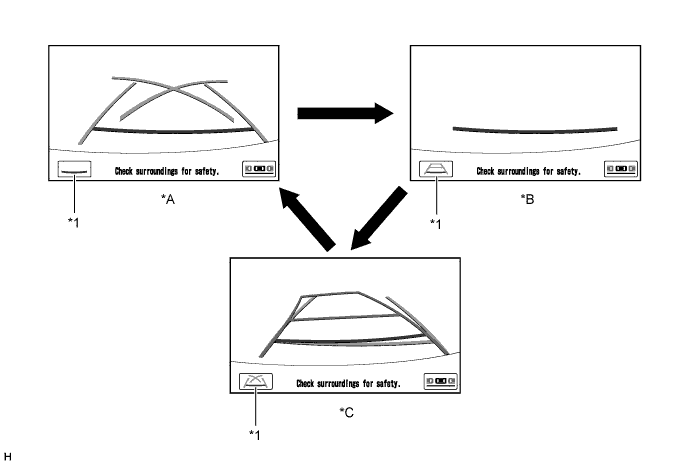
Text in Illustration *A Parking Assist Guide Line Display Mode *B Course Line Deletion Mode *C Estimated Course Line Display Mode - - *1 Display Mode Switch Screen Button - -
-
A description of the parking assist guide line display mode is provided in the following diagram.
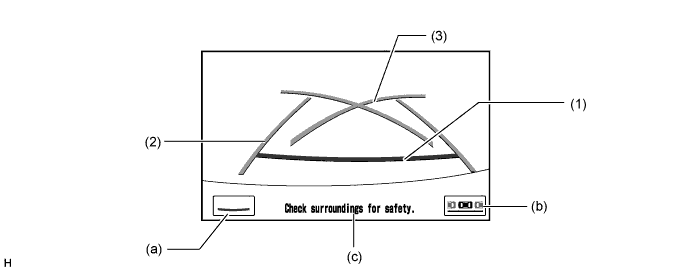
Item Description (1) Distance Guide Line (Red) Indicates a position on the ground approximately 0.5 m (1.6 ft.) behind the rear bumper. (2) Vehicle Width Extension Guide Line (Blue) Indicates the estimated vehicle width. (3) Parking Assist Guide Line (Blue) Indicates the path the vehicle will follow if the driver turns the steering wheel fully. (a) Display Mode Switch Screen Button Pressing this button changes the rear view monitor mode. (b) Parking Mode Switch Screen Button Pressing this button turns parallel parking assist mode on. (c) Warning Message Display Area Area where warning messages are displayed.
-
A description of the course line deletion mode is provided in the following diagram.
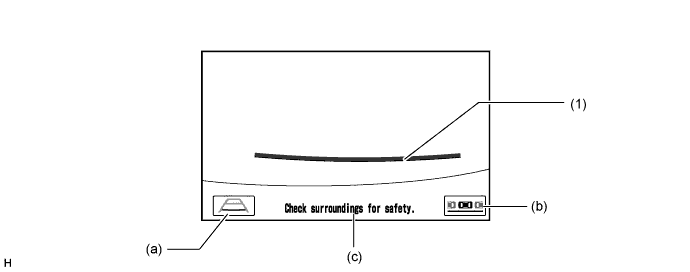
Item Description (1) Distance Guide Line (Red) Indicates a position on the ground approximately 0.5 m (1.6 ft.) behind the rear bumper. (a) Display Mode Switch Screen Button Pressing this button changes the rear view monitor mode. (b) Parking Mode Switch Screen Button Pressing this button turns parallel parking assist mode on. (c) Warning Message Display Area Area where warning messages are displayed.
-
A description of the estimated course line display mode is provided in the following diagram.
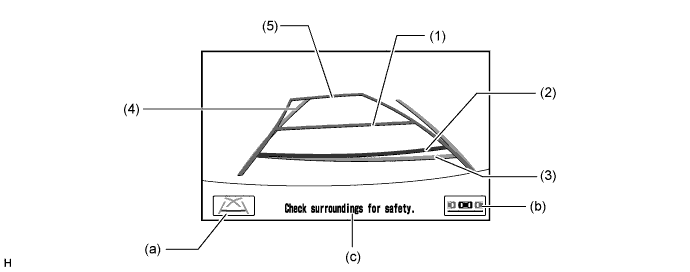
Item Description (1) Distance Guide Line (Yellow) Moves together with estimated course lines in sync with the steering wheel. The center of the line indicates a position on the ground approximately 1.0 m (3.3 ft.) behind the rear bumper. (2) Distance Guide Line (Red) Moves together with estimated course lines in sync with the steering wheel. The center of the line indicates a position on the ground approximately 0.5 m (1.6 ft.) behind the rear bumper. (3) Distance Guide Line (Blue) Indicates a position on the ground approximately 0.5 m (1.6 ft.) behind the rear bumper. (4) Vehicle Width Extension Guide Line (Blue) Indicates the estimated vehicle width. (5) Estimated Course Line (Yellow) Moves in sync with the steering wheel to indicate the estimated reverse course of the vehicle. (a) Display Mode Switch Screen Button Pressing this button changes the rear view monitor mode. (b) Parking Mode Switch Screen Button Pressing this button turns parallel parking assist mode on. (c) Warning Message Display Area Area where warning messages are displayed. -
-
Parallel Parking Assist Mode
-
Parallel parking assist is available with the following 2 display modes: standard mode and narrow mode.
-
Narrow mode is designed for situations in which the parking space is more narrow than the standard mode.
-
Initial (default) parallel parking assist is standard mode.
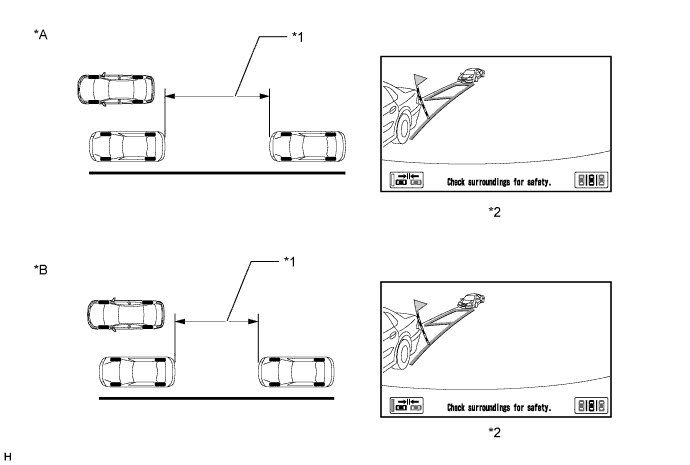
Text in Illustration *A Standard Mode *B Narrow Mode *1 Space needed for parking *2 Display Status
-
Parallel parking assist will display standard mode and narrow mode using the same design.
-
The guide lines displayed for parallel parking assist mode change in accordance with parking maneuvers.
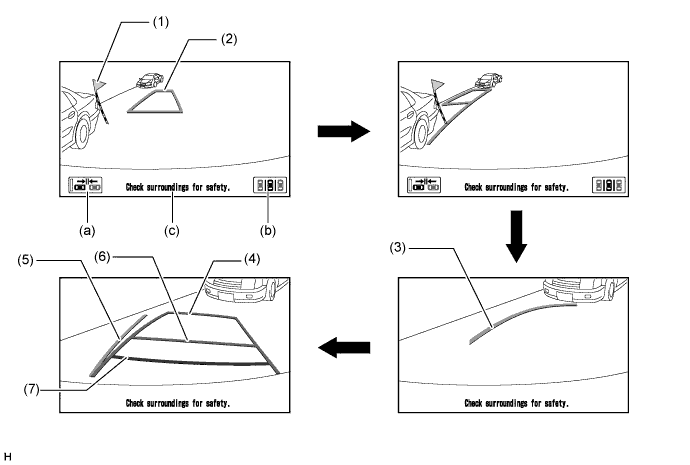
Item Description (1) Black and Yellow Vertical Pole Serves as a reference position for starting parallel parking (2) Blue Outline
-
Serves as a reference position for the intended parking space.
-
Disappears once the vehicle starts moving backward.
(3) Curved Blue Line (Blue) Indicates part of the prospective outer path of the vehicle when the steering is turned fully to the right or left side. (4) Estimated Course Line (Yellow) Guide lines identical to those in perpendicular parking are displayed. (5) Vehicle Width Extension Guide Line (Blue) Indicates the estimated vehicle width. (6) Distance Guide Line (Yellow) Moves together with estimated course lines in sync with the steering wheel. The center of the line indicates a position on the ground approximately 1.0 m (3.3 ft.) behind the rear bumper. (7) Distance Guide Line (Red) Moves together with estimated course lines in sync with the steering wheel. The center of the line indicates a position on the ground approximately 0.5 m (1.6 ft.) behind the rear bumper. (a) Narrow Mode Screen on-off Button Changes between standard and narrow modes. (b) Parking Mode Switch Screen Button Changes between parallel parking assist mode and perpendicular parking mode. (c) Warning Message Display Area Area where warning messages are displayed. -
-
-
-
-
OPERATION
-
Parking Assist Guide Line Display Mode (Perpendicular Parking)
-
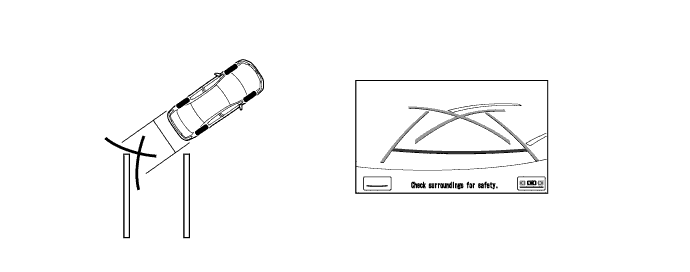
To use parking assist guide line display mode in perpendicular parking when parking the vehicle in a parking space, perform the following procedure:
-
Move the shift lever to R.
-
Select perpendicular parking mode.
-
Select parking assist guide line display mode.
-
An image appears on the multi-display as illustrated below.
-
Back up the vehicle and stop at the position in which the parking assist guide line comes in contact with the left side of the intended parking position.
-
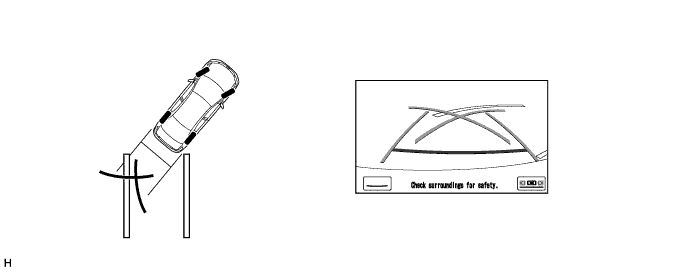
Turn the steering wheel fully to the right and back the vehicle.
-
Continue backing the vehicle until the vehicle is parallel to the painted lines.
-
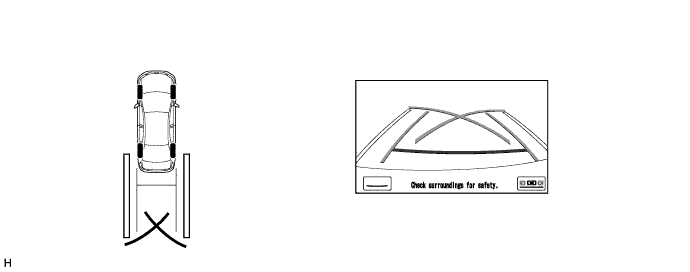
Once the vehicle is parallel, aim the steering wheel straight ahead and back the vehicle to the target stop position.
-
-
-
Estimated Course Line Display Mode (Perpendicular Parking)
-
To use estimated course line display mode in perpendicular parking when parking the vehicle in a parking space, perform the following procedure:
-
Move the shift lever to R.
-
Select perpendicular parking mode.
-
Select estimated course line display mode.
-
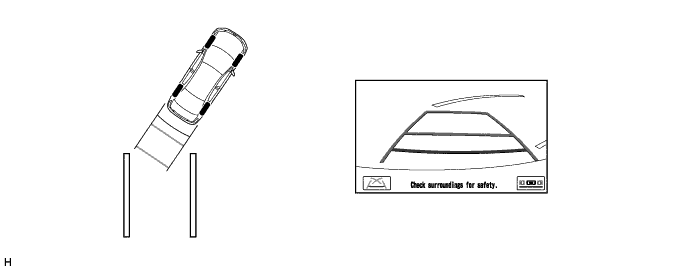
An image appears on the multi-display as illustrated below.
-
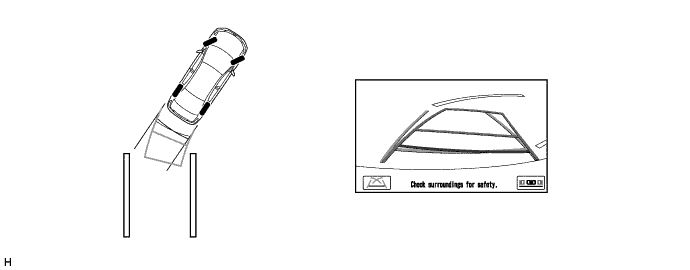
Turn the steering wheel so that the estimated course lines are within the parking space, and back up carefully.
-
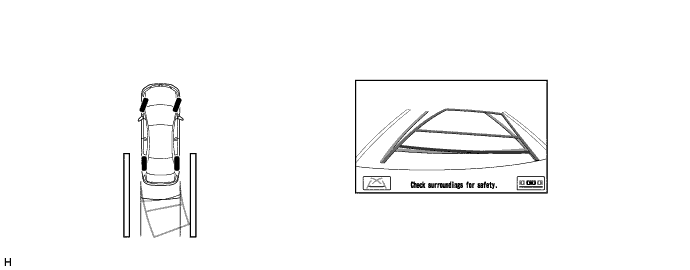
When the rear of the vehicle is within the parking space, turn the steering wheel in order to equalize the gap between the left and right sides of the vehicle width extension guide lines and the painted lines of the parking space.
-
When the vehicle width extension guide lines and the painted lines of the parking space are parallel, straighten the steering wheel and then carefully back up until the entire vehicle is within the parking space.
-
-
-
Parallel Parking Assist Mode
-
To use parallel parking assist mode to park the vehicle in the parking space, perform the following procedure:
-
Stop the vehicle parallel to the road or the curb, at a side-to-side clearance of approximately 1 m (3.3 ft.) from the parked vehicle, approximately one-half car length forward of the parked vehicle.
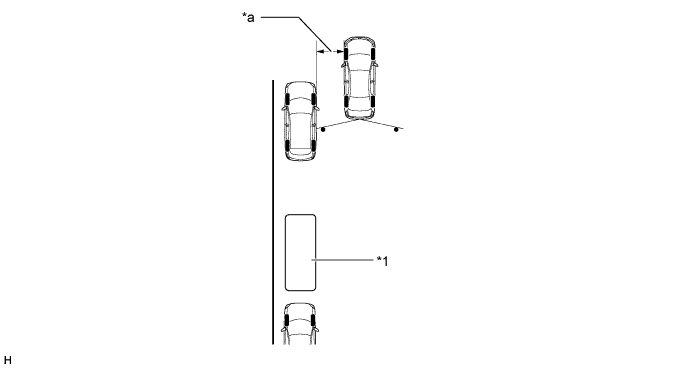
Text in Illustration *1 Target Parking Position - - *a Approximately 1 m (3.3 ft.) - - -
Aim the steering wheel straight ahead and move the shift lever to R.
-
Select parallel parking assist mode.
-
An image shows on the multi-display as illustrated below.

-
Drive the vehicle straight back and stop when the black and yellow vertical pole of the target parking position is aligned with the rear end of the parked vehicle.
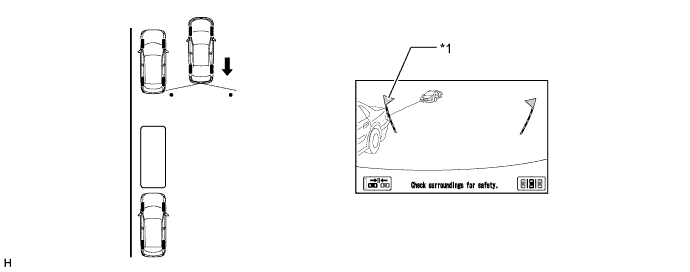
Text in Illustration *1 Black and Yellow Vertical Pole - - -
When the steering wheel is turned, the blue outline will appear. At this time, the black and yellow vertical pole opposite to the target parking position will disappear when the steering wheel is turned more than 90 degrees.

Text in Illustration *1 Blue Outline - - -
Continue turning the steering wheel, and the blue outline will move in the direction of the target parking position, while the outline changes into a shape as illustrated below. Keep turning the steering wheel until the blue outline reaches the target parking position.

Text in Illustration *1 Blue Outline - - -
However, if the steering wheel is turned too much, the message shown in the illustration below is displayed and the blue outline will change to red to inform the driver that the assist operation is not possible. Also, when your vehicle is too far away from the shoulder, the same condition will occur even when adjusting the blue outline to a normal position.

Text in Illustration *1 The blue outline changes to red - - -
The vertical line (blue) and target frame (blue) disappear and the curved blue line appear on the target parking position.
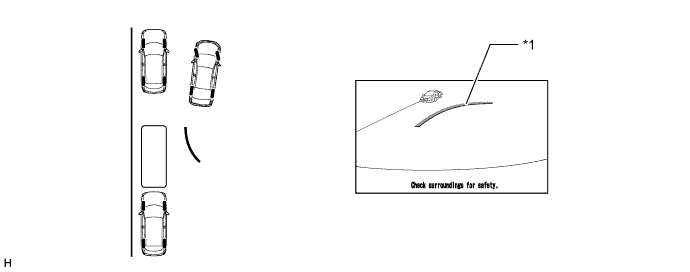
Text in Illustration *1 Curved Blue Line - - -
Keep the steering wheel in the same position and back up. Stop when the curved blue line reaches the left end of the target parking position.
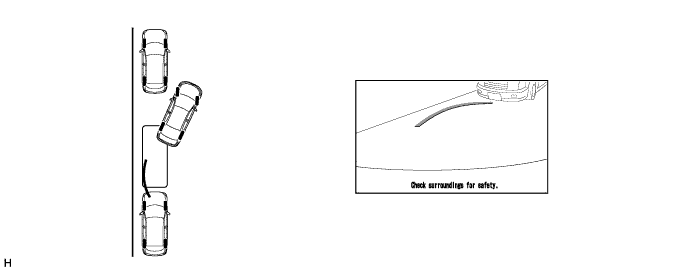
-
With the vehicle at a standstill, fully turn the steering wheel in the opposite direction. Then, as shown in the illustration below, the same guide line appears as in perpendicular parking mode.
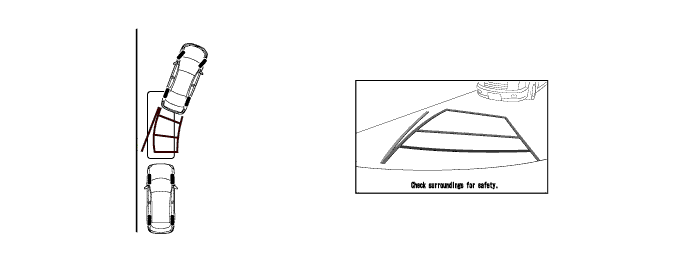
-
Using the distance guide lines slowly back the vehicle until the vehicle is parallel to the road or curb, while paying attention to the vehicles in front and in back. The parking maneuver is completed once the vehicle is parallel.
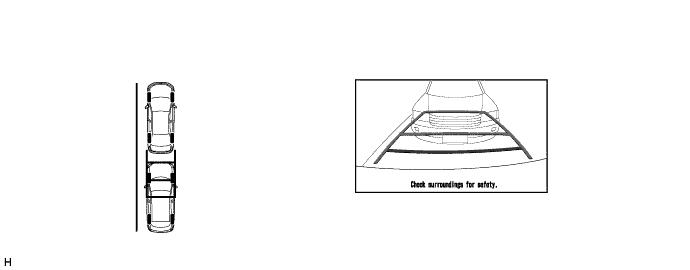
-
-
-
-
FAIL-SAFE
-
The table below indicates the malfunction detection items for the components in this system.
Malfunctioning Parts Detection Item Function Steering Sensor
-
Sensor malfunction is detected
-
Sensor open circuit signal is detected
-
Communication malfunction between the steering sensor and multi-media module receiver assembly
Displays "Guidance Unavailable" Neutral steering point correction incomplete signal is detected Displays "System Initializing" Rear Television Camera Assembly Camera malfunction signal is detected Stops signal reception and displays a dark screen Multi-media Module Receiver Assembly Malfunction of multi-media module receiver assembly Stops system operation -
-
-
DIAGNOSIS
-
The multi-media module receiver assembly is equipped with a diagnosis function which can display a diagnosis menu for the parking assist monitor system. The method for entering the diagnosis menu screen is the same as the method used for the multi-display. For details, refer to the Repair Manual.
-