MULTI-TERRAIN MONITOR SYSTEM
-
GENERAL
-
The multi-terrain monitor system screens displayed on the accessory meter can be switched by pressing the main switch assembly (camera switch).
-
When the transfer is in L4 mode, the off-road screen is displayed. When in H4 mode, the on-road screen is displayed.
-
The off-road screen displays any of the following: the front view and dual side view mode, front view and dual side view (front enlarged) mode, under vehicle terrain view and dual side view (front enlarged) mode, rear view and dual side view mode, or wide rear view mode.
-
The on-road screen displays any of the following: the front view and panoramic view mode, side views mode, rear view and panoramic view mode, wide rear view mode, wide front view and panoramic mode (when the outside rear view mirrors are retracted), or rear view and side view mode (when the outside rear view mirrors are retracted).
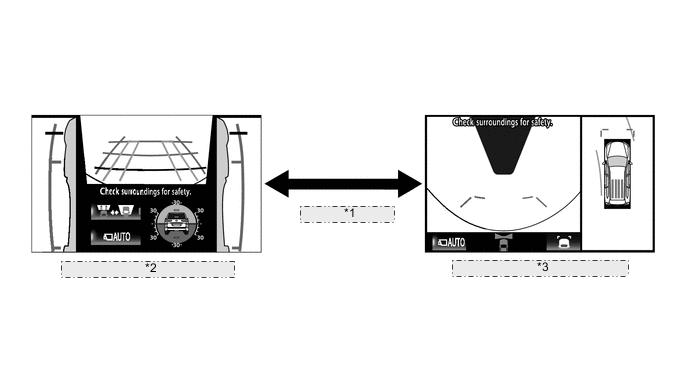
*1 Transfer Range Switching *2 Screen Transition for Off-road Screens (L4 Mode) *3 Screen Transition for On-road Screens (H4 Mode)
-
Panoramic View Monitor Mode Display Range
-
Panoramic View
-
The display range of the panoramic view image is as follows. However, the range differs according to the vehicle and road surface conditions.
Note
The panoramic view image display range is limited and objects in the blind spot close to the vehicle or objects taller than the road surface may not be displayed. Also, the clearness at the 4 corners may be reduced. Take care when driving.
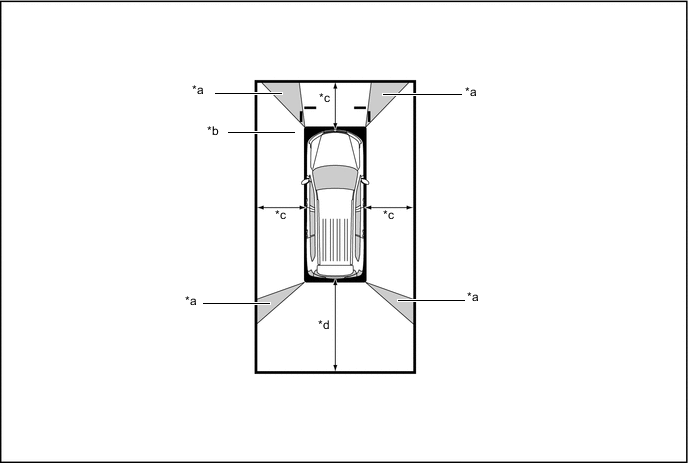
*a Image Combination Processing Area *b Blind Spot *c Approximately 2.0 m (6.6 ft.) *d Approximately 3.0 m (9.8 ft.) -
Wide Front View
-
The wide front view image is an image of the following front television camera assembly imaging range. However, the range differs according to the vehicle and road surface conditions.
Note
Since the driver's sense of the distance in front of the vehicle differs from actual conditions, masking (mask area) is used.
Tech Tips
The image display range is limited. Also, since objects near either end of the bumper and objects positioned directly under and near the bumper may not be displayed, take care when driving.
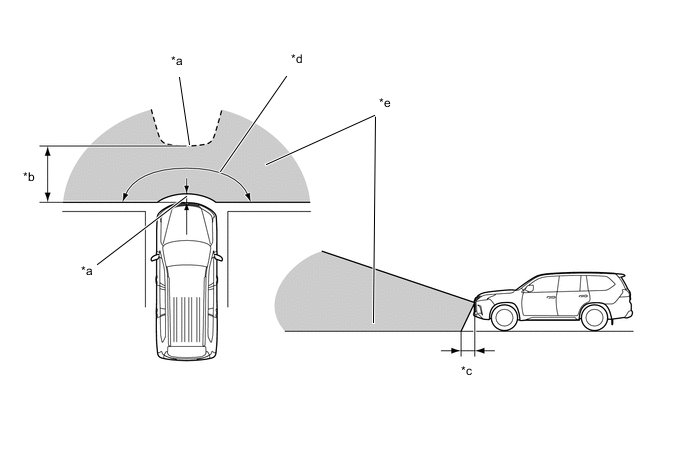
*a Mask Area *b Approximately 5.0 m (16.4 ft.) *c Approximately 0.4 m (1.3 ft.) *d Approximately 180° *e Front Television Camera Assembly Imaging Range - - -
Rear View / Wide Rear View
-
The rear view/wide rear view image is an image of the following rear television camera assembly imaging range. However, the range differs according to the vehicle and road surface conditions.
Note
The image display range is limited. Also, since objects near either end of the bumper and objects positioned directly under and near the bumper may not be displayed, take care when driving.
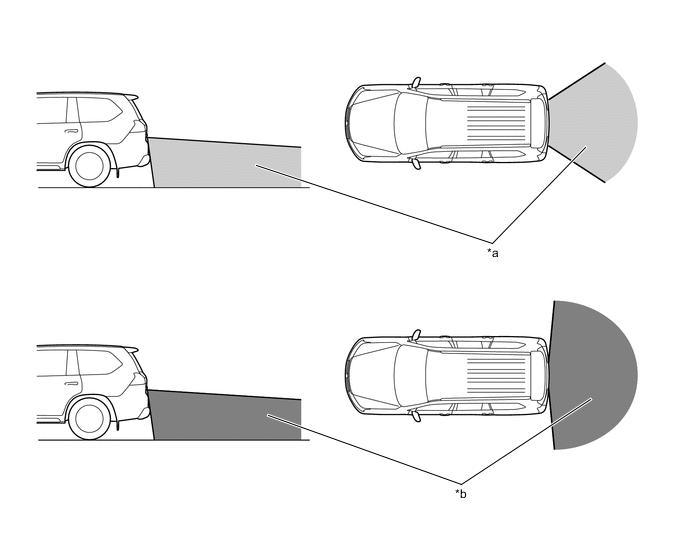
*a Rear Television Camera Assembly Imaging Range (Rear View) *b Rear Television Camera Assembly Imaging Range (Wide Rear View) -
Side Views
-
The side views image is an image of the following side television camera assembly imaging range. However, the range differs according to the vehicle and road surface conditions.
Note
The image display range is limited, take care when driving.
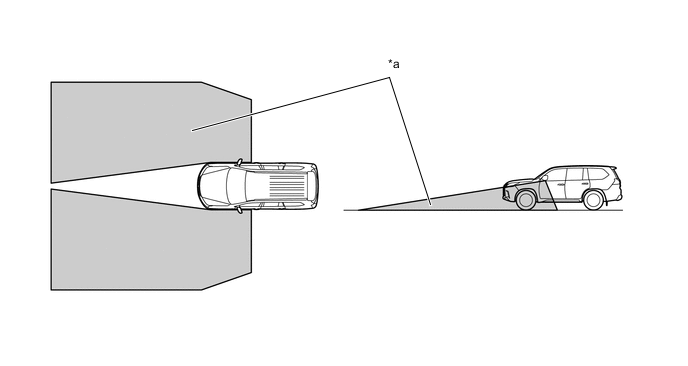
*a Side Television Camera Assembly Imaging Range - - -
Side View
-
The side view image is an image of the following side television camera assembly imaging range. However, the range differs according to the vehicle and road surface conditions.
Note
The image display range is limited, take care when driving
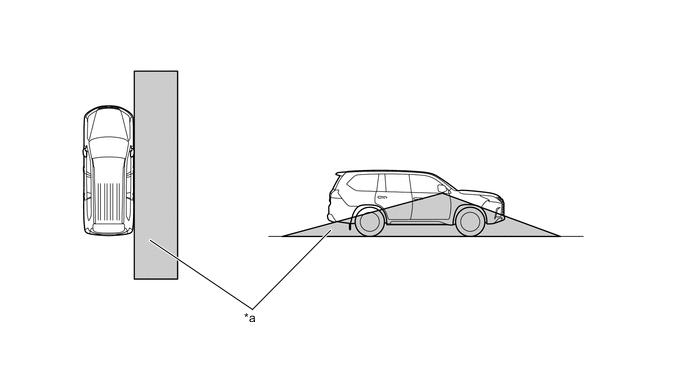
*a Side Television Camera Assembly Imaging Range - -
-
-
Panoramic View Monitor Mode Screen and Operation
-
Each screen of the panoramic view displays guide lines, estimated course lines, etc., together according to the selected screen display mode to inform the driver of the tire positions and trajectories which cannot be directly seen from the driver seat.
-
When the Lexus parking assist-sensor system and blind spot monitor system detects an obstacle, obstacle detection information is displayed superimposed on the screen according to each screen display mode.
-
-
Under Vehicle Terrain View Mode Display Range
-
In the under vehicle terrain view mode, a view captured by the front camera when the vehicle was approximately 3 m behind its current position is displayed. On top of this image, lines indicating the current vehicle and tire positions are shown.
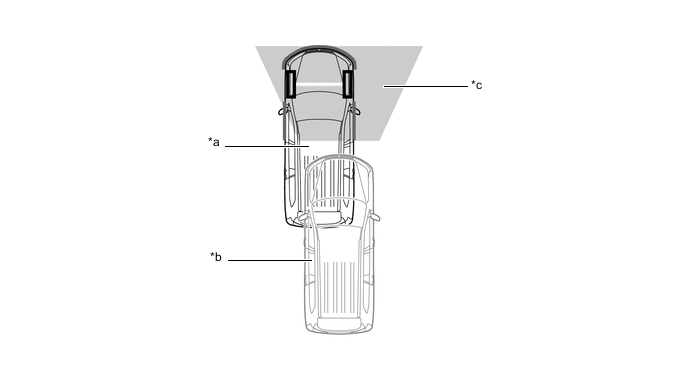
*a Current Vehicle Position *b Vehicle Position when Image Captured *c Image Captured Approximately 3 m (9.8 ft.) behind Current Vehicle Position - -
-
-
-
-
DISPLAY TRANSITION
-
The manual display mode of the multi-terrain monitor system undergoes the following screen transitions:
Figure 1. Screen Transition for Off-road Screens (L4 Mode)
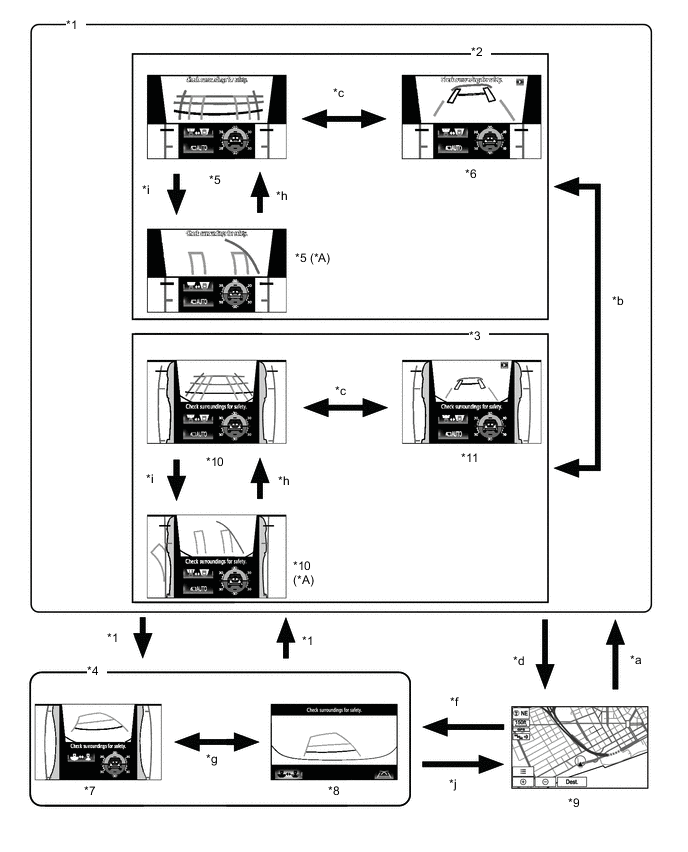
*A When Steering Wheel is Turned by 270° or more - - *1 Shift Lever in D or N *2 Zoom Display *3 Normal Condition *4 Shift Lever R Position *5 Front View and Dual Side View Mode (Front Magnified) *6 Under Vehicle Terrain View and Dual Side View Mode (Front Magnified) *7 Rear and Dual Side View Mode *8 Wide Rear View Mode *9 Navigation Display etc. *10 Front View and Dual Side View Mode *11 Under Vehicle Terrain View and Side Dual Side View Mode - - Item Transition Condition *a The main switch assembly (camera switch) is operated. *b The main switch assembly (camera switch) is pressed when the shift lever is in D or N. *c The screen selection button is selected by remote operation switch *d The map switch is pressed, or the shift lever is moved to P. *e The shift lever is in a position other than P and R. *f The shift lever is in R. *g The camera angle mode switch button is selected by remote operation switch. *h The driver turns the steering wheel less than 270°. *i The driver turns the steering wheel 270° or more. *j The shift lever is moved to P. Figure 2. Screen Transition for On-road Screens (H4 Mode) 1
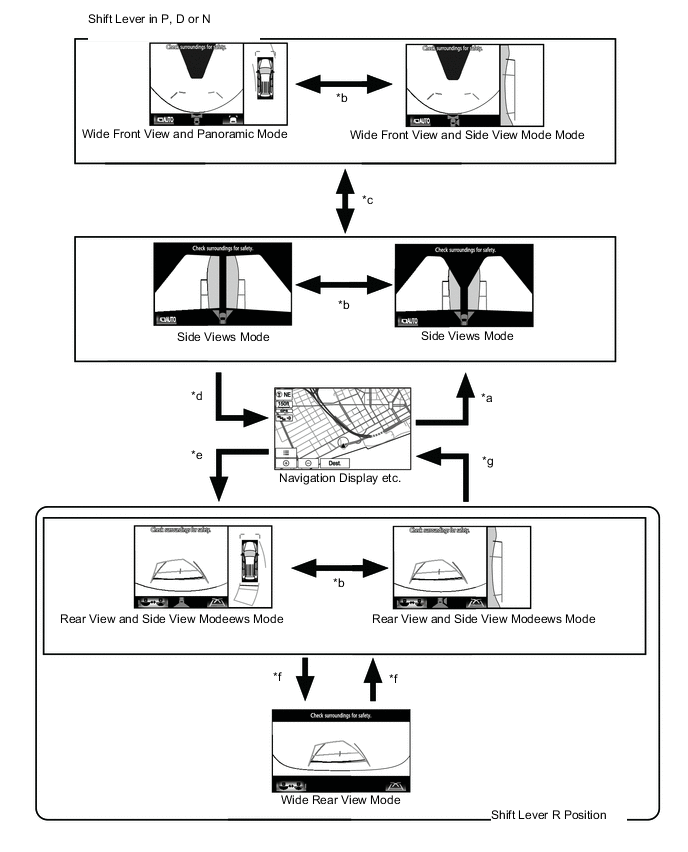
Item Transition Condition *a The main switch assembly (camera switch) is operated. *b The outer mirror switch (open/close) is operated. *c The main switch assembly (camera switch) is pressed when the shift lever is in P, D or N. *d The map switch is pressed, or the shift lever is moved to P. *e The shift lever is in R. *f The camera angle mode switch button is selected by remote operation switch. *g The shift lever is moved to P. Figure 3. Screen Transition for On-road Screens (H4 Mode) 2
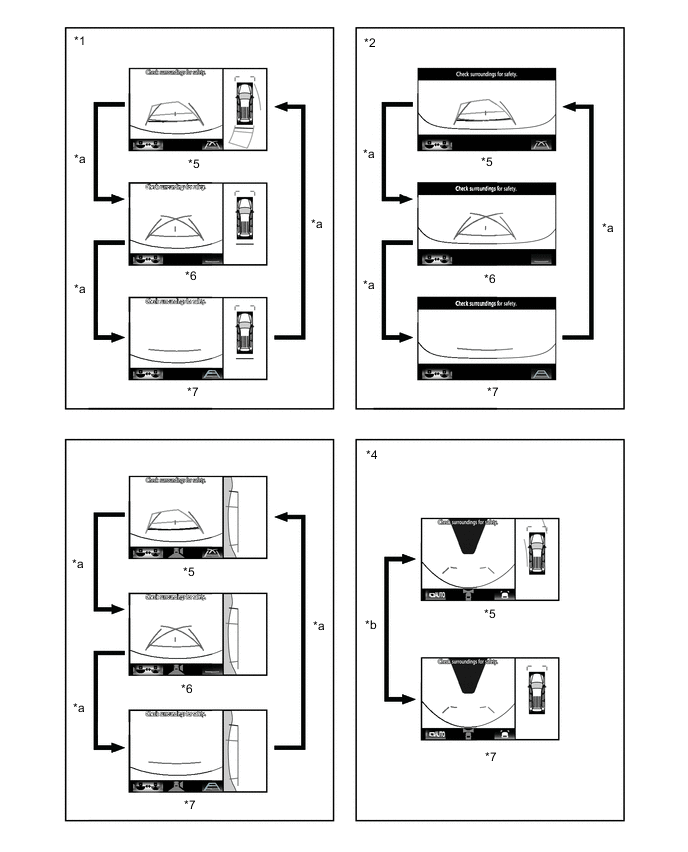
*1 Panoramic View and Rear View Mode *2 Wide Rear View Mode *3 Rear and Side Views Mode *4 Wide Front View and Panoramic Mode *5 Estimated Course Line Display Mode *6 Parking Assist Guide Line Mode *7 Distance Guide Line Display Mode - - Item Transition Condition *a The display mode switch button (rear view) is selected by remote operation switch. *b The display mode switch button (front view) is selected by remote operation switch. -
The auto display mode of the multi-terrain monitor system undergoes the following screen transitions:
Figure 4. Screen Transition for Off-road Screens (L4 Mode)
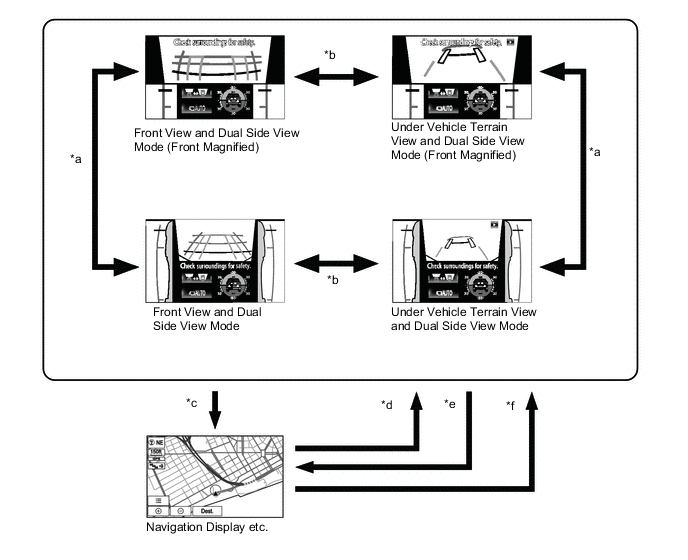
Item Transition Condition *a The main switch assembly (camera switch) is operated. *b The screen selection button is selected by remote operation switch. *c The map switch is pressed when the shift lever is in D or N. *d The vehicle speed has become from more than 10 km/h (6.2 mph) to 10 km/h (6.2 mph) or less. *e The vehicle speed has become from 12 km/h (7.4 mph) or less to more than 12 km/h (7.4 mph). *f The shift lever is moved from P or R to any position other than P and R. Figure 5. Screen Transition for On-road Screens (H4 Mode)
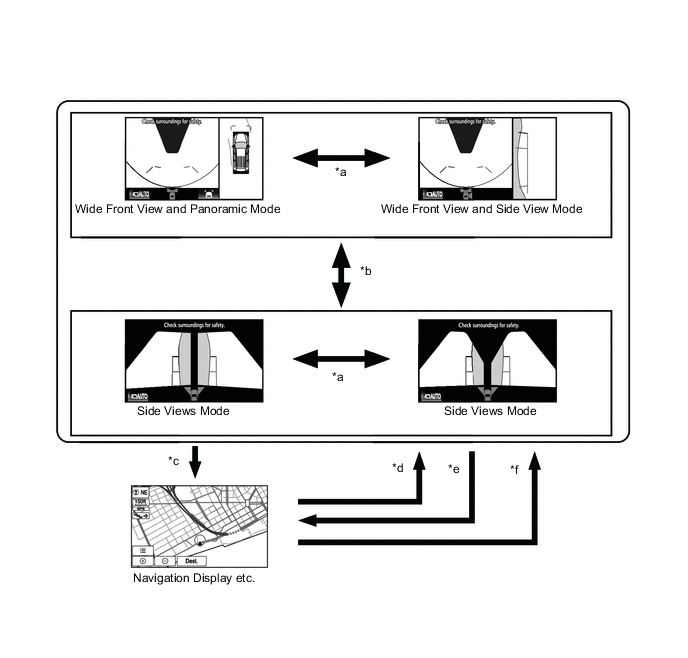
Item Transition Condition *a The outer mirror switch (open/close) is operated. *b The main switch assembly (camera switch) is operated. *c The map switch is pressed when the shift lever is in D or N. *d The vehicle speed has become from more than 10 km/h (6.2 mph) to 10 km/h (6.2 mph) or less. *e The vehicle speed has become from 12 km/h (7.4 mph) or less to more than 12 km/h (7.4 mph). *f The shift lever is moved from P or R to any position other than P and R.
-
Off-road Screens
-
Front View and Dual Side View Mode
-
The front view and dual side view mode displays the front and both sides of the vehicle.
-
A tilt gauge that indicates the vehicle tilt has been added to the screen. Also, when a tire is spinning freely or when the Lexus parking assist-sensor system detects an obstacle, etc., the tilt gauge is interrupted by another screen.
-
In the front view and dual side view mode, the screen displays as shown in the illustration below:
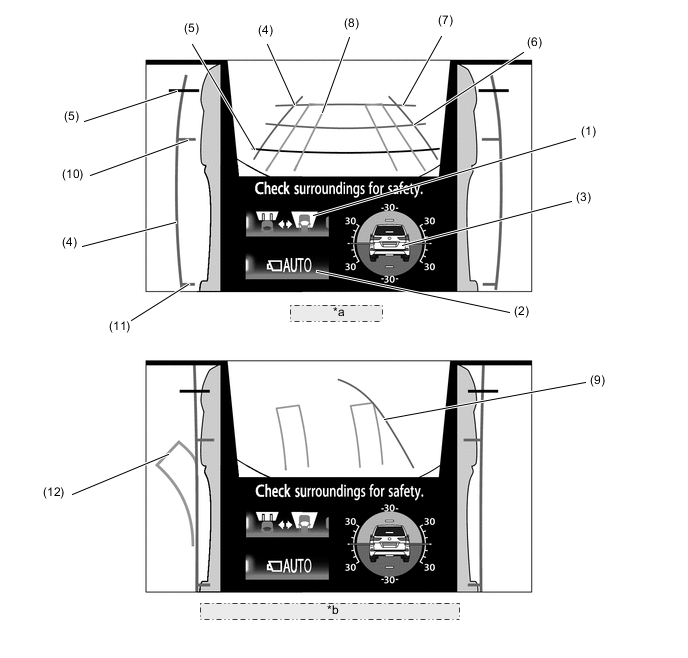
*a Normal Condition *b When Steering Wheel is Turned by 270° or more Item Description (1) Screen Selection Button Switches between the front view and under vehicle terrain view. (2) Automatic Display Mode Selection Button
-
Switches the automatic display mode on/off.
-
When automatic display mode is on, the operation indicator turns on.
(3) Tilt Gauge/Interruption Screen*
-
Displays the vehicle tilt.
-
When a tire is spinning freely or when the Lexus parking assist-sensor system detects an obstacle, etc., an interruption screen is displayed.
(4) Vehicle Width Parallel Line (Blue) Displays a vehicle width guide line including the outer rear view mirror assemblies. (5) Distance Guide Line (Red) Displays approximately 0.5 m (1.6 ft.) from the front end of the vehicle. (6) Distance Guide Line (Blue) Displays approximately 1.0 m (3.3 ft.) from the front end of the vehicle. (7) Distance Guide Line (Blue) Displays approximately 2.0 m (6.7 ft.) from the front end of the vehicle. (8) Front Wheel Course Lines (Yellow) Displays the projected course of the front tires. (9) Forward Guide Lines (Blue) Displays the course when the vehicle moves forward with the smallest turning radius. (10) Front Wheel Contact Line (Blue) Displays the front wheel positions. (11) Rear Wheel Contact Line (Blue) Displays the rear wheel positions. (12) Rear Wheel Course Lines (Yellow) Displays the projected course of the rear wheels. *: When a tire is spinning freely or when the Lexus parking assist-sensor system detects an obstacle, etc., the tilt gauge is interrupted by another screen.
-
-
While the front view and dual side view mode is displayed, the front view can be enlarged by pressing the main switch assembly (camera switch). The enlarged display is shown below.
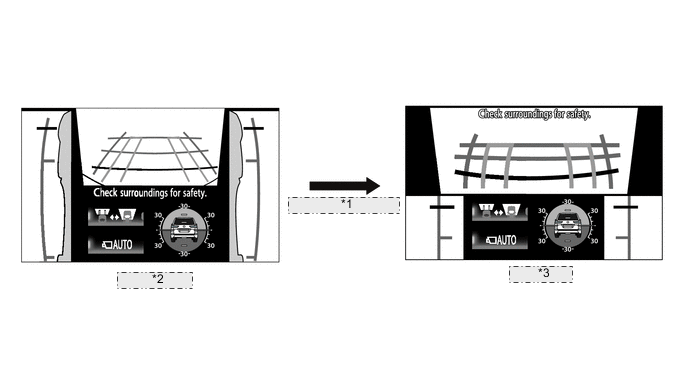
*1 Pressing the main switch assembly (camera switch). *2 Normal Screen *3 Zoom Screen -
The front view displays a rotating screen that shows the screen according to the tilt of the vehicle.
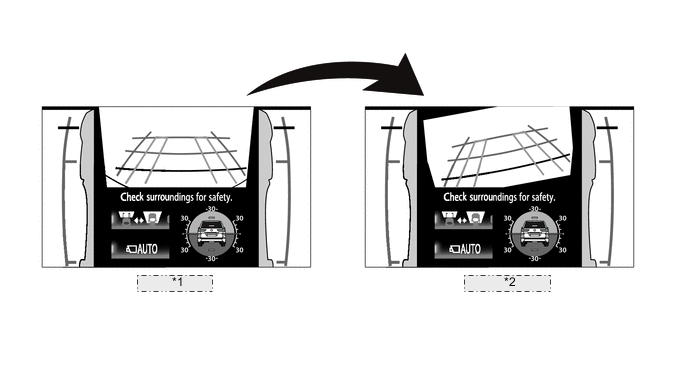
*1 Normal Screen *2 Rotating Screen -
Under Vehicle Terrain View and Dual Side View Mode
-
The under vehicle terrain view and dual side view mode displays the vehicle underfloor (captured image of approximately 3 m (9.8 ft.) behind the current vehicle position) and both sides of the vehicle.
-
A tilt gauge that indicates the vehicle tilt has been added to the screen. Also, when a tire is spinning freely or when the Lexus parking assist-sensor system detects an obstacle, etc., the tilt gauge is interrupted by another screen.
-
In the under vehicle terrain view and dual side view mode, the screen displays as shown in the illustration below:
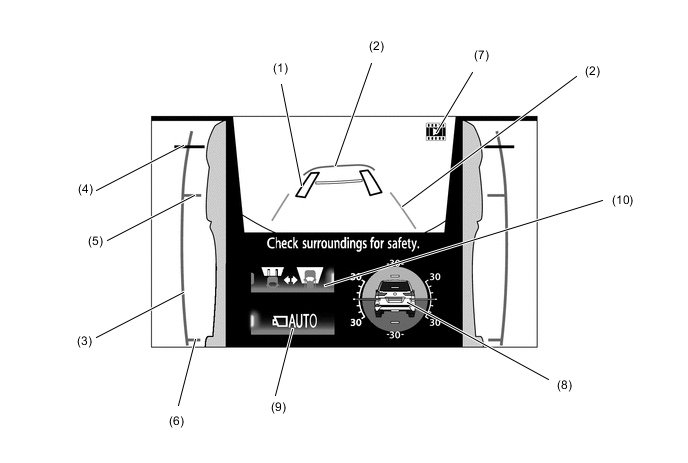
Item Description (1) Tire Position Guide Lines (Black) Displays the current approximate positions of the front wheels. (2) Vehicle Shape Guide Lines (Blue) Displays the current approximate position of the vehicle. (3) Vehicle Width Parallel Line (Blue) Displays a vehicle width guide line including the outer rear view mirror assemblies. (4) Distance Guide Line (Red) Displays approximately 0.5 m (1.6 ft.) from the front end of the vehicle. (5) Front Wheel Contact Line (Blue) Displays the front wheel positions. (6) Rear Wheel Contact Line (Blue) Displays the rear wheel positions. (7) Under Vehicle Terrain View Display Icon An icon indicating that the currently displayed screen is an image captured approximately 3 m (9.8 ft.) behind the current vehicle position. (8) Tilt Gauge/Interruption Screen*
-
Displays the vehicle tilt.
-
When a tire is spinning freely or when the Lexus parking assist-sensor system detects an obstacle, etc., an interruption screen is displayed.
(9) Automatic Display Mode Selection Button
-
Switches the automatic display mode on/off.
-
When automatic display mode is on, the operation indicator turns on.
(10) Screen Selection Button Switches between the front view and under vehicle terrain view. *: When a tire is spinning freely or when the Lexus parking assist-sensor system detects an obstacle, etc., the tilt gauge is interrupted by another screen.
-
-
Rear View and Dual Side View Mode
-
The rear view and dual side view mode displays the rear and both sides of the vehicle.
-
A tilt gauge that indicates the vehicle tilt has been added to the screen. Also, when a tire is spinning freely or when the Lexus parking assist-sensor system or RCTA function detects an obstacle, another vehicle, etc., the tilt gauge is interrupted by another screen.
-
The back view and dual side view mode, the screen displays as shown in the illustration below:
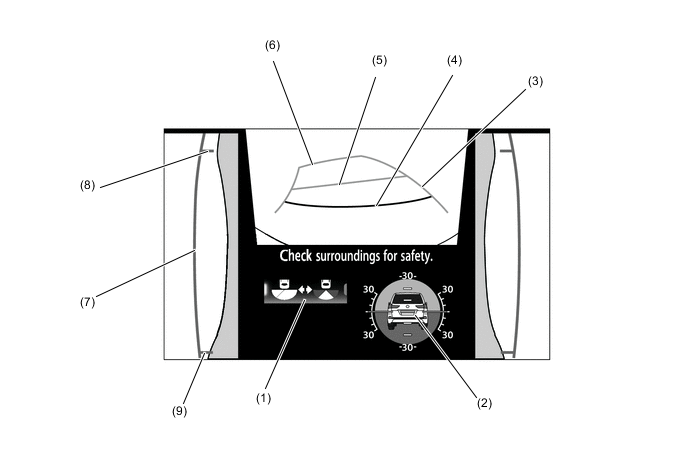
Item Description (1) Camera Angle Mode Switch Button Switches between the wide rear view mode and the rear view and dual side view mode. (2) Tilt Gauge/Interruption Screen*
-
Displays the vehicle tilt.
-
When a tire is spinning freely or when the Lexus parking assist-sensor system or RCTA function detects an obstacle, another vehicle, etc., the tilt gauge is interrupted by another screen.
(3) Rear Estimated Course Line (Yellow) Moves in sync with the steering wheel to indicate the estimated reverse course of the vehicle. (4) Distance Guide Line (Red) Displays approximately 0.5 m (1.6 ft.) from the front end of the vehicle. (5) Distance Guide Line (Yellow) Displays approximately 1.0 m (3.3 ft.) from the front end of the vehicle. (6) Distance Guide Line (Yellow) Displays approximately 2.5 m (8.2 ft.) from the front end of the vehicle. (7) Vehicle Width Parallel Line (Blue) Displays a vehicle width guide line including the outer rear view mirror assemblies. (8) Front Wheel Contact Line (Blue) Displays the front wheel positions. (9) Rear Wheel Contact Line (Blue) Displays the rear wheel positions. *: When a tire is spinning freely or when the Lexus parking assist-sensor system or RCTA function detects an obstacle, etc., the tilt gauge is interrupted by another screen.
-
-
Wide Rear View Mode
-
The wide rear view mode displays the rear of the vehicle.
-
While the rear view and dual side view mode is displayed, the wide rear view mode is displayed by pressing the camera angle mode switch button.
-
In the wide rear view mode, the screen displays as shown in the illustration below:

Item Description (1) Camera Angle Mode Switch Button Switches the Rear view and dual side view mode. (2) Distance Guide Line (Red) Displays approximately 0.5 m (1.6 ft.) from the front end of the vehicle. (3) Distance Guide Line (Yellow) Displays approximately 1.0 m (3.3 ft.) from the front end of the vehicle. (4) Distance Guide Line (Yellow) Displays approximately 2.5 m (8.2 ft.) from the front end of the vehicle. (5) Rear Estimated Course Line (Yellow) Moves in sync with the steering wheel to indicate the estimated reverse course of the vehicle. (6) Interruption Icon Displayed when the Lexus parking assist-sensor system or RCTA function detects an obstacle, another vehicle, etc. -
Tilt Gauge/Interruption Screen
-
A screen that displays the vehicle tilt when the front view and dual side view mode or under vehicle terrain view and dual side view mode is displayed has been added.
-
The tilt gauge indicates the tilt angle in the longitudinal and lateral directions within 0 ° to 30 ° using the vehicle icon and graduations.
-
When a tire is spinning freely, the tilt gauge is interrupted by another screen and the freely spinning tire is displayed in yellow.
-
When the Lexus parking assist-sensor system or RCTA function detects an obstacle, another vehicle, etc., the tilt gauge is interrupted by another screen.
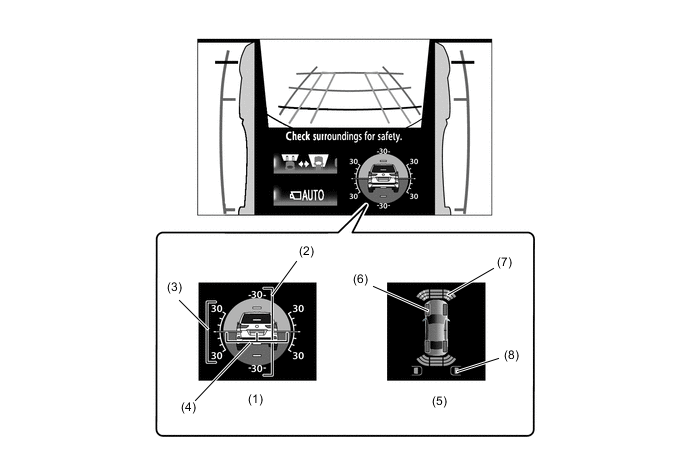
Item Description (1) Tilt Gauge Displays the vehicle state. (2) Longitudinal Tilt Angle Graduations Displays the tilt angle in the longitudinal direction. (3) Lateral Tilt Angle Graduations Displays the tilt angle in the lateral direction. (4) Pointer (Green) Displays the current tilt angle. (5) Interruption Icon When a tire is spinning freely or when the Lexus parking assist-sensor system or RCTA function detects an obstacle, another vehicle, etc., the tilt gauge is interrupted by another screen. (6) Slip Display Shows the freely spinning tires in yellow. (7) Intuitive Parking Assist Display Indicates when the Lexus parking assist-sensor system detects an obstacle. (8) Blind Spot Monitor Display Indicates when the Rear Cross Traffic Alert (RCTA) function detects an obstacle. Note
-
The tilt angle is shown by the movement of the pointer and the tilt of the vehicle icon.
-
he color of the angle graduations changes depending on the current tilt angle.
-
After the engine switch is turned on (IG), the tilt angle is not indicated until the tilt angle information is verified.
-
The displayed angle may differ from that calculated by other measuring devices.
-
The scale ranges between -35° to +35°, indicating the tilt angle by 5° from the center of the vehicle icon.
-
-
-
On-road Screens
-
Side Views Mode
-
The side views mode shows the conditions in the sides of the vehicle.
-
The side views mode, the screen displays as shown in the illustration below:
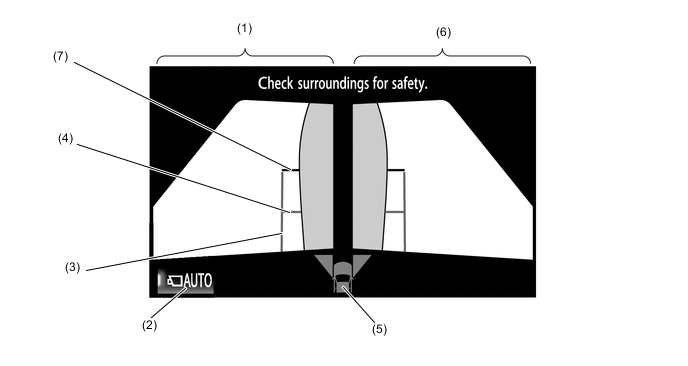
Item Description (1) Side View (Front Left Side) Screen An image captured by the side television camera assembly LH of the area to the front left side of the vehicle. (2) Automatic Display Mode Selection Button Can be used to turn the automatic display mode on and off. When the automatic display mode is on, an indicator inside the switch illuminates. (3) Vehicle Width Parallel Line (Blue) A vehicle width guide line including the outer rear view mirror assembly. (4) Front Tire Contact Line (Blue) A guide line showing the front tire contact position. (5) Camera Direction Display Vehicle Icon
-
Indicates that the side views screen is displayed.
-
When the Lexus parking assist-sensor system detects an obstacle, the icon changes to the Lexus parking assist-sensor system icon.
(6) Side View (Front Right Side) Screen An image captured by the side television camera assembly RH of the area to the front right side of the vehicle. (7) Front Distance Guide Line (Red) These lines are distance guide lines showing the distance forward from the edge of the front bumper. (Approx. 0.5 m (1.6 ft.)) -
-
When the outside rear view mirrors are retracted, the following screen is displayed.
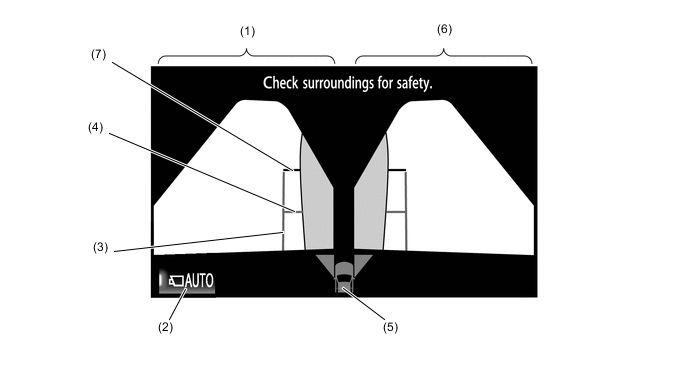
Item Description (1) Side View (Front Left Side) Screen An image captured by the side television camera assembly LH of the area to the front left side of the vehicle. (2) Automatic Display Mode Selection Button Can be used to turn the automatic display mode on and off. When the automatic display mode is on, an indicator inside the switch illuminates. (3) Vehicle Width Parallel Line (Blue) A vehicle width guide line including the outer rear view mirror assembly. (4) Front Tire Contact Line (Blue) A guide line showing the front tire contact position. (5) Camera Direction Display Vehicle Icon
-
Indicates that the side views screen is displayed.
-
When the Lexus parking assist-sensor system detects an obstacle, the icon changes to the Lexus parking assist-sensor system icon.
(6) Side View (Front Right Side) Screen An image captured by the side television camera assembly RH of the area to the front right side of the vehicle. (7) Front Distance Guide Line (Red) These lines are distance guide lines showing the distance forward from the edge of the front bumper. (Approx. 0.5 m (1.6 ft.)) -
-
Wide Front View and Panoramic Mode
-
The wide front view and panoramic mode displays the vehicle front and an overhead image of the vehicle.
-
In the wide front view and panoramic mode, the screen displays as shown in the illustration below:
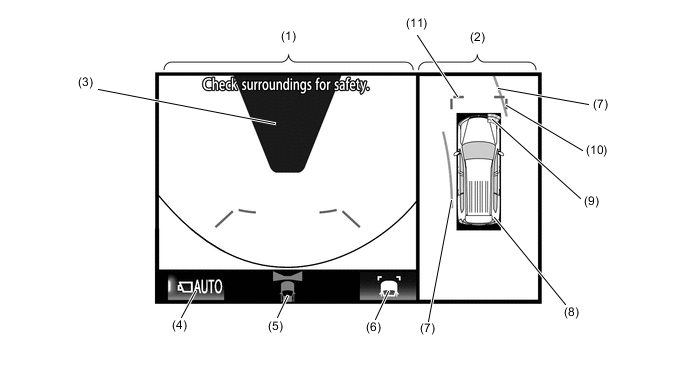
Item Description (1) Wide Front View An image captured by the front television camera assembly of the area in front of the vehicle. (2) Panoramic View Displays an overhead image created by combining images from the front, rear, left and right side television camera assemblies. (3) Masking Since the driver's sense of the distance in front of the vehicle differs from actual conditions, masking is used. (4) Automatic Display Mode Selection Button Can be used to turn the automatic display mode on and off. When the automatic display mode is on, an indicator inside the button illuminates. (5) Camera Direction Display Vehicle Icon Indicates that the "wide front view" is displayed on the left side of the screen. (6) Display Mode Switch Button Pressing this button changes the display mode. (7) Forward Estimated Course Line*1 (When more than 90 °)
-
Displays the estimated course calculated from the steering angle.
-
Displays the estimated course ahead of the front of the vehicle on the outside of the steering direction, and the estimated course ahead of the rear of the vehicle on the inside of the steering direction.
(8) Panoramic View Vehicle Icon*2 Displays the vehicle position in the panoramic view. (9) Lexus Parking Assist-sensor System Cooperative Display When the Lexus parking assist-sensor system detects an obstacle, the obstacle detection direction and distance are displayed superimposed on the screen. (10) Front Vehicle Width Extension Line (Blue) These lines are vehicle width extension lines. The lines displayed are wider than the actual vehicle width. (11) Front Distance Guide Line (Blue) These lines are distance guide lines showing the distance forward from the edge of the front bumper. (Approximately 1.0 m (3.3 ft.)) *1: Displayed when the guide line display is set to "Estimated Course Line Display Mode" and the steering angle is not positioned straight ahead.
*2: The color of the panoramic view vehicle icon can be changed. For details refer to the Repair Manual.
-
- a. Estimated Course Line Display Mode
-
The forward estimated course lines assist with driving operations performed to avoid obstacles by guiding the steering angle according to the estimated course on the outside and inside of the steering direction to prevent overlapping of each guide line with obstacles, etc.
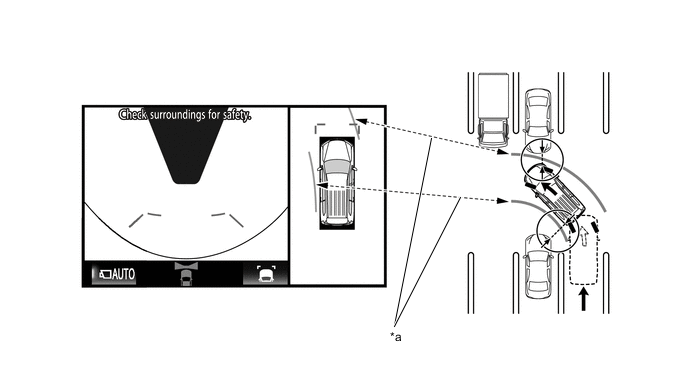
*a Forward Estimated Course Line - - - b. Distance Guide Line Display Mode
-
Forward perpendicular parking operations are assisted by driving forward while steering so that the front distance guide lines and front vehicle width extension lines do not overlap the curb and actual white lines, etc.
-
Panoramic View and Rear View Mode
-
The panoramic view and rear view mode displays the vehicle rear and an overhead image of the vehicle.
-
In the panoramic view and rear view mode, the screen displays as shown in the illustration below:
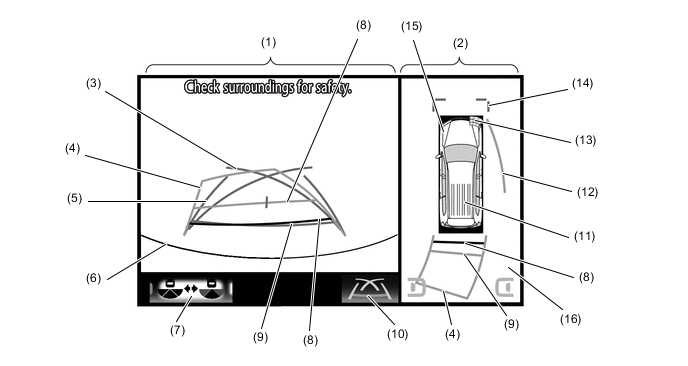
Item Description (1) Rear View An image captured by the rear television camera assembly of the area to the rear of the vehicle. (2) Panoramic View Displays an overhead image created by combining images from the front, rear, left and right side television camera assemblies. (3) Parking Assist Guide Line*1 (Blue) Indicates the path the vehicle will follow when the driver turns the steering wheel fully. (4) Rear Estimated Course Line*2 (Yellow) Moves in sync with the steering wheel to indicate the estimated reverse course of the vehicle. (5) Rear Vehicle Width Extension Line*3 (Blue) Indicates the estimated vehicle width. (6) Edge of Rear Bumper The edge of the rear bumper is displayed on the screen. (7) Camera Angle Mode Switch Button Switches the wide rear view. (8) Rear Distance Guide Line (Yellow/Red)*4 These lines are distance guide lines showing the distance from the edge of the rear bumper. (Approximately 1.0 m (3.3 ft.): yellow, approximately 0.5 m (1.6 ft.): red) (9) Rear Distance Guide Line (Blue)*5 These lines are distance guide lines showing the distance from the edge of the rear bumper. (Approximately 0.5 m (1.6 ft.)) (10) Display Mode Switch Button Pressing this button changes the display mode. (11) Panoramic View Vehicle Icon*6 Displays the vehicle position in the panoramic view. (12) Side Estimated Course Line*4 (Yellow)
-
Displays the estimated course calculated from the steering angle.
-
Displays the estimated course on the outside of the steering direction.
(13) Lexus Parking Assist-sensor System Cooperative Display When the Lexus parking assist-sensor system detects an obstacle, the obstacle detection direction and distance are displayed superimposed on the screen. (14) Front Vehicle Width Extension Line (Blue) These lines are vehicle width extension lines. The lines displayed are wider than the actual vehicle width. (15) Front Distance Guide Line (Blue) These lines are distance guide lines showing the distance forward from the edge of the front bumper. (Approximately 1.0 m (3.3 ft.)) (16) Blind Spot Monitor System Cooperative Display When the blind spot monitor system detects an obstacle, the direction of the approaching vehicle is displayed on the screen. *1: The side estimated course line or rear estimated course line and the parking assist guide line cannot be displayed simultaneously.
*2: Displayed when the guide line display is set to "Estimated Course Line Display Mode".
*3: Not displayed when the steering angle is approximately straight ahead.
*4: Displayed when the guide line display is set to "Estimated Course Line Display Mode" and the steering angle is not positioned straight ahead.
*5: Turns red in "Parking Assist Guide Line Display Mode" and "Distance Guide Line Display Mode".
*6: The color of the panoramic view vehicle icon can be changed. For details, refer to the Repair Manual.
-
- a. Estimated Course Line Display Mode (Perpendicular Parking)
-
The rear vehicle width extension lines can be used to determine whether the vehicle is parked straight in the parking space by confirming whether the parking space lines and rear vehicle width extension lines are crossed or parallel.
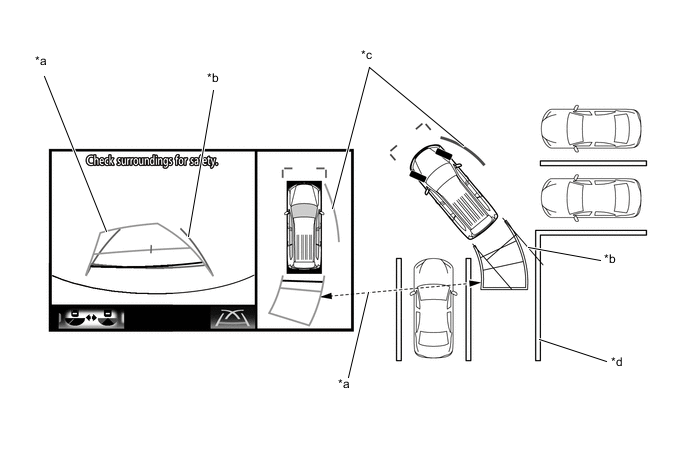
*a Rear Estimated Course Line *b Rear Vehicle Width Extension Line *c Side Estimated Course Line *d Parking Space Line - b. Estimated Course Line Display Mode (Parallel Parking)
-
The rear vehicle width extension lines can be used to determine whether the vehicle is parked straight in the desired parking position by confirming the status of the shoulder and parking space lines, etc., and rear vehicle width extension lines.
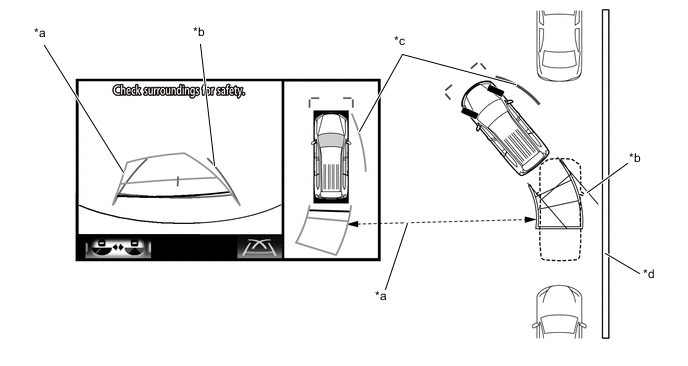
*a Rear Estimated Course Line *b Rear Vehicle Width Extension Line *c Side Estimated Course Line *d Shoulder and Parking Space Lines, etc. - c. Parking Assist Guide Line Display Mode (Perpendicular Parking)
-
The parking assist guide line can be used to determine whether the vehicle is parked straight in the parking space by confirming whether the parking space lines and parking assist guide line are crossed or parallel.
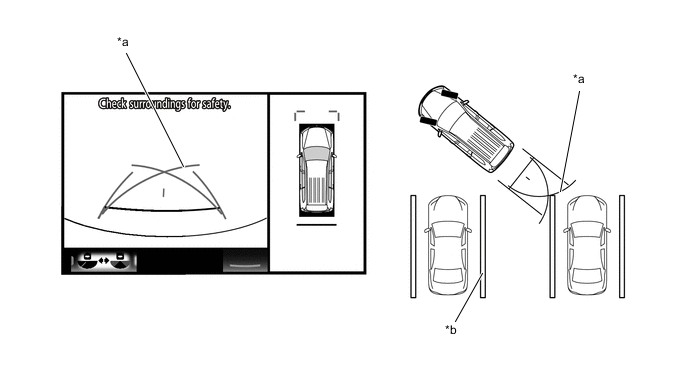
*a Parking Assist Guide Line *b Parking Space Line - d. Parking Assist Guide Line Display Mode (Parallel Parking)
-
The parking assist guide line can be used to determine whether the vehicle is parked straight in the desired parking position by confirming the status of the shoulder and parking space lines, etc., and parking assist guide line.
-
Wide Rear View Mode
-
The wide rear view mode displays the rear of the vehicle.
-
The wide rear view mode is displayed when the camera angle mode switch button is pressed during display of the panoramic view and rear view mode.
-
In the wide rear view mode, the screen displays as shown in the illustration below:
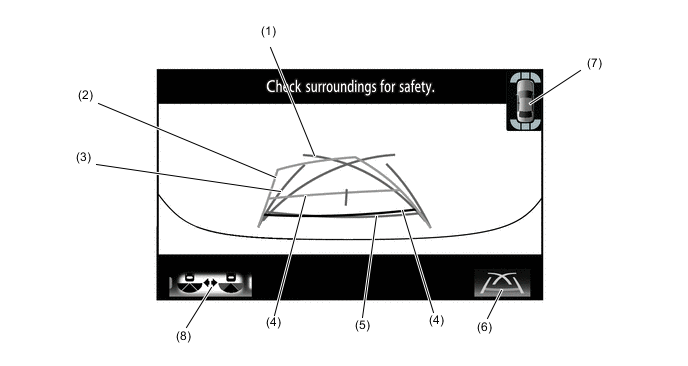
Item Description (1) Parking Assist Guide Line*1 (Blue) Indicates the path the vehicle will follow when the driver turns the steering wheel fully. (2) Rear Estimated Course Line*2 (Yellow) Moves in sync with the steering wheel to indicate the estimated reverse course of the vehicle. (3) Rear Vehicle Width Extension Line*3 (Blue) Indicates the estimated vehicle width. (4) Rear Distance Guide Line (Yellow/Red)*4 These lines are distance guide lines showing the distance from the edge of the rear bumper. (Approximately 1.0 m (3.3 ft.): yellow, approximately 0.5 m (1.6 ft.): red) (5) Rear Distance Guide Line (Blue*5) These lines are distance guide lines showing the distance from the edge of the rear bumper. (Approximately 0.5 m (1.6 ft.)) (6) Display Mode Switch Button Pressing this button changes the display mode. (7) Interruption Icon Displayed when the Lexus parking assist-sensor system or RCTA function detects an obstacle, another vehicle, etc. (8) Camera Angle Mode Switch Button Switches the rear view. *1: The rear estimated course line and the parking assist guide line cannot be displayed simultaneously.
*2: Displayed when the guide line display is set to "Estimated Course Line Display Mode".
*3: Turns red in "Parking Assist Guide Line Display Mode" and "Distance Guide Line Display Mode".
*4: Displayed when the guide line display is set to "Estimated Course Line Display Mode" and the steering angle is not positioned straight ahead.
*5: Not displayed when the steering angle is approximately straight ahead.
- a. Estimated Course Line Display Mode (Perpendicular Parking)
-
The rear vehicle width extension lines can be used to determine whether the vehicle is parked straight in the parking space by confirming whether the parking space lines and rear vehicle width extension lines are crossed or parallel.
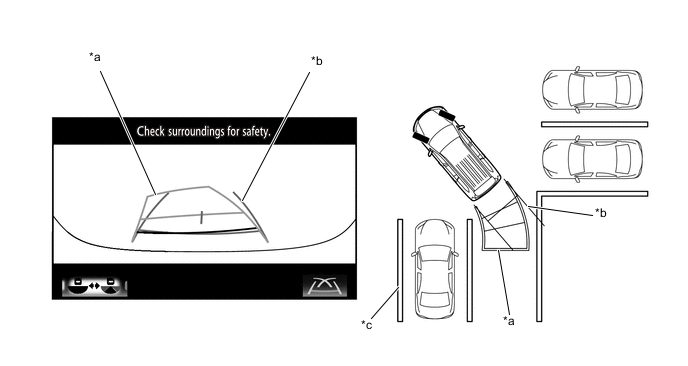
*a Parking Assist Guide Line *b Parking Space Line *c Parking Space Line - - - b. Estimated Course Line Display Mode (Parallel Parking)
-
The rear vehicle width extension lines can be used to determine whether the vehicle is parked straight in the desired parking position by confirming the status of the shoulder and parking space lines, etc., and rear vehicle width extension lines.
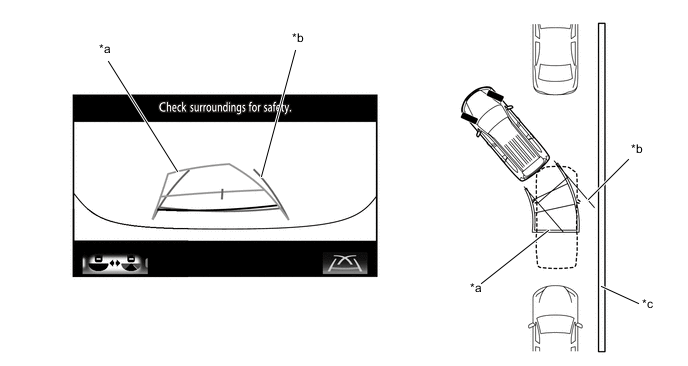
*a Rear Estimated Course Line *b Rear Vehicle Width Extension Line *c Shoulder and Parking Space Lines, etc. - - - c. Parking Assist Guide Line Display Mode (Perpendicular Parking)
-
The parking assist guide line can be used to determine whether the vehicle is parked straight in the parking space by confirming whether the parking space lines and parking assist guide line are crossed or parallel.
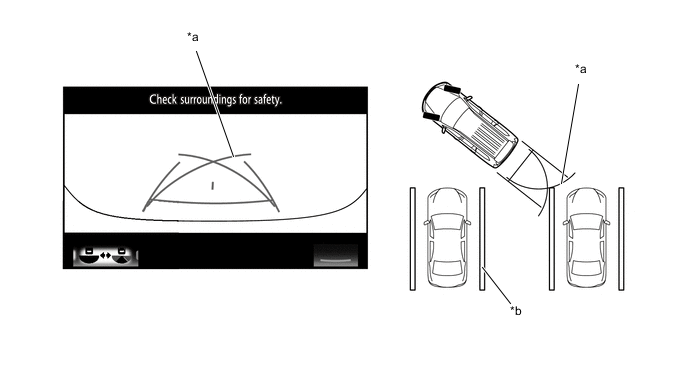
*a Parking Assist Guide Line *b Parking Space Line - d. Parking Assist Guide Line Display Mode (Parallel Parking)
-
The parking assist guide line can be used to determine whether the vehicle is parked straight in the desired parking position by confirming the status of the shoulder and parking space lines, etc., and parking assist guide line.
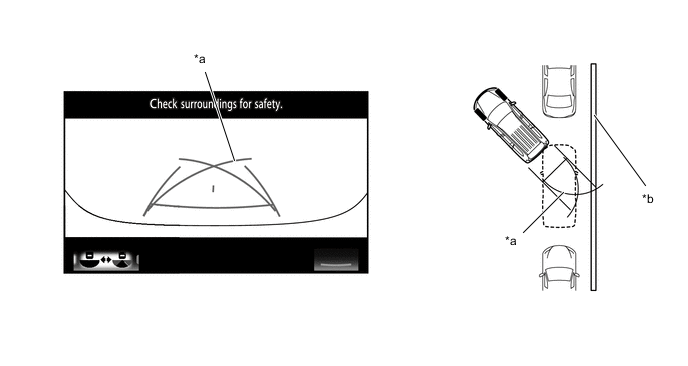
*a Parking Assist Guide Line *b Shoulder and Parking Space Lines, etc. - e. Distance Guide Line Display Mode
-
In this mode, only a distance guide line is displayed when the driver does not need other guide lines.
-
Side View and Wide Front View Mode
-
When the outside rear view mirrors are retracted, the screen switches from the wide front view and panoramic mode to the side view and wide front view mode.
-
The side view and wide front view mode displays the front passenger side and front of the vehicle.
-
In the side view and wide front view mode, the screen displays as shown in the illustration below:
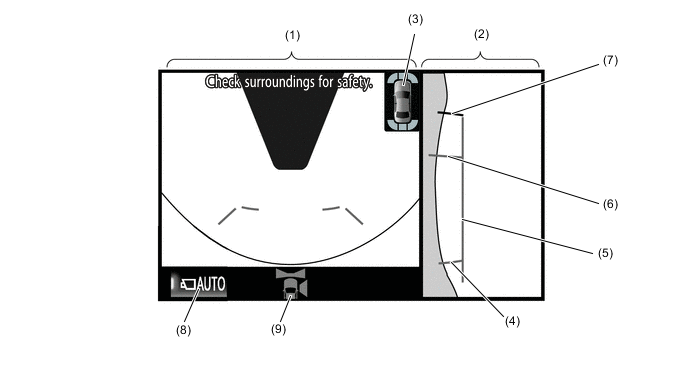
Item Description (1) Wide Front View An image captured by the front television camera assembly of the area in front of the vehicle. (2) Side View (Right Side) An image of the area to the right of the vehicle captured by the side television camera assembly RH. (3) Interruption Icon When the Lexus parking assist-sensor system detects an obstacle, the obstacle detection direction and distance are displayed superimposed on the screen. (4) Rear Tire Contact Line (Blue) A guide line showing the rear right tire contact position. (5) Vehicle Width Parallel Line (Blue) A vehicle width guide line including the outer rear view mirror assembly. (6) Front Tire Contact Line (Blue) A guide line showing the front right tire contact position. (7) Front Distance Guide Line (Red) This line is distance guide line showing the distance forward from the edge of the front bumper. (Approximately 0.5 m (1.6 ft.)) (8) Automatic Display Mode Selection Button Can be used to turn the automatic display mode on and off. When the automatic display mode is on, an indicator inside the button illuminates. (9) Camera Direction Display Vehicle Icon Indicates that the "wide front view" is displayed on the left side of the screen. -
Side View and Rear View Mode
-
When the outside rear view mirrors are retracted, the screen switches from the panoramic view and rear view mode to the side view and rear view mode.
-
The side view and rear view mode displays the front passenger side and rear of the vehicle.
-
In the side view and rear view mode, the screen displays as shown in the illustration below:
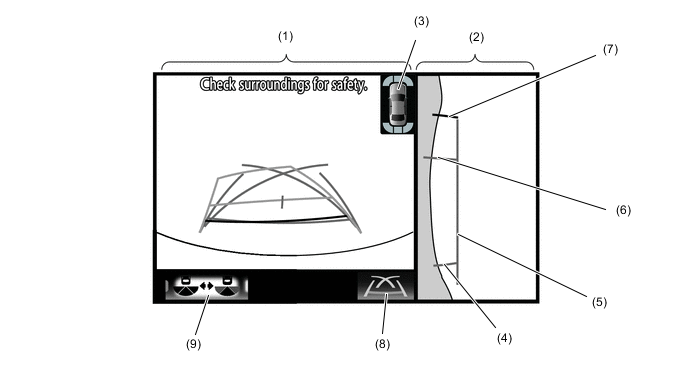
Item Description (1) Rear View An image captured by the rear television camera assembly of the area to the rear of the vehicle. (2) Side View (Right Side) An image of the area to the right of the vehicle captured by the side television camera assembly RH. (3) Interruption Icon
-
When the Lexus parking assist-sensor system detects an obstacle, the obstacle detection direction and distance are displayed superimposed on the screen.
-
When the blind spot monitor system detects an obstacle, the direction of the approaching vehicle is displayed on the screen.
(4) Rear Tire Contact Line (Blue) A guide line showing the rear right tire contact position. (5) Vehicle Width Parallel Line (Blue) A vehicle width guide line including the outer rear view mirror assembly. (6) Front Tire Contact Line (Blue) A guide line showing the front right tire contact position. (7) Front Distance Guide Line (Red) This line is distance guide line showing the distance forward from the edge of the front bumper. (Approximately 0.5 m (1.6 ft.)) (8) Display Mode Switch Button Pressing this button changes the display mode. (9) Camera Angle Mode Switch Button Switches the rear view. -
-
-
-