AUDIO AND VISUAL SYSTEM
-
FUNCTION OF MAIN COMPONENTS
Function Component Radio Receiver Assembly*1 Operates the respective functions in accordance with the signals from the switches. Radio and Display Receiver Assembly*2 Extension Box (Navigation ECU)*3 Transmits the signals from the No. 1 stereo jack adapter assembly to the radio and display receiver assembly. Amplifier Antenna Assembly Amplifies radio broadcasting signals from the radio antenna and sends them to the radio and display receiver assembly. Combination Meter Assembly*2 Transmits vehicle speed signals to the radio and display receiver assembly. Amplifier Microphone Assembly*2 Transmits voice signals to the radio and display receiver assembly. Steering Pad Switch Assembly Transmits the operation signals from the switches to the radio and display receiver assembly or radio receiver assembly. No. 1 Stereo Jack Adapter Assembly Transmits information about the USB device connected to the USB port to the radio receiver assembly*1 or radio and display receiver assembly*2 or navigation ECU*3. Rear Television Camera Assembly*4 Captures the view behind the vehicle and transmits the image to the radio and display receiver assembly. Stereo Component Amplifier Assembly*5 Amplifies audio signals sent from the radio and display receiver assembly and sends them to the speakers.
-
*1: Models with base audio system
-
*2: Models with display audio system or navigation system
-
*3: Models with navigation ECU
-
*4: Models with parking assist monitor system
-
*5: Models with 8-speaker system
-
-
FUNCTION
-
Bluetooth Audio System
-
The functions of the Bluetooth audio system that can be used vary with the version of the Audio/Video Remote Control Profile (AVRCP) supported by the Bluetooth audio player that is being used.
-
The available Bluetooth audio system functions differ in accordance with each Audio/Video Remote Control Profile (AVRCP) as follows:
Function Outline Audio/Video Remote Control Profile (AVRCP) Version 1.0 Version 1.3 Version 1.4 or higher Play Starts playing the music. ○ ○ ○ Stop Stops playing the music. ○ ○ ○ Pause Pauses the music. ○ ○ ○ Track Up/Down Changes the track. ○ ○ ○ Fast Up/Down Fast-forwards or reverses the music. ○ ○ ○ Album Up/Down Changes the album. - ○ ○ Repeat (Single Repeat) Repeats the selected music. - ○ ○ Random (All Track Random) Plays all the music in the portable audio device at random. - ○ ○ Music Information Shows the track number, playtime, track name, artist name and album name. - ○ ○ Remaining Battery Level Shows the remaining battery level of the Bluetooth audio player. - ○ ○ Music List Shows the music list. - - ○ Tech Tips
○: Available
-: Not available
-
The functions of the Bluetooth audio system are shown in the following table:
Function Outline Set Bluetooth Audio Player Registering a Bluetooth Audio Player In order to use the Bluetooth audio system with a Bluetooth audio player, it is necessary to register it with the audio head unit. Once a Bluetooth audio player is registered, the Bluetooth audio system connects automatically. Deleting a Bluetooth Audio Player The user can delete a Bluetooth audio player. Connecting a Bluetooth Audio Player The user can to select whether to connect to the Bluetooth audio player automatically or manually. If the Bluetooth audio player has been registered and automatic connection is enabled, the Bluetooth audio player will be connected automatically. Change Settings of Bluetooth Audio Selecting a Bluetooth Audio Player If the user has registered a second Bluetooth audio player, either one can be selected for connection. Displaying a Bluetooth Audio Player The user can view the information of the registered Bluetooth audio player on the system. Changing the Connection Method The user can select the connection method. With this function, the user can select whether to make a connection from the audio head unit to the Bluetooth audio player or from the Bluetooth audio player to the audio head unit. Displaying the Bluetooth Audio Setting The user can see the Bluetooth audio information settings on the system. Changing the Device Name or Passcode The user can change the device name or passcode. Initializing the Bluetooth Audio Settings The user can initialize the settings.
-
-
Bluetooth Hands-free System
-
Bluetooth is a short-distance, high-speed wireless data communication standard that uses the 2.4 GHz frequency band prescribed by the Bluetooth Special Interest Group (SIG).
-
This Bluetooth hands-free system enables drivers to place or receive phone calls without operating a cellular phone.
-
The Bluetooth hands-free system is included in the audio head unit.
-
The major hands-free functions are shown in the following table:
Function Display Audio System or Navigation System Calling with Bluetooth Phone By Dial ○ By Contacts ○ (1500 Items)*1 By Call History*2 Dialed Number ○ (15 Items) Received Call ○ (15 Items) Missed Call ○ (15 Items) All Call History ○ By Favorites*2 ○ By Point Of Interest (POI) Call ○*3 By Short Message Service (SMS)/Multimedia Message Service (MMS)/e-mail Reception Screen ○ Text Message ○ By Selecting SOS Screen Button ○*3 By Using the Toyota Assistance ○*3 Receive with Bluetooth Phone/Talk on Bluetooth Phone Receiving Call*2 Received Manually ○ Refused ○ Interrupt Call*2 ○ Tone Sending By Dial ○ By Registered Number ○ Receive and Reply Message with Bluetooth Phone Receiving Message ○ Replying (Quick Reply) ○ Recognition/Connection Registering Bluetooth Phone ○ (4 Bluetooth Phones) Connecting Bluetooth Phone Connected Automatically ○ Connected Manually ○ Setting Setting Automatic Connection ○ Tech Tips
○: Equipped
-: Not equipped
*1: It is possible to have up to 1500 items per telephone (Bluetooth phone).
*2: Can be performed while driving.
*3: Models with navigation system
-
The hands-free functions of the Radio and display receiver assembly are shown in the following table. However, for safety, some functions may not be selectable when the vehicle is being driven.
Function Outline Calling with a Bluetooth Phone By Dial The user can call by inputting a telephone number. By Contacts*1 The user can call by using the contacts data that has been transferred from the user's cellular phone. The user can register up to 1500 items in the contacts. By Call History*1 Dialed Number The user can call by selecting a previously dialed number. The system remembers up to 15 dialed numbers. If more than 15 numbers have been dialed, the oldest number will no longer be remembered. Received Call The user can call by selecting the telephone number of a received call. When a call is received, the system will remember the last 15 numbers. If more than 15 calls have been received, the oldest number will no longer be remembered. Missed Call The user can call by selecting the telephone number of a missed call. The system remembers up to 15 missed call numbers. If more than 15 calls have been missed, the oldest number will no longer be remembered. All Call History The user can call by selecting a telephone number from all call history. However, the number of telephone numbers available for the user to choose from is limited while driving. By Favorites*1 The user can call by using registered telephone numbers selected from the contacts, dialed numbers or received calls. By Short Message Service (SMS)/ Multimedia Messaging Service (MMS)/e-mail Reception Screen*1 The user can call by operating a switch when "Call" is displayed on the incoming message screen. Text Messages*1 The user can call by operating a switch when telephone numbers are displayed in blue in the text message. By Point Of Interest (POI)*2 The user can call by operating a switch when "Call" is displayed on the navigation screen. By Selecting SOS Screen Button*2 The user can make a 112 emergency call by operating a switch when "SOS" is displayed on the dial screen. This call can only be placed in a country where the 112 emergency call service is available. By Using the Toyota Assistance*2 The user can make a call to Toyota Assistance service by operating a switch when "Call Assistance" is displayed on the Toyota Assistance screen. Receiving a Call Using a Bluetooth Phone*1 When a call is received, the receiving screen is displayed with a sound. Talking on a Bluetooth Phone*1 While the user is talking on the phone, the talking screen is displayed. Changing Bluetooth Phone Settings Favorites Registration The user can register a desired telephone number from the contacts, dialed numbers or received calls. Up to 15 favorite telephone numbers can be registered. Volume Settings The user can set the volume. Contacts Settings Transferring a telephone number: The user can transfer telephone numbers from the Bluetooth phone to the system. Up to 1500 data items (up to 4 numbers per entry) can be registered in the contacts. Automatically transferring a telephone number: When a PBAP-compatible phone is connected, the contacts data of the phone can be automatically transferred. Registering phone numbers: The user can register phone numbers in the contacts.*3 Adding data to the contacts: The user can add data to the contacts.*3 Editing data: The user can edit the registered data.*3 Deleting all the phone data: The user can delete all the phone data.*3 Deleting data: The user can delete the data.*3 Deleting the call history data: The user can delete the call history data all at once.*3 Screen Settings Receiving call display: The user can select the method of the receiving call display. Contacts data and call history data transfer condition: The user can select whether a message is displayed or not while transferring contacts data and call history data. Bluetooth connection status at startup: When the ignition switch is turned to ACC or ON, the Bluetooth phone is automatically connected and the connection will be displayed. Setting initializing: The user can initialize the settings. Registering and Selecting a Bluetooth Phone Bluetooth Phone Registration In order to use the hands-free function of a Bluetooth phone, it is necessary to register it with the radio receiver assembly. Once a phone is registered, the hands-free function connects automatically. Bluetooth Phone Selection*1 When 2 or more registered Bluetooth phones are in the cabin, it is necessary to select which phone to use with the system to prevent the lines from being crossed. Only the selected phone is available for use as a hands-free phone. The phone registered last is automatically selected. Bluetooth Information Confirmation and Editing The user can set, change and initialize the information of the Bluetooth phone displayed on the screen. Deleting a Bluetooth Phone The user can delete a registered Bluetooth phone from the audio head unit. Tech Tips
*1: Can be performed while driving.
*2: Models with navigation system
*3: PBAP non-compatible, or PBAP-compatible phone with the automatic telephone number transfer function set to off.
-
-
-
CONSTRUCTION
-
No. 1 Stereo Jack Adapter Assembly
-
The No. 1 stereo jack adapter assembly is located on the lower front passenger side of the instrument panel.
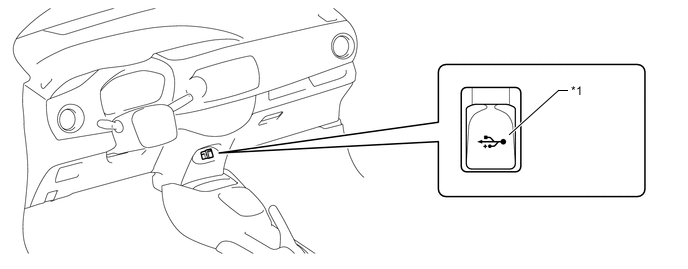
Text in Illustration *1 No. 1 Stereo Jack Adapter Assembly - -
-
-
Steering Pad Switch Assembly
-
Frequently used switches are located on the steering pad for easy use.
-
The steering pad switches provided on the steering pad may vary in accordance with optional equipment.
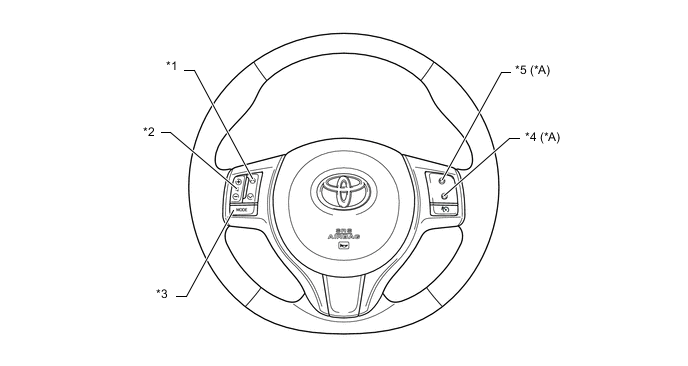
Text in Illustration *A Models with Display Audio System or Navigation System - - *1 Seek Up/Down Switch *2 Volume +/- Switch *3 MODE Switch *4 Off Hook Switch *5 On Hook Switch - -
-
-