NAVIGATION SYSTEM / MULTI INFORMATION SYSTEM
-
FUNCTION OF MAIN COMPONENTS
Component Function Display and Navigation Module Display Receives and processes the data that is input from various components, displays various pieces of information and operating conditions on the screen, and provides voice guidance. Navigation Antenna Assembly Receives signals from the GPS satellites and transmits them to the display and navigation module display. Combination Meter Assembly Transmits vehicle speed signals to the display and navigation module display. Steering Pad Switch Enables the driver to operate the navigation system from the steering pad switches. Telephone Microphone Assembly Transmits voice signals to the display and navigation module display. Telematics Transceiver (Data Communication Module) Uses the telephone antenna assembly to send and receive the data and voice signals used for the G-BOOK service through a communication network. Telephone Antenna Assembly This antenna is for a cellular phone. It is compatible with the transmission and reception of frequency bands of cellular phones. The assembly transmits signals from the telematics transceiver (data communication module) and receives signals from the call center. Television Display Assemblies*
-
Display the navigation screen (information).
-
Receive signals from the remote controller.
Park/Neutral Position Switch Assembly Transmits the R position signal to the ECM.
-
*: Models with rear seat entertainment system
-
-
FUNCTION
-
The main functions of the navigation system are shown below:
Function Outline Navigation Screen Through the use of the GPS and map data which is stored on a HDD or DVD, the navigation system analyzes the position of the vehicle and indicates that position on the map displayed on this screen. Maintenance Information Informs the driver of inspection or replacement timing of the following items based on the calendar function and vehicle speed signal:
-
Engine oil: Replace engine oil
-
Oil filter: Replace engine oil filter
-
Rotation: Rotate tires
-
Tire: Replace tires
-
Battery: Replace battery
-
Brake pad: Replace brake linings
-
Wiper: Replace wiper blades
-
LLC: Replace engine coolant
-
Brake oil: Replace brake fluid
-
Trans. fluid: Replace ATF
-
Service: Scheduled maintenance
-
Air filter: Replace air filter
-
Personal: New information items can be created separately from provided ones.
Screen Adjustment
-
The brightness or contrast of the screen can be adjusted to suit the brightness of surroundings.
-
When the taillights are turned on, the user can select whether to display the map in the day mode or night mode.
Air Conditioning The operation and control of the air conditioning system can be effected through the use of the automatic air conditioning display of the display and navigation module display and the touch switch that appears on the display. Help Screen Shows the command list and operation guide. Speech Command Operates the navigation system by voice recognition. Parking Assist Monitor System Displays the rear view of the vehicle that is captured by the television camera assembly mounted on the back door when the shift lever is moved to R, and assists the driver in parking. Fuel Consumption Screen The following information is displayed in accordance with the signals from the combination meter assembly:
-
Best Fuel Consumption
-
Average Fuel Consumption Per Minute
-
Past Fuel Consumption Record
-
Possible Cruising Distance
Calendar The calendar screen is displayed using time information from the GPS. Setup Screen Allows the user to change each of the vehicle settings by operating the display and navigation module display. -
-
Navigation Screen
-
The functions of the navigation screen display are shown below:
Function Outline Map Display Map Color Change Depending on the position of the light control switch, the screen changes to day mode or night mode. Taillight-interlocked Map Color Change Changes the color of the map screen that is displayed when the taillights are turned on. Heading Up
-
Displays the map so that the direction of the route progression heading faces up during route guidance.
-
Displays a map in the direction of travel of the vehicle in an enlarged form.
Multi-step Scale Display Changes the map scale in 14 steps.*1 Changes the map scale in 13 steps.*2 Direct Scale Change Directly selects and displays the map scale. Street Name Indication on Scrolled Map Displays the street name and city name even when the map screen is being scrolled. Stepless Scale Display Changes the scale of the map from the basic 14 steps to an even finer range of scales. Road Number (Name) Sign Board Display Displays the road number (name) on the map. Point of Interest Display Displays selected types of points of interest as marks on the map. 3D Display*3 Displays a 3-dimensional (3D) view of the map. Split-view Display Displays different modes on a screen that is split into 2 views. Compass Mode Screen*1 Displays the direction of travel and detailed data of the present location. On-route Scroll (Route Preview)*2 Scrolls the center of the cursor forward and backward constantly along the route. Route Trace It is possible to store up to the last 200 km (124 miles) of a travelled route and retrace the route on the display. RDS-TMC Display*3 Displays the RDS-TMC icon, arrow and indicator when RDS-TMC service is being received. RTIC Traffic Information Display*2 Displays the RTIC icon, arrow and indicator when RTIC service is being received. Destination Search Preset Destination Memory Search Sets a pre-registered point as a destination point while driving. Address Search A destination can be set in 2 ways*1:
-
Information can be input in the order of: street name, town and house number.
-
Information can be input in the order of: town or postal code, street name and house number.
A destination can be set by entering it in the order of: province, street, and city name.*2 Facility Name (Pin Yin) Search*2 A facility name or location name can be input using Pin Yin, and the search can be narrowed down by area or category. Hybrid Point of Interest Search*1 Narrows the search by names of the point of interest, category and areas. Previous Destination Search Stores the coordinates, names, and date of up to 100 locations that have been set as destinations in the past. Address Book (Memory Point) Search Sets a destination from the registered address book (memory point). Intersection Search*1 By specifying 2 streets, the point at which they intersect is set as the destination point. Motorway (Highway, Freeway) Entrance or Exit Search*1 Searches for the destination by the name of the street that connects to a motorway (highway, freeway) entrance or exit. Map Search A destination can be set by scrolling the cursor on the map. Phone Number Search A destination can be input by entering its phone number. MAPCODE Search*2 A destination can be set using a MAPCODE. G Search*2 A destination can be set using information in the G-BOOK site (drive plan or G memory point). Coordinate Search*1 A destination can be input by entering its coordinates. Voice Recognition Search A destination can be set up by voice command input. Route Guidance Multiple Destination Setting Sets multiple destinations. It can also rearrange the sequence of the destinations. Multiple Route Search Searches for multiple routes. G Route Search*2 Searches for a route based on expected congestion information provided via the G-BOOK service. Search Condition Designation Searches for the recommended, alternative, and shortest routes.*1 Searches for the recommended route, the shortest route, a route that prioritizes the use of highways, or a route that prioritizes the use of general roads.*2 Detour Search Changes the route to detour around a section of the route. Regulated Road Consideration Performs searches which consider regulated roads. Avoidance Area Searches for a route that avoids a designated area. Auto Avoid Traffic Search Automatically changes to another route to avoid heavy congestion. Guidance Voice Guidance Provides voice guidance about the distance and the direction of travel to a destination point based on road conditions and vehicle speed. Rotary Guidance Provides guidance with a special voice phrase in a rotary (traffic circle). Next Turn Guidance*1 Provides guidance about the distance to the next turn and indicates the direction of the turn using an arrow. Motorway (Highway, Freeway) Mode Display Displays the distance to the next junction and exit. Motorway (Highway, Freeway) Direction of Travel Display Displays the direction of travel to take on the motorway (highway, freeway). Intersection Zoom-in Display Zooms in the image when approaching an intersection. Turn List Display*1 Displays a turn list on the right side of the 2-screen display. Arrow Display*1 Displays the direction of the next turn and the distance to the turn on the right side of the 2-screen display. Lane List Display*2 Display a lane list on the right side of the 2- screen display. Distance Display Destination Displays the distance from the present location to the destination. Estimated Arrival Time Display Displays estimated arrival time. Destination Direction Arrow Display Displays the direction from the current position to the destination in case of being off the route during the guidance. Off-route Arrow Display Displays the route ahead on the route guidance line in case of being off the route during the guidance. Others Voice Recognition Recognizes pre-programmed system commands spoken to operate the navigation system. Help Explains what operation can be performed when a "?" on the display is touched. Map Coverage Information Display Displays the map area that is recorded in the HDD*3 or on the DVD*4.
-
*1: Models for Europe and G.C.C. countries
-
*2: Models for China
-
*3: Models for Europe
-
*4: Models for G.C.C. countries
-
-
-
Information/Phone Screen
-
The functions of the information/phone screen display are shown below:
Item Function Hands-free Phone Enter Bluetooth Phone A maximum of 4 Bluetooth-compatible cellular telephones can be registered. In addition, connection with an automatically registered Bluetooth-compatible cellular phone is available. Call and Receive on Bluetooth Phone The following 6 methods are available to make a call:
-
By Dial
-
By Phonebook
-
By Speed Dial
-
By Call History
-
By Voice Recognition
-
By Point Of Interest (POI) Search Call
When a call is received, the incoming call screen will be displayed. The following operations are available:
-
Talk on the phone
-
Adjust the volume
-
Hang up the phone
-
Mute voice
-
Transfer the call
Fuel Consumption Fuel Consumption Information Display* Information about fuel consumption per minute or per trip can be displayed. Calendar The current date is highlighted in yellow. Tech Tips
*: The fuel consumption screen is displayed as illustrated below. This screen has the display functions listed below:
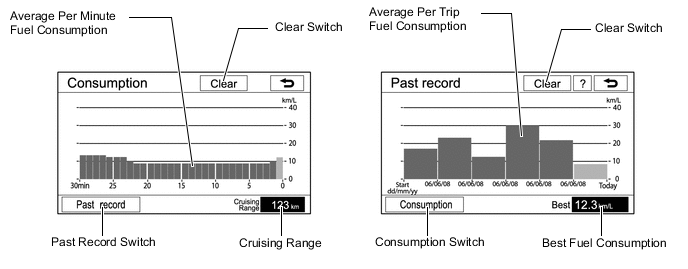
Item Outline Clear Switch Clears all past information. Average Per Minute Fuel Consumption
-
Displays the value that has been calculated by the multi display, which is based on the driven distance and the volume of fuel consumed (fuel injection signal from No. 1 injector), provided that the engine switch is on (IG).
-
Displays the average fuel consumption for the last minute, or since clear was last selected.
Past Record Switch Changes to the sectional fuel consumption screen. Cruising Range Displays approximate drivable distance. Average Per Trip Fuel Consumption Displays average fuel consumption since clear was last selected, and records average fuel consumption, updates the graph, and begins a new record every time clear is selected. Consumption Switch Displays the screen for fuel consumption per minute. Best Fuel Consumption Displays the best per trip fuel consumption. -
-
-
Setup Screen
-
The functions of the setup screen display are shown below:
Item Function Setup General Setting
-
Language can be selected.*1
-
Rear seat entertainment system lock can be set*2.
-
Voice recognition language can be selected.*1
-
Automatic screen change from audio to map after audio controls are operated can be selected.
-
Keyboard layout can be changed.
-
Distance unit can be changed.*1
-
Registered information (personal data) can be cleared.
-
The beep sound can be turned on or off.
Clock Setting
-
Time zone can be set.*5
-
Used for changing time zones*5 and the on/off settings of daylight saving time.
-
Automatic adjustment of time using GPS time information can be set.
Voice Setting
-
The voice guidance volume can be adjusted or switched off.
-
Voice guidance during route guidance can be set.
-
Voice guidance while using the audio system can be set.
-
Voice recognition talkback can be set.
-
The guidance voice can be set.*3
-
Voice guidance of the traffic information function can be set.*1
Navigation Setting The navigation settings can be used to:
-
Set up the address book*4
-
Delete previous destinations*4
-
Set detailed navigation settings such as:
-
Average cruising speed
-
Displayed POI icon categories
-
Display of 3D landmarks*1
-
Buttons displayed on the map screen when "OFF" is selected
-
Manual adjustment of the current vehicle position mark
-
Display of pop-up messages
-
Display of traffic notification*5
-
Set up RTIC*4
-
Set voice guidance
-
Set auto avoid traffic reroute search
-
Tune in the traffic station
Phone Setting
-
Voice and ring volume adjustment.
-
Initial registration and settings for a Bluetooth phone.
-
Setting the phonebook.
-
Information on a registered Bluetooth phone can be displayed and the settings can be changed.
-
Detailed phone settings can be set.
Setup Audio Setting
-
Sound quality can be adjusted.*4
-
A Bluetooth audio device can be registered.*1
-
A registered Bluetooth compatible portable player can be selected.*1
-
Recording settings for music CDs can be changed.*6
Vehicle Setting
-
Settings can be changed for the following maintenance items:
-
Engine oil
-
Oil filter
-
Rotation
-
Tires / TYRES
-
Battery
-
Brake pad
-
Wipers
-
Coolant / LLC
-
Brake oil
-
Trans. fluid / AT fluid
-
Service
-
Air filter
-
Personal
-
LEXUS parking assist-sensor system adjustment.*7
Traffic Setting*1 The RDS-TMC settings can be used to:
-
Set voice guidance
-
Set show traffic information and select icons
-
Set auto avoid traffic reroute search
-
Set automatic tuning of traffic station
G-BOOK Setting*4 The G-BOOK settings can be used to:
-
Select content from "My Request"
-
Set the communication lock function, and delete and correct bookmarks and search history
-
Set the system to read the contents of the browser aloud automatically, select reading speed and cancel the contract
Map Data*4 Displays the map area that is recorded in the HDD.
-
*1: Models for Europe
-
*2: Models with rear seat entertainment system
-
*3: Models for G.C.C. countries
-
*4: Models for China
-
*5: Models for Europe and G.C.C. countries
-
*6: Models for Europe and China
-
*7: Models with LEXUS parking assist-sensor system
-
-
-
-
DIAGNOSIS
-
For details on the procedure required to enter the service menu screen, refer to the corresponding Repair Manual for this model.
-