NAVIGATION SYSTEM / MULTI INFORMATION SYSTEM DETAILS
-
FUNCTION OF MAIN COMPONENTS
-
The main components of the navigation system have the following functions:
Component Function Radio and Display Receiver Assembly Receives navigation system data from the extension module assembly to display information on the screen and output sounds. Extension Module Assembly The built-in navigation ECU transmits navigation system control data to the radio and display receiver assembly. Center Speaker*1 Outputs navigation system voice guidance. Front Tweeter Front Squawker*1 Front Speaker*2 Front Woofer*1 Rear Speaker Rear Tweeter*1 Navigation Antenna Assembly Receives signals from the GPS satellites and transmits them to the extension module assembly. Stereo Jack Adapter Assembly Transmits information about the portable audio player connected to the USB port or AUX port to the radio and display receiver assembly. Overhead Console
- Telephone Microphone Assembly
Transmits the voice input signal to the radio and display receiver assembly. -
*1: Model with 11-speaker system
-
*2: Model with 6-speaker system
-
-
-
FUNCTION
-
Navigation Screen
-
The navigation ECU calculates the present position and detects the direction of travel, determines a route and calculates the driving distance based on the following information sources:
-
Map data in the extension module
-
Global Positioning System (GPS) satellites
-
Built-in gyro sensor
-
Radio Data System Traffic Message Channel (RDS-TMC) signal
-
Vehicle speed signal
-
-
The navigation screen consists of the following functions:
Item Function Map Map View Selection The following options can be selected by touching the view change icon on the map screen:
-
3D heading up
-
2D heading up
-
2D north up
Map Zoom A map can be zoomed in or out. Guidance Volume The voice guidance sound volume can be adjusted. Destination Menu Destinations and routes can be set. Options Optional settings can be customized. My Destinations Stored List of stored destinations:
-
Memory points can be set and selected.
-
A home address can be set and selected.
Last List of last destinations:
-
The coordinates, names and date of up to 100 locations that have been set as destinations in the past can be selected.
Phone's Book List of contacts from the connected phone:
-
Contacts with address information can be selected.
Enter Destination Address A destination can be set:
In the order of town or postal code, street name and house number/intersection.
POI The following 3 types of search pattern can be used after a search area is selected. By category Searches for POI by referring to POI categories. By name Searches for POI with a POI name entered by the user. By map Searches for POI with a POI icon selected on the map. Advanced Menu for advanced alternatives to enter a destination. Select point on map A map can be viewed by entering a destination. Enter geo-coordinates After a direction is selected, a map can be viewed by entering geo-coordinates. Load vCards from USB vCards generated by the server can be imported from USB devices. Load addresses from server When the navigation system accesses the internet through the Bluetooth connection via an internet profile, the user can also import addresses stored on an internet server. Online search by Google When the navigation system accesses the internet through the Bluetooth connection via an internet profile, the user can search for special destinations on Google. Stopover When the route guidance is active, the following stopover options can be available. Show destination list This list shows the already entered destinations (stopovers and the main destination). The menu entry will be displayed grayed out, until the first stopover has been entered. Select from stored destinations Selecting one list entry in the list of stored destinations will define that entry as a stopover. Select from last destinations Selecting one list entry in the list of last destinations will define that entry as a stopover. Select from phonebook Selecting one list entry in the list of contacts will define that entry as a stopover. Enter address After entering an address and confirming it with the button, "Add" will define that destination as a stopover. Select POI After using one of the different POI search types, a POI result list will be shown. Selecting one list entry in this result list will define that entry as a stopover. Select point on map After selecting a point on the map and confirming it with the button, "Add" will define that destination as a stopover. Enter geo-coordinates After entering geo-coordinates and confirming it with the button, "Add" will define that destination as a stopover. Traffic Messages On Route When route guidance is active, traffic messages are displayed on a route. Show All All the traffic messages are shown. Warnings Only warning messages are displayed. Set TMC The different RDS-TMC settings are shown. Route Options Preferences Menu for defining the route preferences for the route calculation is as follows: Fast route The fastest route will be calculated. Short route The shortest route will be calculated. Ecological route An ecological route will be calculated. Show route alternatives After a route calculation, the user gets an overview of 3 route alternatives (fast, short and ecological). If this menu entry is activated, the menu entry "Make a round trip" will be displayed and grayed out. Make a round trip The route to the destination will be calculated. After reaching the destination, the route will automatically be calculated and route guidance will be started back to the starting point. Entered stopovers will also be considered on the way back to the starting point. If this menu entry is activated, the menu entry "Show route alternatives" will be displayed and grayed out. Avoid Menu for defining the avoidance criteria for the route calculation is as follows: Freeways Freeways will be avoided. Toll roads Toll roads will be avoided. Tunnels Tunnels will be avoided. Ferries Ferries will be avoided. Settings Radius filter After pressing this button, a radio button list with the 5 available options for setting the radius filter will be displayed. Dynamic reroute After pressing this button, a radio button list with the 3 available options for setting dynamic rerouting will be displayed. Options Stop Guidance The current route guidance is stopped. This option is grayed out when no route is active. Route Options for Current Route From the current route menu, alternative routes and avoid settings can be changed. This option is grayed out when no route is active. Show Route The complete active route is shown on the screen. Route List A list with the different segments on the route is shown. It is also possible to define a detour. This option is grayed out when no route is active. Block Road Ahead This option allows the user to specify how far from the current point on the road is blocked. This option is grayed out when no route is active. Map Settings The different map settings are shown. Location and GPS Information This screen shows the user their current location with road, city, postal code, latitude, longitude and altitude as long as a good GPS signal is available. Destination Information This screen shows the user their current destination, how the destination is being routed to, and remaining transit time and distance. This option is grayed out when no route is active. -
-
-
Information Screen
-
The vehicle information screen display includes the Trip Information and Past Record screens.
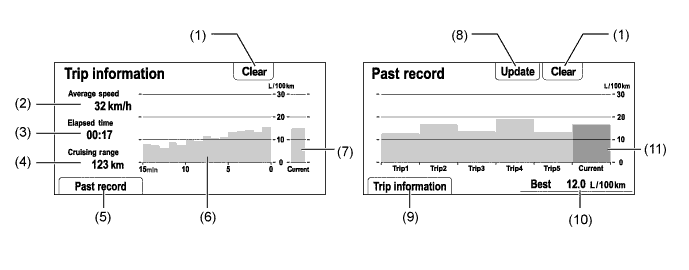
Item Outline (1) Clear Switch Clears all past information. (2) Average Speed Displays the value that has been calculated by the combination meter assembly, which is based on the distance driven and time elapsed since the ignition switch is turned to ON. (3) Elapsed Time Displays the value that has been calculated by the combination meter assembly, which is based on the time elapsed since the ignition switch is turned to ON. (4) Cruising Range Displays the approximate drivable distance. (5) Past Record Switch Changes to the past record (per trip) fuel consumption screen. (6) Average per Minute Fuel Consumption -
Displays the value that has been calculated by the combination meter assembly, which is based on the driven distance and the volume of fuel consumed (fuel injection signal), provided that the ignition switch is ON.
-
Displays the average fuel consumption for the last minute, or since clear was last selected.
(7) Current per Minute Fuel Consumption Displays the instantaneous (current) fuel consumption value that has been calculated by the combination meter assembly, which is based on the driven distance and the volume of fuel consumed (fuel injection signal), provided that the ignition switch is ON. (8) Update Switch -
Resets the average fuel consumption to measure the current fuel consumption again.
-
Sends the average fuel consumption reset signal to the combination meter assembly to update the graph.
(9) Trip Information Switch Changes to the average per minute fuel consumption screen. (10) Best Fuel Consumption Displays the best (most economical) per trip fuel consumption. (11) Average per Trip Fuel Consumption -
Displays the current record and the last 5 average per trip fuel consumption records or the current record and those since clear was last selected.
-
Starts calculating the average fuel consumption when the average fuel consumption displayed on the combination meter assembly is reset.
-
-
-
-
DIAGNOSIS
-
For details on the procedure required to enter the Service Menu screen, refer to the Repair Manual.
-