INSPECTION PROCEDURE
Some versions of "Bluetooth" compatible audio players may not function, or the function may be limited using the extension module, even if the portable audio player itself can play files (Click here).
PROCEDURE
- Click here
CHECK CONNECTED DEVICE SETTINGS
-
Display the "Paired Devices" screen.
-
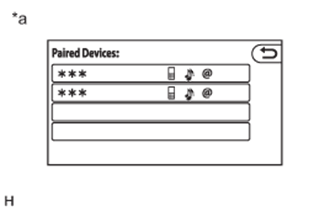
Check if the portable player is registered as a connected device.
Table 1. Text in Illustration *a Example Note:If a cellular phone is used as a portable player, it must be registered independently from the registration that is performed for the hands-free system.
Tip:Only 4 portable players can be registered.
Table 2. Result Result Proceed to The portable player is registered as a connected device. A The portable player is not registered as a connected device. B
-
- Click here
CHECK SYMPTOMS
-
Check the connection condition between the portable player and extension module.
Tip:The portable player cannot be connected under any of the following conditions:
-
The portable player is connected to another device.
-
The portable player is connected to the extension module using the hands-free function.
-
The extension module has cleared the portable player registration.
-
The portable player is off.
Table 3. Result Result Proceed to The portable player cannot be connected automatically. A The portable player cannot connect manually. B -
-
- Click here
CHECK AUTOMATIC CONNECTION SETTINGS
-
Display the "Bluetooth" settings screen.
-
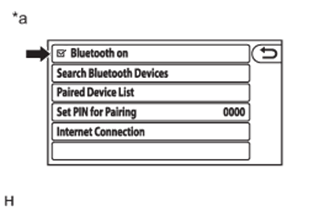
Check automatic connection settings of the "Bluetooth" audio.
-
Check if the "Bluetooth" function is turned on.
OK The checkbox is checked. Table 4. Text in Illustration *a Example
-
- OKClick here
- NGClick here
-
- Click here
CHECK PORTABLE PLAYER STATUS
-
Check the status of the portable player.
-
Check that the portable player is not in standby mode.
-
Check that the portable player is not connected to another device (headphones etc.).
OK The portable player is not in standby mode and not connected to another device (headphones etc.).
-
- OKClick here
- NGClick here
-
- Click here
CHECK USING ANOTHER "Bluetooth" AUDIO COMPATIBLE VEHICLE OF SAME MODEL
-
Check if the portable player can be connected manually/ automatically on another "Bluetooth" audio compatible vehicle of the same model.
OK The portable player can be connected manually/ automatically.
- OKClick here
- NGClick here
-
- Click here
REMOVE ADDITIONAL DEVICES WHICH USE RADIO WAVES
-
Remove additional devices which use radio waves.
-
Check if the portable player can be connected manually/ automatically.
OK The portable player can be connected manually/ automatically.
- OKClick here
- NGClick here
-
- Click here
REGISTER PORTABLE PLAYER AS CONNECTED DEVICE
- Click here
CHECK THE CHECKBOX
- Click here
TAKE PORTABLE PLAYER OUT OF STANDBY MODE AND DISCONNECT OTHER DEVICES (HEADPHONES etc.)
- Click here
PORTABLE PLAYER IS NOT COMPATIBLE
- Click here
PROCEED TO NEXT SUSPECTED AREA SHOWN IN PROBLEM SYMPTOMS TABLEClick here
- Click here
END