AUDIO AND VISUAL SYSTEM(for Radio and Display Type) OPERATION CHECK
-
CHECK PANEL & STEERING SWITCH
Tech Tips
-
The radio and display assembly panel switches are checked in the following procedure.
-
Illustrations may differ from the actual vehicle screen depending on the device settings and options. Therefore, some detailed areas may not be exactly the same as on the actual vehicle screen.
-
Some of the following functions may also differ from the actual vehicle depending on the device settings and options.
-
Enter diagnostic mode Click here.
-
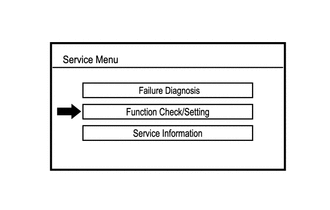
Select "Function Check/Setting" from the "Service Menu" screen.
-
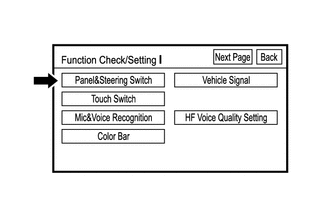
Select "Panel & Steering Switch" from the "Function Check/Setting I" screen.
-
Panel & Steering Switch Check Mode
-
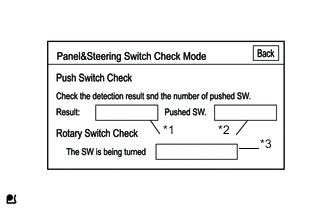
Operate each switch and check that the switch names and conditions are correctly displayed.
Screen Description Display Content *1: Switch condition "Pushed" is displayed when any switch is pushed *2: Number of pushed switch
-
Number of switches pushed at once
-
If more than 3 switches are pushed at once, "More than 3" is displayed
*3: Rotary switch direction Direction of rotary switch is displayed -
-
-
-
CHECK TOUCH SWITCH
Tech Tips
-
The touch switches on the screen are checked in the following procedure.
-
Illustrations may differ from the actual vehicle screen depending on the device settings and options. Therefore, some detailed areas may not be exactly the same as on the actual vehicle screen.
-
Enter diagnostic mode Click here.
-
Select "Function Check/Setting" from the "Service Menu" screen.
-
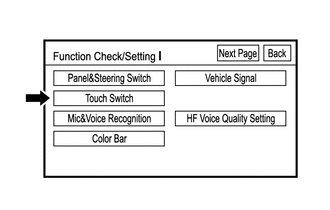
Select "Touch Switch" from the "Function Check/Setting I" screen.
-
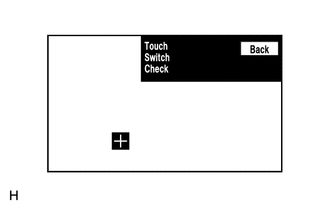
Touch Switch Check
-
Touch the display anywhere in the open area to perform the check when the "Touch Switch Check" screen is displayed.
Tech Tips
-
A "+" mark is displayed where the display is touched.
-
The "+" mark remains on the display even after the finger is removed.
-
-
-
-
CHECK MIC & VOICE RECOGNITION
Tech Tips
-
The microphone and microphone input level are checked in the following procedure.
-
Illustrations may differ from the actual vehicle screen depending on the device settings and options. Therefore, some detailed areas may not be exactly the same as on the actual vehicle screen.
-
Enter diagnostic mode Click here.
-
Select "Function Check/Setting" from the "Service Menu" screen.
-
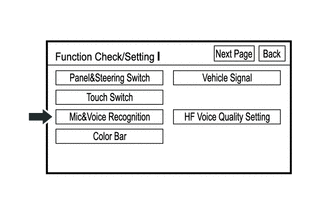
Select "Mic & Voice Recognition" from the "Function Check/Setting I" screen.
-
Microphone & Voice Recognition Check
-
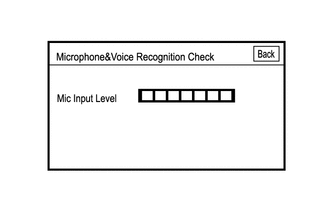
When speaking into the microphone, check that the microphone input level meter changes according to the input level.
-
-
-
CHECK COLOR BAR
Tech Tips
-
The display color on the screen is checked in the following procedure.
-
Illustrations may differ from the actual vehicle screen depending on the device settings and options. Therefore, some detailed areas may not be exactly the same as on the actual vehicle screen.
-
Enter diagnostic mode Click here.
-
Select "Function Check/Setting" from the "Service Menu" screen.
-
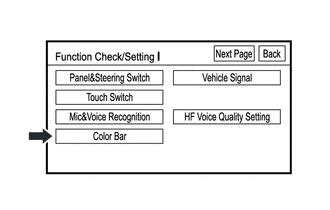
Select "Color Bar" from the "Function Check/Setting I" screen.
-
Color Bar Check Mode
-
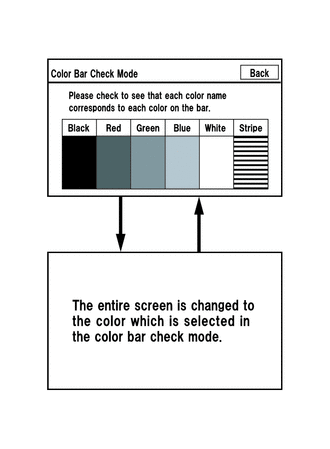
Select a color bar from the "Color Bar Check Mode" screen.
-
Check the display color.
Tech Tips
-
The entire screen turns to the color or stripe selected.
-
Touching the display returns to the "Color Bar Check" screen.
-
-
-
-
CHECK VEHICLE SIGNAL
Tech Tips
-
Vehicle signals received by the radio and display assembly are checked in the following procedure.
-
Illustrations may differ from the actual vehicle screen depending on the device settings and options. Therefore, some detailed areas may not be exactly the same as on the actual vehicle screen.
-
Enter diagnostic mode Click here.
-
Select "Function Check/Setting" from the "Service Menu" screen.
-
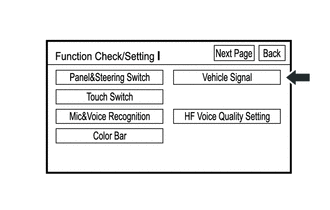
Select "Vehicle Signal" from the "Function Check/Setting I" screen.
-
Vehicle Signal Check Mode
-
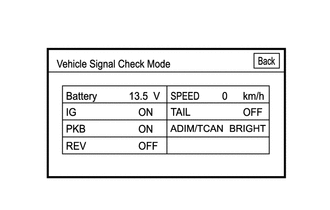
When the "Vehicle Signal Check Mode" screen is displayed, check all the vehicle signal conditions.
Tech Tips
-
Only conditions having inputs are displayed.
-
This screen displays vehicle signals input to the radio and display assembly.
-
For details of this function, refer to Diagnosis Display Detailed Description in System Description Click here.
-
-
-
-
CHECK HANDS-FREE VOICE QUALITY SETTING
Tech Tips
-
The hands-free volume of a "Bluetooth" compatible phone can be adjusted using the following procedure.
-
Illustrations may differ from the actual vehicle screen depending on the device settings and options. Therefore, some detailed areas may not be exactly the same as on the actual vehicle screen.
-
Enter diagnostic mode Click here.
-
Select "Function Check/Setting" from the "Service Menu" screen.
-
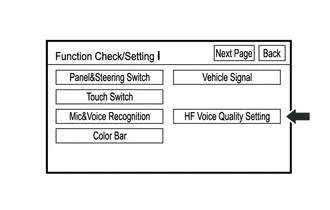
Select "HF Voice Quality Setting" from the "Function Check/Setting I" screen.
-
Receive/Send Voice Level adjustment
Note
Sound quality may deteriorate when the receive voice level is changed more than necessary. For this reason, check that the received voice quality is still acceptable after changing this setting.
-
If the voice level is low, press "+" button, and if the voice level is loud, press "-" button.
Tech Tips
-
Each voice level setting is reflected when going back to the normal mode.
-
The changing voice level ranges from -5 to +5.
-
The initial level is "0".
-
-
-
Voice Quality Type adjustment
-
If necessary, refer to the table below to adjust the voice quality type with the numeric keypad.
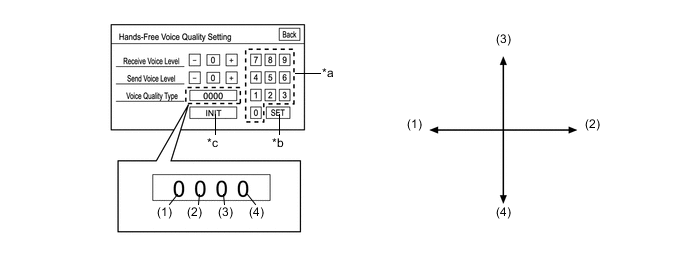
Screen Description Number Item (1) Echo (2) Half Duplex (3) Noise (4) Voice Quality Text in Illustration *a Numeric keypad *b Setting button *c Reset button - - Tech Tips
-
Each setting is reflected when going back to the normal mode.
-
The initial setting is "0000".
-
Each number can be set to from "0" to "2". Each quality gets well as each number increases.
-
If each number is set to from "3" to "9", the setting is ineffective.
-
Echo and half duplex have opposite performances, as well as noise and voice quality. So, when "1000" is inputted, echo is "1" and half duplex is determined to be equal to "-1" even though displayed as "0". Also, you cannot increase these opposing level simultaneously. So, when echo is set to "1" or "2", half duplex needs to be set to "0". If "2100", "1100", "0022", or "0012" etc. are inputted, the setting is ignored.
-
-
-