G-BOOK SYSTEM Warning Notification Function Malfunction
INSPECTION PROCEDURE
PROCEDURE
-
CHECK PROBLEM SYMPTOM (WARNING NOTIFICATION FUNCTION)
-
Check the problem symptom.
-
Check the problem symptom of the warning notification function.
Result Result Proceed to The navigation screen does not show a warning message even though a warning light turns on and the multi-information display indicates a warning. A The navigation screen shows a warning message even though a warning light is not on and the multi-information display does not indicate a warning. B The navigation screen shows a warning message different from the warning light or the multi-information display. The same warning notification is repeated. C Tech Tips
-
The warning notification function sends information to the G-BOOK center through communication.
-
Carefully confirm the conditions that caused the malfunction in order to determine if a temporary problem with the radio wave caused the malfunction.
-
-
B 
INSPECT METER WARNING LIGHT Click here
C
INSPECT NAVIGATION SYSTEM (for HDD) Click here
A 
-
-
INSPECT WARNING LIGHT
-
Check if the indicated warning light or message is listed in the following table.
Tech Tips
Only messages listed in the table are included in the G-BOOK warning notification function.
Warning Name Cruise warning High coolant temperature warning Engine warning Engine oil pressure warning Head lamp auto leveling warning LED headlight warning Electronic shift lever warning Brake system warning VSC warning ABS warning ECB warning PCS warning EPS warning Charging system warning Airbag warning Hybrid vehicle control system warning High motor inverter temperature warning Lexus parking assist-sensor system open circuit warning Result Result Proceed to Warning light or message is listed in the table. A Warning light or message is not listed in the table. B
B 
END
A
-
-
CONFIRM SETTING (COMMUNICATION LOCK)
-
Check if the G-BOOK communication lock is set.
Result Result Proceed to Communication lock is not set A Communication lock is set B
B
RELEASE COMMUNICATION LOCK
A
-
-
CHECK FOR SERVICE FLAG
-
Check for service flags.
-
Enter diagnostic mode Click here.
-
Select "Service Information" on the Service Menu screen.
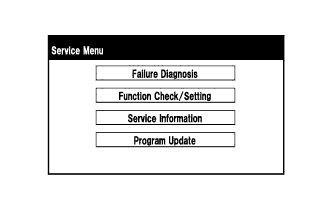
-
Select "G-BOOK Information for Contract" on the Service Information screen.
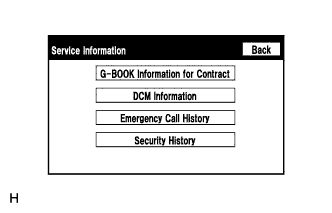
-
Using the illustration as reference, check if the flag information indicates "1".
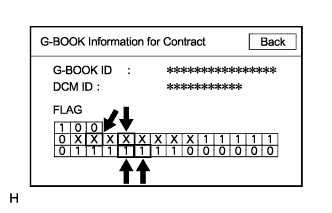
Result Result Proceed to "1" is indicated A "1" is not indicated B
-
B
RENEW DATA TABLE Click here
A
-
-
CHECK CONNECTION (G-BOOK)
-
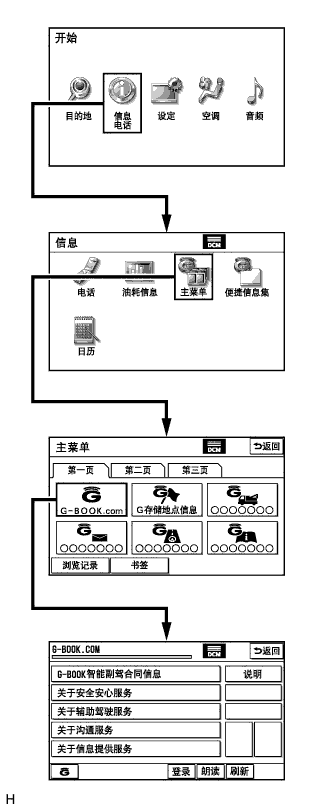
Perform the operations shown in the illustration and check that G-BOOK.com is displayed.
Tech Tips
The screen illustrations provided are samples only and may be different from actual screens.
OK G-BOOK.com can be accessed.
NG
GO TO PROBLEM SYMPTOMS TABLE Click here
OK
-
-
INSPECT METER WARNING LIGHT
-
Check if a warning light on the combination meter assembly comes on or a warning message on the multi-information display is displayed even when there is no problem.
OK There are no problems with warning lights or warning messages. Tech Tips
The warning notification function of the G-BOOK system uses the warning notification signals sent and received by the meter and gauge system. Therefore, if the meter and gauge system is not operating normally, the warning notification function will not operate normally.
NG
GO TO METER / GAUGE SYSTEM Click here
OK
-
-
INSPECT CAN COMMUNICATION SYSTEM
-
Connect the intelligent tester to the DLC3.
-
Turn the power switch on (IG).
-
Enter the following menus: System Select / CAN Bus Check.
-
Check that all ECUs and sensors that use CAN communication are connected.
Result Result Proceed to There are no connection problems A There is a connection problem B
B
GO TO CAN COMMUNICATION SYSTEM Click here
A
-
-
CHECK DTC
-
Connect the intelligent tester to the DLC3.
-
Turn the power switch on (IG).
-
Enter the following menus: Utility / All Codes.
-
Check for DTCs Click here.
Result Result Proceed to No DTC is output A DTC is output B No DTCs cannot be checked
B
INSPECT EACH ECU SYSTEM
A
-
-
INSPECT NAVIGATION SYSTEM (for HDD)
-
Check if the HDD navigation system is operating and functioning normally.
OK The HDD navigation system is normal.
NG
GO TO NAVIGATION SYSTEM (for HDD) Click here
OK
-
-
RENEW DATA TABLE
-
Renew the data.
-
Perform the operations shown in the illustration and select "Download necessary data".
Tech Tips
The screen illustrations provided are samples only and may be different from actual screens.
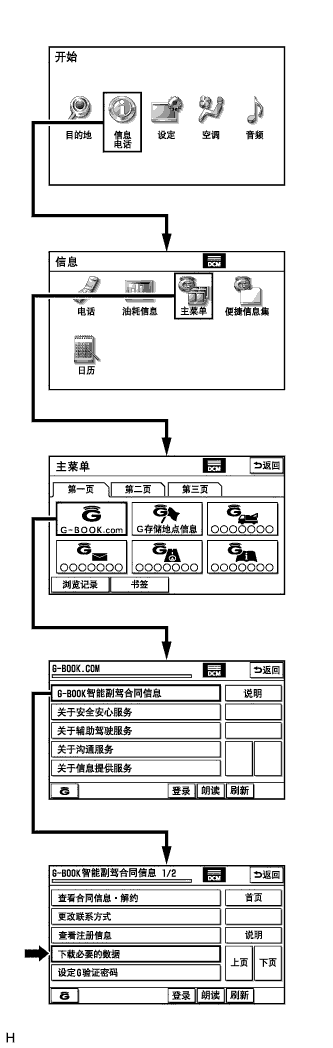
Result Result Proceed to Data can be renewed A Data can not be renewed B
-
B
CONTACT G-BOOK SUPPORT CENTER
A 
END
-