NAVIGATION SYSTEM NAVIGATION CHECK MODE
Tech Tips
-
This mode displays GPS satellite information.
-
Illustrations may differ from the actual vehicle depending on the device settings and options. Therefore, some detailed areas may not be shown exactly the same as on the actual vehicle.
-
ENTER DIAGNOSTIC MODE Click here
-
NAVIGATION CHECK
-
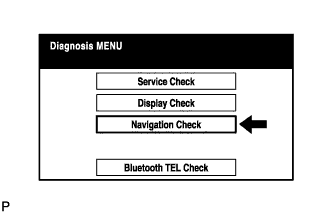
Select "Navigation Check" from the "Diagnosis MENU" screen.
-
-
GPS INFORMATION
-
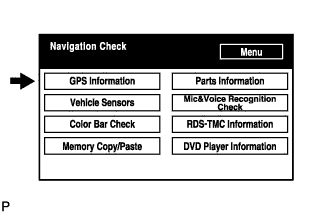
Select "GPS Information" from the "Navigation Check" screen.
-
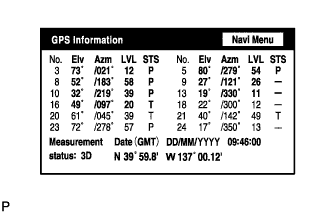
When GPS information is displayed, check the GPS conditions.
Tech Tips
-
This screen is updated once per second when input signals to the vehicle are changed.
-
For details of this function, refer to Diagnosis Display Detailed Description Click here.
-
-
-
VEHICLE SENSORS
-
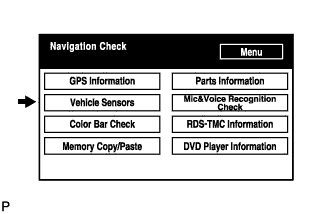
Select "Vehicle Sensors" from the "Navigation Check" screen.
-
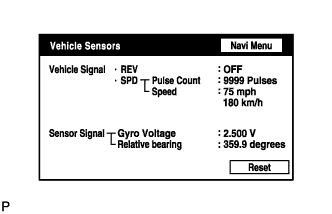
Check all the signals and sensors when vehicle signal information is displayed.
Tech Tips
-
This screen is updated once per second when input signals to the vehicle are changed.
-
This screen displays vehicle signals input to the built-in navigation ECU.
-
For details of this function, refer to Diagnosis Display Detailed Description Click here.
-
-
-
COLOR BAR CHECK
-
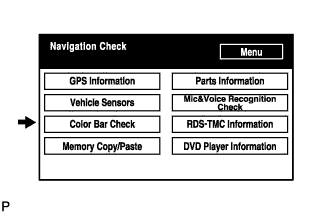
Select "Color Bar Check" from the "Navigation Check" screen.
-
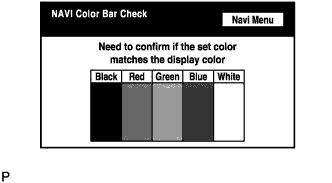
Check each color of the color bar when the "NAVI Color Bar Check" screen is displayed.
Tech Tips
-
Colors will not be displayed full-screen as in "Display Check Mode".
-
This screen displays the built-in navigation ECU display color.
-
-
-
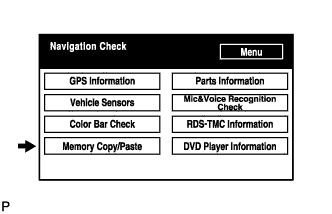
MEMORY COPY/PASTE
Tech Tips
This function cannot be used.
-
PARTS INFORMATION
-
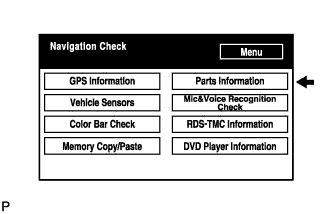
Select "Parts Information" from the "Navigation Check" screen.
-
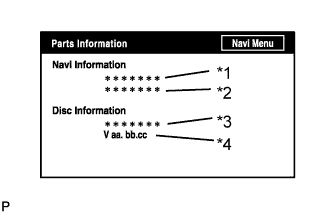
Check the navigation and disc information when the "Parts Information" screen is displayed.
Screen Description: Display Contents Navigation Manufacturer/*1 Navigation receiver assembly manufacturer is displayed. Navigation Version/*2 Navigation receiver assembly version is displayed. Disc Manufacturer/*3 Map disc manufacturer is displayed. Disc Version/*4 Map disc version is displayed.
-
-
MIC & VOICE RECOGNITION CHECK
-
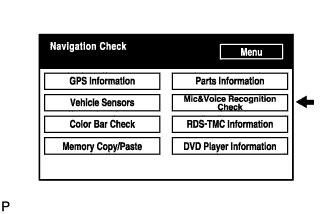
Select "Mic & Voice Recognition Check" on the "Navigation Check" screen to display the "MICROPHONE & VOICE RECOGNITION CHECK" screen.
-
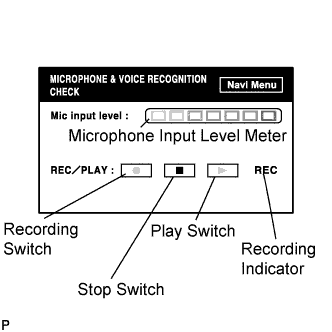
When voice is input into the microphone, check that the microphone input level meter changes according to the input voice.
-
Push the recording switch and perform voice recording.
-
Check that the recording indicator remains on while recording and that the recorded voice is played normally.
Tech Tips
-
For details of this function, refer to Diagnosis Display Detailed Description Click here.
-
This function is controlled by the built-in navigation ECU.
-
Select the recording switch with the blower motor of the air conditioning system stopped. If an outlet of the air conditioning system is facing the microphone, noise may be recorded.
-
-
-
RDS-TMC INFORMATION CHECK
-
RDS-TMC Information
-
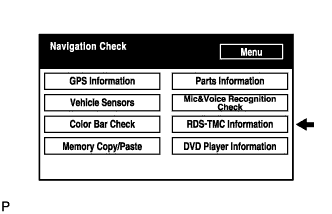
Select "RDS-TMC Information" from the "Navigation Check" screen.
-
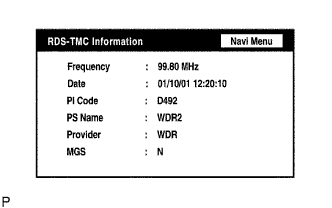
When RDS-TMC information is displayed, check the RDS-TMC conditions.
Tech Tips
-
This mode checks the RDS-TMC signal status input to the navigation receiver assembly.
-
For details of this function, refer to Diagnosis Display Detailed Description Click here.
-
-
-
-
DVD PLAYER INFORMATION CHECK
-
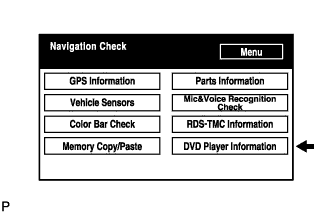
Select "DVD Player Information" from the "Navigation Check" screen.
-
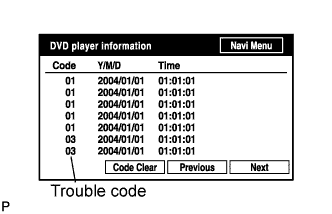
Check for DTCs.
Tech Tips
-
This is a DVD player check function in the built-in navigation ECU.
-
For details of this function, refer to Diagnosis Display Detailed Description Click here.
-
-