NAVIGATION SYSTEM DISPLAY CHECK MODE
Tech Tips
-
This mode checks the color display on the display.
-
Illustrations may differ from the actual vehicle depending on the device settings and options. Therefore, some detailed areas may not be shown exactly the same as on the actual vehicle.
-
ENTER DIAGNOSTIC MODE Click here
-
DISPLAY CHECK
-
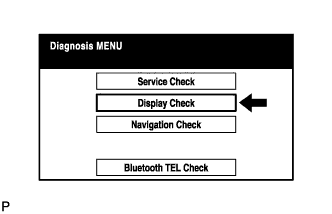
Select "Display Check" from the "Diagnosis MENU" screen.
-
-
COLOR BAR CHECK
-
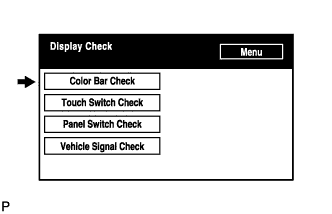
Select "Color Bar Check" from the "Display Check" screen.
-
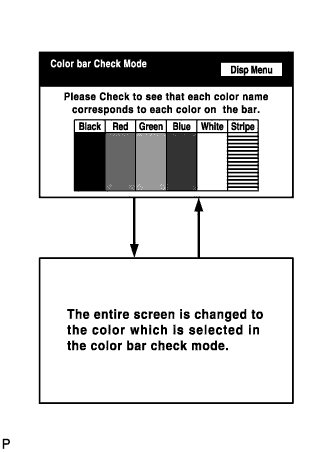
Select a color bar from the "Color Bar Check Mode" screen.
-
Check the display color.
Tech Tips
-
The entire screen turns to the color or stripe selected.
-
Touching the display will return to the "Color Bar Check Mode" screen.
-
-
-
TOUCH SWITCH CHECK
-
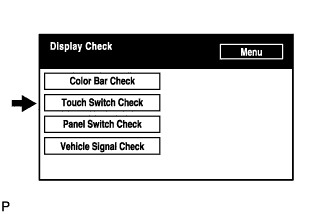
Select "Touch Switch Check" from the "Display Check" screen.
-
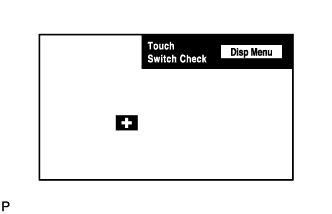
Touch the display anywhere in the open area to perform the check when the "Touch Switch Check" screen is displayed.
Tech Tips
-
A "+" mark is displayed where the display is touched.
-
The "+" mark remains on the display even after the finger is removed.
-
-
-
PANEL SWITCH CHECK
-
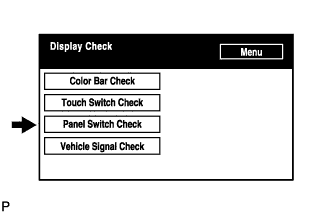
Select "Panel Switch Check" from the "Display Check" screen.
-
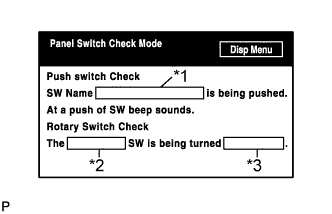
Operate each switch and check that the switch names and condition are correctly displayed.
Display Contents Push switch name/*1
-
Name of the pressed switch is displayed.
-
If more than one switch is pressed, "MULTIPLE" is displayed.
Rotary switch name/*2 Name of the rotary switch is displayed. Rotary switch direction/*3 Direction of the rotary switch is displayed. -
-
-
VEHICLE SIGNAL CHECK
-
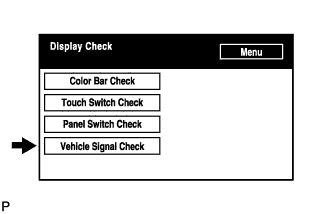
Select "Vehicle Signal Check" from the "Display Check" screen.
-
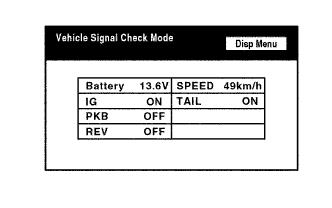
When the "Vehicle Signal Check Mode" screen is displayed, check all the vehicle signal conditions.
Tech Tips
-
Only conditions having inputs are displayed.
-
This screen is updated once per second when input signals to the vehicle are changed.
-
For details of this function, refer to Diagnosis Display Detailed Description Click here.
-
-