INTELLIGENT PARKING ASSIST SYSTEM DIAGNOSIS SYSTEM

-
INTELLIGENT PARKING ASSIST OR DIAGNOSIS SYSTEM
-
For intelligent parking assist system diagnosis, signals received by the parking assist ECU can be checked and the intelligent parking assist system can be calibrated, adjusted and checked using the navigation ECU sub-assembly.
Note
Depending on the parts that are replaced or operations that are performed during vehicle inspection or maintenance, calibration of other systems as well as the intelligent parking assist system may be needed Click here.
Tech Tips
The displayed screens and items may differ depending on vehicle specifications.
-
-
DIAGNOSIS SCREEN TRANSITION (during parking assist ECU initialization)
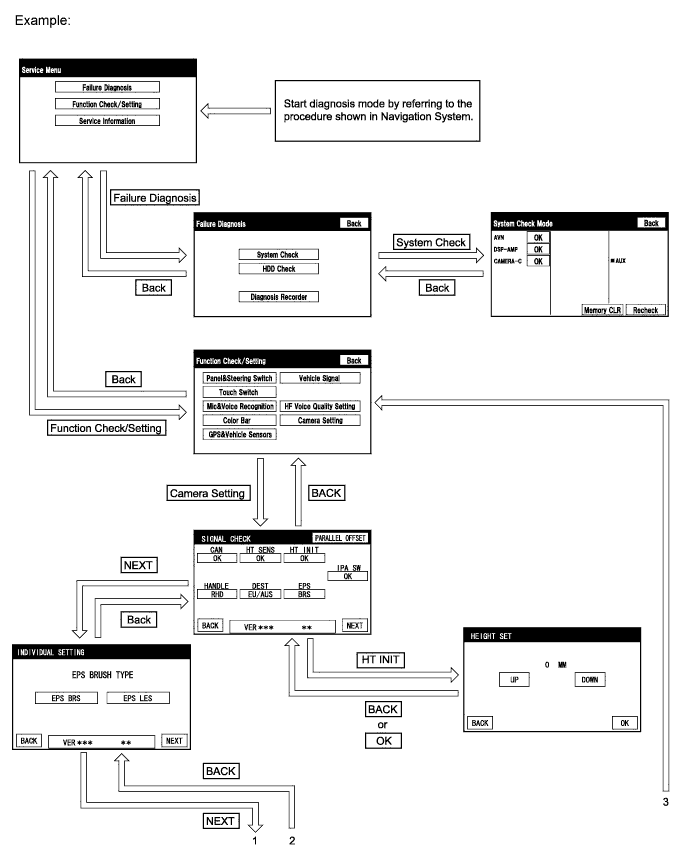
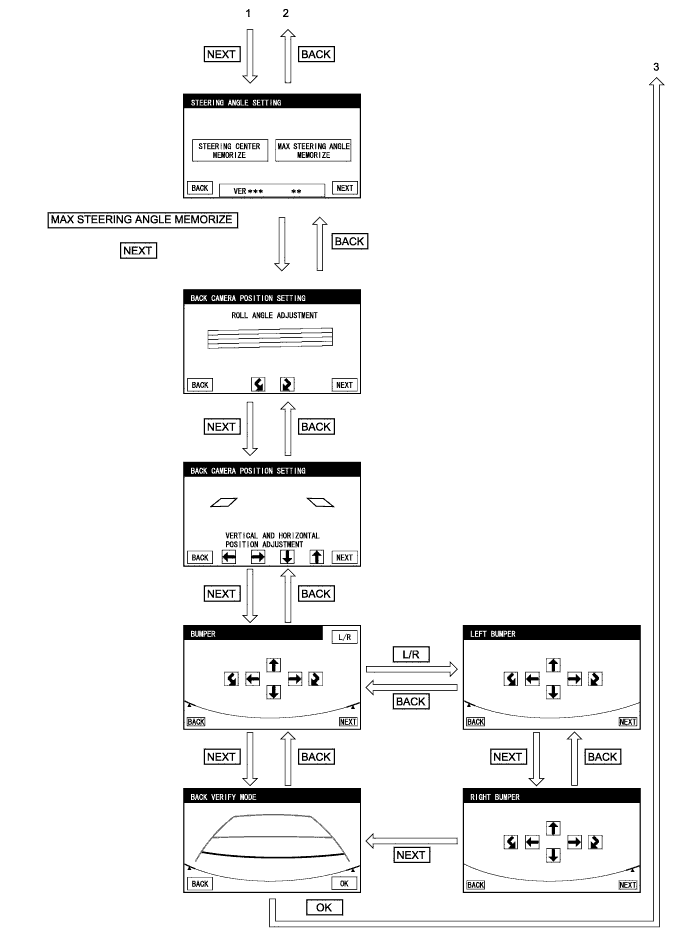
-
DIAGNOSIS SCREEN TRANSITION (after parking assist ECU initialization)
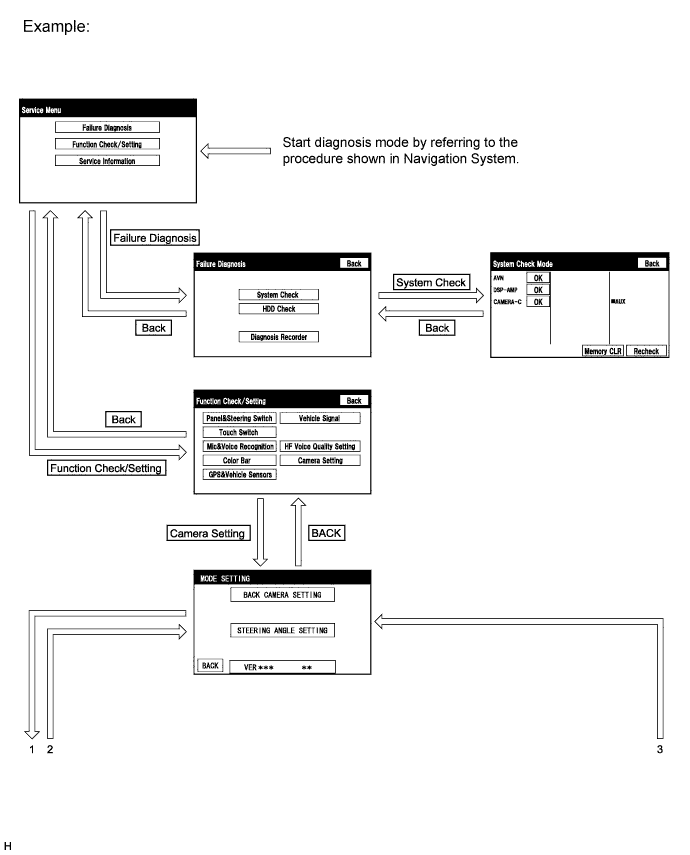
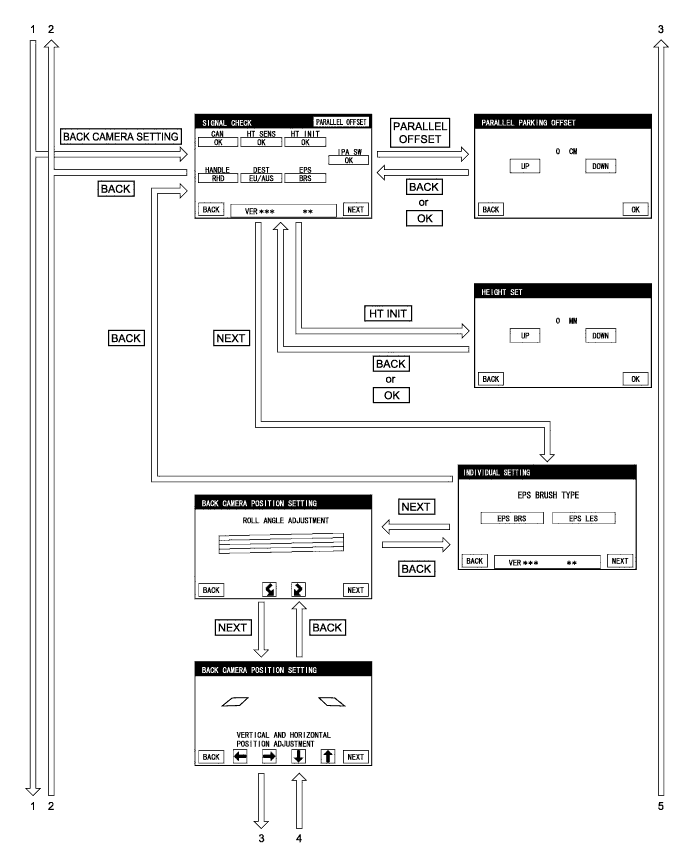
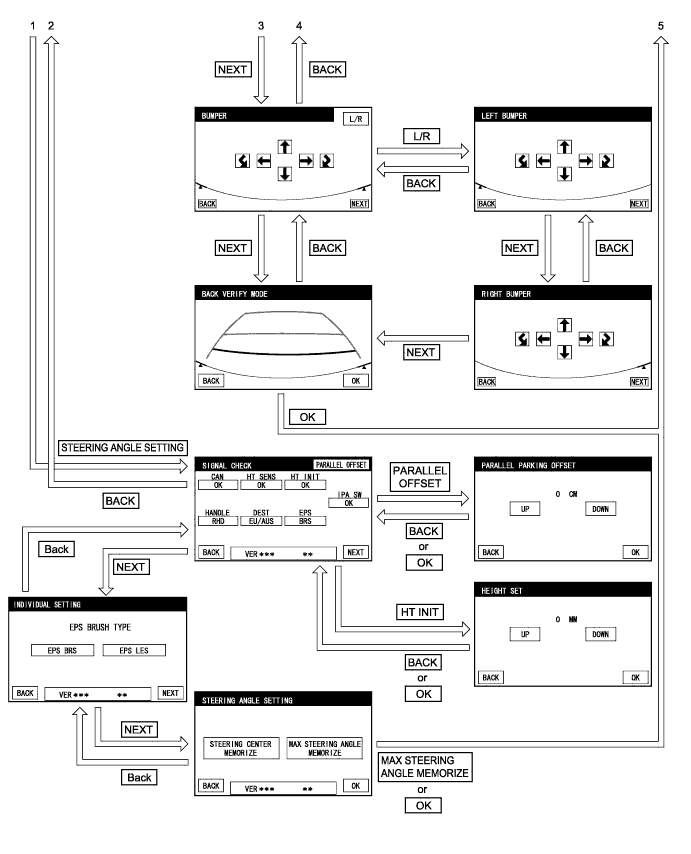
-
DIAGNOSTIC MODE
-
Start diagnostic mode Click here.
-
Failure diagnosis.
-
System check (check using the system check mode screen).
-
Finish diagnostic mode Click here.
-
-
SIGNAL CHECK (parking assist ECU input signal)
-
Start diagnostic mode Click here.
-
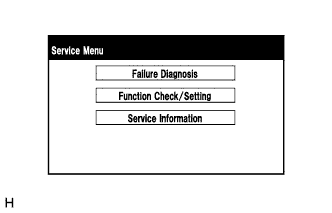
Select "Function Check/Setting" on the "Service Menu" screen to display the "Function Check/Setting" screen.
-
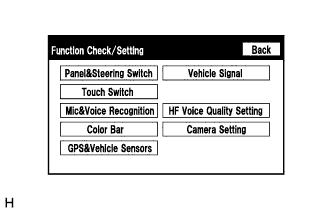
Select "Camera Setting" on the "Function Check/Setting" screen.
Tech Tips
After "Camera Setting" is selected, the screen transitions differ depending on whether initialization of the parking assist ECU was performed after parking assist ECU replacement.
Parking Assist ECU Initialization Screen Transition Not performed SIGNAL CHECK screen Performed MODE SETTING screen -
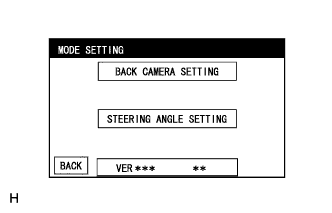
When the screen changes to the "MODE SETTING" screen, select "BACK CAMERA SETTING" to display the "SIGNAL CHECK" screen.
Tech Tips
To select a grayed out item, select and hold the item for 2 seconds or more.
-
-
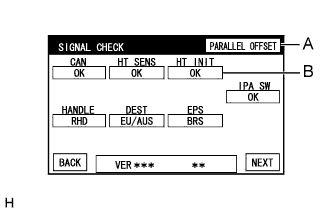
SIGNAL CHECK
-
On the "SIGNAL CHECK" screen, the following are possible:
-
Inspection of the state of signals sent to the parking assist ECU.
-
Confirmation of the state of the height control sensor vehicle height difference setting.
-
Adjustment of the parking position for parallel parking mode.
Item Inspection Detail Note CAN CAN communication status When "CHK" (red) is displayed, selecting "NEXT" will not change to the next screen. IPA SW Parking assist pre support switch signal input EPS Brush information for EPS currently selected - HT SENS Height control sensor signal input When "CHK" (red) is displayed, selecting "NEXT" will not change to the next screen. HT INIT Vehicle height difference setting status HANDLE CAN communication status DEST CAN communication status Tech Tips
-
When "CHK" (red) is displayed, perform inspections based on the result of the following inspections.
-
If performing the adjustment after proceeding to the next screen, confirm that all items display "OK" (blue) before selecting "NEXT".
-
Select the following buttons to changes to the respective adjustment screen.
Button Transit Screen Adjustment Contents A PARALLEL PARKING OFFSET Parking position for parallel parking mode B HEIGHT SET Height control sensor vehicle height difference setting Click here
-
-
-
CAN inspection
Tech Tips
If "CHK" (red) is displayed for "CAN", check for DTCs and perform troubleshooting based on the output DTCs Click here.
-
IPA SW inspection
-
Check that "OK" (blue) is displayed for "IPA SW" and select "OK".
-
Check that "OK" (blue) changes to "CHK" (red). Press the parking assist pre support switch assembly and check that "CHK" (red) returns to "OK" (blue).
Tech Tips
If "CHK" (red) remains displayed or the "IPA SW" inspection result is not normal, perform troubleshooting according to Problem Symptoms Table ("CHK" message(s) are displayed on the "SIGNAL CHECK" screen) Click here.
-
-
EPS inspection
-
Confirm "EPS LES" is selected on the "INDIVIDUAL SETTING" screen
Note
-
If the EPS brush information shown under "EPS TYPE" does not match the vehicle specification, change the EPS brush specification to one that matches the vehicle specification.
-
The EPS brush specification can be changed on the "INDIVIDUAL SETTING" screen which is displayed after "NEXT" is selected.
-
When the EPS brush specification is modified, steering angle setting is required Click here.
-
-
-
HT SENS inspection
Tech Tips
If "CHK" (red) is displayed for "HT SENS", check for DTCs and perform troubleshooting based on the output DTCs Click here.
-
HT INIT inspection
Tech Tips
If "CHK" (red) is displayed for "HT INIT", perform troubleshooting according to the table below.
Displayed Content Cause Troubleshooting CHK
(red)
-
Vehicle height difference setting is not completed
-
Rear height control sensor sub-assembly RH is malfunctioning
-
If "CHK" (red) is also displayed for "HT INIT", check for DTCs and perform troubleshooting based on the output DTCs Click here.
-
If "OK" (blue) is displayed for "HT INIT", perform vehicle height difference setting Click here.
-
-
HANDLE inspection
Tech Tips
If "CHK" (red) is displayed for "HANDLE", check for DTCs and perform troubleshooting based on the output DTCs Click here.
-
DEST
Tech Tips
If "CHK" (red) is displayed for "DEST", check for DTCs and perform troubleshooting based on the output DTCs Click here.
-
Finish diagnostic mode Click here.
-
-
CALIBRATION WHEN SERVICING VEHICLE
Note
Depending on the parts that are replaced or operations that are performed during vehicle inspection or maintenance, calibration of other systems as well as the intelligent parking assist system may be needed Click here.
-
STEERING ANGLE SETTING (after parking assist ECU is initialized)
Tech Tips
If the vehicle width extension lines and predicted path lines are not aligned when the steering wheel is centered, or if the predicted path lines stop moving before the steering wheel is fully turned to either the left or right, adjust the steering angle settings.
-
Center the steering wheel and stop the vehicle.
-
Start diagnostic mode Click here.
Note
The following must be carried out with the hybrid system started. Apply the parking brake, depress the brake pedal, push the P position switch, and ensure that the vehicle is not moving.
Tech Tips
The displayed items may differ depending on vehicle specifications.
-
Select "Function Check/Setting" on the "Service Menu" screen.
-
Select "Camera Setting" on the "Function Check/Setting" screen.
-
Select "STEERING ANGLE SETTING" on the "MODE SETTING" screen.
Tech Tips
To select a grayed out item, select and hold the item for 2 seconds or more.
-
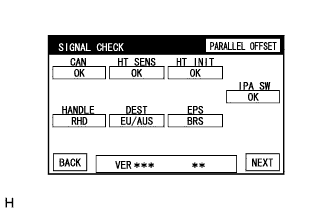
Select "NEXT" on the "SIGNAL CHECK" screen.
Note
-
When "CHK" (red) is displayed for any items on the "SIGNAL CHECK" screen, selecting "NEXT" will not change the screen to the "INDIVIDUAL SETTING" screen.
-
When "CHK" is displayed for any items on the "SIGNAL CHECK" screen, perform inspections using the "SIGNAL CHECK" screen.
-
-
-
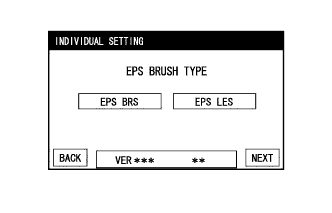
INDIVIDUAL SETTING
-
Select "EPS LES" on the "INDIVIDUAL SETTING" screen.
Note
If the selected EPS brush specification does not match the vehicle specification, select the one that matches the vehicle specification.
Tech Tips
-
Selected EPS brush specification is indicated in blue.
-
EPS brush refers to the type of motor used for the EPS system (with brushes or brushless).
-
-
Select "NEXT" on the "INDIVIDUAL SETTING" screen.
-
-
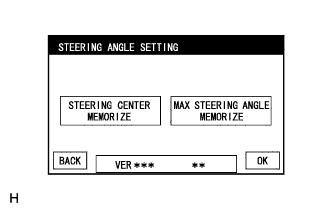
Steering angle setting
-
Check that the steering wheel is centered (approximately +/- 5 degrees or less) and select "STEERING CENTER MEMORIZE".
-
After the centered steering position is memorized, turn the steering wheel to the left and then to the right full lock positions and select "MAX STEERING ANGLE MEMORIZE".
Tech Tips
It is also possible to start by initially turning the steering wheel to the right side.
-
Select "MAX STEERING ANGLE MEMORIZE" to store the steering angle adjustment values and change the screen to the "MODE SETTING" screen.
Tech Tips
-
When "MAX STEERING ANGLE MEMORIZE" is selected, a beep will sound to confirm that the steering angle adjustment values have been stored.
-
The adjustment values will not be stored unless "MAX STEERING ANGLE MEMORIZE" is selected.
-
The values are not stored until the beep has sounded.
-
When "BACK" is selected, the screen changes to "INDIVIDUAL SETTING" without storing the set values.
-
If "OK" is selected without selecting "MAX STEERING ANGLE MEMORIZE", the values will not be stored (Change the screen to the "MODE SETTING" screen).
-
If the steering angle settings have not been adjusted, selecting "MAX STEERING ANGLE MEMORIZE" will not cause values to be stored.
-
Even if no DTCs are detected, selecting "MAX STEERING ANGLE MEMORIZE" may not cause the values to be stored if the steering sensor is malfunctioning.
-
If selecting "MAX STEERING ANGLE MEMORIZE" does not cause the values to be stored after performing the steering angle setting procedure, replace the spiral cable with sensor sub-assembly Click here.
-
-
-
Finish diagnostic mode Click here.
-
Confirm steering angle adjustment.
Tech Tips
If the steering angle setting procedure has been performed, confirm the steering angle adjustment using the intelligent parking assist screen after finishing diagnosis mode.
-
Check on the intelligent parking assist screen that the predicted path line moves until the steering wheel is fully turned to either the left or right.
Tech Tips
If the predicted path line stops moving before the steering wheel is fully turned to either the left or right, the values have not been stored correctly. In this case, perform "STEERING CENTER MEMORIZE" and "MAX STEERING ANGLE MEMORIZE" again.
-
-
-
PARKING POSITION HORIZONTAL ADJUSTMENT FOR PARALLEL PARKING MODE
-
Start diagnostic mode Click here.
Note
The following must be carried out with the hybrid system started. Apply the parking brake, depress the brake pedal, push the P position switch, and ensure that the vehicle is not moving.
-
Select "Function Check/Setting" on the "Service Menu" screen.
-
Select "Camera Setting" on the "Function Check/Setting" screen.
-
Select "BACK CAMERA SETTING" or "STEERING ANGLE SETTING" on the "MODE SETTING" screen.
Tech Tips
To select a grayed out item, select and hold the item for 2 seconds or more.
-
Select "PARALLEL OFFSET" on the "SIGNAL CHECK" screen.
-
-
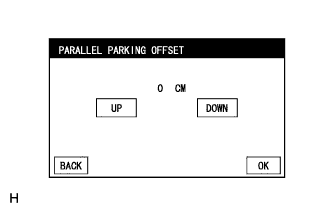
PARALLEL PARKING OFFSET
Tech Tips
the "PARALLEL PARKING OFFSET" screen allows the parking position to be offset when the actual parking position deviates to the right or left of the set target parking position during parallel parking mode.
-
Press "UP" or "DOWN" to adjust the parallel parking position horizontal offset amount.
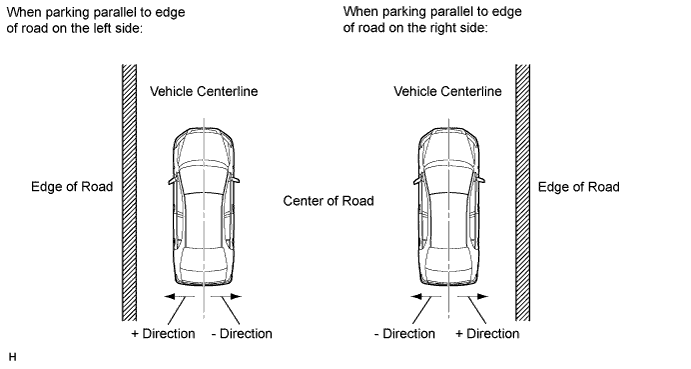
Tech Tips
-
Positive values are indicated in green and negative values are indicated in red.
-
The + direction indicates an offset toward the edge of the road, the - direction indicates an offset toward the center of the road.
-
When the value is shown as "10 CM" in red, it means -10 cm (the parking position is offset 10 cm towards the center of the road).
-
Available setting range: +20 cm to -40 cm (can be adjusted in 1 cm increments)
-
-
When "OK" is selected, the screen switches to the signal connection screen and a set value is stored.
-
When "OK" is selected, the value is stored after a beep sounds for confirmation.
-
The value will not be stored unless "OK" is selected.
-
The value is not stored until the beep has sounded.
-
When "BACK" is selected, the screen switches to the signal connection screen without storing the value (value entered is not stored).
-
-
-
Finish diagnostic mode Click here.
-