NAVIGATION SYSTEM (for DVD) Screen Flicker or Color Distortion
INSPECTION PROCEDURE
PROCEDURE
-
CHECK DISPLAY SETTING
-
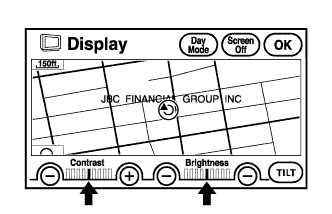
Enter the display adjustment screen by pressing the "DISPLAY" switch.
-
Reset display settings (contrast and brightness) and check that the screen appears normal.
-
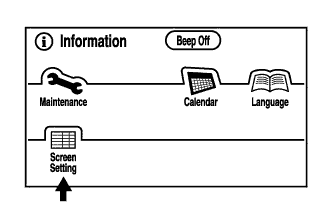
Press the "INFO" switch and then select "Screen Setting."
-
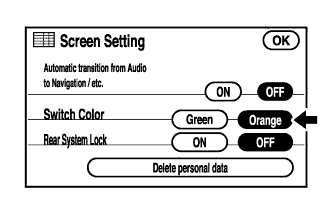
Set "Switch Color" to "Orange" (initial setting) and check if the display returns to normal.
OK The display returns to normal.
NG 
CHECK CABIN Click here
OK 
END
-
-
CHECK CABIN
-
Check that the cabin temperature is higher than -20°C (-4°F).
OK The cabin temperature is higher than -20°C (-4°F).
NG 
HEAT CABIN AND RECHECK TEMPERATURE
OK 
-
-
CHECK COLOR BAR (DISPLAY CHECK MODE)
-
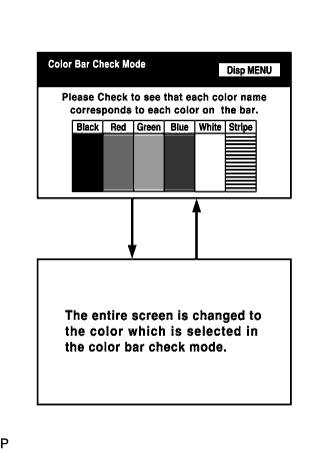
Enter the "Display Check" mode and select "Color Bar Check" Click here.
-
Check that the color bars match the displayed names.
OK Color bars match the displayed names.
NG
REPLACE NAVIGATION RECEIVER ASSEMBLY Click here
OK
-
-
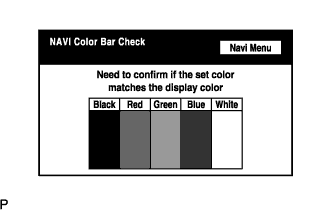
CHECK NAVI COLOR BAR (NAVIGATION CHECK MODE)
-
Enter the "Navigation Check" mode and select "NAVI Color Bar Check" Click here.
-
Check that the color bars match the displayed names.
OK Color bars match the displayed names.
NG
REPLACE NAVIGATION RECEIVER ASSEMBLY Click here
OK
GO TO "Navigation Receiver Assembly Power Source Circuit" Click here
-