AUDIO AND VISUAL SYSTEM (for Radio and Display Type) OPERATION CHECK

-
CHECK PANEL & STEERING SWITCH
Tech Tips
-
The radio and display receiver assembly panel switches are checked in the following procedure.
-
Illustrations may differ from the actual vehicle screen depending on the device settings and options. Therefore, some detailed areas may not be exactly the same as on the actual vehicle screen.
-
Some of the following functions may also differ from the actual vehicle depending on the device settings and options.
-
Enter diagnostic mode Click here.
-
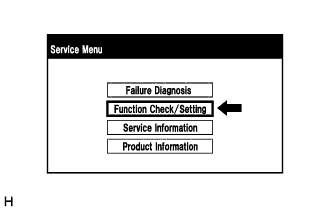
Select "Function Check/Setting" from the "Service Menu" screen.
-
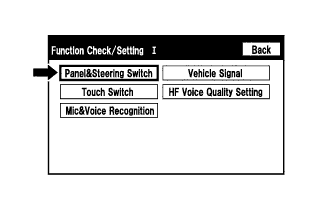
Select "Panel&Steering Switch" from the "Function Check/Setting I" screen.
-
Panel & Steering Switch Check Mode
-
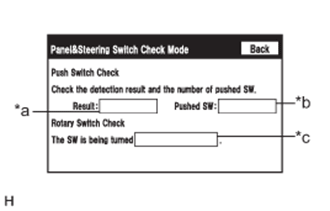
Operate each switch and check that the number of switches pushed and the switch conditions are correctly displayed.
Screen Description Display Content *a: Switch condition "Pushed" is displayed when any switch is pushed *b: Number of pushed switch
-
Number of switches pushed at once is displayed
-
If more than 3 switches are pushed at once, "More than 3" is displayed
*c: Rotary switch direction Direction of rotary switch is displayed Note
When the return switch on the remote operation board is pressed and held for 3 seconds or more, diagnostic mode will be canceled.
-
-
-
-
CHECK TOUCH SWITCH
Tech Tips
-
The touch switches on the screen are checked in the following procedure.
-
Illustrations may differ from the actual vehicle screen depending on the device settings and options. Therefore, some detailed areas may not be exactly the same as on the actual vehicle screen.
-
Enter diagnostic mode Click here.
-
Select "Function Check/Setting" from the "Service Menu" screen.
-
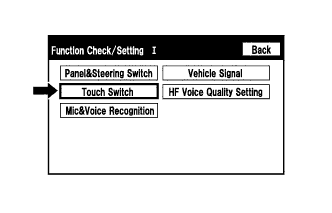
Select "Touch Switch" from the "Function Check/Setting I" screen.
-
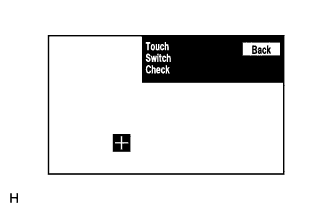
Touch Switch Check
-
Touch the display anywhere in the open area to perform the check when the "Touch Switch Check" screen is displayed.
Tech Tips
-
A "+" mark is displayed where the display is touched.
-
The "+" mark remains on the display even after the finger is removed.
-
-
-
-
CHECK MICROPHONE
Tech Tips
-
The microphone and microphone input level are checked in the following procedure.
-
Illustrations may differ from the actual vehicle screen depending on the device settings and options. Therefore, some detailed areas may not be exactly the same as on the actual vehicle screen.
-
Enter diagnostic mode Click here.
-
Select "Function Check/Setting" from the "Service Menu" screen.
-
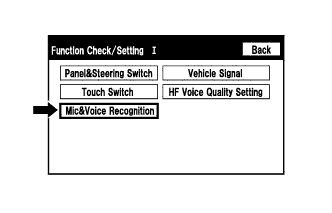
Select "Mic&Voice Recognition" from the "Function Check/Setting I" screen.
-
Microphone and Voice Recognition Check
-
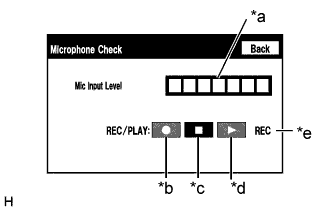
When speaking into the microphone, check that the microphone input level meter changes according to the input level.
Screen Description Display Content *a: Microphone input level meter Monitors the microphone input level every 0.1 seconds and displays the results in 8 different levels *b: Recording switch* Starts recording *c: Stop switch* Stops recording and playing *d: Play switch* Plays the recorded voice *e: Recording indicator* Comes on while recording
-
*: w/ Recording Function
-
-
-
-
CHECK VEHICLE SIGNAL
Tech Tips
-
Vehicle signals received by the radio and display receiver assembly are checked in the following procedure.
-
Illustrations may differ from the actual vehicle screen depending on the device settings and options. Therefore, some detailed areas may not be exactly the same as on the actual vehicle screen.
-
Enter diagnostic mode Click here.
-
Select "Function Check/Setting" from the "Service Menu" screen.
-
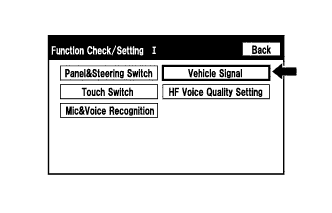
Select "Vehicle Signal" from the "Function Check/Setting I" screen.
-
Vehicle Signal Check Mode
-
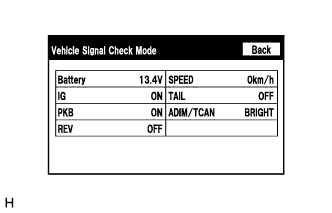
When the "Vehicle Signal Check Mode" screen is displayed, check all the vehicle signal conditions.
Screen Description Display Content Battery Battery voltage is displayed IG Ignition switch ON/OFF state is displayed PKB Parking brake ON/OFF state is displayed REV Reverse signal ON/OFF state is displayed SPEED Vehicle speed is displayed in km/h TAIL Tail signal (headlight dimmer switch assembly) ON/OFF state is displayed ADIM/TCAN Tail signal (headlight dimmer switch assembly) ON/OFF state is displayed. Tech Tips
-
Only items sending vehicle signals will be displayed.
-
This screen displays vehicle signals received by the radio and display receiver assembly.
-
This screen is updated once per second.
-
-
-
-
CHECK HF VOICE QUALITY SETTING
Tech Tips
-
The hands-free voice of a "Bluetooth" compatible phone can be adjusted using the following procedure.
-
Illustrations may differ from the actual vehicle screen depending on the device settings and options. Therefore, some detailed areas may not be exactly the same as on the actual vehicle screen.
-
Enter diagnostic mode Click here.
-
Select "Function Check/Setting" from the "Service Menu" screen.
-
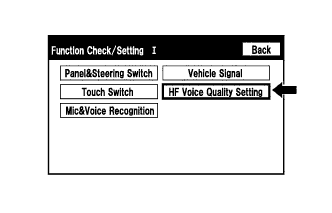
Select "HF Voice Quality Setting" from the "Function Check/Setting I" screen.
-
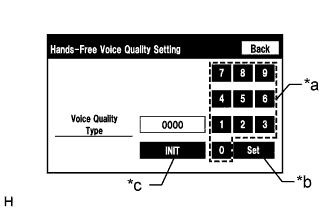
Text in Illustration *a Numeric keypad *b Setting button *c Reset button Hands-Free Voice Quality Setting
Note
Sound quality may deteriorate when the receive voice level is changed more than necessary. For this reason, check that the received voice quality is still acceptable after changing this setting.
-
If necessary, refer to the table below to adjust the voice quality type with the numeric keypad.
-
When adjusting the settings, use the number pad on the screen to input the voice quality type according to the table.
Settings Parameter Target Phenomenon Voice Quality Type Effect of Changing Voice Quality Negative Effect of Changing Voice Quality A
(Noise)
The other party hears background noise when listening to your voice 1000 The amount of background noise the other party hears when listening to your voice is reduced The volume of voice the other party hears when listening to your voice may temporarily drop B
(Noise)
The other party hears a lot of background noise when listening to your voice 2000 The amount of background noise the other party hears when listening to your voice is sharply reduced. The volume of voice the other party hears when listening to your voice may temporarily drop. C
(Noise)
The other party hears weak echoes 0100 The amount of echo is reduced (low level) Sound quality of the other party deteriorates (low level) D
(Noise)
The other party hears strong echoes 0200 The amount of echo is reduced (high level) Sound quality of the other party deteriorates (high level) Settings (When Multiple Phenomenon Occurred) Parameter Target Phenomenon Voice Quality Type Effect of Changing Voice Quality Negative Effect of Changing Voice Quality A+C The other party hears background noise and weak echoes when listening to your voice 1100
-
The amount of background noise the other party hears when listening to your voice is reduced
-
The amount of echo is reduced (low level)
-
The volume of voice may drop temporarily
-
Sound quality of the other party deteriorates (low level)
A+D The other party hears background noise and strong echoes when listening to your voice 1200
-
The amount of background noise the other party hears when listening to your voice is reduced
-
The amount of echo is reduced (high level)
-
The volume of voice may drop temporarily
-
Sound quality of the other party deteriorates (high level)
B+C The other party hears a lot of background noise and weak echoes when listening to your voice 2100
-
The amount of background noise the other party hears when listening to your voice is sharply reduced
-
The amount of echo is reduced (low level)
-
The volume of voice may drop temporarily
-
Sound quality of the other party deteriorates (low level)
B+D The other party hears a lot of background noise and strong echoes when listening to your voice 2200
-
The amount of background noise the other party hears when listening to your voice is sharply reduced
-
The amount of echo is reduced (high level)
-
The volume of voice may drop temporarily
-
Sound quality of the other party deteriorates (high level)
Tech Tips
-
The default value is "0000".
-
Settings will be applied when the setting button is selected.
-
If voice quality type values that are not in the table are input, the setting will not be applied and a positive effect may not be gained.
-
If the quality of phone calls decreases due to the changed settings, return the settings to "0000" by pressing the "INIT" switch.
-
-
-
-
CHECK SPEAKER
-
This function is used when checking the speaker wiring and whether the speakers are functioning properly.
-
Illustrations may differ from the actual vehicle screen depending on the device settings and options. Therefore, some detailed areas may not be shown exactly the same as on the actual vehicle screen.
-
Turn audio mode on and play any audio source.
Tech Tips
This audio source will be used for the speaker check.
-
Enter diagnostic mode Click here.
-
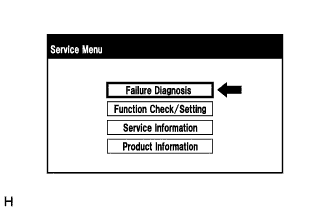
Select "Failure Diagnosis" from the "Service Menu" screen.
-
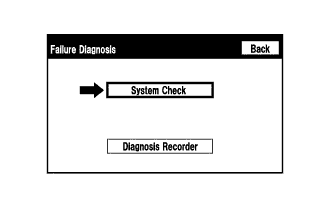
Select "System Check" from the "Failure Diagnosis" screen.
-
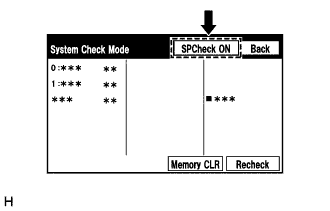
Select "SPCheck ON" from the "System Check Mode" screen.
-
Check the speaker wiring and check that the speakers are functioning properly.
Tech Tips
-
Check that each speaker outputs sound from the selected audio source properly.
-
"SPCheck OFF" is displayed during the speaker check.
-
Sound can be heard from the speakers around the vehicle in order beginning from a speaker on the front side.
-
-
Sound stops when any of the following conditions are met:
-
The "SPCheck OFF" switch is pressed.
-
The ignition switch is turned off.
-
Diagnostic mode is turned off.
-
The screen is changed to another screen.
-
Audio mode is turned off.
-
-