SIDE MONITOR SYSTEM DIAGNOSIS SYSTEM

-
SIDE MONITOR DIAGNOSIS SYSTEM
-
In the side monitor diagnosis system, signals received by the parking assist ECU can be checked and the side monitor system can be calibrated, adjusted and checked on the multi-display.
Note
Depending on the parts that are replaced or operations that are performed during vehicle inspection or maintenance, calibration of other systems as well as the side monitor system may be needed Click here.
Tech Tips
The displayed screens and items may differ depending on vehicle specifications.
-
-
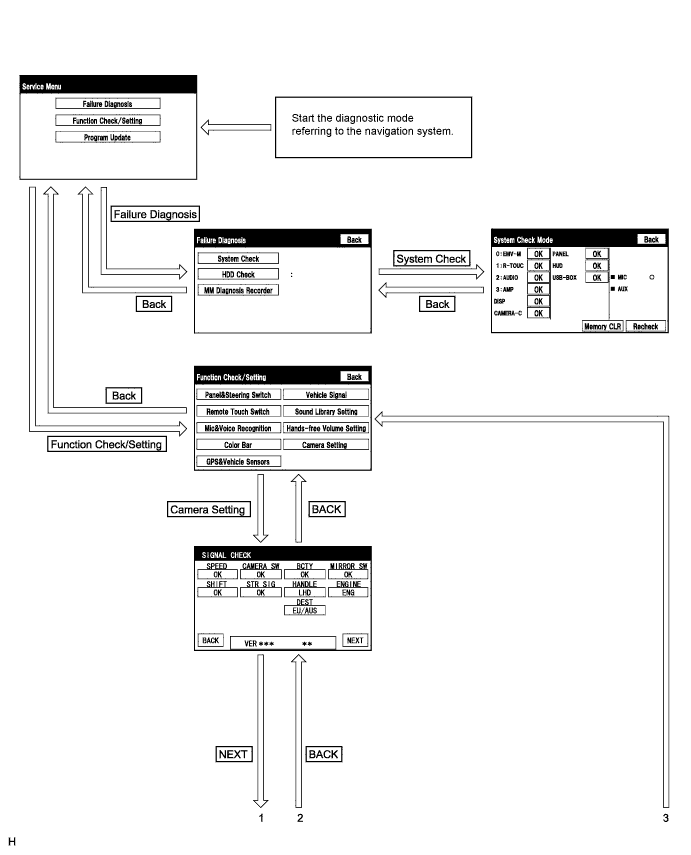
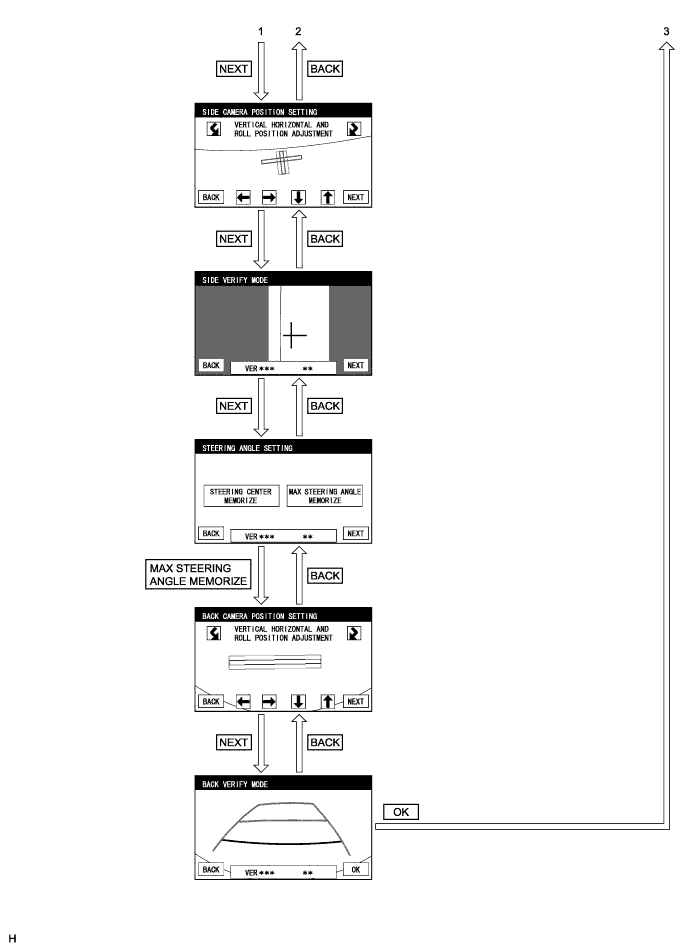
DIAGNOSIS SCREEN TRANSITION (during first-time parking assist ECU initialization)
-
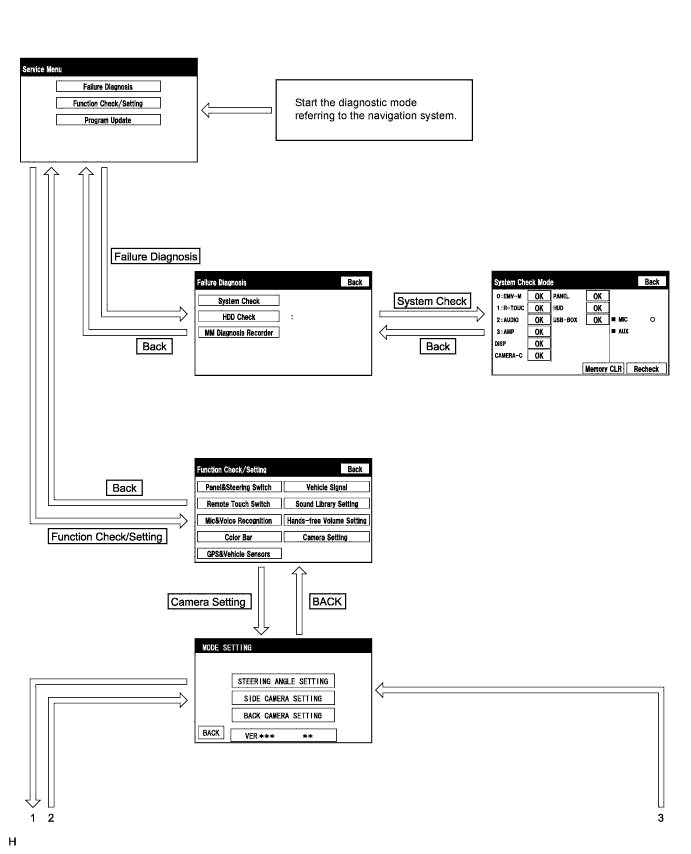
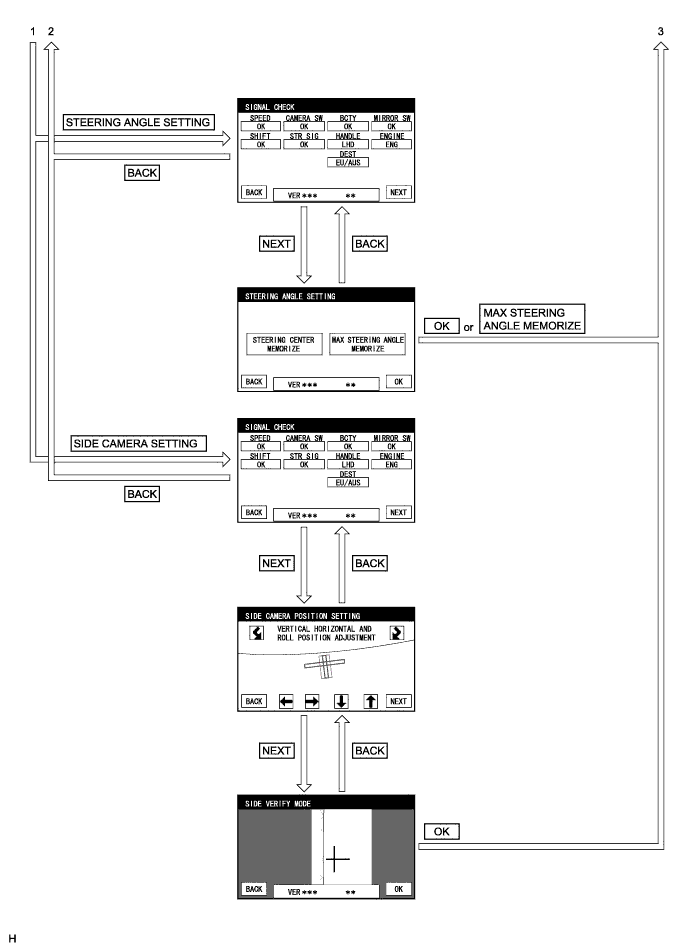
DIAGNOSIS SCREEN TRANSITION (after parking assist ECU initialization)
-
DIAGNOSTIC MODE
-
Start diagnostic mode Click here.
-
Failure diagnosis Click here.
-
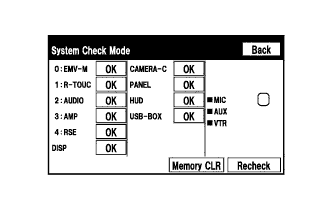
System check (check using system check mode screen) Click here.
-
Finish diagnostic mode Click here.
-
-
SIGNAL CHECK (parking assist ECU input signal)
-
Start diagnostic mode Click here.
-
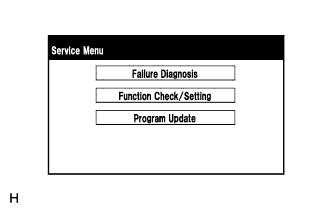
Select "Function Check/Setting" on the Service Menu screen to display the Function Check/Setting screen.
-
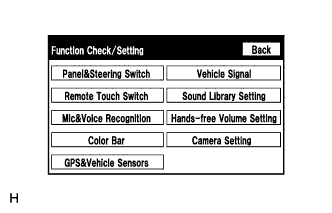
Select "Camera Setting" on the Function Check/Setting screen.
Tech Tips
After "Camera Setting" is selected, the screen transitions differ depending on whether initialization of the parking assist ECU was performed after parking assist ECU replacement.
Parking Assist ECU Initialization Screen Transition Not performed SIGNAL CHECK screen Performed MODE SETTING screen -
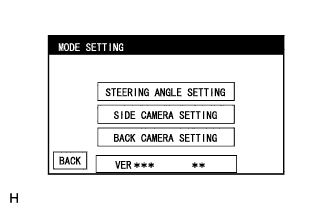
When the screen changes to the MODE SETTING screen, select "BACK CAMERA SETTING" to display the SIGNAL CHECK screen.
Tech Tips
To select a grayed out item, select and hold the item for 2 seconds or more.
-
-
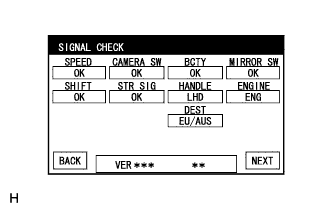
SIGNAL CHECK
-
On the SIGNAL CHECK screen, it is possible to inspect the state of signals sent to the parking assist ECU and check the settings.
Item Inspection Detail Note SPEED Speed signal input When "CHK" (red) is displayed, selecting "NEXT" will not change to the next screen. CAMERA SW Steering pad switch assembly (side monitor main switch) signal input BCTY CAN communication condition with main body ECU (multiplex network body ECU) MIRROR SW Outer rear view mirror retract signal input SHIFT Shift signal input STR SIG Steering angle sensor signal input HANDLE Steering position signal input ENGINE ENG/HV judgement signal DEST Destination information signal input Tech Tips
-
When "CHK" (red) is displayed, perform inspections based on the result of the following inspections.
-
If performing the adjustment after proceeding to the next screen, confirm that all items display "OK" (blue) before selecting "NEXT".
-
-
-
SPEED inspection
Tech Tips
If "CHK" (red) is displayed for "SPEED", check for DTCs and perform troubleshooting based on the output DTCs Click here.
-
CAMERA SW inspection
-
Check that "OK" (blue) is displayed for "CAMERA SW" and select "OK".
-
Check that "OK" (blue) changes to "CHK" (red). Press the side monitor main switch (steering pad switch assembly) and check that "CHK" (red) returns to "OK" (blue).
Tech Tips
If "CHK" (red) remains displayed or the "CAMERA SW" inspection result is not normal, perform troubleshooting according to Problem Symptoms Table ("CHK" message(s) are displayed on the SIGNAL CHECK screen) Click here.
-
-
BCTY inspection
Tech Tips
If "CHK" (red) is displayed for "BCTY", check for DTCs and perform troubleshooting based on the output DTCs Click here.
-
MIRROR SW inspection
Tech Tips
If "CHK" (red) is displayed for "MIRROR SW", check for DTCs and perform troubleshooting based on the output DTCs Click here.
-
SHIFT inspection
Tech Tips
If "CHK" (red) is displayed for "SHIFT", check for DTCs and perform troubleshooting based on the output DTCs Click here.
-
STR SIG inspection
Tech Tips
If "CHK" (red) is displayed for "STR SIG", check for DTCs and perform troubleshooting based on the output DTCs Click here.
-
HANDLE inspection
Tech Tips
If "CHK" (red) is displayed for "HANDLE", check for DTCs and perform troubleshooting based on the output DTCs Click here.
-
ENGINE inspection
Tech Tips
If "CHK" (red) is displayed for "ENGINE", check for DTCs and perform troubleshooting based on the output DTCs Click here.
-
DEST inspection
Tech Tips
If "CHK" (red) is displayed for "DEST", check for DTCs and perform troubleshooting based on the output DTCs Click here.
-
Finish diagnostic mode Click here.
-
-
CALIBRATION WHEN SERVICING VEHICLE
Note
Depending on the parts that are replaced or operations that are performed during vehicle inspection or maintenance, calibration of other systems as well as the side monitor system may be needed Click here.