PARKING ASSIST MONITOR SYSTEM CALIBRATION

-
ADJUST PARKING ASSIST MONITOR SYSTEM
-
This parking assist monitor system can be set from the diagnostic screen of the multi-display.
-
If the following operations are performed, it is necessary to perform adjustments and checks on the diagnostic screen.
Part Name Operation Adjustment Item Proceed to Spiral with sensor cable sub-assembly
-
Removal and installation of the spiral with sensor cable sub-assembly
-
Removal and installation of the connector of the spiral with sensor cable sub-assembly
Steering angle neutral point Steering angle setting Spiral with sensor cable sub-assembly Replacement Steering angle neutral point Steering angle setting Parking assist ECU Replacement Parking assist ECU initialization Step 2 Suspension, tires, etc. The vehicle height changes because of suspension or tire replacement Rear television camera optical axis (Camera position setting) Step 3 Side television camera optical axis (Camera position setting) Rear television camera assembly
-
Replacement
-
Installation angle of the rear television camera changes because of the removal and installation of the rear television camera, etc.
Rear television camera optical axis (Camera position setting) Step 3 Display and navigation module display (HDD navigation system) Replacement Vehicle contract setting Tech Tips
-
The adjustment values stored while performing parking assist monitor system calibration are stored in the parking assist ECU.
-
After the power switch is turned off, the display and navigation module display (HDD navigation system) records various types of memory and settings. As a result, after turning the power switch off, make sure to wait for the time specified in the following table before disconnecting the cable from the negative (-) battery terminal.
Waiting Time before Disconnecting Cable from Negative (-) Battery Terminal Specification Waiting Time w/o Telematics transceiver 60 sec. w/ Telematics transceiver 120 sec.
-
-
-
PARKING ASSIST ECU INITIALIZATION
Tech Tips
Be sure to check for DTCs before performing this procedure Click here.
-
Preparation for adjustment
-
Park the vehicle with the steering wheel centered.
-
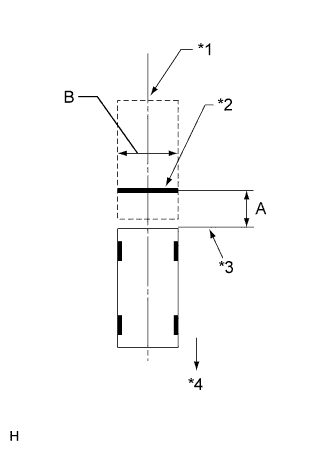
Text in Illustration *1 Vehicle Center *2 Target Bar for Back Camera Adjustment *3 Vehicle End *4 Front Side Set a target bar for optical axis adjustment of the rear television camera.
Tech Tips
Only when adjusting the optical axis of the camera, create a target bar for adjustment.
Tech Tips
-
Set a piece of tape on the ground as the target bar for adjustment. Its width and length are 20 to 30 mm (0.787 to 1.181 in.) and 1995 to 2005 mm (6.545 to 6.578 ft.), respectively. Check the color on the multi-display and choose a tape color which can be easily seen.
-
Before parking the vehicle, be sure to move the vehicle forward and in reverse to check that the tires are facing straight ahead with the steering wheel centered.
-
Check that the back door is fully closed.
-
-
Set a target bar for optical axis adjustment of the side television camera.
Tech Tips
Only when adjusting the optical axis of the camera, create a target bar for adjustment.
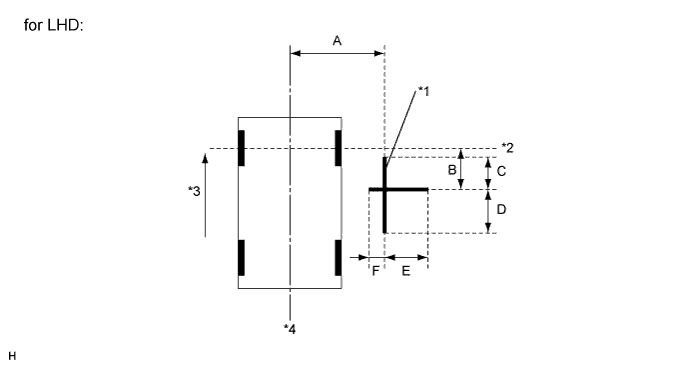
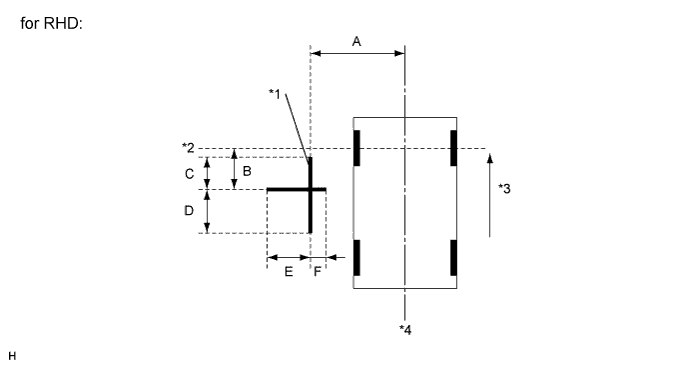
Text in Illustration *1 Target Bar for Side Camera Adjustment *2 Front Wheel Axis *3 Front Side *4 Vehicle Center Tech Tips
Target bars for side camera adjustment should be made with 2 pieces of 2.5 cm wide tape; one piece should be 100 cm (3.28 ft.) (C+D) and the other should be 70 cm (2.30 ft.) (E+F) long. Check the tape color on the multi-display and choose a tape color which can be easily seen.
-
-
Start diagnostic mode Click here.
Note
Mode setting must be carried out with the hybrid system started. Apply the parking brake, depress the brake pedal, move the shift lever to P, and ensure that the vehicle is not moving.
Tech Tips
The displayed items may differ depending on vehicle specifications.
-
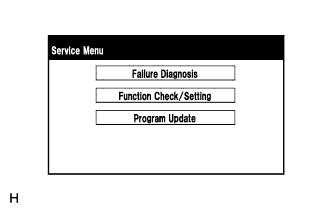
Select "Function Check/Setting" on the Service Menu screen.
-
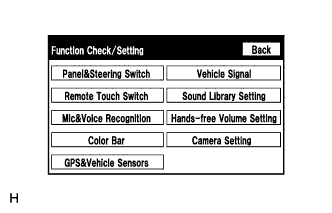
Select "Camera Setting" on the Function Check/Setting screen.
-
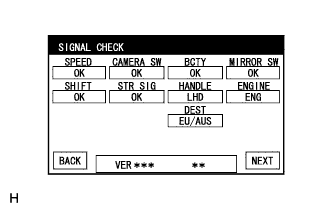
Select "NEXT" on the SIGNAL CHECK screen.
Note
-
When "CHK" (red) is displayed for any items on the SIGNAL CHECK screen, selecting "NEXT" will not change the screen to the SIDE CAMERA POSITION SETTING screen.
-
When "CHK" (red) is displayed for any items on the SIGNAL CHECK screen, perform inspections using the SIGNAL CHECK screen Click here.
Tech Tips
-
When the outer mirrors are retracted, selecting "NEXT" will not change the screen to the SIDE CAMERA POSITION SETTING screen.
-
If the screen does not change to the SIDE CAMERA POSITION SETTING screen even though the outer mirrors are extended, perform the MIRROR SW check on the SIGNAL CHECK screen Click here.
-
If the screen does not change to the SIDE CAMERA POSITION SETTING screen even after "OK" (blue) is displayed as a result of the MIRROR SW check on the SIGNAL CHECK screen, replace the parking assist ECU Click here.
-
-
-
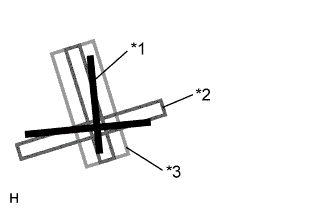
SIDE CAMERA POSITION SETTING
Tech Tips
Colors used on the side camera position setting screen
Text in Illustration *1 Target Adjustment Bar for Side Camera Position Setting *2 Red Frame *3 Yellow Frame
-
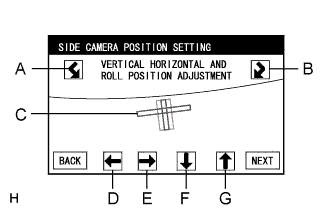
Perform the roll angle adjustment.
-
Select switches A and B to rotate C so that it is parallel to the target adjustment bar.
-
-
Perform the vertical and horizontal position adjustment.
-
Select the directional switches D, E, F and G to move C so that the target adjustment bar is centered in C.
-
-
Select "NEXT" to display SIDE VERIFY MODE.
-
-
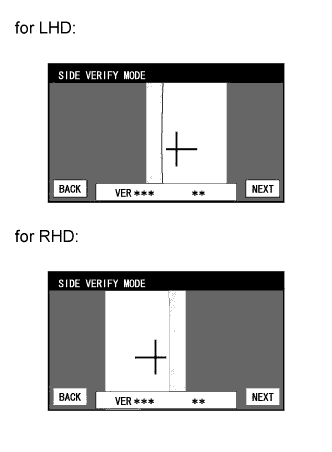
SIDE VERIFY MODE
-
Check that the red cross and the target adjustment bar are aligned.
Tech Tips
If they are not aligned, select "BACK" and perform SIDE CAMERA POSITION SETTING again.
-
Select "NEXT" to store the side camera aiming adjustment value and change the screen to the STEERING ANGLE SETTING screen.
Tech Tips
-
When "NEXT" is selected, a beep will sound to confirm that the side camera aiming adjustment values have been stored.
-
The adjustment value will not be stored unless "NEXT" is selected.
-
-
-
STEERING ANGLE SETTING
-
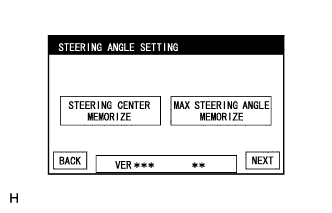
Perform the STEERING CENTER MEMORIZE operation.
-
Check that the steering wheel is centered, and then select "STEERING CENTER MEMORIZE".
Tech Tips
When performing removal and installation, or replacement of the television camera, steering angle adjustment is not required.
-
-
Perform the MAX STEERING ANGLE MEMORIZE operation.
-
After adjusting the steering angle neutral point, turn the steering wheel to the left and right lock positions and select "MAX STEERING ANGLE MEMORIZE". The maximum steering angle is then stored and the screen changes to the BACK CAMERA POSITION SETTING screen.
Tech Tips
The "NEXT" button does not respond until the system stores the steering angle neutral point and maximum steering angle.
Tech Tips
-
It is also possible to start by initially turning the steering to the right side.
-
When "MAX STEERING ANGLE MEMORIZE" is selected, a beep will sound to confirm that the steering adjustment values have been stored.
-
The adjustment value will not be stored unless "MAX STEERING ANGLE MEMORIZE" is selected after turning the steering wheel side to side.
-
When "BACK" is selected, the screen changes to SIDE VERIFY MODE without storing the set values.
-
Even if no DTCs are detected, selecting "MAX STEERING ANGLE MEMORIZE" may not cause the adjustment value to be stored if the steering sensor is malfunctioning.
-
If selecting "MAX STEERING ANGLE MEMORIZE" does not cause the adjustment value to be stored after adjusting the steering angle, replace the spiral with sensor cable sub-assembly Click here.
-
-
-
-
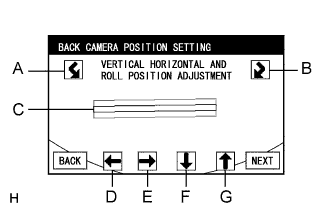
BACK CAMERA POSITION SETTING
Tech Tips
-
When the back door is open, the "Back door is open. Do not use the rear view monitor when the back door is not completely closed." message will be displayed and camera position setting will not be possible.
-
If the "Back door is open. Do not use the rear view monitor when the back door is not completely closed." message is displayed even when the back door is closed, perform inspections according to Problem Symptoms Table (A back door open warning message is displayed even after back door is closed) Click here.
-
Perform the roll angle adjustment.
-
Select switches A and B to rotate C so that it is parallel to the target adjustment bar.
-
-
Perform the vertical and horizontal position adjustment.
-
Select the directional switches D, E, F and G to move C so that the target adjustment bar is centered in C.
-
-
Select the "NEXT" button on the BACK CAMERA POSITION SETTING screen.
-
-
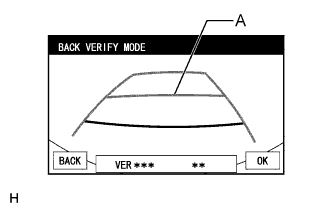
BACK VERIFY MODE
-
Check that A and the target adjustment bar are overlapping.
-
If the steering angle neutral point is not aligned, perform the STEERING CENTER MEMORIZE and MAX STEERING ANGLE MEMORIZE operations.
-
If A and the target adjustment bar are not aligned even if the tires are aligned straight ahead, perform the camera position setting operation.
-
-
Selecting "OK" will return the screen to the Service Menu screen, and complete the adjustment.
Tech Tips
-
The update is not completed until "OK" is selected.
-
When "OK" is selected, a beep will sound to confirm that the rear camera aiming adjustment values have been stored.
-
-
-
Finish diagnostic mode Click here.
-
-
BACK CAMERA POSITION SETTING
Tech Tips
Be sure to check for DTCs before performing this procedure Click here.
-
Preparation for adjustment
-
Park the vehicle with the steering wheel centered.
-
Text in Illustration *1 Vehicle Center *2 Target Bar for Back Camera Adjustment *3 Vehicle End *4 Front Side Set a target bar for optical axis adjustment of the rear television camera.
Tech Tips
Only when adjusting the optical axis of the camera, create a target bar for adjustment.
Tech Tips
-
Set a piece of tape on the ground as the target bar for adjustment. Its width and length should be 20 to 30 mm (0.787 to 1.181 in.) and 1995 to 2005 mm (6.545 to 6.578 ft.), respectively. Check the color on the multi-display and choose a tape color which can be easily seen.
-
Before parking the vehicle, be sure to move the vehicle forward and in reverse to check that the tires are facing straight ahead with the steering wheel centered.
-
Check that the back door is fully closed.
-
-
-
Start diagnostic mode Click here.
Note
Mode setting must be carried out with the hybrid system started. Apply the parking brake, depress the brake pedal, move the shift lever to P, and ensure that the vehicle is not moving.
Tech Tips
The displayed items may differ depending on vehicle specifications.
-
Select "Function Check/Setting" on the "Service Menu" screen.
-
Select "Camera Setting" on the Function Check/Setting screen.
-
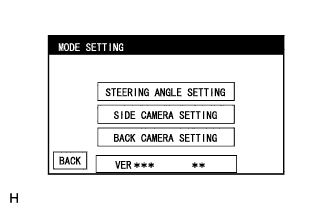
Select "BACK CAMERA SETTING" on the MODE SETTING screen.
Tech Tips
To select a grayed out item, select and hold the item for 2 seconds or more.
-
Select "NEXT" on the SIGNAL CHECK screen.
Note
-
When "CHK" (red) is displayed for any items on the SIGNAL CHECK screen, selecting "NEXT" will not change the screen to the BACK CAMERA POSITION SETTING screen.
-
When "CHK" (red) is displayed for any items on the SIGNAL CHECK screen, perform inspections using the SIGNAL CHECK screen Click here.
-
-
-
BACK CAMERA POSITION SETTING
Tech Tips
-
When the back door is open, the "Back door is open. Do not use the rear view monitor when the back door is not completely closed." message will be displayed and camera position setting will not be possible.
-
If the "Back door is open. Do not use the rear view monitor when the back door is not completely closed." message is displayed even when the back door is closed, perform inspections according to Problem Symptoms Table (A back door open warning message is displayed even after back door is closed) Click here.
-
Perform the roll angle adjustment.
-
Select switches A and B to rotate C so that it is parallel to the target adjustment bar.
-
-
Perform the vertical and horizontal position adjustment.
-
Select the directional switches D, E, F and G to move C so that the target adjustment bar is centered in C.
-
-
Select the "NEXT" button on the "BACK CAMERA POSITION SETTING" screen.
-
-
BACK VERIFY MODE
-
Check that A and the target adjustment bar are overlapping.
-
If the steering angle neutral point is not aligned, perform the STEERING CENTER MEMORIZE and MAX STEERING ANGLE MEMORIZE operations.
-
If A and the target adjustment bar are not aligned even if the tires are aligned straight ahead, perform the camera position setting operation.
-
-
Selecting "OK" will return the screen to the Service Menu, and complete the adjustment.
Tech Tips
-
The update is not completed until "OK" is selected.
-
When "OK" is selected, a beep will sound to confirm that the rear camera aiming adjustment values have been stored.
-
-
-
Finish diagnostic mode Click here.
-