NAVIGATION SYSTEM (for HDD) Pointer not Displayed on Screen or Pointer does not Move
INSPECTION PROCEDURE
Note
When replacing the display and navigation module display, perform vehicle contract setting (w/ G-BOOK system) Click here.
PROCEDURE
-
CHECK REMOTE TOUCH SWITCH (OPERATION CHECK)
-
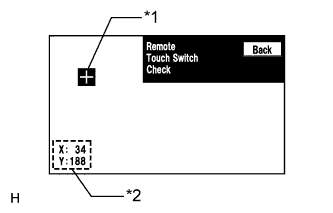
Text in Illustration *1 "+" mark *2 Coordinates Enter the "Remote Touch Switch Check" screen. Refer to Check Remote Touch Switch in Operation Check Click here.
-
Move the remote touch switch knob and press the "ENTER" switch at any blank space on the screen to display the "+" mark.
Tech Tips
-
The "+" mark will be displayed at the point where the "ENTER" switch was pressed.
-
Once the "+" mark is displayed, the coordinates will be displayed.
-
-
Move the pointer to any position using the remote touch switch knob and press the "ENTER" switch again. When the location of "+" mark is changed with the "ENTER" switch held, check that the coordinate values "X" and "Y" change between 0 and 255.
Tech Tips
Even if the pointer is moved, the "+" mark will remain at the position where the pointer was when the "ENTER" switch was pressed.
Result Result Proceed to Remote touch switch check cannot be performed due to a remote touch switch knob malfunction. A The coordinate values "X" and "Y" do not change between 0 and 255 according to the location of "+" mark. A The coordinate values "X" and "Y" change between 0 and 255 according to the location of "+" mark. B
B 
REPLACE DISPLAY AND NAVIGATION MODULE DISPLAY Click here
A 
-
-
REMOTE TOUCH SELF CHECK (REMOTE TOUCH SWITCH KNOB POSITION RECOGNITION)
-
Activate self check mode Click here.
-
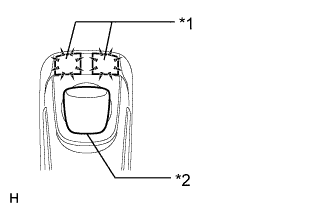
Text in Illustration *1 Switch Illumination *2 Switch Knob Check remote touch switch knob position recognition.
-
Move the remote touch switch knob from the lower left to the upper right to check that the brightness of the switch illumination changes.
Result Result Proceed to Brightness of the switch illumination changes according to remote touch switch knob operation. A Brightness of the switch illumination does not change according to remote touch switch knob operation. B Switch illumination remains on. B Tech Tips
-
If the brightness changes according to remote touch switch knob operation, the knob position is being recognized normally.
-
When the switch illumination blinks, the remote touch has stored a DTC.
-
-
B 
REPLACE REMOTE OPERATION BOARD Click here
A 
USE SIMULATION METHOD TO CHECK Click here
-
-
REPLACE REMOTE OPERATION BOARD
-
Replace the remote operation board Click here.
-
Check that the pointer is displayed and moves normally.
OK The pointer is displayed and moves normally.
NG
REPLACE DISPLAY AND NAVIGATION MODULE DISPLAY Click here
OK
END
-