NAVIGATION SYSTEM (for HDD) Switch Operation of Remote Touch not Accepted
INSPECTION PROCEDURE
Note
When replacing the display and navigation module display, perform vehicle contract setting (w/ G-BOOK system) Click here.
PROCEDURE
-
START DIAGNOSTIC MODE
-
Activate diagnostic mode and check if the "Service Menu" screen can be displayed Click here.
OK Diagnostic mode can be activated.
NG 
REMOTE TOUCH SELF CHECK (SWITCH OPERATION CHECK) Click here
OK 
-
-
CHECK PANEL SWITCH (OPERATION CHECK)
-
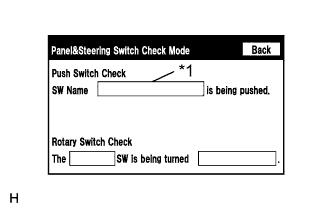
Text in Illustration *1 Name of the pushed switch is displayed Enter the "Panel & Steering Switch Check Mode" screen. Refer to Check Panel & Steering Switch in Operation Check Click here.
-
Press each switch on the remote touch and check that the switch name is displayed on the screen.
OK The switch name is correctly displayed as operated.
NG
REMOTE TOUCH SELF CHECK (SWITCH OPERATION CHECK) Click here
OK 
REPLACE DISPLAY AND NAVIGATION MODULE DISPLAY Click here
-
-
REMOTE TOUCH SELF CHECK (SWITCH OPERATION CHECK)
-
Activate self check mode Click here.
-
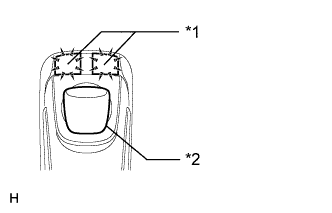
Text in Illustration *1 Switch Illumination *2 Switch Knob Check switch operation.
-
Move the remote touch switch knob to the lower left.
-
Check that the "MAP/VOICE" and "MENU" switches illuminate when each switch on the remote touch is pressed.
Result Result Proceed to Self check mode cannot be activated. A Some switches do not turn on the "MAP/VOICE" and "MENU" switch illumination when they are pressed. A All switches turn on the "MAP/VOICE" and "MENU" switch illumination when they are pressed. B
-
B 
REPLACE DISPLAY AND NAVIGATION MODULE DISPLAY Click here
A
-
-
REPLACE INTEGRATION PANEL SUB-ASSEMBLY
-
Replace the integration panel sub-assembly Click here.
-
Check that each switch operation on the remote touch is accepted normally.
OK Each switch operation is accepted normally.
NG
REPLACE REMOTE OPERATION BOARD Click here
OK
END
-