NAVIGATION SYSTEM (for DVD) Screen Flicker or Color Distortion
INSPECTION PROCEDURE
PROCEDURE
-
CHECK DISPLAY SETTING
-
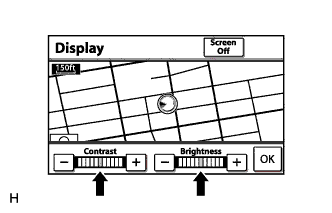
Display the "Display" screen.
-
Reset display settings (contrast, brightness) and check that the screen appears normal.
OK The display returns to normal.
NG 
CHECK CABIN Click here
OK 
END
-
-
CHECK CABIN
-
Check that the temperature in the cabin is neither -20°C (-4°F) or lower nor 65°C (149°F) or higher.
Tech Tips
The navigation system may not operate normally when the temperature is -20°C (-4°F) or lower, or 65°C (149°F) or higher.
OK Temperature in the cabin is between -20°C (-4°F) and 65°C (149°F).
NG 
SET CABIN TO APPROPRIATE TEMPERATURE
OK 
-
-
CHECK COLOR BAR (OPERATION CHECK)
-
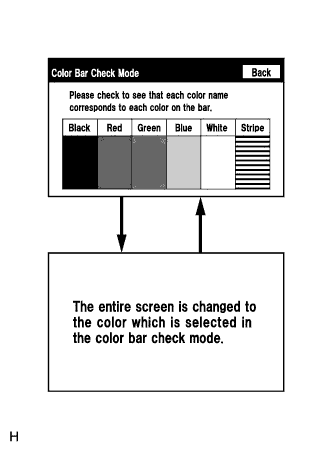
Enter the "Check Color Bar" (Color Bar Check Mode) Click here.
-
Check that the color bars match the displayed names.
OK Color bars match the displayed names.
NG
REPLACE MULTI-DISPLAY ASSEMBLY Click here
OK
PROCEED TO NEXT SUSPECTED AREA SHOWN IN PROBLEM SYMPTOMS TABLE Click here
-