NAVIGATION SYSTEM (for DVD) SYSTEM DESCRIPTION

-
NAVIGATION SYSTEM OUTLINE
-
Vehicle position tracking methods
It is essential that the navigation system correctly tracks the current vehicle position and displays it on the map. There are 2 methods to track the current vehicle position: autonomous (dead reckoning) and GPS* (satellite) navigation. Both navigation methods are used in conjunction with each other.
*: GPS (Global Positioning System)
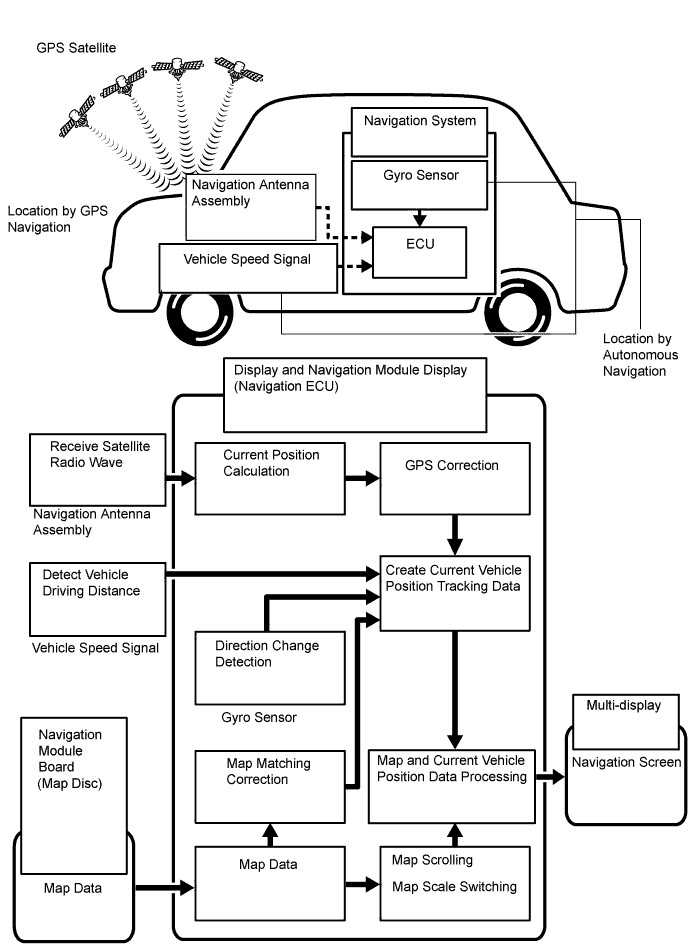
Operation Description Vehicle Position Calculation The display and navigation module display calculates the current vehicle position (direction and current position) using the direction deviation signal from the gyro sensor and the running distance signal from the vehicle speed sensor and creates the driving route. Map Display Processing The display and navigation module display displays the vehicle track on the map by processing the vehicle position data, vehicle running track and map data from the navigation module board (map disc). Map Matching The map data from the navigation module board (map disc) is compared to the vehicle position and running track data. Then, the vehicle position is matched with the nearest road. GPS Correction The vehicle position is matched to the position measured by GPS. Then, the GPS measurement position data is compared with the vehicle position and running track data. If the position is widely different, the GPS measurement position is used. Distance Correction The running distance signal from the vehicle speed sensor includes the error caused by tire wear and slippage between the tires and road surface. Distance correction is performed to account for this. The display and navigation module display automatically offsets the running distance signal to make up for the difference between it and the distance data of the map. The offset is automatically updated. 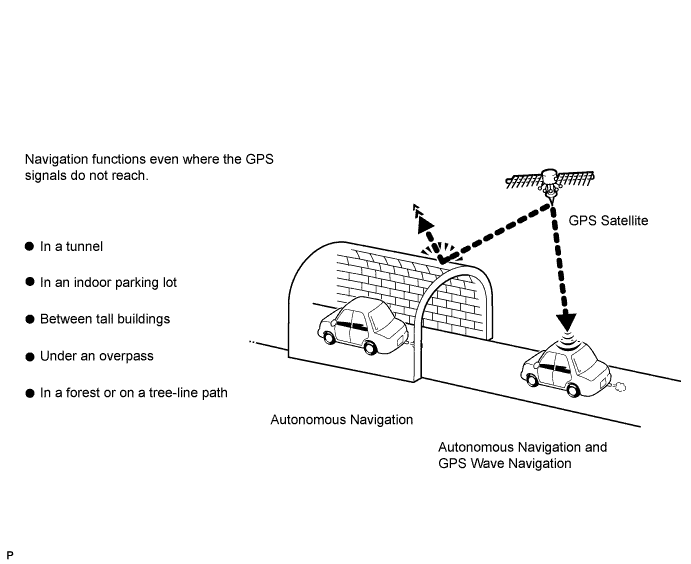
Tech Tips
The combination of autonomous and GPS navigation makes it possible to display the vehicle position even when the vehicle is in places where the GPS cannot receive a signal. When only autonomous navigation is used, however, the mapping accuracy may slightly decrease.
-
Autonomous navigation
This method determines the relative vehicle position based on the running track determined by the gyro located in the display and navigation module display and the vehicle speed sensors signal.
-
Gyro sensor
Used to calculate the direction by detecting angular velocity. It is located in the display and navigation module display.
-
Vehicle speed sensor signal
Used to calculate the vehicle running distance.
-
-
GPS* navigation (Satellite navigation)
This method detects the absolute vehicle position using radio waves from GPS satellites.
*GPS satellites were launched by the U.S. Department of Defense for military purposes.
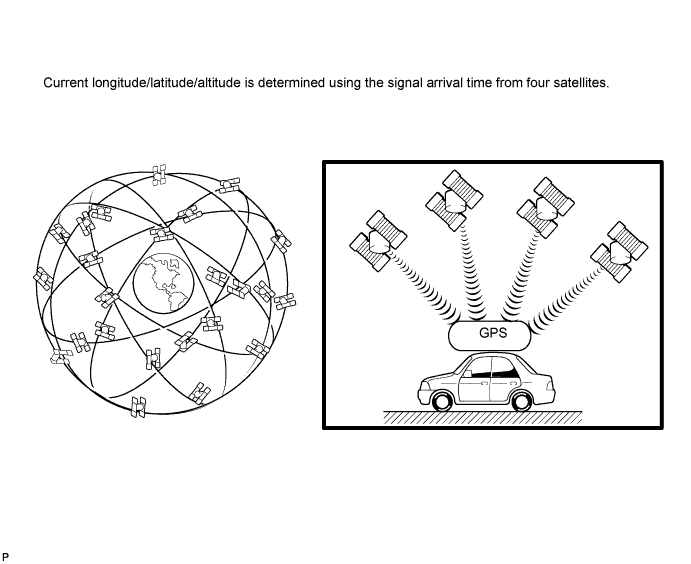
Number of satellites Measurement Description 2 or less Measurement impossible Vehicle position cannot be obtained because the number of satellites is not enough. 3 2-dimensional measurement is possible Vehicle position is obtained based on the current longitude and latitude. (This is less precise than 3-dimensional measurement.) 4 3-dimensional measurement is possible Vehicle position is obtained based on the current longitude, latitude and altitude. -
Map matching
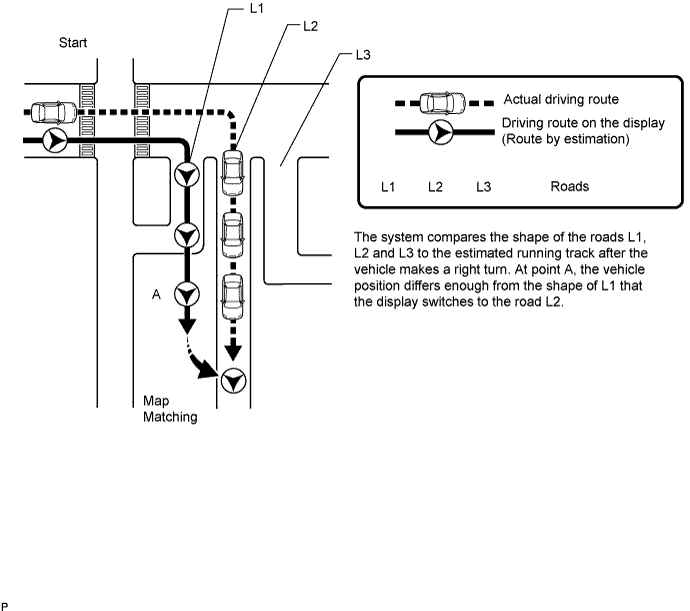
The current driving route is calculated by autonomous navigation (according to the gyro sensor and vehicle speed sensor) and GPS navigation. This information is then compared with possible road shapes from the map data in the map disc and the vehicle position is set onto the most appropriate road.
-
-
REMOTE TOUCH OUTLINE
Tech Tips
-
The navigation system is remotely controlled using the remote touch switch knob and switches.
-
The remote touch is equipped with a feedback force function.
-
When the remote touch switch knob is operated, the built-in 2-axis motors are controlled. The motors are used to provide feedback force for the knob according to the pointer operation displayed on the multi-display assembly.
-
The feedback force of the remote touch allows the users to select icons easily when operating the navigation system.
-
Remote Touch Switch Knob Operation
-
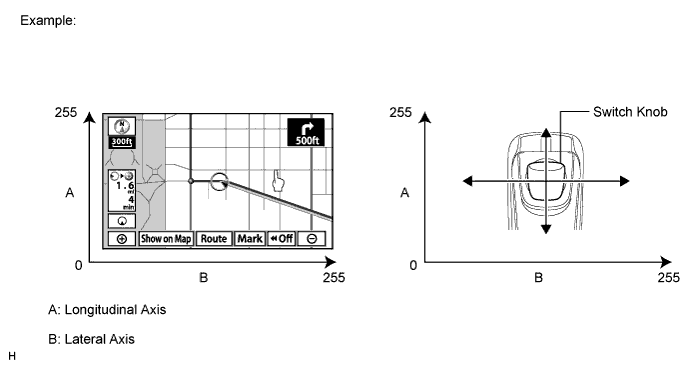
Movement of the pointer on the multi display screen is synchronized with knob operation.
Tech Tips
-
During remote touch switch knob operation, the distance that the knob moves is sent to the display and navigation module display as operational coordinates. The range of operational coordinates for the lateral and longitudinal axes is between 0 and 255.
-
The multi-display assembly also has operational coordinates that range from 0 to 255 for the lateral and longitudinal axes. The display and navigation module display displays the pointer according to the operational coordinates from the knob.
-
-
-
Remote Touch Switch Knob Feedback Force
-
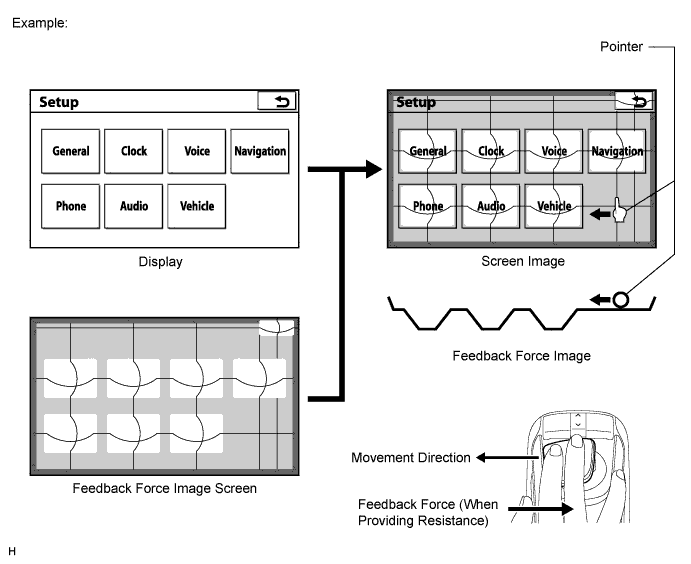
The remote touch has 2 built-in motors. These motors control both lateral and longitudinal axes and generate feedback force according to remote touch switch knob operation.
Tech Tips
-
There are 3 types of feedback force image areas (Icons, Frames and Others) are provided on the multi-display assembly screen. The feedback force changes depending on the area.
-
The display and navigation module display sends a feedback force request signal to the remote touch according to the pointer location displayed on the multi-display assembly.
-
When the remote touch receives the feedback force request signal, the remote touch controls the motors and generates 3 types of feedback force according to the operation direction of the remote touch switch knob.
-
The strength of feedback force generated by the remote touch can be adjusted. Refer to the owner's manual for further information.
-
-
Icon Area
Tech Tips
-
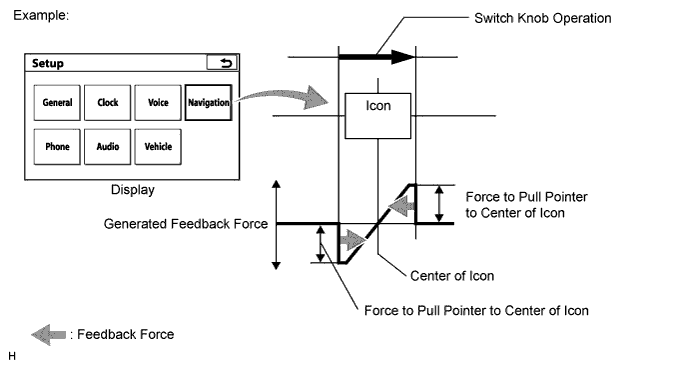
When the pointer comes close to an icon area, force will be provided to pull the pointer toward the center of the icon area.
-
Stronger force is provided while driving than while parked (except Europe).
-
-
Frame Area
Tech Tips
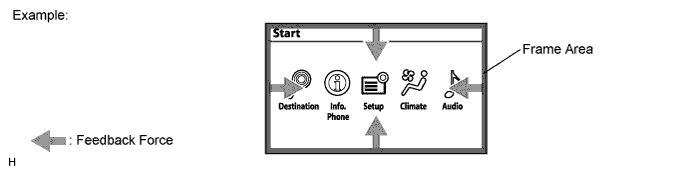
Frame areas are provided for the edges of all display screens. When the pointer comes close to the edge of the screen, force will be provided to move the pointer away from the edge of the screen.
-
Other Areas
Tech Tips
-
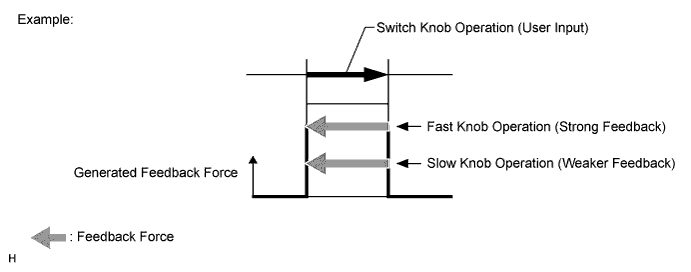
When the pointer is in an area other than one of those specified, resistance will be provided that is proportional to the remote touch switch knob operation speed.
-
Stronger resistance is provided on the map screen than on other screens.
-
-
-
-
DVD (Digital Versatile Disc) PLAYER OUTLINE (for Navigation Map)
-
The navigation module board uses a laser pickup to read the digital signals recorded on a DVD.
CAUTION:
Because the navigation system uses an invisible laser beam, do not look directly at the laser pickup. Be sure to only operate the navigation as instructed.
Note
-
Do not disassemble any part of the navigation module board.
-
Do not apply oil to the navigation module board.
-
Do not insert anything but a DVD into the navigation module board.
-
-
-
DVD (Digital Versatile Disc) PLAYER OUTLINE (for DVD Changer Model)
-
The DVD player can only play DVD videos that have any of the following marks:

-
Precaution for use of discs
Note
-
PAL or SECAM color television standard discs cannot be played (only NTSC discs can be played).
-
Keep the discs away from dirt. Be careful not to damage the discs or leave fingerprints on them.
-
Hold discs by the outer edge and center hole with the label side up.
-
Leaving the disc exposed halfway out of the slot for a long time after pressing the disc eject button may cause deformation of the disc, making the disc unusable.
-
Do not use odd-shaped CDs because these may cause player malfunctions.
-
Do not use discs whose recording portion is transparent or translucent because they may not be inserted, ejected or played normally.
-
DualDiscs that mate DVD recorded material on one side with CD digital audio material on the other cannot be played.
-
-
-
Cleaning
Note
Do not use a lens cleaner because it may cause a malfunction in the pickup portion of the player.
-
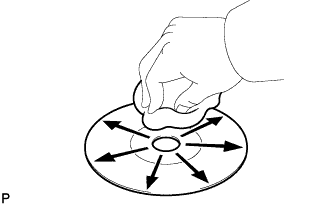
If dirt is on the disc surface, wipe it clean with a soft dry cloth such as an eyeglass cleaner for plastic lenses from the inside to the outside in a radial direction.
Note
-
Pressing on the disc by hand or rubbing the disc with a hard cloth may scratch the disc surface.
-
Use of solvent such as a record spray, antistatic agent, alcohol, benzine and thinner or a chemical cloth may cause damage to the disc, making the disc unusable.
-
-
-
-
"BLUETOOTH" OUTLINE
-
"Bluetooth" is a trademark owned by Bluetooth SIG. Inc.
-
"Bluetooth" is a wireless connection technology that uses the 2.4 GHz frequency band.
Tech Tips
The communication performance of "Bluetooth" may vary depending on obstructions or radio wave conditions between communication devices, electromagnetic radiation, communication device sensitivity or antenna capacity.
-
Hands-free function
-
The "Bluetooth" built-in radio receiver assembly and a "Bluetooth" compatible cellular phone*1 can be connected using a "Bluetooth" wireless connection. This enables use of the hands-free function on the cellular phone even the phone may be in a pocket or bag. For this reason, it is not necessary to use a connector or cable to connect the cellular phone.
*1: Some versions of "Bluetooth" compatible cellular phones may not function.
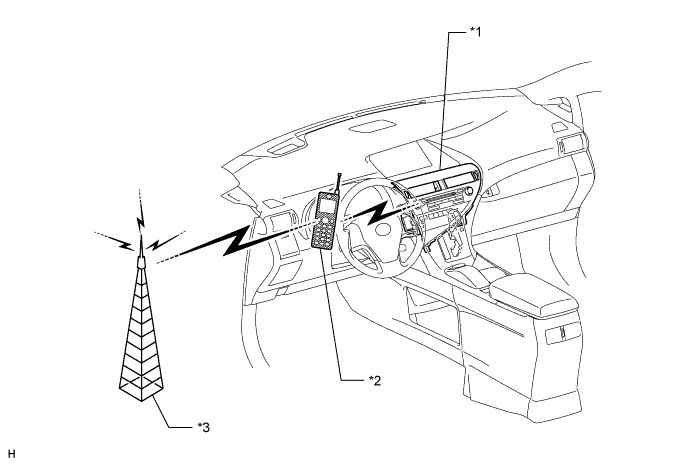
Text in Illustration *1 Radio Receiver Assembly
(Built-in "Bluetooth" receiver antenna)
*2 Cellular Phone
("Bluetooth" type)
*3 Cellular Tower - -
-
-
-
RDS-TMC FUNCTION OUTLINE (BROADCAST IN THAILAND ONLY)
-
This system has a function which allows the reception of traffic information from Radio Data System Traffic Message Channel (RDS-TMC) stations based on FM-multiple broadcasting. It assists the driver to avoid areas with traffic congestion. It also helps to improve traffic flow and road safety.
-
The radio receiver assembly receives RDS-TMC signals and then transmits these signals to the display and navigation module display via the MOST network.
-
-
COMMUNICATION SYSTEM
-
MOST NETWORK OUTLINE
-
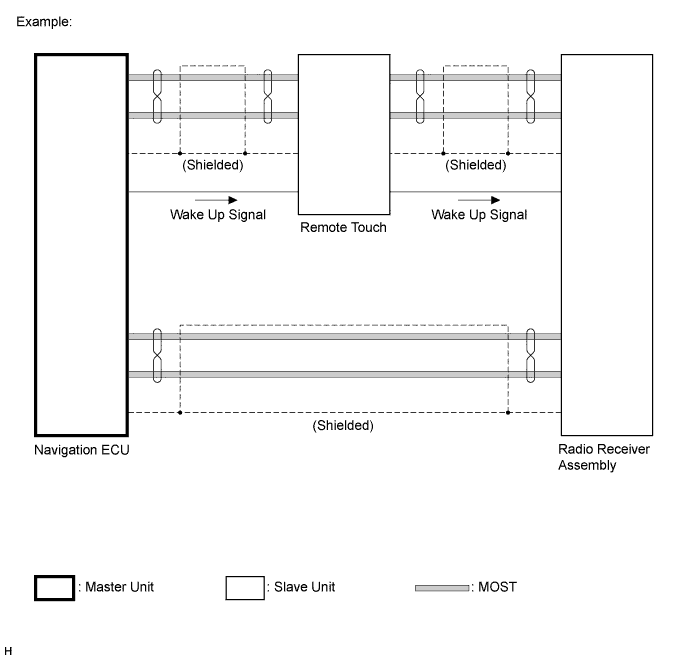
Navigation system components communicate with each other via the MOST network.
-
The MOST network uses a shielded twisted pair of wires for its communication lines.
-
The master unit of the MOST network is the display and navigation module display.
-
MOST communication lines connect each slave unit centering around the master unit to form a MOST network ring.
-
The master unit sends a wake-up signal to activate each slave unit connected to the MOST network.
Tech Tips
If a short or open circuit occurs in the MOST circuit, communication will be interrupted and the system will not operate normally.
-
-
AVC-LAN OUTLINE
-
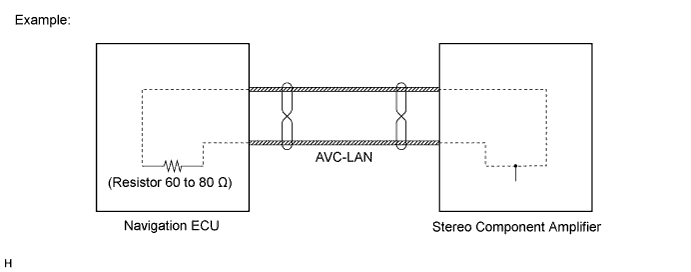
Components of the navigation system communicate with each other via the AVC-LAN.
-
The AVC-LAN uses a twisted pair of wires for its communication lines.
-
The master unit of the AVC-LAN is the display and navigation module display.
Tech Tips
-
The display and navigation module display has enough resistance (60 to 80 Ω) necessary for communication.
-
If a short or open circuit occurs in the AVC-LAN circuit, communication is interrupted and system will not operate normally.
-
-
-
-
DIAGNOSTIC FUNCTION OUTLINE
-
The navigation system has a diagnostic function (the result is indicated on the master unit or the intelligent tester).
-
-
DIAGNOSIS DISPLAY DETAILED DESCRIPTION
Tech Tips
-
This section contains a detailed description of displays in diagnostic mode.
-
Illustrations may differ from the actual vehicle screen depending on the device settings and options. Therefore, some detailed areas may not be shown exactly the same as on the actual vehicle screen.
-
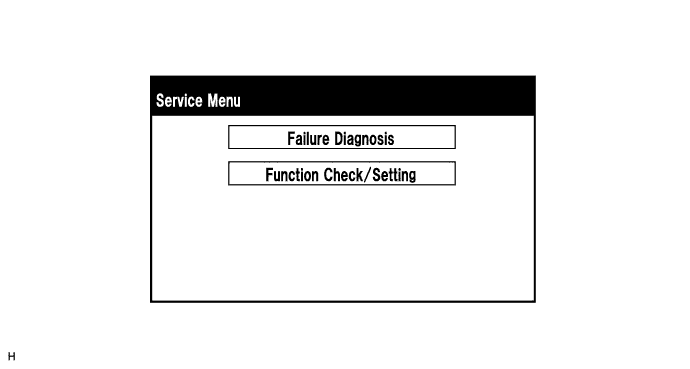
Service Menu Screen
Tech Tips
Each item is grayed out or not displayed based on the device settings.
-
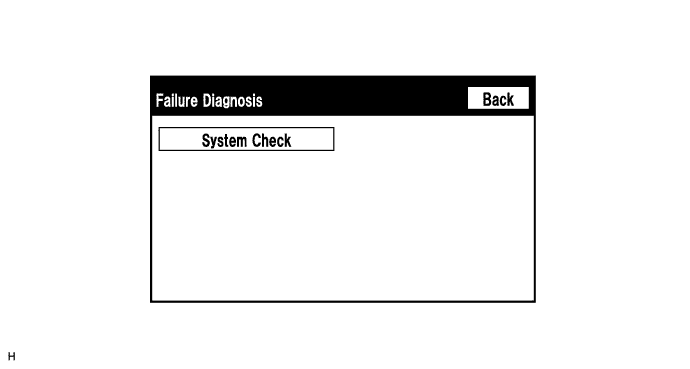
Failure Diagnosis Screen
Tech Tips
Each item is grayed out or not displayed based on the device settings.
-
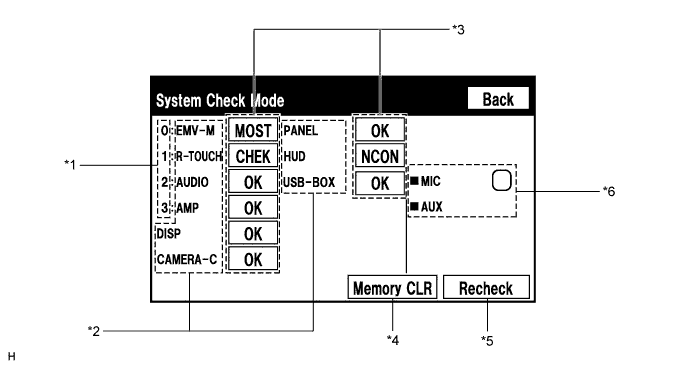
System Check Mode Screen
-
*1: Node position number for devices connected to the MOST network.
Tech Tips
MOST node position numbers are provided for devices connected to the MOST network.
-
*2: Device Name List No. 1
Tech Tips
-
Device Name List No. 1 displays some of the devices that make up the navigation system.
-
The names of the components from Device Name List No. 1 are shown in the following table.
Name Component Connection Method EMV-M Display and navigation module display - R-TOUCH Remote touch Communication line for MOST AUDIO Radio receiver assembly Communication line for MOST AMP Stereo component amplifier assembly Communication line for MOST DISP Multi-display assembly Communication line for AVC-LAN CAMERA-C Parking assist ECU Communication line for AVC-LAN PANEL A/C control panel Communication line for AVC-LAN HUD Combination meter mirror ECU Communication line for AVC-LAN USB-BOX Multi-media interface ECU Communication line for AVC-LAN
-
-
*3: Check Result
Tech Tips
-
Result codes for all devices are displayed.
-
When "MOST" is displayed for the result, press "MODE" on the steering pad switch assembly to display the "MOST Line Check" screen.
Result Meaning Action OK The device does not respond with a DTC. - MOST MOST communication error Perform "MOST Line Check" to check the connection of each device on the MOST network. EXCH The device responds with a "replace"-type DTC. Look up the DTC in "Unit Check Mode" and replace the device. CHEK The device responds with a "check"-type DTC. Look up the DTC in "Unit Check Mode". NCON The device was previously present, but does not respond in diagnostic mode. - Check power supply wire harness of the device.
- Check the AVC-LAN of the device.
NRES The device responds in diagnostic mode, but gives no DTC information. - Check power supply wire harness of the device.
- Check the AVC-LAN of the device.
-
-
*4: Memory Clear
Tech Tips
-
Present and history DTCs and registered connected device names are cleared.
-
Press the "Memory CLR" switch for 3 seconds.
-
-
*5: Recheck
Tech Tips
-
A system check will be performed again after the memory is cleared.
-
The "Recheck" switch will dim during a system check.
-
-
*6: Device Name List No. 2
Tech Tips
-
Device Name List No. 2 displays some of the devices that make up the navigation system.
-
The names of the components from Device Name List No. 2 are shown in the following table.
Name Component Connection Method MIC Telephone microphone assembly Vehicle wire harness AUX Stereo jack adapter Vehicle wire harness
-
-
-
Unit Check Mode Screen
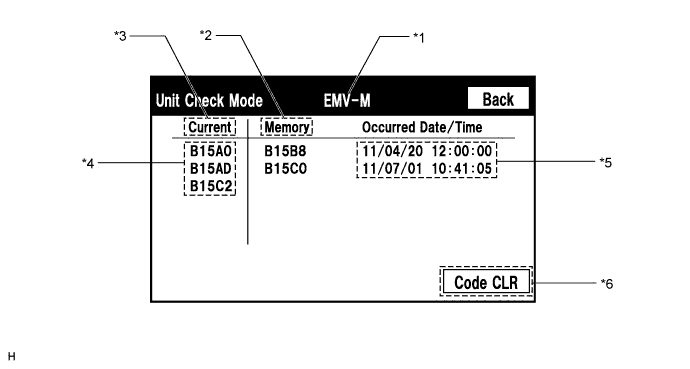
Screen Description Display Content *1: Device name Target device *2: History DTC Diagnostic memory results and stored DTCs are displayed. *3: Present DTC DTCs output in the service check are displayed. *4: DTC DTC (Diagnostic Trouble Code) *5: Timestamp The time and date of history DTCs are displayed. (The year is displayed in 2-digit format.) *6: Diagnosis clear switch Pushing this switch for 3 seconds clears the diagnostic memory data of the target device. (Both response to diagnostic system check result and the displayed data are cleared.) -
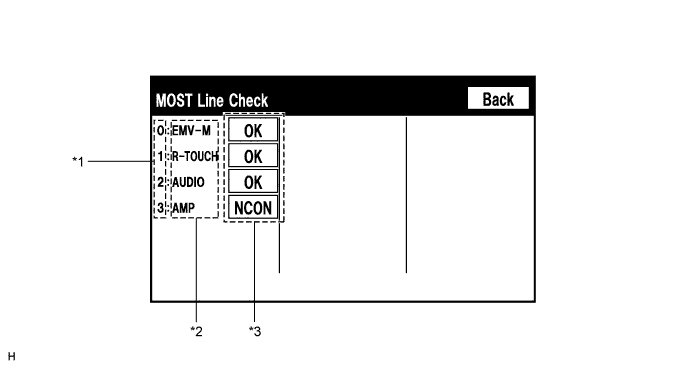
MOST Line Check Screen
Tech Tips
-
The inspection will be performed at the time the screen changes from "System Check Mode" to "MOST Line Check".
-
The master unit checks the connection of each device on the MOST network.
-
*1: Node position number for devices connected to the MOST network.
-
*2: Device Name List
Tech Tips
-
Device Name List displays some of the devices that make up the navigation system.
-
The names of the components from Device Name List No. 1 are shown in the following table.
Name Component EMV-M Display and navigation module display R-TOUCH Remote touch AUDIO Radio receiver assembly AMP Stereo component amplifier assembly
-
-
*3: Check Result
Tech Tips
-
The master unit displays the check result on the screen based on the response information from each slave unit.
-
Result codes for all devices are displayed.
Result Meaning OK There was a response for the connection check during the MOST line check. NCON There was no response for the connection check during the MOST line check. -
The device name and result will not be displayed if there is no system registration record and no response for the connection check during the MOST line check even if the device is connected to the MOST network.
-
-
-
-
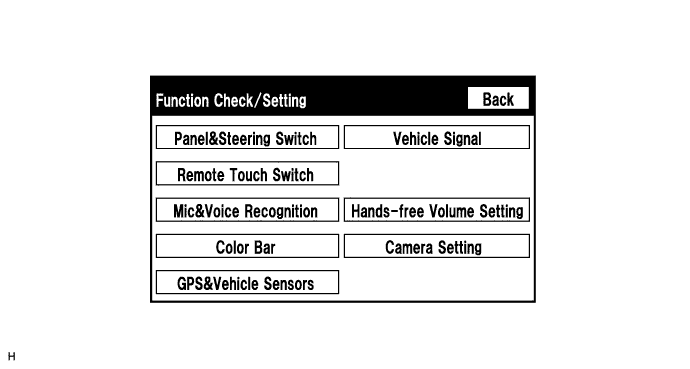
Function Check/Setting Screen
Tech Tips
Each item is grayed out or not displayed based on the device settings.
-
Microphone&Voice Recognition Check Screen
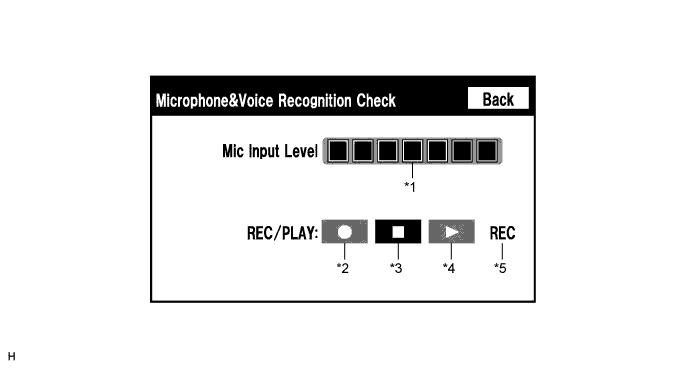
Screen Description Display Content *1: Microphone input level meter Monitors the microphone input level every 0.1 sec. and displays the results in 8 different levels. *2: Recording switch Starts recording. *3: Stop switch Stops recording. *4: Play switch Plays the recorded voice. *5: Recording indicator Comes on while recording. Tech Tips
-
The microphone is active at all times when this screen is displayed.
-
Turn off the blower motor of the air conditioning system before selecting the recording switch when performing the microphone & voice recognition check. If an outlet of the air conditioning system is facing the microphone, noise may be recorded.
-
While recording or playing, the switches other than the stop switch cannot be pushed.
-
When no recording is present, the play switch cannot be pushed.
-
Recording will stop after 5 seconds or when the stop switch is pushed.
-
-
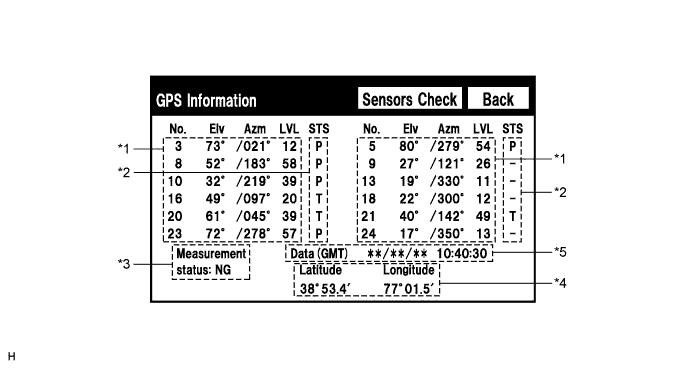
GPS Information Screen
-
*1: Satellite information
Tech Tips
Information from a maximum of 12 satellites is displayed on the screen. This information includes the target GPS satellite number, elevation angle, direction and signal level.
-
*2: Receiving condition
Display Content T The system is receiving a GPS signal, but is not using it for location. P The system is using the GPS signal for location. - The system cannot receive a GPS signal.
-
*3: Measurement information
Screen Description Display Content 2D 2-dimensional location method is being used. 3D 3-dimensional location method is being used. NG Location data cannot be used. Error Reception error has occurred. - Any other state.
-
*4: Position information
Screen Description Display Content Position Latitude and longitude information on the current position is displayed.
-
*5: Date information
Screen Description Display Content Date The date/time information obtained from GPS signal is displayed in Greenwich mean time (GMT). The last 4 digits are displayed.
-
-
Vehicle Sensors Screen
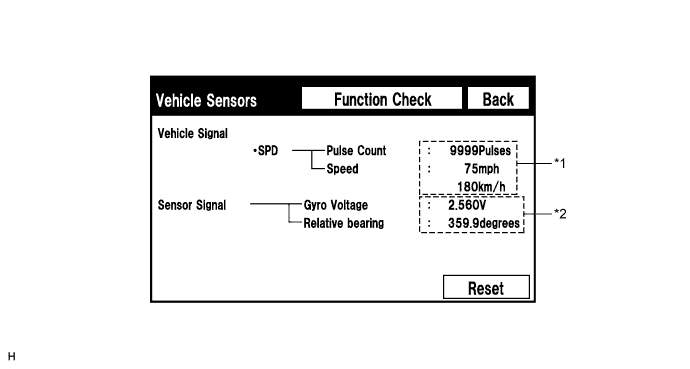
Vehicle Signal Display Content *1: SPD SPD signal condition is displayed. Sensor Signal Display Content *2: Gyro sensor Gyro sensor output condition is displayed. Tech Tips
Signals are updated once per second only when vehicle sensor signals are changed.
-
Vehicle Signal Check Mode Screen
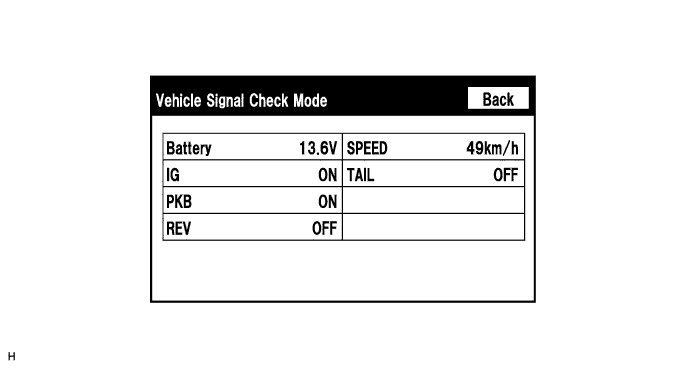
Screen Description Display Content Battery Battery voltage is displayed. IG Power switch ON/OFF state is displayed. PKB Parking brake ON/OFF state is displayed. REV Reverse signal ON/OFF state is displayed. SPEED Vehicle speed is displayed in km/h. TAIL TAIL signal (Light control switch) ON/OFF state is displayed. Tech Tips
-
Only items sending vehicle signals will be displayed.
-
This screen is updated once per second when input signals to the vehicle are changed.
-
-
-