NAVIGATION SYSTEM (for DVD) SYSTEM DESCRIPTION

-
NAVIGATION SYSTEM OUTLINE
-
Vehicle position tracking methods
-
It is essential that the navigation system correctly tracks the current vehicle position and displays it on the map. There are 2 methods to track the current vehicle position: autonomous (dead reckoning) and GPS* (satellite) navigation. Both navigation methods are used in conjunction with each other.
Tech Tips
*: GPS (Global Positioning System)
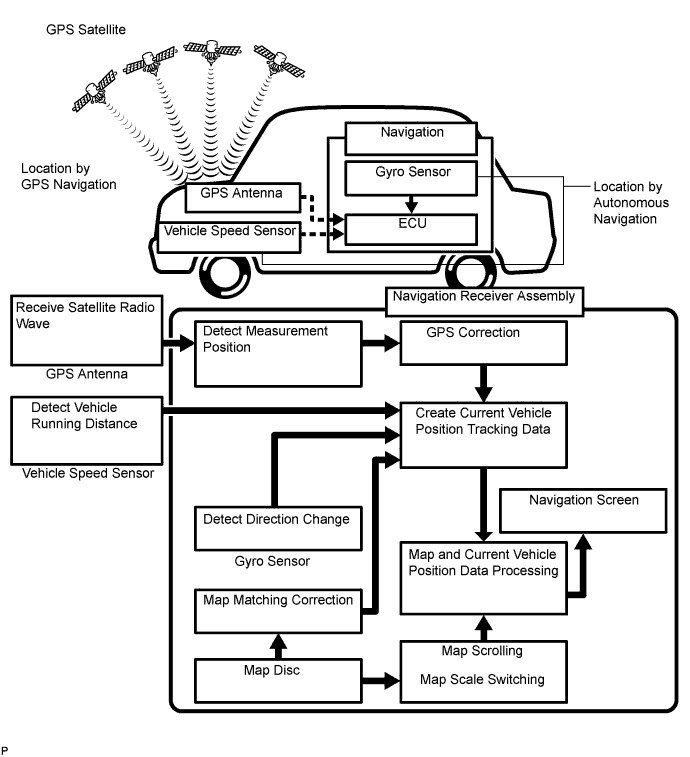
Operation Description Vehicle Position Calculation The navigation receiver assembly calculates the current vehicle position (direction and current position) using the direction deviation signal from the gyro sensor and running distance signal from the vehicle speed sensor and creates the driving route. Map Display Processing The navigation receiver assembly processes the vehicle position data, vehicle running track, and map data from the map disc. Map Matching The map data from the map disc is compared to the vehicle position and running track data. Then, the vehicle position is matched with the nearest road. GPS Correction The vehicle position is matched to the position measured by the GPS. Then, the measurement position data from the GPS unit is compared with the vehicle position and running track data. If the position is very different, the GPS measurement position is used. Distance Correction The running distance signal from the vehicle speed sensor includes error caused by tire wear and slippage between the tires and road surface. Distance correction is performed to account for this. The navigation ECU automatically offsets the running distance signal to make up for the difference between it and the distance data of the map. The offset is automatically updated. Tech Tips
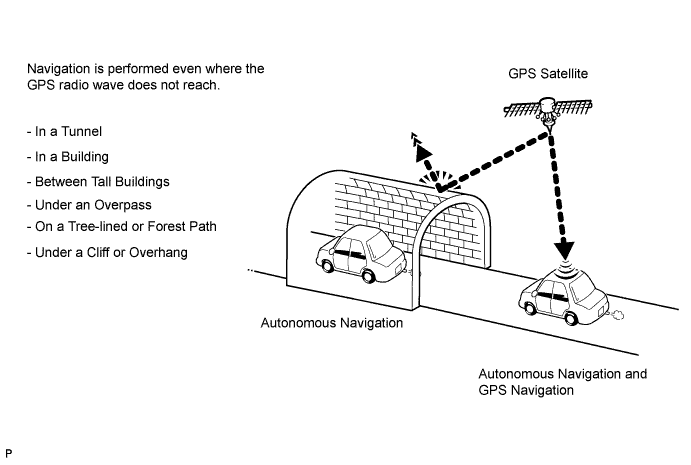
The combination of autonomous and GPS navigation makes it possible to display the vehicle position even when the vehicle is in places where the GPS radio wave cannot be received. When only autonomous navigation is used, the mapping accuracy may slightly decline.
-
-
Autonomous navigation
This method determines the relative vehicle position based on the running track determined by the gyro and vehicle speed sensors.
-
Gyro sensor
Calculates the direction by detecting angular velocity. It is located in the navigation receiver assembly.
-
Vehicle speed sensor
Used to calculate the vehicle running distance.
-
-
GPS navigation (satellite navigation)
This method detects the absolute vehicle position using radio waves from a GPS satellite*.
Tech Tips
*: GPS satellites were launched by the U.S. Department of Defense for military purposes.
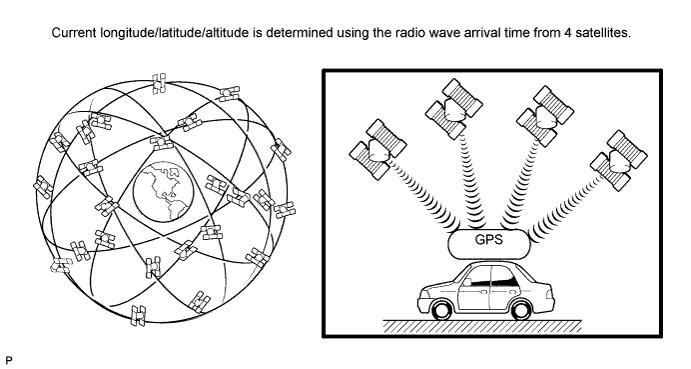
Number of Satellites Measurement Description 2 or less Measurement is impossible The vehicle position cannot be obtained because the number of satellites is not enough. 3 2-dimensional measurement is possible The vehicle position is obtained based on current longitude and latitude (this is less precise than 3-dimensional measurement). 4 3-dimensional measurement is possible The vehicle position is obtained based on current longitude, latitude and altitude. -
Map matching
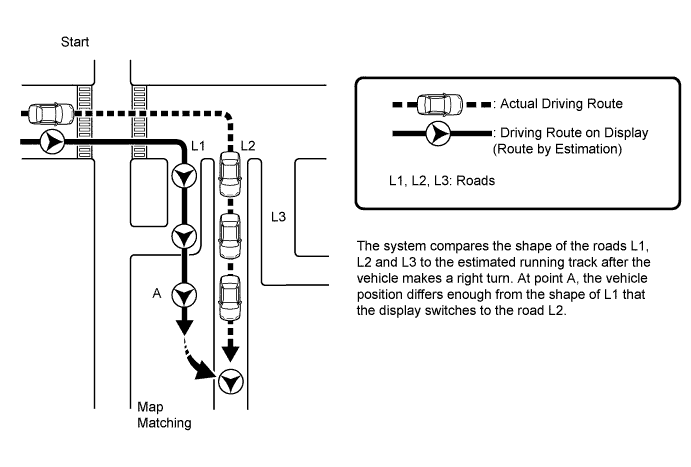
The current driving route is calculated by autonomous navigation (according to the gyro sensor and vehicle speed sensor) and GPS navigation. This information is then compared with possible road shapes from the map data in the map disc and the vehicle position is set onto the most appropriate road.
-
-
NAVIGATION RECEIVER ASSEMBLY OUTLINE
-
Conventionally, 2 separate devices, a "radio and display" and a "navigation ECU" are used. This model combines these devices into a signal unit.
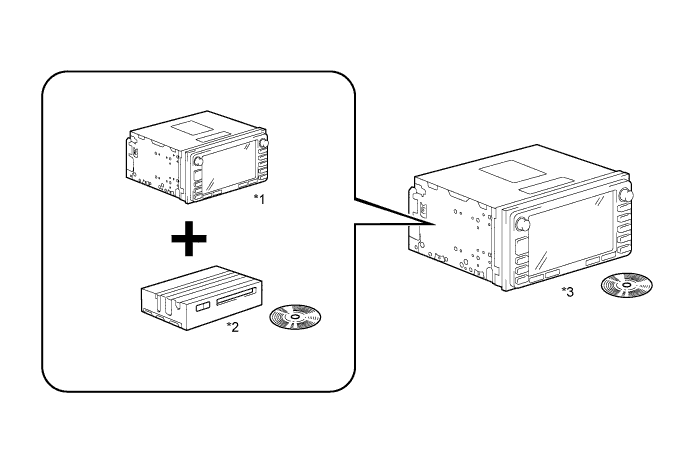
Text in Illustration *1 Radio and Display *3 Navigation Receiver Assembly *2 Navigation ECU - -
-
-
TOUCH SCREEN OUTLINE
-
Touch switches are touch-sensitive (interactive) switches operated by touching the screen. When a switch is pressed, the outer glass bends to contact the inner glass at the pressed position. By doing this, the voltage ratio is measured and the pressed position is detected.
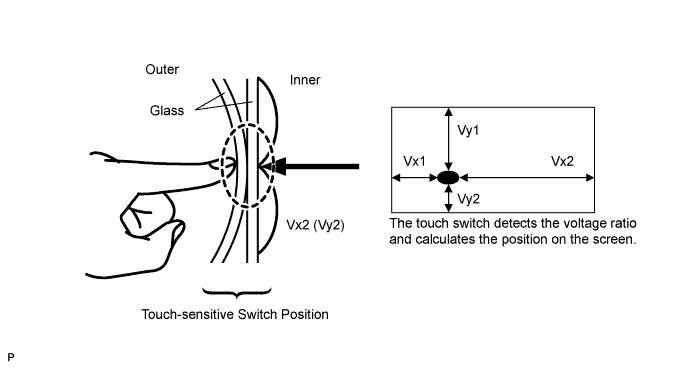
-
-
DVD (Digital Versatile Disc) PLAYER OUTLINE (for Navigation Map)
-
The navigation receiver assembly uses a laser pickup to read the digital signals recorded on a DVD.
CAUTION:
Because the navigation system uses an invisible laser beam, do not look directly at the laser pickup. Be sure to only operate the navigation system as instructed.
Note
-
Do not disassemble any part of the navigation receiver assembly.
-
Do not apply oil to the navigation receiver assembly.
-
Do not insert anything but a DVD into the navigation receiver assembly.
-
-
-
CD (Compact Disc) PLAYER OUTLINE
-
A compact disc player uses a laser pickup to read digital signals recorded on a compact disc (CD). By converting the digital signals to analog, it can play music and other content.
CAUTION:
Do not look directly at the laser pickup because the CD player uses an invisible laser beam. Be sure to operate the player only as instructed.
Note
-
Do not disassemble any part of the CD player.
-
Do not apply oil to the CD player.
-
Do not insert anything but a CD into the CD player.
-
-
Usable discs
-
This player can play only audio CDs, CD-Rs (CD-Recordable) and CD-RWs (CD-ReWritable) that have any of the following marks:

-
-
Precautions for use of discs
Note
-
Copy-protected CDs cannot be played.
-
CD-Rs and CD-RWs may not be played depending on the recording conditions or characteristics of the discs, or due to damage, dirt, or deterioration caused by leaving the discs in the cabin for a long time.
-
Unfinalized CD-Rs and CD-RWs cannot be played.
-
DualDiscs that mate DVD recorded material on one side with CD digital audio material on the other cannot be played.
-
Keep the discs away from dirt. Be careful not to damage the discs or leave your fingerprints on them.
-
Hold discs by the outer edge and center hole with the label side up.
-
Leaving the disc exposed halfway out of the slot for a long time after pressing the disc eject button may cause deformation of the disc, making the disc unusable.
-
If discs have adhesive tape, stickers, CD-R labels, or any traces of such labels attached, the discs may not be ejected or player malfunctions may result.
-
Keep the discs away from direct sunlight. (Exposure to direct sunlight may cause deformation of the disc, making the disc unusable.)
-
Do not use odd-shaped CDs because these may cause player malfunctions.
-
Do not use discs whose recorded portion is transparent or translucent because they may be unable to be properly inserted, ejected or played.
Tech Tips
-
When it is cold or it is raining, if the windows mist up, mist and condensation may form in the player. In such cases, the CD may skip or stop in the middle of play. Ventilate or dehumidify the cabin for a while before using the player.
-
The CD may skip if the player experiences strong vibrations when the vehicle is driven on rough roads or similar uneven surfaces.
-
-
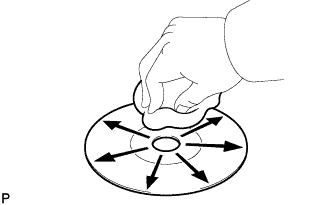
Cleaning
Note
Do not use a lens cleaner because it may cause a malfunction in the pickup portion of the player.
-
If dirt is on the disc surface, wipe it clean with a soft dry cloth, such as an eyeglass cleaner for plastic lenses, from the inside to the outside in a radial direction.
Note
-
Pressing on the disc by hand or rubbing the disc with a hard cloth may scratch the disc surface.
-
The use of solvents, such as a record spray, antistatic agent, alcohol, benzine, and thinner, or a chemical cloth may cause damage to the disc, making the disc unusable.
-
-
-
-
MP3/WMA OUTLINE
-
Playable MP3 file standards
Compatible Standard MP3 (MPEG1 LAYER3, MPEG2 LSF LAYER3) Compatible sampling frequency
-
MPEG1 LAYER3: 44.1, 48 (kHz)
-
MPEG2 LSF LAYER3: 16, 22.05, 24 (kHz)
Compatible bit rate
-
MPEG1 LAYER3: 64, 80, 96, 112, 128, 160, 192, 224, 256, 320 (kbps)
-
MPEG2 LSF LAYER3: 64, 80, 96, 112, 128, 144, 160 (kbps)
-
Compatible with VBR
Compatible channel mode Stereo, joint stereo, dual channel, monaural -
-
Playable WMA file standards
Compatible Standard WMA Ver. 7, 8, and 9 Compatible sampling frequency 44.1, 48 (kHz) Compatible bit rate
-
Ver. 7, 8: CBR48, 64, 80, 96, 128, 160, 192 (kbps)
-
Ver. 9: CBR48, 64, 80, 96, 128, 160, 192, 256, 320 (kbps)
-
Compatible with playback of channel 2 only
-
-
ID3 tag and WMA tag
-
Additional textual information called an ID3 tag can be input to MP3 files. Information such as song titles and artist names can be stored.
Tech Tips
This player is compatible with the ID3 tags of ID3 Ver. 1.0 and 1.1, and ID3 Ver. 2.2 and 2.3. (the number of characters complies with ID3 Ver. 1.0 and 1.1).
-
Additional textual information called a WMA tag can be input to WMA files. Information such as song titles and artist names can be stored.
-
-
Usable media
-
Only CD-ROMs, CD-Rs (CD-Recordable) and CD-RWs (CD-ReWritable) can be used to play MP3/WMA files.
Note
-
CD-Rs and CD-RWs are more easily affected by a hot and humid environment than discs used for normal audio CDs. For this reason, some CD-Rs and CD-RWs may not be played.
-
If there are fingerprints or scratches on the disc, the disc may not be played or the CD may skip.
-
Some CD-Rs and CD-RWs deteriorate if they are left in the cabin for a long time.
-
Keep CD-Rs and CD-RWs in a storage case that is impenetrable to light.
-
-
-
Usable media format
-
Usable media format
Disc format CD-ROM Mode 1, CD-ROM XA Mode 2 Form 1 File format ISO 9660 Level 1 and Level 2 (Joliet, Romeo) Tech Tips
-
As for MP3/WMA files written in any format other than those above, the contents of the files may not be played normally or the file names or folder names may not be displayed correctly.
-
This player is compatible with multi-session discs and can play CD-Rs and CD-RWs on which MP3/WMA files are added. However, only the first session can be played.
-
Discs whose first session includes both music data and MP3 or WMA format data cannot be played.
-
-
Standards and restrictions
Maximum directory levels 8 levels Maximum number of characters for a folder name/file name 32 characters Maximum number of folders 192 (Including empty folders, route folders and folders that do not contain MP3/WMA files) Maximum number of files in a disc 255 (Including non-MP3/WMA files)
-
-
File names
-
Only files with an extension of ".mp3" or ".wma" can be recognized and played as MP3 or WMA files.
-
Save MP3 or WMA files with an extension of ".mp3" or ".wma".
Note
If saving non-MP3 or non-WMA files with an extension of ".mp3" or ".wma", those files are wrongly recognized as MP3 or WMA files and played. A loud noise may occur and damage to the speakers may result.
-
-
-
"BLUETOOTH" OUTLINE
-
"Bluetooth" is a trademark owned by Bluetooth SIG, Inc.
-
"Bluetooth" is a new wireless connection technology that uses the 2.4 GHz frequency band.
Tech Tips
The communication performance of "Bluetooth" may vary depending on obstructions or radio wave conditions between communication devices, electromagnetic radiation, communication device sensitivity and antenna capacity.
-
Handsfree function
-
The "Bluetooth" built into the navigation receiver assembly and a "Bluetooth" compatible cellular phone* can be connected using a "Bluetooth" wireless connection. This enables use of the handsfree function on the cellular phone even though the phone may be in a pocket or bag. For this reason, it is not necessary to use a connector or cable to connect the cellular phone.
-
*: Some versions of "Bluetooth" compatible cellular phones may not function.
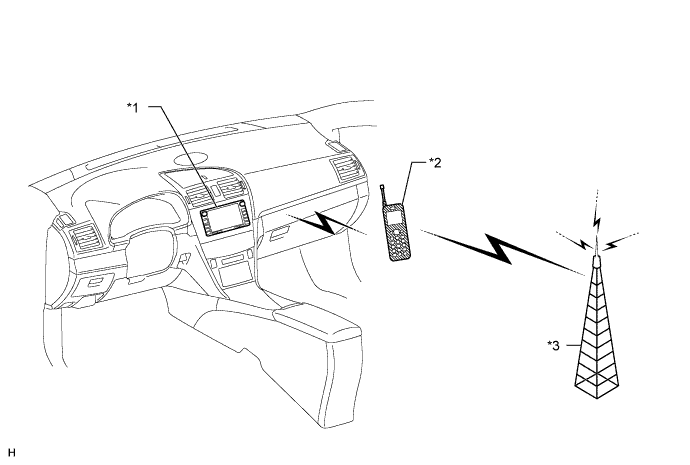
Text in Illustration *1 Navigation Receiver Assembly
("Bluetooth" Receiver Antenna Built in)
*3 Cellular Tower *2 "Bluetooth" Compatible Cellular Phone - -
-
-
-
"Bluetooth" audio function
-
The "Bluetooth" built into the navigation receiver assembly and a "Bluetooth" compatible portable audio player* can be connected using a "Bluetooth" wireless connection. This enables files stored in the portable audio player to be heard from the vehicle speakers. In addition, operations such as play/stop can be performed directly from the navigation receiver assembly.
*: Some versions of "Bluetooth" compatible audio players may not be able to operate the "Bluetooth" function, or music may play, but functions available using the navigation receiver assembly may be limited.
-
Available "Bluetooth" audio devices
"Bluetooth" specifications Ver. 1.1, or higher (Recommended: Ver. 2.0 + EDR or higher) Following Profiles
-
A2DP (Advanced Audio Distribution Profile) Ver. 1.0
-
AVRCP (Audio/Video Remote Control Profile) Ver. 1.0 or higher (Ver. 1.3 or higher recommended)
Maximum number of audio devices that can be registered 2 Tech Tips
The amount of remaining battery charge displayed on the navigation receiver assembly may be different from that of the portable player.
-
-
-
-
RADIO DESCRIPTION
-
Radio frequency band
-
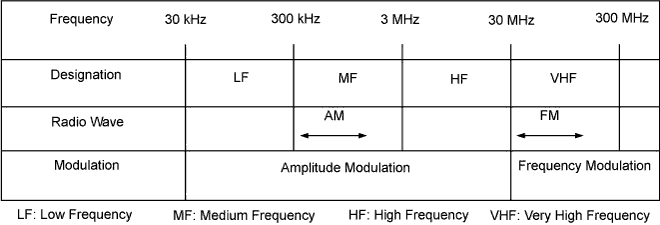
Radio broadcasts use the radio frequency bands shown in the table below.
-
-
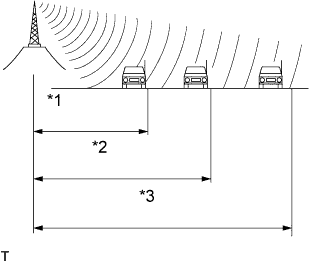
Text in Illustration *1 FM (Stereo) *2 FM (Monaural) *3 AM Service area
-
The service areas of AM and FM broadcasts are vastly different. Sometimes an AM broadcast can be received very clearly but an FM stereo broadcast cannot. FM stereo has the smallest service area, and is prone to pick up static and other types of interference such as noise.
-
-
Radio reception problems
Tech Tips
In addition to static, other problems such as "phasing", "multipath", and "fade out" exist. These problems are not caused by electrical noise, but by the radio signal propagation method itself.
-
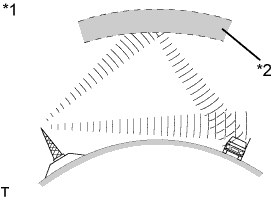
Text in Illustration *1 Phasing *2 Ionosphere Phasing
AM broadcasts are susceptible to electrical interference and another kind of interference called phasing. Occurring only at night, phasing is the interference created when a vehicle receives 2 radio wave signals from the same transmitter. One signal is reflected off the ionosphere and the other signal is received directly from the transmitter.
-
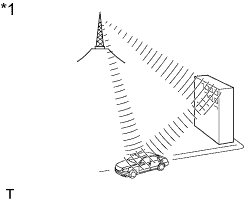
Text in Illustration *1 Multipath Multipath
Multipath is a type of interference created when a vehicle receives 2 radio wave signals from the same transmitter. One signal is reflected off buildings or mountains and the other signal is received directly from the transmitter.
-
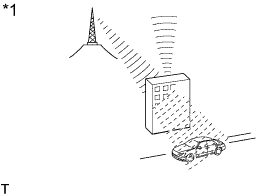
Text in Illustration *1 Fade Out Fade out
Fade out is caused by objects (buildings, mountains, and other such large obstacles) that deflect away part of a signal, resulting in a weaker signal when the object is between the transmitter and vehicle. High frequency radio waves, such as FM broadcasts, are easily deflected by obstructions. Low frequency radio waves, such as AM broadcasts, are much more difficult to deflect.
-
-
Noise problem
Technicians must have a clear understanding about each customer noise complaint. Use the following table to diagnose noise problems.
Radio Frequency Noise Occurrence Condition Presumable Cause AM Noise occurs in a specified area Foreign noise AM Noise occurs when listening to an intermittent broadcast An identical program transmitted from multiple towers can cause noise where the signals overlap AM Noise occurs only at night Music beat from a distant broadcast FM Noise occurs while driving in a specified area Multipath or phasing noise resulting from a change in FM frequency
Tech Tips
If the noise does not match the examples above, refer to the descriptions about phasing and multipath.
-
-
AUTOMATIC SOUND LEVELIZER (ASL) FUNCTION OUTLINE
-
The ASL function automatically adjusts the sound volume in order to enable clear audio quality even when vehicle noise increases (as vehicle speed increases, the volume is turned up, etc.).
Vehicle speed signals are received from the combination meter assembly and used by ASL control.
-
-
DIAGNOSTIC FUNCTION OUTLINE
-
The navigation system has a diagnostic function (the result is indicated on the master unit).
-
Each component has a specified number (3 digits) called a physical address. Each function has a number (2 digits) called a logical address.
-
A 3-digit hexadecimal component code (physical address) is allocated to each component on the AVC-LAN. Using this code, the component can be indicated in the diagnostic function.
-
-
DIAGNOSIS DISPLAY DETAILED DESCRIPTION
Tech Tips
-
This section contains a detailed description of displays within diagnostic mode.
-
Illustrations may differ from the actual vehicle depending on the device settings and options. Therefore, some detailed areas may not be exactly the same as on the actual vehicle.
-
SYSTEM CHECK
-
System Check Mode Screen
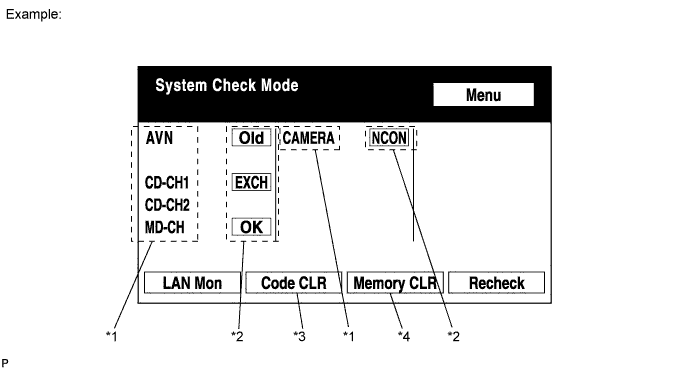
*1: Device Names and Hardware Addresses
Tech Tips
-
Registered device names are displayed.
-
If a device name is unknown to the system, its physical address is shown instead.
Address No. Name Address No. Name 110 EMV 120 AVX 128 1DIN TV 140 AVN 144 G-BOOK 178 NAVI 17C MONET 190 AUDIO H/U 1AC CAMERA-C 1B0 Rr-TV 1C0 Rr-CONT 19D BT-HF 1C4 PANEL 1C6 G/W 1C8 FM-M-LCD 1D8 CONT-SW 1EC Body 118 EMVN 1F1 XM 1F2 SIRIUS 230 TV-TUNER 240 CD-CH2 250 DVD-CH 280 CAMERA 360 CD-CH1 3A0 MD-CH 17D TEL 440 DSP-AMP 530 ETC 1F6 RSE 1A0 DVD-P 1D6 CLOCK 238 DTV 480 AMP 1F8 DAB-TUNER - -
*2: Check Result
Tech Tips
Result codes for all devices are displayed.
Result Meaning Action OK Device did not respond with DTC (excluding communication DTCs from AVC-LAN). - EXCH Device responds with "replace" type DTC. Look up DTC in "Unit Check Mode" and replace device. CHEK Device responds with "check" type DTC. Look up DTC in "Unit Check Mode". NCON Device was previously present, but does not respond in diagnostic mode.
-
Check power supply wire harness of device.
-
Check AVC-LAN of device.
Old Device responds with "old" type DTC. Look up DTC in "Unit Check Mode". NRES Device responds in diagnostic mode, but gives no DTC information.
-
Check power supply wire harness of device.
-
Check AVC-LAN of device.
-
*3: Code Clear
-
Present DTCs are cleared.
-
Data is cleared by pressing the "Code CLR" switch for 3 seconds.
-
*4: Memory Clear
-
Present and past DTCs and registered connected device names are cleared.
-
Data is cleared by pressing the "Memory CLR" switch for 3 seconds.
-
-
Diagnosis MENU Screen
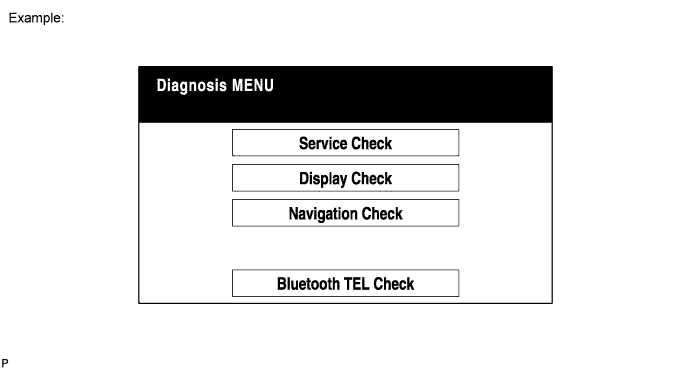
Tech Tips
Some items may be grayed out or not displayed, as the functions are different depending on the vehicle.
-
Unit Check Mode Screen
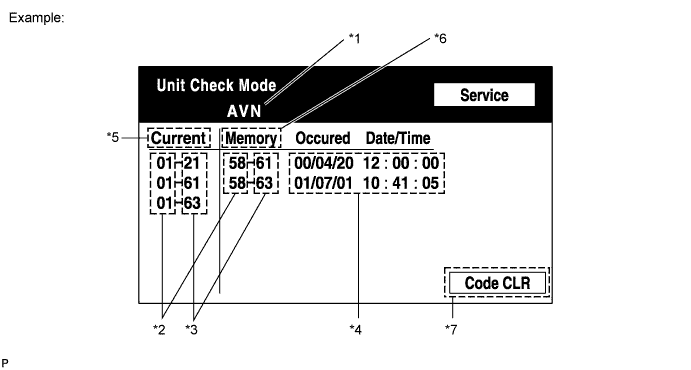
Screen Description Display Content *1: Device name Target device *2: Segment Logical address of target device *3: DTC DTC (Diagnostic Trouble Code) *4: Timestamp Time and date of past DTCs are displayed (year is displayed in 2-digit format) *5: Present Code DTCs output at service check are output *6: Past Code Diagnostic memory results and stored DTCs are output *7: Diagnosis Clear Switch Pushing this switch for 3 seconds clears diagnostic memory data of target device (responses to diagnostic system check result and displayed data are cleared) -
LAN Monitor (Original) Screen
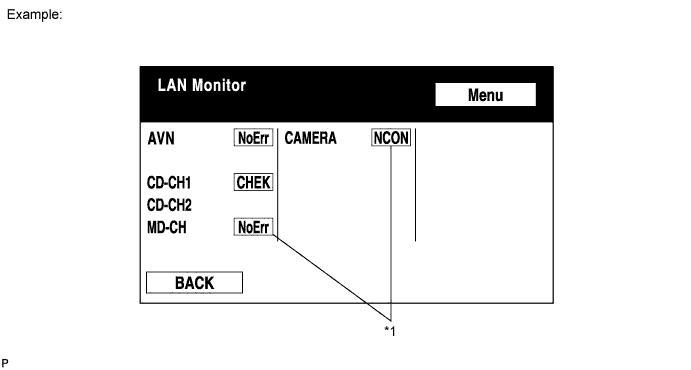
*1: Check Result
Tech Tips
Check results of all the devices are displayed.
Result Meaning Action No Err (OK) There are no communication DTCs. - CHEK Device responds with "check" type DTC. Look up DTC in "Unit Check Mode". NCON Device was previously present, but does not respond in diagnostic mode.
-
Check power supply wire harness of device.
-
Check AVC-LAN of device.
Old Device responds with "old" type DTC. Look up DTC in "Unit Check Mode". NRES Device responds in diagnostic mode, but gives no DTC information.
-
Check power supply wire harness of device.
-
Check AVC-LAN of device.
-
-
LAN Monitor (Individual) Screen
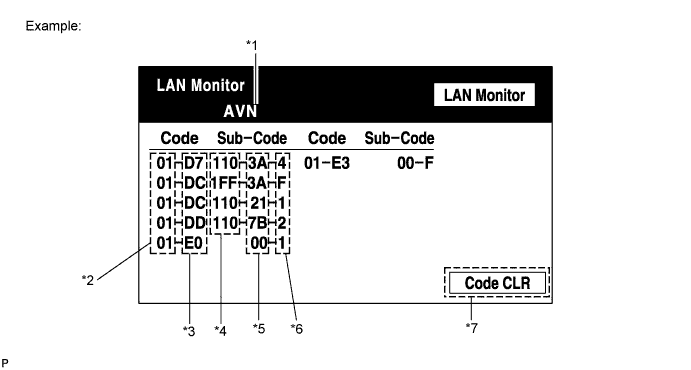
Screen Description Display Content *1: Device name Target device *2: Segment Logical address of target device *3: DTC DTC (Diagnostic Trouble Code) *4: Sub-code (device address) Physical address stored with DTC (if there is no address, nothing is displayed) *5: Connection check No. Connection check number stored with DTC *6: DTC occurrence Number of times same DTC has been stored *7: Diagnosis Clear Switch Pushing this switch for 3 seconds clears diagnostic memory data of target device (responses to diagnostic system check result and displayed data are cleared)
-
-
DISPLAY CHECK
-
Vehicle Signal Check Mode Screen
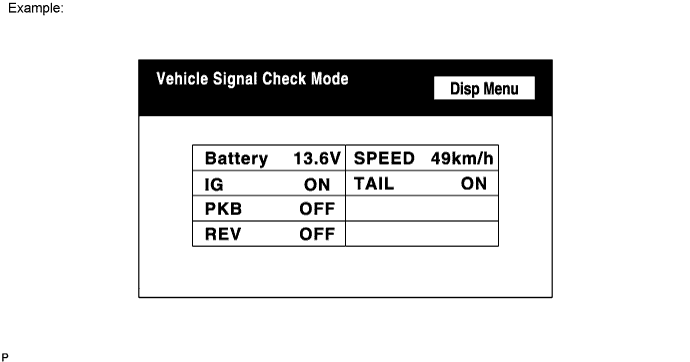
Screen Description Name Content Battery Battery voltage is displayed. IG Ignition switch ON/OFF state is displayed. PKB Parking brake ON/OFF state is displayed. REV Reverse signal ON/OFF state is displayed. SPEED Vehicle speed is displayed in km/h. TAIL TAIL signal (light control switch) ON/OFF state is displayed. Tech Tips
-
Only items sending vehicle signals will be displayed.
-
The input signals from the vehicle are updated once per second and if any have changed, the screen is updated.
-
-
-
NAVIGATION CHECK
-
Navigation Check Screen
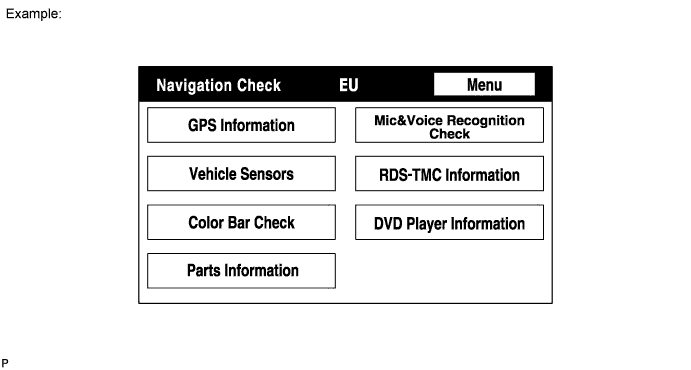
Tech Tips
Some items may be grayed out or not displayed, as the functions are different depending on the vehicle.
-
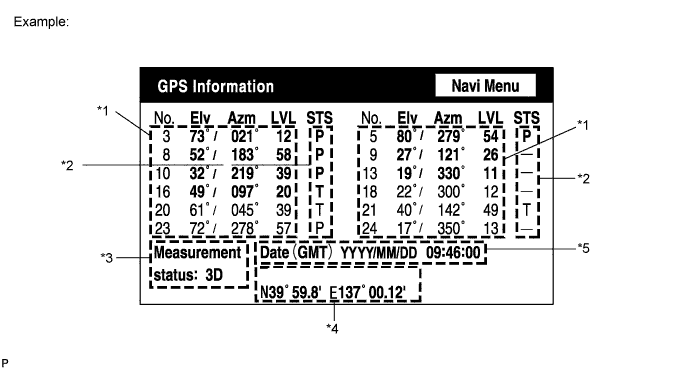
GPS Information Screen
-
*1: Satellite information
Information from a maximum of 12 satellites is displayed on the screen. This information includes the target GPS satellite number, elevation angle, direction and signal level.
-
*2: Receiving condition
DENSO Model Display Content T System is receiving GPS signal, but is not using it for location. P System is using GPS signal for location. - System cannot receive GPS signal. AISIN AW Model Display Content 01H System cannot receive a GPS signal. 02H System is tracing a satellite. 03H System is receiving a GPS signal, but is not using it for location. 04H System is using the GPS signal for location.
-
*3: Measurement information
Display Content 2D 2-dimensional location method is being used. 3D 3-dimensional location method is being used. NG Location data cannot be used. Error Reception error has occurred. - Any other state.
-
*4: Position information
Display Content Position Latitude and longitude information on current position is displayed.
-
*5: Date information
Display Content Date Date/time information obtained from GPS signal is displayed in Greenwich Mean Time (GMT).
-
-
Vehicle Sensors Screen
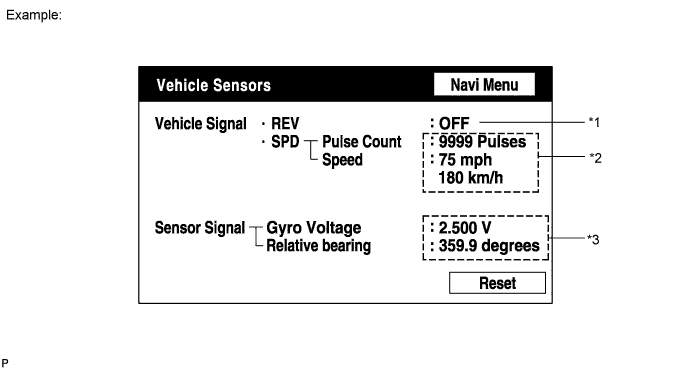
Vehicle Signal Display Content *1: REV REV signal ON/OFF state is displayed. *2: SPD SPD signal condition is displayed. Sensor Signal Display Content *3: Gyro sensor Gyro sensor output condition is displayed (when vehicle is driven straight or is stationary, voltage is approximately 2.5 V). Tech Tips
The signals from the vehicle sensors are updated once per second and if any have changed, the screen is updated.
-
Microphone & Voice Recognition Check Screen
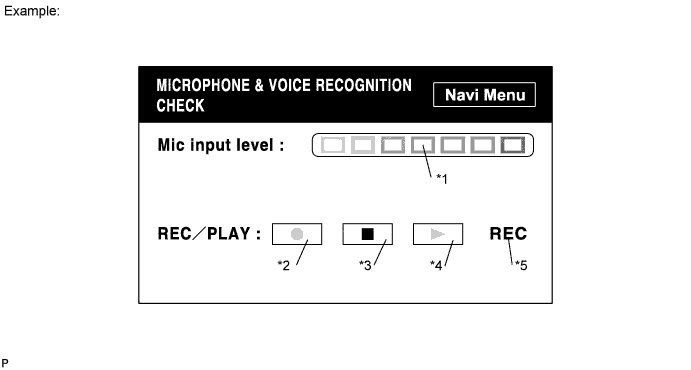
Screen Description Display Contents *1: Microphone input level meter Monitors the microphone input level every 100 msec. and displays results in 8 different levels. *2: Recording switch Starts recording. *3: Stop switch Stops recording. *4: Play switch Plays recorded voice. *5: Recording indicator Comes on while recording. Tech Tips
-
The microphone input function is on at all times when this screen is displayed.
-
While recording or playing, the switches other than the stop switch cannot be pushed.
-
When no voice is recorded, the play switch cannot be pushed.
-
Recording will stop after 5 seconds or when the stop switch is pushed.
-
-
DVD Player Information Screen
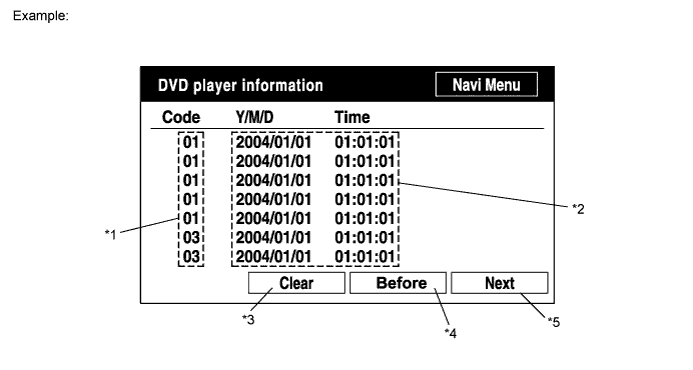
Screen Description Display Contents *1: Trouble code Each code corresponding to malfunctions is displayed. For details, refer to "Trouble Code Description". *2: Occurrence time
-
Date (year, month, day) and time (hour, minute, second) when trouble code was stored are displayed as time stamp (Greenwich mean time).
-
Displayed time data is received from GPS receiver.
*3: Trouble code clear switch All code data being displayed is cleared by pushing this switch for 3 seconds. *4: Return switch Previous page is displayed. If current displayed page is first page, this switch cannot be operated. *5: Proceed switch Next page is displayed. If current displayed page is last page, this switch cannot be operated. Trouble Code Description Code Malfunction Countermeasure 01 Cannot be recognized Replace navigation receiver assembly. 03 Cannot be read Follow inspection procedure for DTC 58-42 Click here.
Tech Tips
There is a DVD player check function in the navigation ECU.
-
-
-