AUDIO AND VISUAL SYSTEM(for 7 Inch Display) Pointer not Displayed on Screen or Pointer does not Move
CAUTION / NOTICE / HINT
Note
-
Depending on the parts that are replaced during vehicle inspection or maintenance, performing initialization, registration or calibration may be needed. Refer to Precaution for Audio and Visual System.
-
When replacing the radio receiver assembly, always replace it with a new one.
If a radio receiver assembly which was installed to another vehicle is used, the following may occur:
-
A communication malfunction DTC may be stored.
-
The radio receiver assembly may not operate normally.
PROCEDURE
-
CHECK FOR FOREIGN MATTER
-
Check if there is water or foreign matter on the remote touch screen.
OK There is no water or foreign matter on the remote touch screen. Result Proceed to OK NG
OK 
GO TO STEP 3 Click here
NG 
-
-
REMOVE FOREIGN MATTER
-
Remove any water and foreign matter, and then wait approximately 30 seconds.
-
Check that the pointer is displayed and moves normally.
OK The pointer is displayed and moves normally. Result Proceed to OK NG
OK 
END
NG
-
-
REMOTE TOUCH (REMOTE OPERATION CONTROLLER ASSEMBLY) SELF CHECK (CHECK REMOTE TOUCH SCREEN OPERATION POSITION RECOGNITION CONDITION)
-
Enter self-diagnostic mode.
-
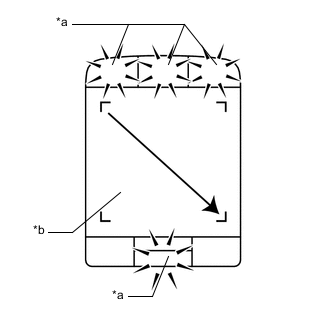
*a Switch Illumination *b Remote Touch Screen Operate the remote touch screen diagonally from the upper left to the lower right and check that the brightness of the switch illumination changes.
Note
Since the remote touch screen may recognize a pinch in/out operation if operated with 2 fingers, always use 1 finger to operate the remote touch (remote operation controller assembly) in self-diagnostic mode.
OK Brightness changes according to remote touch screen operation. Result Result Proceed to Brightness of the switch illumination changes according to remote touch screen operation. A Brightness of the switch illumination does not change according to remote touch screen operation. B Switch illumination continues to blink. Tech Tips
When the switch illumination blinks, the remote touch (remote operation controller assembly) has stored a DTC.
A
REPLACE RADIO RECEIVER ASSEMBLY Click here
B
-
-
CHECK REMOTE TOUCH (REMOTE OPERATION CONTROLLER ASSEMBLY)
-
Replace the remote touch (remote operation controller assembly) with a new or known good one.
-
Check that the pointer is displayed and moves normally.
OK The pointer is displayed and moves normally. Result Proceed to OK NG
OK
END (REMOTE TOUCH (REMOTE OPERATION CONTROLLER ASSEMBLY) IS DEFECTIVE)
NG
REPLACE RADIO RECEIVER ASSEMBLY Click here
-