NAVIGATION SYSTEM (for Navigation Receiver Type) Traffic Information is not Displayed
INSPECTION PROCEDURE
Note
-
Traffic information requires payment. An "XM Nav Traffic" contract must be made between the satellite radio company and the user. If the contract expires, traffic information will not be available.
-
Traffic information does not apply to all roads, only main roads. For the latest information on coverage areas, contact the satellite radio company.
-
After replacing the navigation ECU sub-assembly of vehicles subscribed to pay-type satellite radio broadcasts, registration of the XM radio ID is necessary.
PROCEDURE
-
CHECK DISPLAY
-
Check the traffic information screen.
Result Result Proceed to Traffic information is displayed but is not updated A Traffic information is not displayed B
B 
CHECK SETTINGS OF TRAFFIC INFORMATION Click here
A 
-
-
CHECK DISPLAY AGAIN
-
Wait for 2.5 minutes, and check again if the actual traffic conditions match the display.
OK Actual traffic conditions match display.
NG
CHECK DISPLAY AGAIN Click here
OK 
END (NAVTEQ HAS UPDATED DATA OF TRAFFIC CONDITIONS)
-
-
CHECK DISPLAY AGAIN
-
After 30 minutes have passed, check if all traffic information disappears.
Tech Tips
After traffic information updates have stopped, the navigation system continues displaying traffic information for a maximum of 30 minutes.
Result Result Proceed to Actual traffic conditions match display. A All traffic information disappears. B Some traffic information is wrong. C
B
CHECK SETTINGS OF TRAFFIC INFORMATION Click here
C 
NAVTEQ MAY NOT BE PROVIDING DATA VERSION OF CERTAIN TRAFFIC INFORMATION (DATA ERROR, PROBLEM, ETC.)
A
NAVTEQ HAS UPDATED DATA OF TRAFFIC CONDITIONS
-
-
CHECK SETTINGS OF TRAFFIC INFORMATION
-
Press "Show on Map".
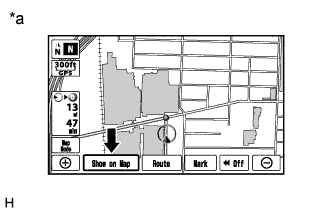
-
Check if "Traffic Information" is on.
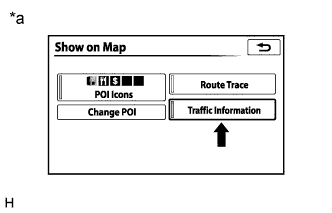
OK "Traffic Information" is on. Text in Illustration *a Example
NG
TURN "Traffic Information" ON
OK
-
-
CHECK SCALE OF MAP DISPLAY
-
Check if the traffic information that is currently not displayed can be displayed at the scale shown in the table below.
Traffic Information to be Displayed Display Scale Traffic information list 1:1280000 or below Traffic information icon (Closed Road, Accidents, Danger, Road Conditions, Road Works, Weather) 1:640000 or below Traffic information icon (Stationary Traffic Jam, Delays, Parking, Other) 1:80000 or below OK Traffic information can be displayed.
NG
CHECK SURROUNDINGS Click here
OK
END
-
-
CHECK SURROUNDINGS
-
Check if the vehicle is in an environment where reception is difficult due to something blocking the area above the vehicle.
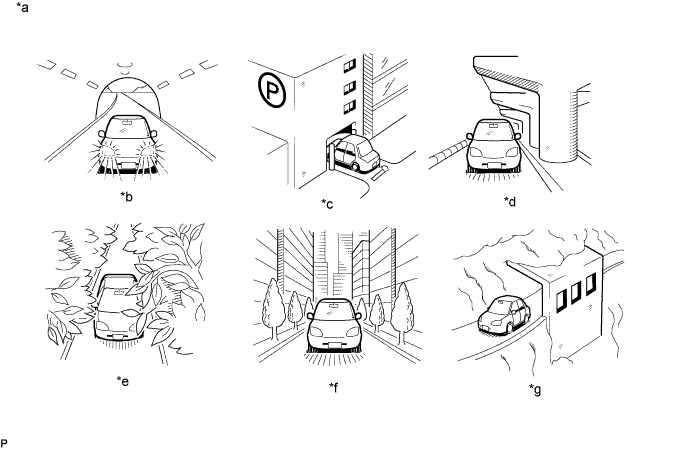
Tech Tips
If the area above the vehicle is blocked, such as when in a building or tunnel, reception may not be possible.
OK Area above vehicle is not blocked. Text in Illustration *a Example *b In a tunnel *c In a building *d Under an overpass *e On a forest or tree-lined path *f Between tall buildings *g Under a cliff or overhang - -
NG
END (MOVE VEHICLE TO LOCATION WHERE RECEPTION IS BETTER)
OK
-
-
CHECK COVERAGE AREA
-
Check that your current position is within the traffic information coverage area.
OK Vehicle is within coverage area.
NG
MOVE TO WITHIN COVERAGE AREA (FOR LATEST COVERAGE AREA, CONFIRM WITH RADIO STATION)
OK
-
-
CHECK CONTRACT CONDITIONS
-
Check if the "XM Nav Traffic" contract has been extended, or if the contract period has ended.
OK Contract is valid.
NG
TO RECEIVE TRAFFIC INFORMATION, CONTRACT MUST BE MADE WITH SATELLITE RADIO COMPANY
OK
-
-
PERFORM ACTIVATION REFRESH
-
Perform activation refresh by referring to the satellite radio company web site (http://www.xmradio.com/refresh/).
Tech Tips
The XM radio ID that is necessary to perform activation refresh is displayed when CH000 is selected on the satellite radio.
OK Malfunction disappears.
NG
REPLACE NAVIGATION ECU SUB-ASSEMBLY Click here
OK
END
-