Click here
-
CUSTOMIZING WITH MULTI-DISPLAY ASSEMBLY
-
Turn the engine switch on (IG).
-
Enter the following menus: Setup / General / General Settings.
-
Select the setting by referring to the table below.
Item Default Content Setting Relevant ECU Feedback Force LEVEL3 (middle bar) Touchpad vibration feedback reaction force setting of the remote touch* LEVEL1 (No Vibration)/LEVEL2/LEVEL3/LEVEL4/LEVEL5 Radio receiver assembly Tip:*: The higher the set value, the stronger the touchpad vibration feedback reaction force becomes.
-
-
CUSTOMIZING WITH REMOTE TOUCH
-
Customizing with remote touch example
-
Turn the engine switch on (IG).
-
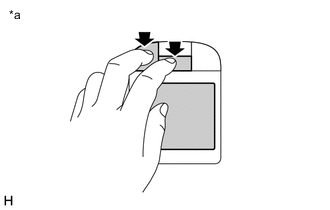
*a Example Simultaneously press and hold the applicable switches for 5 seconds or more.
Tip:*: The combination of switches pressed and held differs depending on the item to be customized.
-
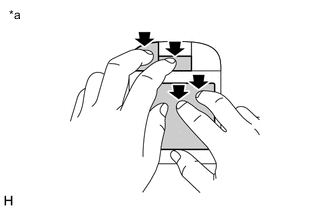
*a Example While pressing and holding the applicable switches*, use 2 fingers from your other hand to touch the touchpad.
Tip:*: The combination of switches pressed and held differs depending on the item to be customized.
-
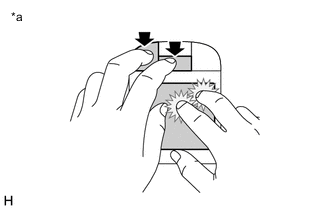
*a Example Check that the setting changes and the answer-back function vibrates the specified number of times.
-
Release the applicable switches* to set the customize setting.
Tip:
-
*: The combination of switches pressed and held differs depending on the item to be customized.
-
Repeat steps ii through v until the desired setting is selected.
-
-
-
Customize pointer/cursor movement speed
Tip:The speed at which the pointer/cursor moves when the touchpad is touched with a finger can be changed.
-
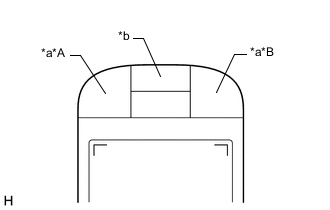
*A for LHD *B for RHD *a "MENU" Switch *b Up Switch Following "Customizing with remote touch example", simultaneously press the "MENU" switch and up switch and perform the procedure.
-
Determine the pointer/cursor movement speed from the number of times answer-back vibration is generated by the touchpad.
Table 1. Setting Pointer/Cursor Movement Speed Answer-back Vibrations Average
(Default)
2 Fast 3 Slow 1 Tip:The settings cycle in the following order: "Average", "Fast", "Slow".
-
-
Customize flick operation sensitivity
Tip:The flick operation sensitivity for when a finger is quickly swiped on the touchpad can be changed.
-
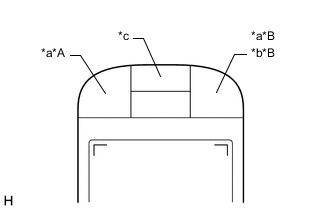
*A for RHD *B for LHD *a Home Switch *b "MAP" Switch *c Up Switch Following "Customizing with remote touch example", simultaneously press the home switch*1, "MAP" switch*2 and up switch and perform the procedure.
-
*1: w/ Home Switch
-
*2: w/ "MAP" Switch
-
-
Determine the flick operation sensitivity from the number of times answer-back vibration is generated by the touchpad.
Table 2. Setting Flick Operation Recognition Speed Answer-back Vibrations Average
(Default)
1 Fast 3 Slow 2 Tip:
-
When the customize setting is set to "Average", a flick operation is recognized when a finger is quickly swiped on the touchpad.
-
When the customize setting is set to "Fast", a flick operation is recognized when a finger is very quickly swiped on the touchpad.
-
When the customize setting is set to "Slow", a flick operation is recognized when a finger is somewhat quickly swiped on the touchpad.
-
The settings cycle in the following order: "Average", "Fast", "Slow".
-
-
-
Customize screen (map/list) scroll direction during flick operation
Tip:The screen (map/list) scroll direction for when a finger is used to flick the touchpad can be changed.
-
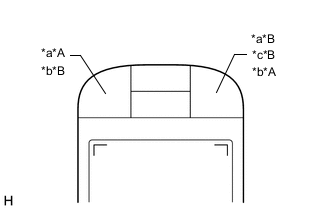
*A for RHD *B for LHD *a Home Switch *b "MENU" Switch *c "MAP" Switch Following "Customizing with remote touch example", simultaneously press the home switch*1, "MAP" switch*2 and "MENU" switch and perform the procedure.
-
*1: w/ Home Switch
-
*2: w/ "MAP" Switch
-
-
Determine the screen (map/list) scroll direction during a flick operation from the number of times answer-back vibration is generated by the touchpad.
Table 3. Setting Screen (map/list) scroll direction during flick operation Answer-back Vibrations Same Direction as Flick Operation
(Default)
2 Opposite Direction of Flick Operation 1 Tip:
-
When the customize setting is set to "Same Direction as Flick Operation", the screen (map/list) scrolls in the same direction as the finger used to flick the touchpad.
-
When the customize setting is set to "Opposite Direction of Flick Operation", the screen (map/list) scrolls in the opposite direction of the finger used to flick the touchpad.
-
-
-
Customize pinch in/out operation function availability
Tip:The availability of the zoom-in/zoom-out function of the map screen when fingers are used to pinch in/out on the touchpad can be changed.
-
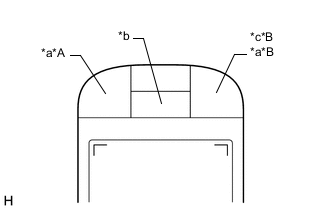
*A for RHD *B for LHD *a Home Switch *b Down Switch *c "MAP" Switch Following "Customizing with remote touch example", simultaneously press the home switch*1, "MAP" switch*2 and down switch and perform the procedure.
-
*1: w/ Home Switch
-
*2: w/ "MAP" Switch
-
-
Determine the pinch in/out operation function availability from the number of times answer-back vibration is generated by the touchpad.
Table 4. Setting Pinch In/Out Operation Function Availability Answer-back Vibrations Function enabled
(Default)
2 Function disabled 1
-
-
Customize Flick Operation Function Availability
Tip:The availability of the flick operation function on the map screen and list screens (screens with a vertical scroll tab) when a finger is used to flick the touchpad can be changed.
-
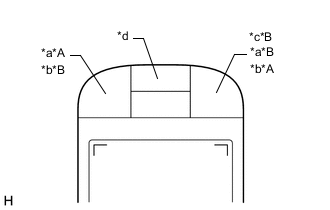
*A for RHD *B for LHD *a Home Switch *b "MENU" Switch *c "MAP" Switch *d Up Switch Following "Customizing with remote touch example", simultaneously press the home switch*1, "MAP" switch*2, "MENU" switch and up switch and perform the procedure.
-
*1: w/ Home Switch
-
*2: w/ "MAP" Switch
-
-
Determine the flick operation function availability from the number of times answer-back vibration is generated by the touchpad.
Table 5. Setting Flick Operation Function Availability Answer-back Vibrations Map Function Enabled, List Function Enabled
(Default)
1 Map Function Enabled, List Function Disabled 2 Map Function Disabled, List Function Disabled 3 Map Function Disabled, List Function Enabled 4 Tip:
-
When the customize setting is set to "Map Function Disabled, List Function Enabled" the flick operation cannot be used on the map screen, but can be used on list screens (screens with a vertical scroll tab).
-
When the customize setting is set to "Map Function Enabled, List Function Enabled" the flick operation can be used on both the map screen and list screens (screens with a vertical scroll tab).
-
When the customize setting is set to "Map Function Enabled, List Function Disabled" the flick operation can be used on the map screen, but cannot be used on list screens (screens with a vertical scroll tab).
-
When the customize setting is set to "Map Function Disabled, List Function Disabled" the flick operation cannot be used on the map screen or list screens (screens with a vertical scroll tab).
-
The settings cycle in the following order: "Map Function Disabled, List Function Enabled", "Map Function Enabled, List Function Enabled", "Map Function Enabled, List Function Disabled", "Map Function Disabled, List Function Disabled".
-
-
-