FRONT CAMERA ADJUSTMENT (SEQUENTIAL RECOGNITION)

CAUTION / NOTICE / HINT
PROCEDURE
-
SECURING OF ADJUSTMENT ENVIRONMENT
-
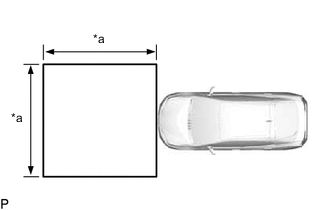
*a 3 m (9.84 ft.) Park the vehicle on a level surface.
Tech Tips
-
Make sure that the target recognition area of the forward recognition camera is free of objects which may be misrecognized as a target, such as overhead lights, windows, reflective objects, etc.
-
If there are any objects which may be misrecognized as a target behind the area where a target will be placed, prepare an appropriate object to block the background.
-
-
Check the levelness of the ground.
-
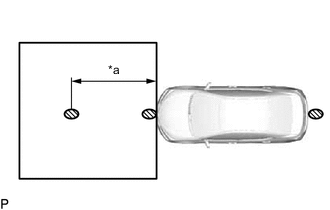
*a 2.2 m (7.22 ft.) 
Levelness Check Point Check the levelness of the ground at the 3 points shown in the illustration.
-
Place the level on each levelness check point and check that the air bubble of the level is centered.
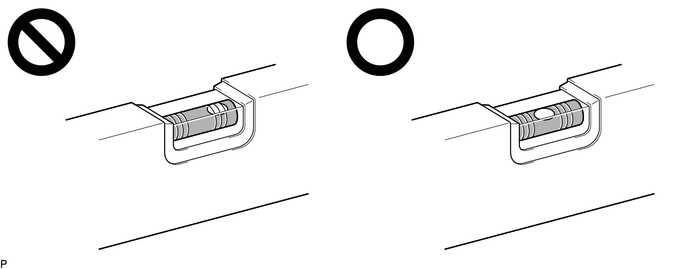
-
-
Adjust the tire inflation pressure to the specified pressure.
-
Clean the windshield glass.
-
-
CREATE A TARGET
-
Print the illustration.

-
Check that the dimensions are within the values shown in the illustration.
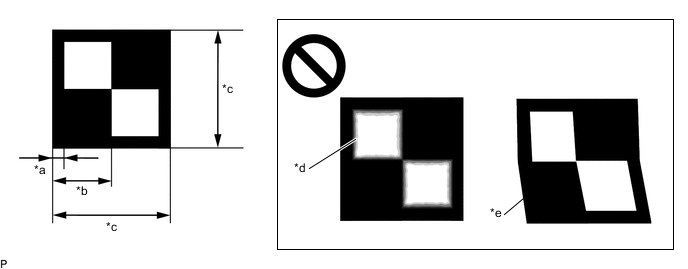
*a 18 mm (0.709 in.) *b 90 mm (3.54 in.) *c 180 mm (7.09 in.) *d Blurry *e Distorted - - Note
-
Make sure that the black areas of the target sheet are not glossy.
-
Make sure that the borders of the black and white areas on the target sheet are straight, and are not warped or blurry.
Tech Tips
If the dimensions of the created target sheet are not within +/- 5 mm (0.197 in.) of the specified values, adjust the printer settings and reprint the target sheet so that the dimensions are as specified.
-
-
Cut a piece of cardboard to be slightly larger than the target sheet.
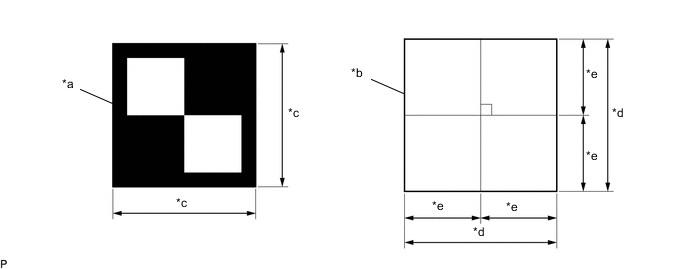
*a Target Sheet *b Cardboard *c 180 mm (7.09 in.) *d 190 mm (7.48 in.) or more *e 95 mm (3.74 in.) or more - - -
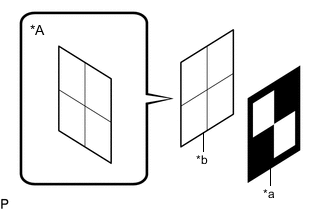
*A Back of Target *a Target Sheet *b Cardboard Prepare a piece of cardboard and draw lines on it as shown in the illustration.
Tech Tips
The lines on the back of the target can help with aligning the target with SST (reflector).
-
Place the target sheet on the cardboard with the black area at the top right as shown in the illustration, and securely attach the target sheet using double-sided tape.
Note
Do not attach reflective materials, such as clear adhesive tape, to the target sheet surface as this may affect target recognition.
-
Remove SST (reflector) from SST (base stand).
- SST
- 09870-60000 ( 09870-60010, 09870-60020 )
-
Align the center of the target sheet with SST (reflector) and attach the target to SST (reflector) with double-sided tape.
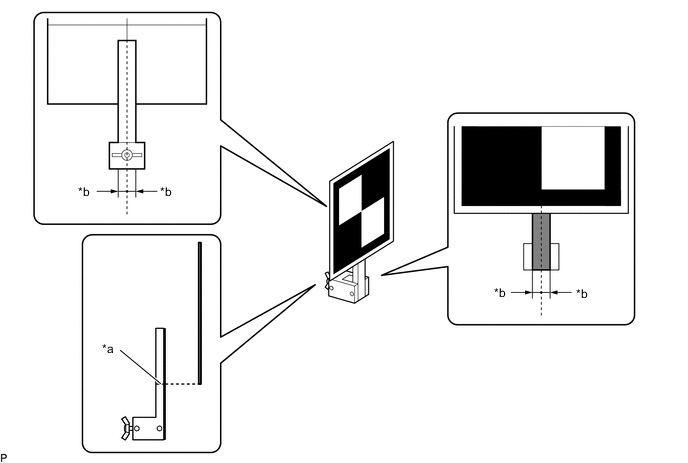
*a Mark-off Line *b Equal Distance to Center 
Reflective Surface - - -
Apply masking tape to the reflective surface of SST (reflector) to cover it.
-
Install SST (reflector) to SST (base stand).
-
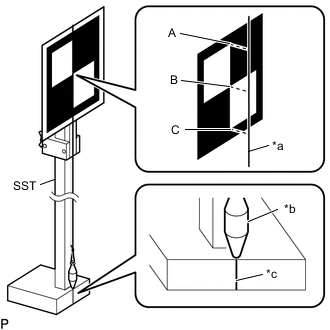
*a String *b Weight *c Mark-off Line Hang a weight with a pointed tip from the top center of the target sheet and align it with the mark-off line of SST (base stand) as shown in the illustration.
Tech Tips
Make sure that the points (A), (B) and (C) of the target sheet are aligned with the string.
-
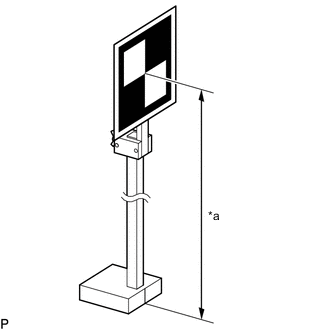
*a 1350 mm (53.15 in.) Move SST (reflector) up or down so that the center of the target sheet is at the height shown in the illustration, and secure SST (reflector) in place.
Tech Tips
If the center of the target sheet is not within +/- 6 mm (0.236 in.) of the height specified, adjust the position of SST (reflector) so that the height is as specified.
-
Prepare an object to block the area behind the target. (If there are any objects which may be misrecognized as a target behind the area where a target will be placed.)
-
When blocking out background by holding cardboard behind the target:
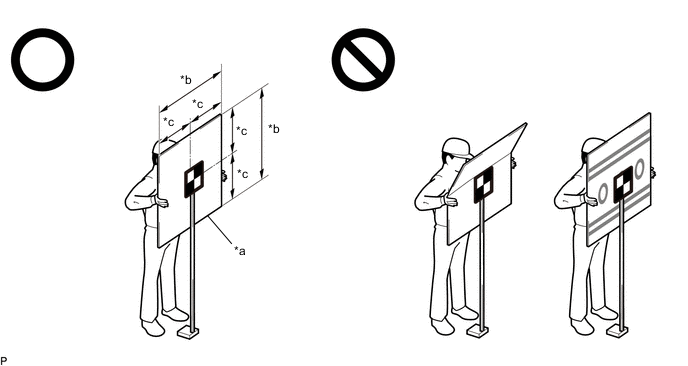
*a Cardboard *b 840 mm (33.07 in.) or more *c 420 mm (16.54 in.) or more - -
-
Prepare a piece of cardboard with the dimensions shown in the illustration.
Tech Tips
-
Do not use cardboard that is bent or has a pattern or image on it.
-
Do not use cardboard which has a reflective surface or reflective objects attached to it.
-
Make sure to hold the cardboard in such a way that fingers are not within the target recognition area.
-
-
-
When blocking the background using a light colored plain cloth:
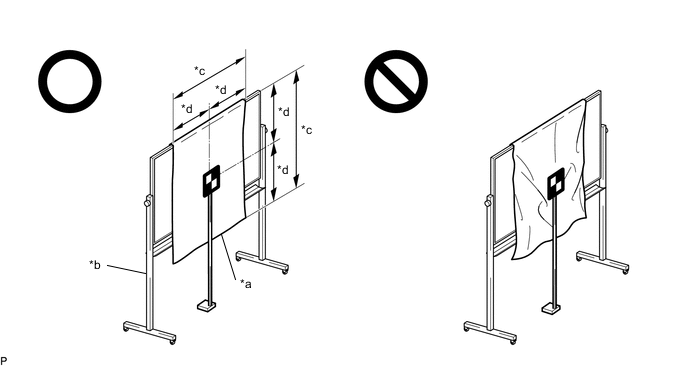
*a Light Colored Plain Cloth *b Whiteboard or Equivalent *c 840 mm (33.07 in.) or more *d 420 mm (16.54 in.) or more
-
Cover a whiteboard or equivalent with light colored plain cloth and secure it.
Tech Tips
-
Make sure to stretch the cloth to remove wrinkles before securing it.
-
Make sure that the target recognition area is free of clear adhesive tape, reflective surfaces and reflective objects.
-
-
-
-
-
TARGET PLACEMENT POSITION
-
Determine the target placement position.
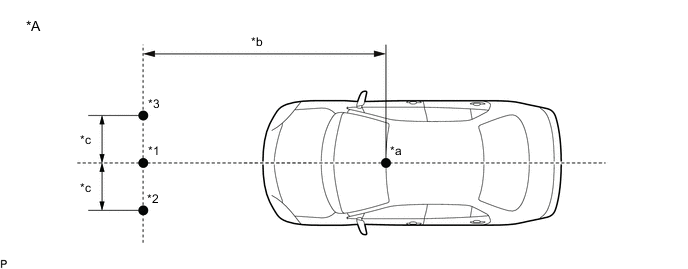
*A Target Placement Positions - - *1 Placement Point 1 *2 Placement Point 2 *3 Placement Point 3 - - *a forward recognition camera Position *b 3000 mm (118.11 in.) *c 550 mm (21.65 in.) - - -
Hang a weight with a pointed tip from the center of the rear emblem, and mark the rear center point of the vehicle (point A) on the ground.
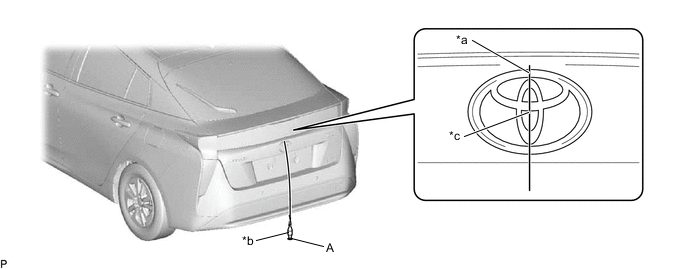
*a String *b Weight *c Center - - Tech Tips
Lightly flick the string with your fingers several times to confirm that the string is perpendicular to the ground.
-
Hang a weight with a pointed tip from the center of the front emblem, and mark the front center point of the vehicle (point B) on the ground (placement position).
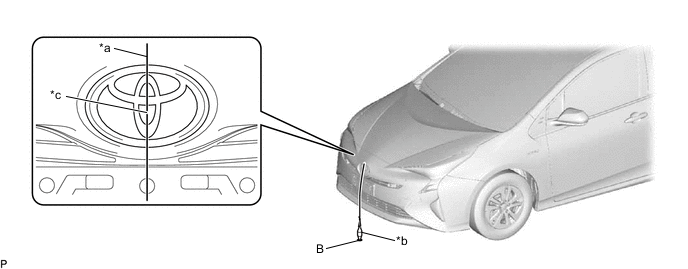
*a String *b Weight *c Center - - Tech Tips
Lightly flick the string with your fingers several times to confirm that the string is perpendicular to the ground.
-
Using tape and a string, create a line that connects point B to point A and extends at least 2300 mm (7.54 ft.) beyond the front center point of the vehicle.
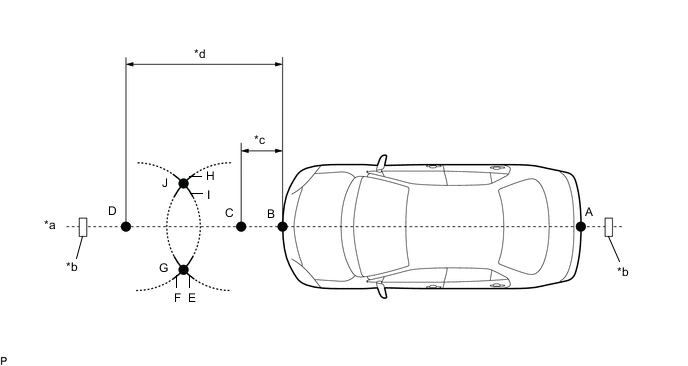
*a String *b Tape *c 481 mm (1.58 ft.) *d 2151 mm (7.06 ft.) Tech Tips
-
Make sure the string is taut when securing it with tape.
-
Lightly flick the string with your fingers several times to confirm that the string is aligned with point B.
-
-
Mark point C at a position 481 mm (1.58 ft.) in front of point B.
-
Mark point D at a position 2151 mm (7.06 ft.) in front of point B.
-
Using a string, mark line E at a position 1000 mm (3.28 ft.) from point C.
-
Using a string, mark line H at a position 1000 mm (3.28 ft.) from point C.
-
Using a string, mark line F at a position 1000 mm (3.28 ft.) from point D.
-
Using a string, mark line I at a position 1000 mm (3.28 ft.) from point D.
-
Mark point G (placement point 2) at the point where line E and line F intersect.
-
Mark point J (placement point 3) at the point where line H and line I intersect.
-
Using tape and a string, create a line that connects point G and point J (target position line).
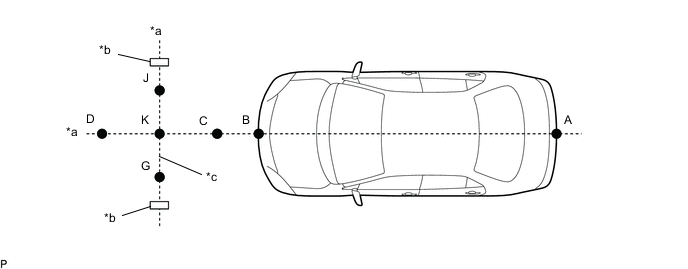
*a String *b Tape *c Target Position Line - - Tech Tips
-
Make sure the string is taut when securing it with tape.
-
Lightly flick the string with your fingers several times to confirm that the string is aligned with points G and J.
-
-
Mark point K (placement position 1) at the point the string connecting points C and D and the string connecting points G and J intersect.
-
Confirm that the distance between points K and G (placement positions 1 and 2), and K and J (placement positions 1 and 3) is 550 mm (21.65 in.).
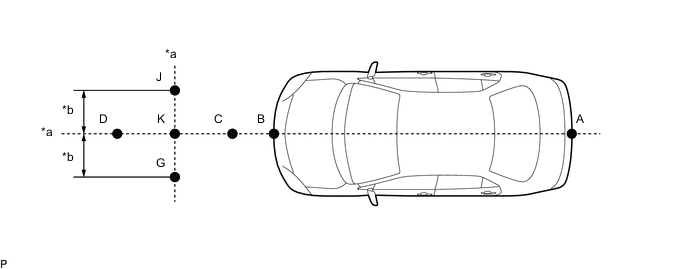
*a String *b 550 mm (21.65 in.) Note
If the distance between either pair of points is not within +/- 3 mm (0.118 in.) of the specified value, start over from the marking of point A.
-
-
PERFORM FORWARD RECOGNITION CAMERA OPTICAL AXIS LEARNING
Note
-
Close all of the doors.
-
Make sure that no one is inside the vehicle.
-
Do not lean on the vehicle.
-
Make sure that the headlights are turned off.
-
Perform Recognition Camera/Target Position Memory.
-
Connect the GTS to the DLC3.
-
Turn the power switch on (IG).
-
Turn the GTS on.
-
Enter the following menus: Chassis / Front Recognition Camera / Utility / Recognition Camera/Target Position Memory.
Chassis > Front Recognition Camera > UtilityTester Display Recognition Camera/Target Position Memory -
Press "Next".*1
-
Confirm the conditions displayed on the screen and then press "Next".
-
According to the display on the GTS, enter the following values for each respective item.
Item Value Recognition Camera Height 1288 mm (50.71 in.) Recognition Camera Lateral Position 7 mm (0.28 in.) Recognition Camera Installation Yaw Angle 0 deg. Recognition Camera Installation Pitch Angle -2.42 deg. Target Height 1350 mm (53.15 in.) Target Distance 3000 mm (118.11 in.) Distance between Targets 550 mm (21.65 in.) Target Size 180 mm (7.09 in.) Vehicle Width 1761 mm (69.33 in.) Distance from Recognition Camera and Front Tire 735 mm (28.94 in.) Pitch Offset Angle 0 deg. Distance between Recognition Camera and Radar 1625 mm (63.98 in.) -
If "Recognition Camera/Target Position Memory has failed." is displayed on the GTS screen, confirm the conditions displayed on the screen, then press "Yes" and repeat the procedure from *1.
-
Press "Exit" to exit the Recognition Camera/Target Position Memory utility.
-
-
Perform Recognition Camera Axis Adjust (target positioning).
-
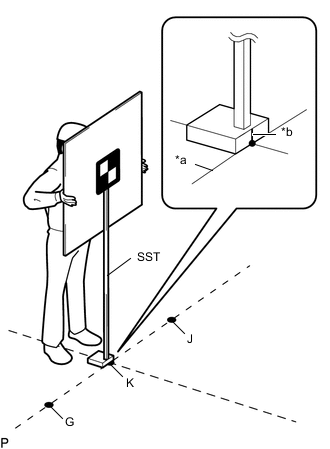
*a Target Position Line *b Mark-off Line Position SST so that it is aligned with the target position line and the mark-off line is aligned with point K (placement position 1) as shown in the illustration.
-
Enter the following menus: Chassis / Front Recognition Camera / Utility / Recognition Camera Axis Adjust.
Chassis > Front Recognition Camera > UtilityTester Display Recognition Camera Axis Adjust -
Press "Next".*2
-
Check that the values stored in the ECU are correct and then press "Next".
-
If "Failed to read axis adjustment data" is displayed, perform Recognition Camera/Target Position Memory, and repeat the procedure from *1.
-
Confirm the conditions displayed on the screen and then press "Next".
-
Check that target is placed at point K (placement position 1) and then press "Next".
Tech Tips
If there are any objects which may be misrecognized as a target behind the area where a target will be placed, block the area behind the target with an appropriate object before pressing "Next".
-
Position SST at point G (placement position 2) and then point J (placement position 3) in the same manner as it was positioned at point K (placement position 1).
Note
Position SST and press "Next" within 3 minutes of the screen changing to the Recognition Camera Axis Adjust screen.
-
If "Recognition Camera Axis Adjust has failed." is displayed on the screen.
-
Confirm that the following conditions are met and then press "YES".
-
-
The height of the target is correct.
-
The surfaces of the target and object used to block the background are not reflective and do not have reflective objects attached.
-
The orientation of the target sheet is correct (black area positioned at the top right).
-
The target is not backlit.
-
The windshield glass is clean.
-
The center of the target is at the correct height and the target placement position is correct.
-
-
Repeat the procedure from *2.
-
-
If "Set the headlight type in the next screen." is displayed:
-
Press "Next".
-
Select the type of high beam headlights the vehicle is equipped with and then press "Next".*3
-
If "Headlight Type Setting has failed." is displayed on the GTS screen, confirm the conditions, then press "Yes" and repeat the procedure from *3.
-
Confirm the high beam headlight type selected and then press "Exit" to exit the Recognition Camera Axis Adjust utility.
-
-
If "Set the headlight type in the next screen." is not displayed:
-
Press "Exit" to exit the Recognition Camera Axis Adjust utility.
-
-
Turn the power switch off.
-
Disconnect the GTS from the DLC3.
-
-
Forward recognition camera optical axis learning is complete.
-