PARKING ASSIST MONITOR SYSTEM(w/ Parallel Parking Assist Function) DIAGNOSIS SYSTEM
-
PARKING ASSIST MONITOR SYSTEM DIAGNOSTIC MODE
-
In diagnostic mode for the parking assist monitor system, signals received by the radio receiver assembly can be checked and the parking assist monitor system can be calibrated, adjusted and checked using the multi-display.
Note
Depending on the parts that are replaced or operations that are performed during vehicle inspection or maintenance, calibration of other systems as well as the parking assist monitor system may be needed.
Tech Tips
The displayed items may differ depending on vehicle specifications.
-
-
DIAGNOSIS SCREEN TRANSITION (DURING PARKING ASSIST MONITOR SYSTEM INITIALIZATION)
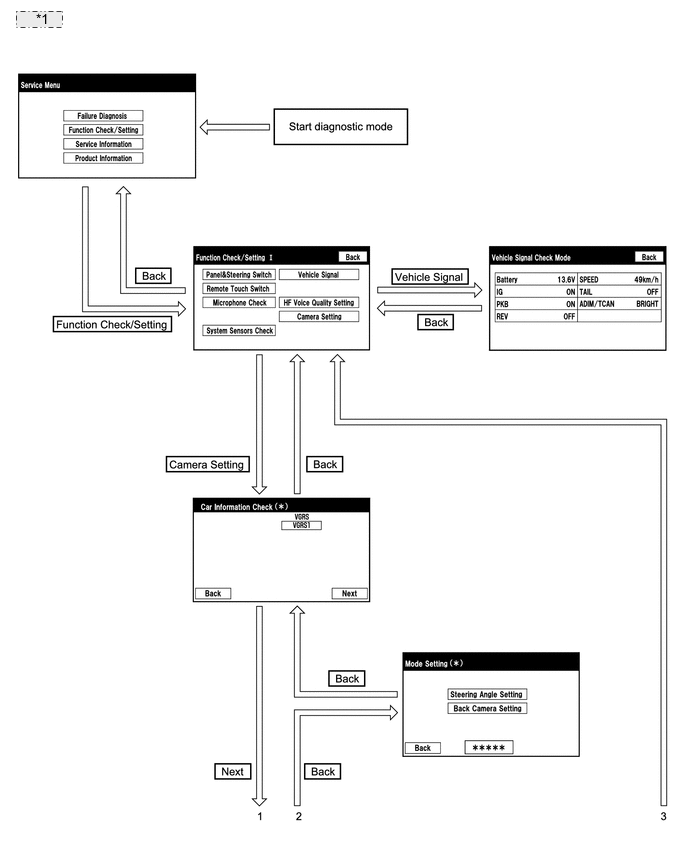
*1 Example: 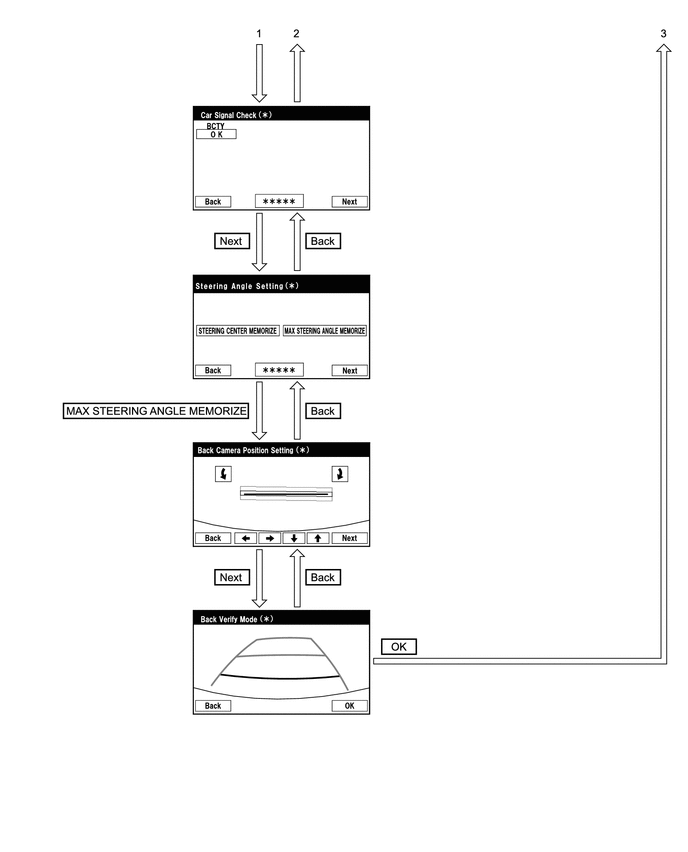
-
DIAGNOSIS SCREEN TRANSITION (AFTER PARKING ASSIST MONITOR SYSTEM INITIALIZATION)
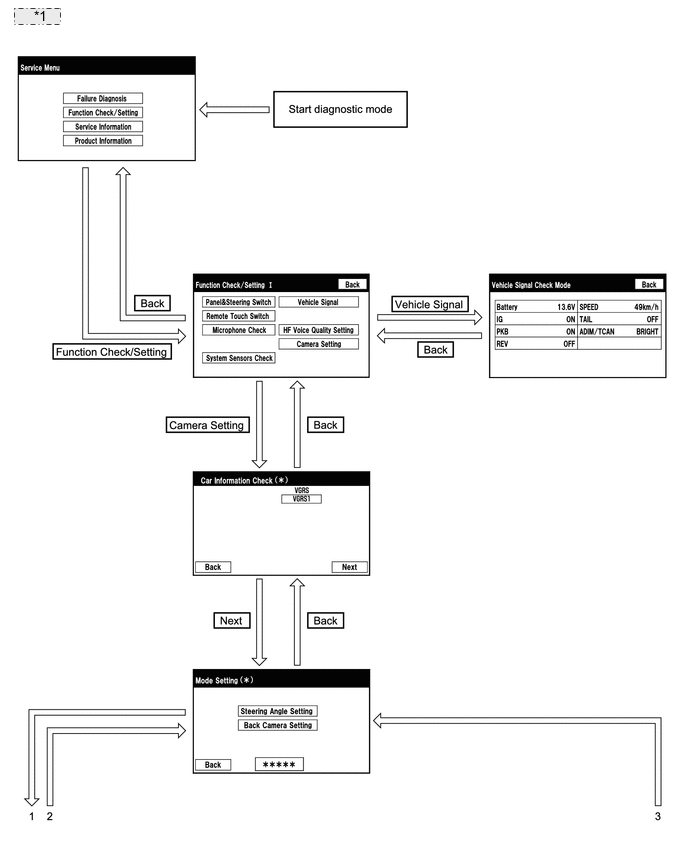
*1 Example: 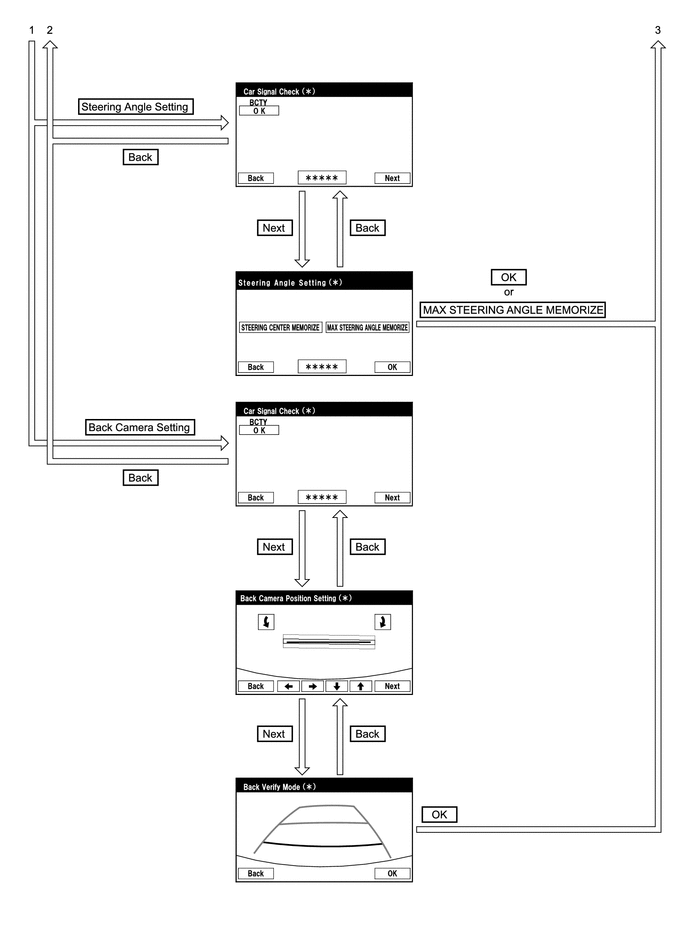
-
VEHICLE SIGNAL CHECK (RADIO RECEIVER ASSEMBLY INPUT SIGNALS)
Tech Tips
Illustrations may differ from the actual vehicle screen depending on the device settings and options. Therefore, some detailed areas may not be shown exactly the same as on the actual vehicle screen.
-
Start diagnostic mode.
-
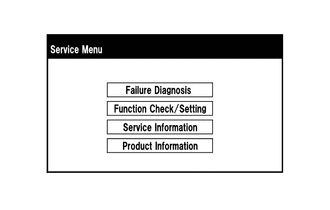
Select "Function Check/Setting" on the "Service Menu" screen to display the "Function Check/Setting I" screen.
-
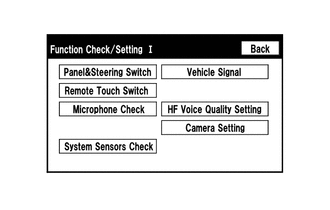
Select "Vehicle Signal" on the "Function Check/Setting I" screen.
-
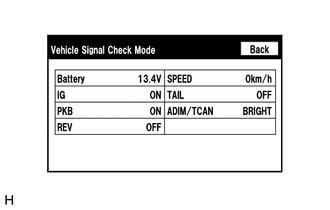
Vehicle Signal Check Mode
-
When the "Vehicle Signal Check Mode" screen is displayed, check the item displayed for "REV".
Tech Tips
-
Only conditions having inputs are displayed.
-
This screen displays vehicle signals input to the radio receiver assembly.
-
-
-
Finish diagnostic mode.
-
-
CAR SIGNAL CHECK (PARKING ASSIST MONITOR SYSTEM INPUT SIGNALS)
Tech Tips
Illustrations may differ from the actual vehicle screen depending on the device settings and options. Therefore, some detailed areas may not be shown exactly the same as on the actual vehicle screen.
-
Start diagnostic mode.
-
Select "Function Check/Setting" on the "Service Menu" screen to display the "Function Check/Setting I" screen.
-
Select "Camera Setting" on the "Function Check/Setting I" screen.
-
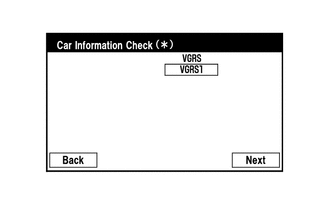
Select "Next" on the "Car Information Check" screen.
Tech Tips
After "Next" is selected, the screen transitions differ depending on whether initialization of the parking assist monitor system was performed after the radio receiver assembly was replaced.
Parking Assist Monitor System Initialization Screen Transition Not performed Car Signal Check screen Performed Mode Setting screen -
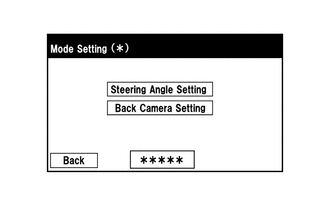
When the screen changes to the "Mode Setting" screen, select "Back Camera Setting" to display the "Car Signal Check" screen.
Tech Tips
To select a grayed out item, select and hold the item for 2 seconds or more.
-
-
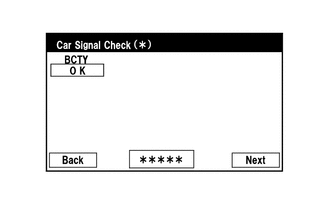
Car Signal Check
-
On the "Car Signal Check" screen, it is possible to inspect the state of signals and check the settings.
Item Inspection Detail Note BCTY Luggage compartment door courtesy switch signal input When "CHK" (red) is displayed, selecting "Next" will not change to the next screen. Tech Tips
-
When "CHK" (red) is displayed, perform inspections based on the result of the following inspections.
-
If performing the adjustment after proceeding to the next screen, confirm that all items display "OK" (blue) before selecting "Next".
-
-
-
BCTY inspection
Tech Tips
If "CHK" (red) is displayed for "BCTY", check for DTCs and perform troubleshooting based on the output DTCs.
-
Finish diagnostic mode.
-
-
CAMERA SYNCHRONOUS ERROR HISTORY
Tech Tips
This function is used to check the date and time of occurrence when a camera synchronous error occurs.
-
Check camera synchronous error history.
-
Connect the GTS to the DLC3.
-
Turn the power switch on (IG).
-
Turn the GTS on.
-
Enter the following menus: Body Electrical / Navigation System / Utility / Camera Synchronous Error History.
Body Electrical > Navigation System > UtilityTester Display Camera Synchronous Error History -
When an item is stored for Camera Synchronous Error History, record it before repairing the radio receiver assembly and rear television camera assembly.
Tech Tips
Camera Synchronous Error History can store up to 5 history data items. If a new camera synchronous error occurs when 5 data items have already been stored, the oldest data is cleared and the new data is stored.
-
-
Clear camera synchronous error history.
-
When DTCs are cleared using any of the following operations, Camera Synchronous Error History will be cleared as well.
-
Cleared using the GTS.
-
Cleared using the system check mode screen.
-
Cleared using the unit check mode screen.
-
-
-
-
VIDEO DEVICE CONNECTION CHECK
-
CALIBRATION WHEN SERVICING VEHICLE
Note
Depending on the parts that are replaced or operations that are performed during vehicle inspection or maintenance, calibration of other systems as well as the parking assist monitor system may be needed.