Click here
-
CHECK NAVIGATION SYSTEM NORMAL CONDITION
-
If the symptom is applicable to any of the following, it is intended behavior, and not a malfunction.
Symptom Answer A longer route than expected is chosen. Depending on the road conditions, the radio receiver assembly may determine that a longer route is quicker. Even when distance priority is high, the shortest route is not shown. Some routes may not be advised due to safety concerns. When the vehicle is put into motion immediately after the hybrid system starts, the navigation system deviates from the correct position. If the vehicle starts before the navigation system activates, the system may not react. When driving on certain types of roads, especially new roads, the vehicle position deviates from the correct position. When the vehicle is driving on new roads not available on the SD card, the system attempts to match it to another nearby road, causing the position mark to deviate. Expected arrival time is earlier than current time, or time different from expected arrival time is displayed. If a destination is set to a point where a different time zone is used, the system displays an expected arrival time corresponding to the time zone of the destination. If a location on the sea is set as the destination, the system may display an expected arrival time corresponding to the time zone setting of the vehicle. Check which communication is not used for displaying traffic information. -
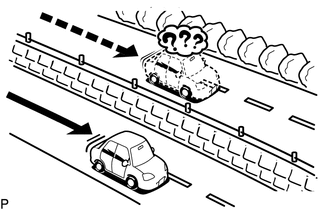
The following symptoms are not malfunctions, but are caused by errors inherent in the GPS, gyro sensor or radio receiver assembly.
-
The current position mark may be displayed on a nearby parallel road.
-
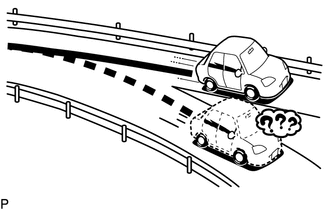
Immediately after a fork in the road, the current vehicle position mark may be displayed on the wrong road.
-
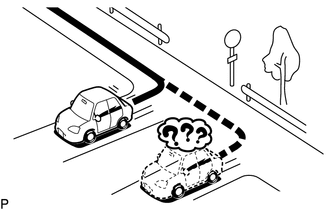
When the vehicle turns right or left at an intersection, the current vehicle position mark may be displayed on a nearby parallel road.
-
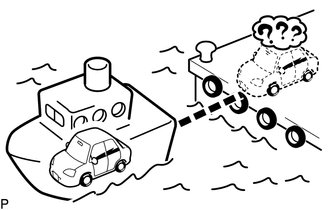
When the vehicle is carried, such as on a ferry, and the vehicle itself is not driving, the current vehicle position mark may be displayed in the position where the vehicle was until a measurement can be performed by the GPS.
-
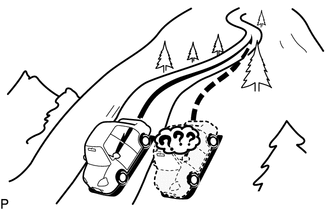
When the vehicle travels on a steep hill, the current vehicle position mark may deviate from the correct position.
-
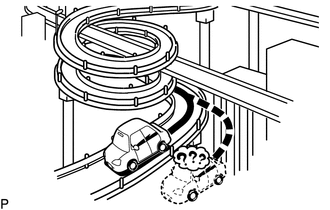
When the vehicle makes a continuous turn (e.g. 360, 720, 1080 degrees), the current vehicle position mark may deviate from the correct position.
-
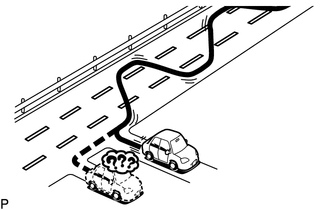
When the vehicle moves erratically, such as constant lane changes, the current vehicle position mark may deviate from the correct position.
-
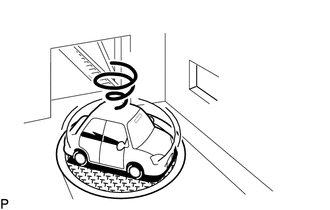
When the power switch is turned on (ACC or IG) and the vehicle is turned on a turntable before parking, the current vehicle position mark may not indicate the correct direction. The same will occur when the vehicle comes out of the parking garage.
-
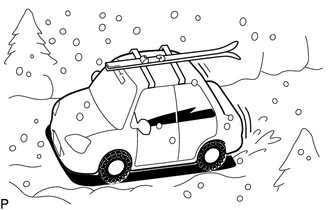
When the vehicle travels on a snowy road or a mountain path with tire chains installed or using a spare tire, the current vehicle position mark may deviate from the correct position.
-
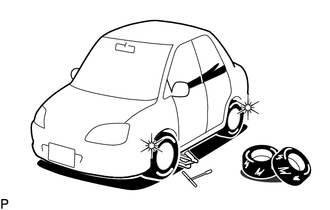
When the tires are changed, the current vehicle position mark may deviate from the correct position.
Tip:
-
A change in tire diameter may cause a speed sensor error.
-
Performing "tire change" in calibration mode will allow the system to correct the current vehicle position faster.
-
-
-
-
REMOTE TOUCH SELF CHECK
Note:
-
Before performing the remote touch self check, check that there is no foreign matter that may interfere with remote touch switch knob operation and that the knob is not stuck.
-
To avoid interruption of remote touch switch knob operation, do not touch the knob unless instructed.
Tip:The following checks can be done via the self check:
-
DTC check for the remote touch
-
Switch illumination check
-
Remote touch switch knob position recognition check
-
Switch operation check
-
Remote touch switch knob feedback force check
-
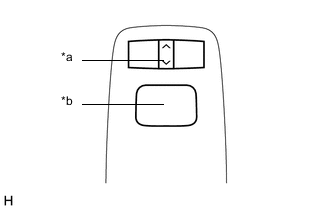
*a Down Seesaw Switch *b Switch Knob Activate Self Check Mode
-
Turn the power switch on (ACC) with the switch knob and down seesaw switch pressed to activate self check mode.
-
-
Switch Illumination Check and DTC Check
-
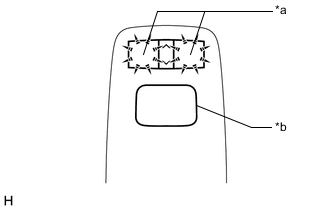
*a Switch Illumination *b Switch Knob Check that the remote touch switch knob automatically moves to the center of the movable area and that the "HOME" and "MENU" switch illumination blinks.
Tip:
-
When DTCs are stored as present DTCs during the self check, the "HOME" and "MENU" switch illumination blinks at 0.5-second intervals. The illumination will continue to blink until the self check is completed.
-
The switch illumination stops blinking only when the factor that caused the remote touch switch knob malfunction disappears, allowing the knob to automatically move to the center of the movable area.
-
-
-

*a Switch Knob *b Longitudinal Axis *c Lateral Axis Remote Touch Switch Knob Position Recognition Check
-
Move the remote touch switch knob up, down, right and left to check that the brightness of the "HOME" and "MENU" switch illumination changes.
Tip:
-
If the brightness changes according to remote touch switch knob operation, the knob position is being recognized normally.
-
The brightness of the switch illumination changes between 0 and 100% according to the coordinates of the remote touch switch knob.
-
The coordinates of the remote touch switch knob change between 0 and 255 for both the lateral and longitudinal axes.
-
When the coordinates of both the lateral and longitudinal axes of the remote touch switch knob are 0, the brightness of the switch illumination becomes 0% (the switch lights will be off), and when the coordinates of both axes of the knob are 255, the brightness of the switch illumination becomes 100% (the switch lights will be on at full brightness).
-
-
-
Switch Operation Check
-
With the remote touch switch knob in the lower left position, check that pressing each switch on the remote touch turns on the "HOME" and "MENU" switch illumination at 100% brightness.
Tip:If the "HOME" and "MENU" switch illumination turn on at 100% brightness when a switch is pressed, the switch being pressed is operating normally.
-
-
Remote Touch Switch Knob Feedback Force Check
-
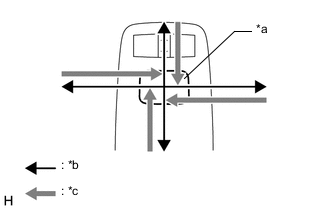
*a Switch Knob *b Movement Direction *c Feedback Force Move the remote touch switch knob up, down, right and left to check that feedback force is generated.
Tip:The motors built into the remote touch generate feedback force according to the direction in which the remote touch switch knob is moved.
-
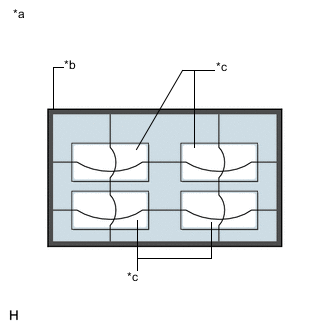
*a Default Feedback Force Image *b Frame Area *c Icon Area Move the pointer on the screen by operating the remote touch switch knob and check that the feedback force of the knob changes according to the screen being displayed and the pointer position.
Tip:
-
Refer to Remote Touch Outline for further information on the remote touch switch knob feedback force generated according to the screen being displayed and the pointer position.
-
When the feedback force of the remote touch switch knob changes according to the screen being displayed and the pointer position, the remote touch is receiving feedback force request signals from the radio receiver assembly.
-
When the remote touch cannot receive feedback force request signals from the radio receiver assembly, the remote touch generates feedback force according to the default feedback force image recorded in the remote touch (remote operation board).
-
-
-
-
CHECK SD CARD
Tip:
-
Check the SD card installed in the radio receiver assembly.
-
Illustrations may differ from the actual vehicle screen depending on the device settings and options. Therefore, some detailed areas may not be shown exactly the same as on the actual vehicle screen.
-
Enter diagnostic mode.
-
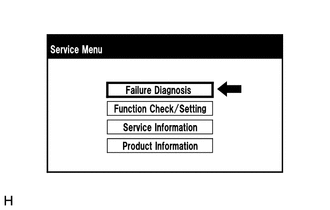
Select "Failure Diagnosis" from the "Service Menu" screen.
-
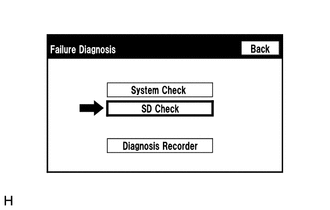
Select "SD Check" from the "Failure Diagnosis" screen.
-
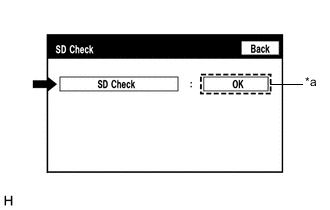
*a Result SD Check
-
Select "SD Check" to start the SD card check.
-
Check the result displayed when the SD check is complete.
Table 1. Screen Description Display (Result) Description Checking Check is in progress OK SD card is normal NG SD card is malfunctioning Tip:
-
After selecting "SD Check", it may take a while until the result is displayed.
-
If the cabin temperature is -20°C (-4°F) or lower, or 65°C (149°F) or higher, the SD card may not operate normally, and "NG" may be shown on the display. Make sure to perform the inspection with the cabin at an appropriate temperature.
-
If "NG" is displayed even when the cabin temperature is appropriate, replace the SD card with a new one.
-
-
-
-
CHECK PANEL & STEERING SWITCH
Tip:
-
The radio receiver assembly panel switches and steering switches are checked in the following procedure.
-
Illustrations may differ from the actual vehicle screen depending on the device settings and options. Therefore, some detailed areas may not be shown exactly the same as on the actual vehicle screen.
-
Enter diagnostic mode.
-
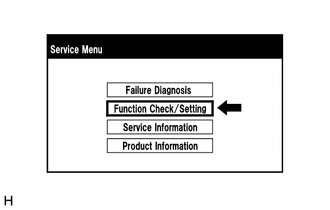
Select "Function Check/Setting" from the "Service Menu" screen.
-
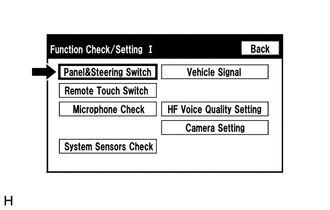
Select "Panel & Steering Switch" from the "Function Check/Setting I" screen.
-
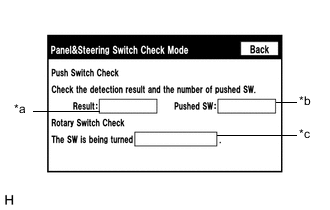
Panel & Steering Switch Check Mode
Table 2. Screen Description Display Content *a: Switch condition "Pushed" is displayed when any switch is pushed *b: Number of switches pushed
-
Number of switches pushed at once is displayed
-
If 3 switches are pushed at once, "3" or "More than 3" is displayed
-
If 4 or more switches are pushed at once, "More than 3" is displayed
*c: Rotary switch direction Direction of rotary switch is displayed
-
Operate each switch and check that the switch conditions are correctly displayed.
Note:When the "HOME" switch of the remote touch switch is pressed and held for 3 seconds or more, diagnostic mode will be canceled.
-
-
-
CHECK REMOTE TOUCH SWITCH
Tip:
-
The remote touch switch knob is checked in the following procedure.
-
Illustrations may differ from the actual vehicle screen depending on the device settings and options. Therefore, some detailed areas may not be shown exactly the same as on the actual vehicle screen.
-
Enter diagnostic mode.
-
Select "Function Check/Setting" from the "Service Menu" screen.
-
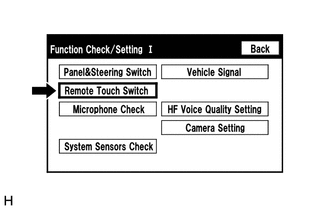
Select "Remote Touch Switch" from the "Function Check/Setting I" screen.
-
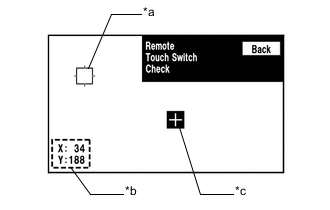
Remote Touch Switch Check
Table 3. Screen Description Display Content *a: Pointer Displays the location of the pointer. *b: Coordinate
-
Displays the coordinates of the pointer
-
"X" and "Y" indicate the lateral and longitudinal axes
-
Coordinates are displayed by numbers between 0 and 255 for each axis starting from the lower left of the screen
*c: "+" mark Displayed at the location where the pointer was located when the switch knob on the remote touch was pressed.
-
While "Remote Touch Switch Check" is displayed, move the pointer to any blank area of the screen using the remote touch switch knob, and press the switch knob.
Tip:
-
The "+" mark is displayed at the pointer position when the switch knob was pressed.
-
Even if the pointer is moved, the "+" mark will remain at the position where the pointer was when the switch knob was pressed.
-
-
Move the pointer using the remote touch switch knob. When the location of the pointer is changed by moving the switch knob, check that the coordinate values "X" and "Y" change between 0 and 255.
-
-
-
CHECK MICROPHONE
Tip:
-
The microphone and microphone input level are checked in the following procedure.
-
Illustrations may differ from the actual vehicle screen depending on the device settings and options. Therefore, some detailed areas may not be shown exactly the same as on the actual vehicle screen.
-
Enter diagnostic mode.
-
Select "Function Check/Setting" from the "Service Menu" screen.
-
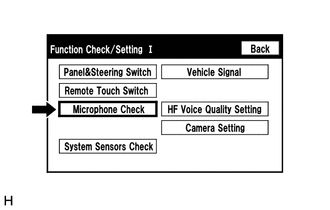
Select "Microphone Check" from the "Function Check/Setting I" screen.
-
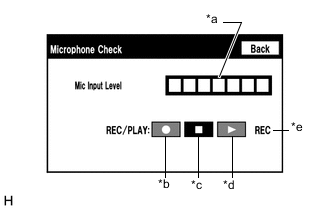
Microphone Check
Table 4. Screen Description Display Content *a: Microphone input level meter Monitors the microphone input level every 0.1 seconds and displays the results in 8 different levels. *b: Recording switch Starts recording. *c: Stop switch Stops recording and playing. *d: Play switch Plays the recorded voice. *e: Recording indicator Comes on while recording.
-
When speaking into the microphone, check that the microphone input level meter changes according to the input level.
Tip:The microphone is active at all times when this screen is displayed.
-
Push the recording switch and perform voice recording.
Tip:
-
Select the recording switch with the blower motor of the air conditioning system stopped. If an outlet of the air conditioning system is facing the microphone, noise may be recorded.
-
While recording or playing, switches other than the stop switch cannot be pushed.
-
When no recording is present, the play switch cannot be pushed.
-
Recording will stop after 5 seconds or when the stop switch is pushed.
-
-
Check that the recording indicator remains on while recording and that the recording can be played normally.
-
-
-
CHECK GPS AND VEHICLE SENSORS
Tip:
-
GPS information, vehicle signals and sensor signals are checked in the following procedure.
-
Illustrations may differ from the actual vehicle screen depending on the device settings and options. Therefore, some detailed areas may not be shown exactly the same as on the actual vehicle screen.
-
Enter diagnostic mode.
-
Select "Function Check/Setting" from the "Service Menu" screen.
-
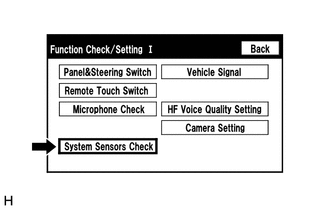
Select "System Sensors Check" from the "Function Check/Setting I" screen.
-
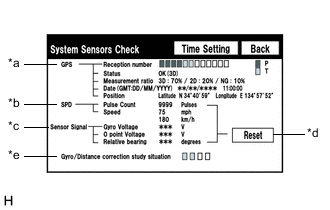
System Sensors Check
Table 5. *a: GPS Display Content Reception number Displays reception condition of the satellites used to determine vehicle position Blue: P (In use) System is using GPS signal for location. Yellow: T (Receiving) System is tracking GPS signal for location. No color: Not in use System cannot receive GPS signal (searching for GPS signal). Status Displays reception status of the satellites used to determine vehicle position OK(H3D) High accuracy 3-dimensional location method is being used. OK(H2D) High accuracy 2-dimensional location method is being used. OK(3D) 3-dimensional location method is being used. OK(2D) 2-dimensional location method is being used. NG Location data cannot be used. error Reception error has occurred. - Any other state. Measurement ratio Displays the ratio of satellites performing measurements 3D The ratio of satellites performing 3D positioning, Hyper 3D positioning and Hyper 2D positioning is displayed. 2D The ratio of satellites performing 2D positioning is displayed. NG The ratio of satellites not performing measurement is displayed. Date Date/time information obtained from GPS signals is displayed in Greenwich Mean Time (GMT). Position Latitude and longitude information on current position is displayed. Table 6. *b: SPD Display Content Pulse Count Displays the accumulated number of input pulses beginning when this screen is displayed Speed Displays vehicle speed (km/h) Table 7. *c: Sensor Signal Display Content Note Gyro Voltage Displays the output voltage of the gyro sensor - 0 point Voltage Displays the zero-point voltage of the gyro sensor - Relative bearing Displays the output angle of the gyro sensor The amount of change in bearing angle (degrees) after the system sensor check screen is displayed (clockwise: "+", counterclockwise: "-"). Table 8. *d: Reset Display Content Reset When this switch is pressed and held for 3 seconds or more, the values for the display items of SPD and Sensor Signal are reset and display "0". Table 9. *e: Gyro/Distance correction study situation Display Content Gyro/Distance correction study situation Displays learning status of Gyro/Distance correction
-
When the "System Sensors Check" screen is displayed, check all the sensor signals.
Tip:This screen is updated once per second.
-
-
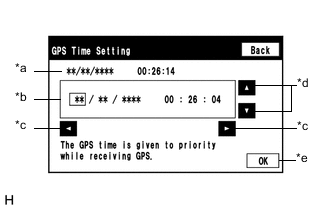
GPS Time Setting
Table 10. Screen Description Display Content *a: Time display Displays the date and time in the device. *b: Time setting screen Setting is possible only when GPS signals are not being received. *c: Cursor movement switch Moves the cursor on the date and time setting screen to the right and left. *d: Adjustment switch Adjusts values of items selected by the cursor. *e: OK switch Selecting this switch after setting the date and time updates the date and time in the device (only when GPS signals are not received).
-
When GPS signals are not being received, the date and time in the device can be adjusted.
Tip:Time setting is possible only when GPS signals are not being received. When the navigation system is receiving GPS signals, priority is given to displaying the time and date received via GPS.
-
-
-
CHECK VEHICLE SIGNAL
Tip:
-
Vehicle signals received by the radio receiver assembly are checked in the following procedure.
-
Illustrations may differ from the actual vehicle screen depending on the device settings and options. Therefore, some detailed areas may not be shown exactly the same as on the actual vehicle screen.
-
Enter diagnostic mode.
-
Select "Function Check/Setting" from the "Service Menu" screen.
-
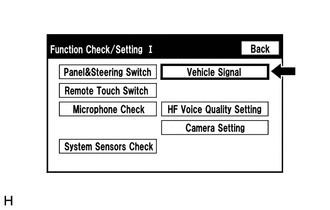
Select "Vehicle Signal" from the "Function Check/Setting I" screen.
-
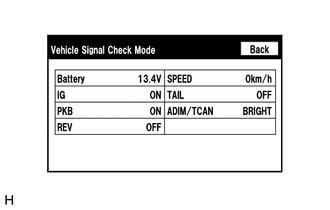
Vehicle Signal Check Mode
Table 11. Screen Description Display Content Battery Auxiliary battery voltage is displayed. IG Power switch ON/OFF state is displayed. PKB Parking brake ON/OFF state is displayed. REV Reverse signal ON/OFF state is displayed. SPEED Vehicle speed is displayed in km/h. TAIL Tail signal (light control switch) ON/OFF state is displayed. ADIM/TCAN Brightness state DIM (with)/BRIGHT (without) is displayed. Tip:
-
Only items sending vehicle signals will be displayed.
-
This screen displays vehicle signals input to the radio receiver assembly.
-
This screen is updated once per second.
-
When the "Vehicle Signal Check Mode" screen is displayed, check all the vehicle signal conditions.
-
-
-
CHECK HANDS-FREE VOICE QUALITY AND VOLUME SETTING
Note:
-
Adjustment of the settings is required for each registered cellular phone.
-
If no cellular phone has been registered, all switches cannot be selected.
Tip:
-
The hands-free volume of a "Bluetooth" compatible phone can be adjusted using the following procedure.
-
Illustrations may differ from the actual vehicle screen depending on the device settings and options. Therefore, some detailed areas may not be shown exactly the same as on the actual vehicle screen.
-
Enter diagnostic mode.
-
Select "Function Check/Setting" from the "Service Menu" screen.
-
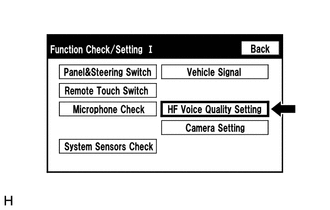
Select "HF Voice Quality Setting" from the "Function Check/Setting I" screen.
-
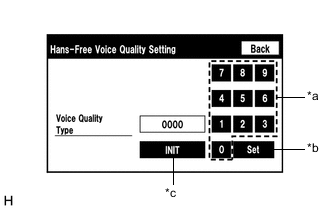
*a Numeric Keypad *b Setting Button *c Reset Button Hands-Free Voice Quality Setting (Voice Quality Type adjustment)
-
If necessary, refer to the table below to adjust the voice quality type with the numeric keypad.
-
When adjusting the settings, use the number pad on the screen to input the voice quality type according to the table.
Table 12. Settings Parameter Target Phenomenon Voice Quality Type Positive Effect of Changing Voice Quality Negative Effect of Changing Voice Quality A
(Noise)
The other party hears background noise when listening to your voice. 1000 The amount of background noise the other party hears when listening to your voice is reduced. The volume of voice the other party hears when listening to your voice may temporarily drop. B
(Noise)
The other party hears a lot of background noise when listening to your voice. 2000 The amount of background noise the other party hears when listening to your voice is sharply reduced. The volume of voice the other party hears when listening to your voice may temporarily drop. C
(Echo)
The other party hears weak echoes. 0100 The amount of echo is reduced (low level). Sound quality of the other party deteriorates (low level). D
(Echo)
The other party hears strong echoes. 0200 The amount of echo is reduced (high level). Sound quality of the other party deteriorates (high level). Table 13. Settings (When Multiple Phenomenon Occurred) Parameter Target Phenomenon Voice Quality Type Positive Effect of Changing Voice Quality Negative Effect of Changing Voice Quality A+C The other party hears background noise and weak echoes when listening to your voice. 1100
-
The amount of background noise the other party hears when listening to your voice is reduced.
-
The amount of echo is reduced (low level).
-
The volume of voice may drop temporarily.
-
Sound quality of the other party deteriorates (low level).
A+D The other party hears background noise and strong echoes when listening to your voice. 1200
-
The amount of background noise the other party hears when listening to your voice is reduced.
-
The amount of echo is reduced (high level).
-
The volume of voice may drop temporarily.
-
Sound quality of the other party deteriorates (high level).
B+C The other party hears a lot of background noise and weak echoes when listening to your voice. 2100
-
The amount of background noise the other party hears when listening to your voice is sharply reduced.
-
The amount of echo is reduced (low level).
-
The volume of voice may drop temporarily.
-
Sound quality of the other party deteriorates (low level).
B+D The other party hears a lot of background noise and strong echoes when listening to your voice. 2200
-
The amount of background noise the other party hears when listening to your voice is sharply reduced.
-
The amount of echo is reduced (high level).
-
The volume of voice may drop temporarily.
-
Sound quality of the other party deteriorates (high level).
Tip:
-
The default value is "0000".
-
Settings will be applied when the setting button is selected.
-
If voice quality type values that are not in the table are input, the setting will not be applied and a positive effect may not be gained.
-
If the quality of phone calls decreases due to the changed settings, return the settings to "0000" by pressing the "INIT" switch.
-
-
-
-
CHECK DAB RECEPTION (w/ DAB Function)
Tip:
-
The reception condition of Digital Audio Broadcast (DAB) can be checked.
-
Illustrations may differ from the actual vehicle screen depending on the device settings and options. Therefore, some detailed areas may not be shown exactly the same as on the actual vehicle screen.
-
Enter diagnostic mode.
-
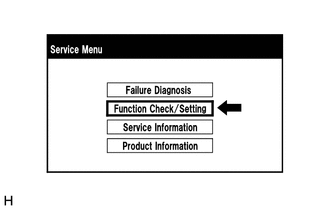
Select "Function Check/Setting" from the "Service Menu" screen.
-
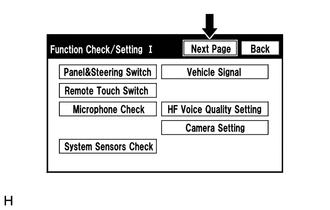
Select "Next Page" from the "Function Check/Setting I" screen.
-
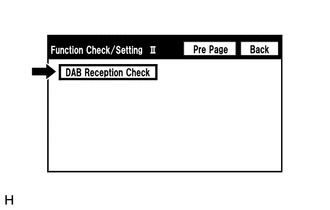
Select "DAB Reception Check" from the "Function Check/Setting II" screen.
-
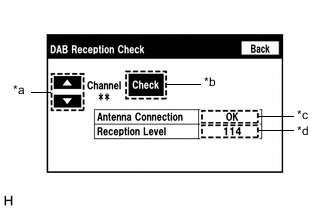
DAB Reception Check
Table 14. Screen Description Display Content *a: Up or down switch Enables the channel to be changed to the one to be checked. *b: Check/STOP switch
-
Check: Starts checking
-
STOP: Stops checking
*c: Antenna connection check
- DAB antenna connection status as follows:
-
OK: Connected properly
-
NG: Not connected properly
-
-: Not equipped with DAB antenna.
*d: DAB Tuner Reception Level Check Result Description
- Displays DAB antenna reception levels as follows:
-
111 or more: Font color is black (good reception)
-
110 or less: Font color is red (poor reception)
-
-: Not equipped with DAB antenna.
-
Select the "Check" button to start the DAB reception check.
-
Check the result displayed when the DAB reception check is complete.
Tip:If the reception level is abnormal, the antenna system or radio receiver assembly is malfunctioning.
-
-
-
CLEAR PASSWORD OF EXPORT/IMPORT MEMORY POINT FUNCTION
Tip:
-
This function allows the initialization of a password which was set on the radio receiver assembly when exporting/importing memory points.
-
Illustrations may differ from the actual vehicle screen depending on the device settings and options. Therefore, some detailed areas may not be shown exactly the same as on the actual vehicle screen.
-
Enter diagnostic mode.
-
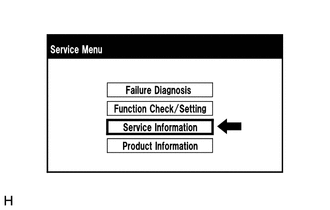
Select "Service Information" from the "Service Menu" screen.
-
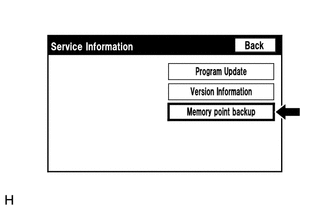
Select "Memory point backup" from the "Service Information" screen.
-
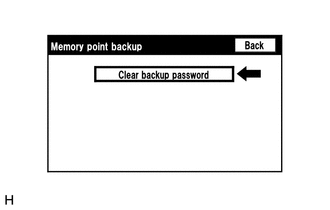
Clear backup password
Tip:Depending on the manufacturer, some component names and versions will be displayed differently.
-
Select "Clear backup password" from the "Memory point backup" screen.
-
-
-
CHECK SPEAKER
Tip:
-
This function is used when checking the speaker wiring and whether the speakers are functioning properly.
-
Illustrations may differ from the actual vehicle screen depending on the device settings and options. Therefore, some detailed areas may not be shown exactly the same as on the actual vehicle screen.
-
Turn audio mode on and play any audio source.
Tip:This audio source will be used for the speaker check.
-
Enter diagnostic mode.
-
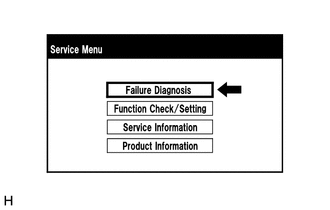
Select "Failure Diagnosis" from the "Service Menu" screen.
-
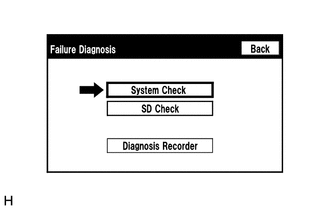
Select "System Check" from the "Failure Diagnosis" screen.
-
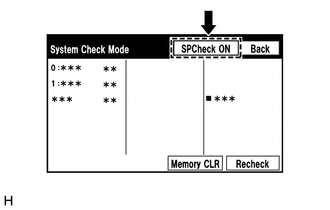
Select "SP Check ON" from the "System Check Mode" screen.
-
Check the speaker wiring and check that the speakers are functioning properly.
Tip:
-
Check that each speaker outputs sound from the selected audio source properly.
-
"SP Check OFF" is displayed during the speaker check.
-
Sound can be heard from the speakers around the vehicle in order beginning from a speaker on the front side.
-
More than one speaker may sound simultaneously depending on the speaker wiring.
-
-
Sound stops when any of the following conditions are met:
-
The "SP Check OFF" switch is pressed.
-
The power switch is turned off.
-
Diagnostic mode is turned off.
-
The screen is changed to another screen.
-
Audio mode is turned off.
-
-
-
CHECK SOFTWARE ERROR HISTORY
Tip:This function is used to check the cause when the radio receiver assembly screen is blacked out.
-
Check software error history.
-
Connect the GTS to the DLC3.
-
Turn the power switch on (IG).
-
Turn the GTS on.
-
Enter the following menus: Body Electrical / Navigation System / Utility / Software Error History.
- Body Electrical > Navigation System > Utility
Tester Display Software Error History -
-
-
-
- Body Electrical > Navigation System > Utility
-
When an item is stored for Software Error History, record it before repairing the radio receiver assembly.
Table 15. Software Error History Screen Description Error Description Trigger Detail Software Reset Navi Microcomputer Hexadecimal Number Audio Microcomputer CAN Microcomputer No Video Signal Front Monitor Rear Monitor MOST Cold Restart Always Tip:
-
Software Error History can store up to 5 history data items. If a new software error occurs when 5 data items have already been stored, the oldest data is cleared and the new data is stored.
-
If an error that is unsupported by the GTS occurs, a "-" is displayed for the display items.
-
-
-
Clear software error history.
-
When DTCs are cleared using any of the following operations, Software Error History will be cleared as well.
-
Cleared using the GTS.
-
Cleared using the system check mode screen.
-
Cleared using the unit check mode screen.
-
-
-
-
CHECK OPTICAL DISC ERROR HISTORY
Tip:This function is used to check the cause when an optical disc error occurs.
-
Check optical disc error history.
-
Connect the GTS to the DLC3.
-
Turn the power switch on (IG).
-
Turn the GTS on.
-
Enter the following menus: Body Electrical / Navigation System / Utility / Optical Disc Error History.
- Body Electrical > Navigation System > Utility
Tester Display Optical Disc Error History -
-
-
-
- Body Electrical > Navigation System > Utility
-
When an item is stored for Optical Disc Error History, record it before proceeding with troubleshooting.
Table 16. Optical Disc Error History Screen Description Display Content Error Type Displays the type of error. Device Displays the malfunctioning device. Date Displays the date and time that the malfunction occurred. Table 17. "Error Type" Screen Description Error Type Detection Condition Action Read Error When a disc read error occurs. Proceed to next suspected area shown in Problem Symptoms Table
Disc damaged/up side down/dirty When it is determined that any of the following is the cause of the disc read error:
-
The disc cannot be read.
-
The disc cannot be read because of dirt or scratches.
-
The disc cannot be read because it is inserted upside down.
Cannot determine disc type An unsuitable disc is inserted. DPS error When an error occurs while decoding MP3/WMA/AAC files. Some files are corrupt
-
When MP3/WMA/AAC files cannot be played back because they are unsupported.
-
Even though the file extensions are MP3, WMA or AAC files cannot be played back because the header information cannot be read.
Some files cannot be found
-
When a disc without music data is played back.
-
When there are no playable MP3/WMA/AAC files.
Copy protection violation When a file with copyright protection that cannot be played back is played back. Table 18. "Device" Screen Description Device Component DVD-P Radio receiver assembly CD-P Not available R-Seat DVD-P Not available Tip:
-
Optical Disc Error History can store up to 7 history data items. If a new optical disc error occurs when 7 data items have already been stored, the oldest data is cleared and the new data is stored.
-
If an error that is unsupported by the GTS occurs, a "-" or blank is displayed for the display items.
-
-
-
Clear optical disc error history.
-
When DTCs are cleared using any of the following operations, Optical Disc Error History will be cleared as well.
-
Cleared using the GTS.
-
Cleared using the system check mode screen.
-
Cleared using the unit check mode screen.
-
-
-
-
Tip:
-
This function is used to detect disconnection of the video devices.
-
In order to inspect the RSE, a disc should be inserted into the radio receiver assembly.
CHECK VIDEO DEVICE CONNECTION CHECK
-
Check Video Device Connection Check.
-
Connect the GTS to the DLC3.
-
Turn the power switch on (IG).
-
Turn the GTS on.
-
Enter the following menus: Body Electrical / Navigation System / Utility / Video Device Connection Check.
- Body Electrical > Navigation System > Utility
Tester Display Video Device Connection Check -
-
-
-
- Body Electrical > Navigation System > Utility
-
When an item is stored for Video Device Connection Check, record it before proceeding with troubleshooting.
Tip:
-
DTCs are stored when errors are detected.
-
Depending on the vehicle, some of the items are not displayed on the "Error Detected Image Line (Type)" screen.
Table 19. Video Device Connection Check Screen Description Error Detected Image Line (Type) Areas to be Checked H/U - > Separate Display (GVIF) Digital video signal between the radio receiver assembly and multi-display assembly H/U - > Full RSE (GVIF) Not available RSE - > Seat Back Display RH (GVIF) Not available RSE - > Seat Back Display LH (GVIF) Not available Rear Camera - > H/U (NTSC) NTSC video signal between the radio receiver assembly and rear television camera assembly IPA/BGM/PVM ECU - > Separate Display (GVIF) Not available IPA/BGM/PVM ECU - > H/U (NTSC) Not available IPA/BGM/PVM ECU - > H/U (GVIF) Not available -
-
-
Clear video device connection check.
-
When DTCs are cleared using any of the following operations, Video Device Connection Check will be cleared as well.
-
Cleared using the GTS.
-
Cleared using the system check mode screen.
-
Cleared using the unit check mode screen.
-
-
-
-
MAP INFORMATION
Tip:This function is used to check the map version of the navigation system and the end date of the map update service.
-
Check map information.
-
Connect the GTS to the DLC3.
-
Turn the power switch on (IG).
-
Turn the GTS on.
-
Enter the following menus: Body Electrical / Navigation System / Utility / Map Information.
- Body Electrical > Navigation System > Utility
Tester Display Map Information -
-
-
-
- Body Electrical > Navigation System > Utility
-
Check the map version and the end date of the map update service.
-
-
-
Tip:
This function is used to check the connection history when the connection between the radio receiver assembly and a "Bluetooth" device is unstable.
CHECK "Bluetooth" CONNECTION HISTORY
-
Check "Bluetooth" Connection History.
Tip:
-
"Bluetooth" Connection History displays data stored in the internal memory of the ECU, such as the date a "Bluetooth" connection was attempted and the progress of a "Bluetooth" connection.
-
By checking "Bluetooth" Connection History, the date, cause, etc. of a "Bluetooth" device failing to register or connect can be analyzed.
-
"Bluetooth" connection history indicates the estimated cause of a malfunction, but does not determine it. Therefore, checking "Bluetooth" Connection History may not improve the problem.
-
Performing inspection using the GTS before recording the "Bluetooth" Connection History may clear the operation history.
-
Connect the GTS to the DLC3.
-
Turn the power switch on (IG).
-
Turn the GTS on.
-
Enter the following menus: Body Electrical / Navigation System / Utility / "Bluetooth" Connection History.
- Body Electrical > Navigation System > Utility
Tester Display Bluetooth Connection History -
-
-
-
- Body Electrical > Navigation System > Utility
-
When an item is stored for "Bluetooth" Connection History, record it before proceeding with troubleshooting.
Table 20. "Bluetooth" Connection History Screen Description Item Content Occurrence Start Date/Time Date and time of "Bluetooth" connection are displayed. Occurrence End Date/Time Date and time of "Bluetooth" disconnection are displayed. History Type Type of "Bluetooth" Connection History is displayed. Result "Bluetooth" connection result is displayed. Contents "Bluetooth" connection status is displayed. "Bluetooth" Address "Bluetooth" device address is displayed. Continuance Time The number of retries when "Bluetooth" connection was performed is displayed. Table 21. History Type: ACC ON Result Contents Detail Areas to be Checked - - Power switch on (ACC) - Table 22. History Type: Registration Result Contents Detail Areas to be Checked Success (HFP) No Error "Bluetooth" device was registered as a hands-free device properly. - Success (AVP) No Error "Bluetooth" device was registered as a "Bluetooth" audio device properly. - Failure Time Out Could not perform "Bluetooth" connection properly.
-
Check that the "Bluetooth" device is in the cabin.
-
Check that the "Bluetooth" device is not connected to another device using the "Bluetooth" connection.
-
Restart the "Bluetooth" device and operate it again.
Authentication Error Wrong PIN code was input for PIN code verification. Perform "Bluetooth" device registration again. (Input PIN code correctly.) Did not select the confirmation button even though a passkey was displayed. Perform "Bluetooth" device registration again. (When a passkey is displayed, select the confirmation button.) A verification error occurred between the radio receiver assembly and "Bluetooth" device. Restart the radio receiver assembly and "Bluetooth" device, and operate them again. ACL Link Disconnection "Bluetooth" connection was disconnected by operating the "Bluetooth" device. Perform "Bluetooth" device registration again. "Bluetooth" connection could not be established due to wave interference around the vehicle. Check for wave interference and perform "Bluetooth" device registration again. "Bluetooth" device was outside the communication area. Bring the "Bluetooth" device near the radio receiver assembly and perform "Bluetooth" device registration again. "Bluetooth" setting on the "Bluetooth" device was off. Change the "Bluetooth" setting to on and perform "Bluetooth" device registration again. "Bluetooth" device was off. Turn the "Bluetooth" device on and perform "Bluetooth" device registration again. A malfunction occurred in the "Bluetooth" device. Restart the "Bluetooth" device and operate it again. Memory Write Failure "Bluetooth" device information could not be stored in the radio receiver assembly. Perform "Bluetooth" device registration again. Other Error An error other than above occurred. After turning the power switch off and back on (IG) again, perform "Bluetooth" device registration again. Cancel No Error Registration was suspended by operating the radio receiver assembly or "Bluetooth" device. - Table 23. History Type: Connection Result Contents Detail Areas to be Checked
-
Auto Connect Success (HFP)
-
Manual Connect Success (HFP)
No Error "Bluetooth" device was connected as a hands-free device properly. -
-
Auto Connect Success (AVP)
-
Manual Connect Success (AVP)
No Error "Bluetooth" device was connected as a "Bluetooth" audio device properly. -
-
Auto Connect Failure (HFP)
-
Manual Connect Failure (HFP)
Time Out Could not perform "Bluetooth" connection properly.
-
Check that the "Bluetooth" device is in the cabin.
-
Check that the "Bluetooth" device is not connected to another device using the "Bluetooth" connection.
-
Restart the "Bluetooth" device and operate it again.
Authentication Error Verification of authentication key between the radio receiver assembly and "Bluetooth" device failed. If "Bluetooth" connection failed again even though the "Bluetooth" connection was performed, perform registration again. A verification error occurred between the radio receiver assembly and "Bluetooth" device. Restart the radio receiver assembly and "Bluetooth" device, and operate them again. Page Time Out Could not find a "Bluetooth" device near the radio receiver assembly. Bring the "Bluetooth" device near the radio receiver assembly and perform "Bluetooth" connection again. "Bluetooth" connection could not be established due to wave interference around the vehicle. Check for wave interference and perform "Bluetooth" connection again. "Bluetooth" device was outside the communication area. Bring the "Bluetooth" device near the radio receiver assembly and perform "Bluetooth" connection again. "Bluetooth" setting on the "Bluetooth" device was off. Change the "Bluetooth" setting to on and perform "Bluetooth" connection again. "Bluetooth" device was off. Turn the "Bluetooth" device on and perform "Bluetooth" connection again. A malfunction occurred in the "Bluetooth" device. Restart the "Bluetooth" device and operate it again.
-
Auto Connect Failure (HFP)
-
Manual Connect Failure (HFP)
ACL Link Disconnection "Bluetooth" connection was disconnected by operating the "Bluetooth" device. Perform "Bluetooth" connection again. "Bluetooth" connection could not be established due to wave interference around the vehicle. Check for wave interference and perform "Bluetooth" connection again. "Bluetooth" device was outside the communication area. Bring the "Bluetooth" device near the radio receiver assembly and perform "Bluetooth" connection again. "Bluetooth" setting on the "Bluetooth" device was off. Change the "Bluetooth" setting to on and perform "Bluetooth" connection again. "Bluetooth" device was off. Turn the "Bluetooth" device on and perform "Bluetooth" connection again. A malfunction occurred in the "Bluetooth" device. Restart the "Bluetooth" device and operate it again. SDP Error HFP was disabled on the "Bluetooth" device. Enable HFP on the "Bluetooth" device and perform "Bluetooth" connection again. "Bluetooth" device which operation had not been confirmed was used. Check that the "Bluetooth" device is hands-free compatible and its operation has been confirmed.
Other Error An error other than above occurred. After turning the power switch off and back on (IG) again, perform "Bluetooth" device registration again.
-
Auto Connect Failure (AVP)
-
Manual Connect Failure (AVP)
Time Out Could not perform "Bluetooth" connection properly.
-
Check that the "Bluetooth" device is in the cabin.
-
Check that the "Bluetooth" device is not connected to another device using the "Bluetooth" connection.
-
Restart the "Bluetooth" device and operate it again.
Authentication Error Verification of authentication key between the radio receiver assembly and "Bluetooth" device failed. If "Bluetooth" connection failed again even though the "Bluetooth" connection was performed, perform registration again. A verification error occurred between the radio receiver assembly and "Bluetooth" device. Restart the radio receiver assembly and "Bluetooth" device, and operate them again. Page Time Out Could not find a "Bluetooth" device near the radio receiver assembly. Bring the "Bluetooth" device near the radio receiver assembly and perform "Bluetooth" connection again. "Bluetooth" connection could not be established due to wave interference around the vehicle. Check for wave interference and perform "Bluetooth" connection again. "Bluetooth" device was outside the communication area. Bring the "Bluetooth" device near the radio receiver assembly and perform "Bluetooth" connection again. "Bluetooth" setting on the "Bluetooth" device was off. Change the "Bluetooth" setting to on and perform "Bluetooth" connection again. "Bluetooth" device was off. Turn the "Bluetooth" device on and perform "Bluetooth" connection again. A malfunction occurred in the "Bluetooth" device. Restart the "Bluetooth" device and operate it again.
-
Auto Connect Failure (AVP)
-
Manual Connect Failure (AVP)
ACL Link Disconnection "Bluetooth" connection was disconnected by operating the "Bluetooth" device. Perform "Bluetooth" connection again. "Bluetooth" connection could not be established due to wave interference around the vehicle. Check for wave interference and perform "Bluetooth" connection again. "Bluetooth" device was outside the communication area. Bring the "Bluetooth" device near the radio receiver assembly and perform "Bluetooth" connection again. "Bluetooth" setting on the "Bluetooth" device was off. Change the "Bluetooth" setting to on and perform "Bluetooth" connection again. "Bluetooth" device was off. Turn the "Bluetooth" device on and perform "Bluetooth" connection again. A malfunction occurred in the "Bluetooth" device. Restart the "Bluetooth" device and operate it again. SDP Error AVP was disabled on the "Bluetooth" device. Enable AVP on the "Bluetooth" device and perform "Bluetooth" connection again. "Bluetooth" device which operation had not been confirmed was used. Check that the "Bluetooth" device is "Bluetooth" audio compatible and its operation has been confirmed.
Other Error An error other than above occurred. After turning the power switch off and back on (IG) again, perform "Bluetooth" device registration again. Manual Connect Cancel (HFP) No Error Connection was interrupted by operating the radio receiver assembly or "Bluetooth" device. - Manual Connect Cancel (AVP) No Error Connection was interrupted by operating the radio receiver assembly or "Bluetooth" device. - Table 24. History Type: Disconnection Result Contents Detail Areas to be Checked Disconnection Complete (HFP) Link Loss The "Bluetooth" device was moved outside of the communication area. Move the "Bluetooth" device into the communication area. "Bluetooth" connection was disconnected due to wave interference around the vehicle. Check for wave interference and perform "Bluetooth" connection again. A malfunction occurred in the "Bluetooth" device. Restart the "Bluetooth" device and operate it again. Disconnection from Partner "Bluetooth" connection was disconnected by operating the "Bluetooth" device. - Disconnection from Self "Bluetooth" connection was disconnected by operating the radio receiver assembly. - Other Error An error other than above occurred. After turning the power switch off and back on (IG) again, perform "Bluetooth" device registration again. Disconnection Complete (AVP) Link Loss The "Bluetooth" device was moved outside of the communication area. Move the "Bluetooth" device into the communication area. "Bluetooth" connection was disconnected due to wave interference around the vehicle. Check for wave interference and perform "Bluetooth" connection again. A malfunction occurred in the "Bluetooth" device. Restart the "Bluetooth" device and operate it again. Disconnection from Partner "Bluetooth" connection was disconnected by operating the "Bluetooth" device. - Disconnection from Self "Bluetooth" connection was disconnected by operating the radio receiver assembly. - Other Error An error other than above occurred. After turning the power switch off and back on (IG) again, perform "Bluetooth" device registration again. Table 25. History Type: Send Result Contents Detail Areas to be Checked Success No Error Call was made properly. - Failure Out of Service Outside the cellular phone service area. Move the vehicle into a cellular phone service area, check that the "Bluetooth" device is connected to the vehicle and operate the device again. Redial Regulation Redial of the "Bluetooth" device was restricted and could not make a hands-free call. Restart the "Bluetooth" device and operate it again. Other Error Could not make a hands-free call due to a "Bluetooth" device malfunction. Restart the "Bluetooth" device and operate it again. Could not make a hands-free call due to a radio receiver assembly malfunction. After turning the power switch off and back on (IG) again, perform "Bluetooth" device registration again. Could not make a hands-free call from the radio receiver assembly because the call status of the "Bluetooth" device was not transmitted to the radio receiver assembly. Restart the "Bluetooth" device and operate it again. -
-
-
Clear "Bluetooth" connection history.
-
When DTCs are cleared using any of the following operations, "Bluetooth" Connection History will be cleared as well.
-
Cleared using the GTS.
-
Cleared using the system check mode screen.
-
Cleared using the unit check mode screen.
-
-
-
-
CHECK "Wi-Fi" CONNECTION HISTORY (w/ "Wi-Fi" Function)
Tip:This function is used to check the connection history when the connection between the radio receiver assembly and a "Wi-Fi" device is unstable.
-
Check "Wi-Fi" Connection History.
-
Connect the GTS to the DLC3.
-
Turn the power switch on (IG).
-
Turn the GTS on.
-
Enter the following menus: Body Electrical / Navigation System / Utility / "Wi-Fi" Connection History.
- Body Electrical > Navigation System > Utility
Tester Display Wi-Fi Connection History -
-
-
-
- Body Electrical > Navigation System > Utility
-
When an item is stored for "Wi-Fi" Connection History, record it before proceeding with troubleshooting.
Table 26. "Wi-Fi" Connection History Screen Description Item Content Occurrence Date/Time Year is displayed in 4 digits and month, date, hour, minute and second are displayed in 2 digits Result Connect/Disconnect Success Timeout Communication Error Authentication Failure Disconnection Failure Other Failure Contents No Error AP Connection Error AP Connection Error (WPS) DHCP Connection Error DNS Connection Error HTTP Connection Error Other Error Destination MAC Address Displayed in lower case hexadecimal format with "-" inserted every two characters. Destination SSID Data is read as ASCII code WLAN Standard 802.11 b 802.11 g 802.11 n Undetectability Received Signal Strength -127 dBm to +127 dBm Data Rate 1.0 Mbps 2.0 Mbps 5.5 Mbps 6.0 Mbps 6.5 Mbps 9.0 Mbps 11.0 Mbps 12.0 Mbps 13.0 Mbps 18.0 Mbps 19.5 Mbps 24.0 Mbps 26.0 Mbps 36.0 Mbps 39.0 Mbps 48.0 Mbps 52.0 Mbps 54.0 Mbps 58.5 Mbps 65.0 Mbps Undetectability Packet Error Rate Displayed in decimal format with "%" Tip:If there is nothing to display in the "Content" column, "-" or "No Information" is displayed.
-
-
Clear "Wi-Fi" connection history.
-
When DTCs are cleared using any of the following operations, "Wi-Fi" Connection History will be cleared as well.
-
Cleared using the GTS.
-
Cleared using the system check mode screen.
-
Cleared using the unit check mode screen.
-
-
-
-
ENFORM RESET PROCEDURE (w/ Enform Function)
-
Duplicate the problem symptom.
-
Check cellular phone compatibility.
-
Check if the cellular phone/vehicle is compatible (Refer to http://www.lexus.com.au/).
-
If the cellular phone is not compatible, recommend to the customer a compatible cellular phone.
-
-
Delete all paired devices from the cellular phone.
-
This procedure varies based on phone model. Contact the service provider or cellular phone manufacturer if assistance is required.
-
-
Remove the Enform app from the phone.
Note:Only perform this step if the customer is present and approves.
-
This procedure varies based on phone model. Contact the service provider or cellular phone manufacturer if assistance is required.
-
-
Reset the phone.
Note:Only perform this step if the customer is present and approves.
-
Turn off the phone and remove the battery for 15 seconds. For instructions on how to reset cellular devices, refer to the appropriate manufacturer's website.
-
-
Reinstall the Enform app on the phone. (If removed.)
-
This procedure varies based on phone model. Contact the service provider or cellular phone manufacturer if assistance is required.
-
-
Delete all personal data from the radio receiver assembly.
-
Delete all personal data from the radio receiver assembly.
Note:Only perform this step if the customer is present and approves.
Tip:Re-installation of applications must be completed before applications will appear on the radio receiver assembly.
-
-
Disconnect the cable from the negative (-) auxiliary battery terminal.
Note:After turning the power switch off, waiting time may be required before disconnecting the cable from the negative (-) auxiliary battery terminal. Therefore, make sure to read the disconnecting the cable from the negative (-) auxiliary battery terminal notices before proceeding with work.
-
Record all radio station presets.
-
Disconnect the cable from the negative (-) auxiliary battery terminal and leave it disconnected for 2 minutes.
-
-
Check if the problem symptom has been repaired.
-