LIGHTING SYSTEM CUSTOMIZE PARAMETERS

PROCEDURE
-
CUSTOMIZING FUNCTION WITH INTELLIGENT TESTER
Tech Tips
The following items can be customized.
Note
-
When the customer requests a change in a function, first make sure that the function can be customized.
-
Record the current settings before customizing.
-
Connect the intelligent tester to the DLC3.
-
Turn the ignition switch to ON.
-
Turn the intelligent tester on.
-
Enter the following menus: Customize Setting / Light Control.
-
Select the setting by referring to the table below.
Light Control Display Default Content Setting Response Time Normal Changes the delay timing of illuminating the taillights when going into a tunnel when the headlight dimmer switch is in the AUTO position. Long or Normal Sensitivity Normal Function to adjust the ambient light sensitivity of the automatic light control system.*1 Light2, Light1, Normal, Dark1 or Dark2 Disp Ex ON Sen Normal Function to change the level of ambient light at which the system dims lights such as the indicator lights of the combination meter, the A/C indicator light and the clock.*2 Light2, Light1, Normal, Dark1 or Dark2 Disp Ex OFF Sen Normal Function to change the level of ambient light at which the system cancels the dimming of lights such as the indicator lights of the combination meter, the A/C indicator light and the clock.*3 Light2, Light1, Normal, Dark1 or Dark2 Light Auto OFF Delay 30s Function to continue illuminating the headlights for a certain period of time after closing all the doors with the ignition switch turned from ON to off under the condition that the headlight dimmer switch is in the head or AUTO position with the headlights on. OFF, 30s, 60s or 90s Tech Tips
The sensitivity adjustment may be difficult to confirm. Check by driving the customer's vehicle.
*1
Tech Tips
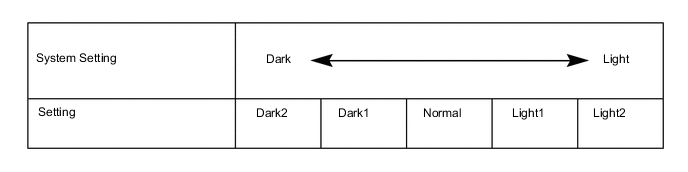
When the setting is closer to the "Light" side, the system turns the lights on even when the surrounding area is relatively bright. When the setting is closer to the "Dark" side, the system waits until the surrounding area is darker before turning on the lights.
*2
Tech Tips
When the setting is closer to the "Light" side, the system dims the indicator lights even when the surrounding area is relatively bright. When the setting is closer to the "Dark" side, the system waits until the surrounding area is darker before dimming the indicator lights.
*3
Tech Tips
When the setting is closer to the "Dark" side, the system cancels the dimming of the indicator lights even when the surrounding area is relatively dark. When the setting is closer to the "Light" side, the system waits until the surrounding area is brighter before canceling the dimming of the indicator lights.
-
Customizing with the Multi-display
-
Turn the ignition switch to ON.
-
Enter the following menus: MENU / Setup / Vehicle / Vehicle customization / Lights settings.
-
Select the setting by referring to the table below.
Vehicle settings Display Default Content Setting Light sensor sensitivity 0 Adjusts the sensitivity of the automatic light control system.*1 -2, -1, 0, +1 or +2 Headlamps auto-off timer 30s Keep the headlights on for a certain period of time after turning the ignition switch off and closing all doors with the low beam headlights on. Off, 30s, 60s or 90s Daytime running lights ON ON/OFF of the DRL function On or Off Exterior lights off timer 15s Changes the lighting time of the door mirror foot lights. Off, 7.5s, 15s or 30s Tech Tips
The sensitivity adjustment may be difficult to confirm. Check by driving the vehicle.
*1
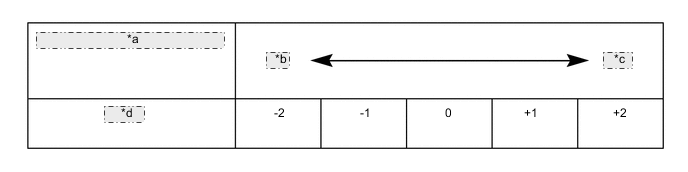
*a Sensitivity of the automatic light control system *b Dark *c Light *d Setting
-
-