REPAIR INSTRUCTION CUSTOMIZE PARAMETERS
-
CUSTOMIZE INTUITIVE PARKING ASSIST SYSTEM
-
Customizing with the Techstream
Note
-
When the customer requests a change in a function, first make sure that the function can be customized.
-
Be sure to make a note of the current settings before customizing.
-
When troubleshooting a function, first make sure that the function is set to the default setting.
-
Connect the Techstream to the DLC3.
-
Turn the power switch on (IG).
-
Turn the clearance sonar main switch on.
-
Turn the Techstream on.
-
Enter the following menus: Body Electrical / Utility / Customize / Sensor
-
Select the setting by referring to the table below.
Warning Display Default Content Setting Relevant ECU Rr Sensor Onset Range Wide Sets the buzzer activation range for the rear center sensors. Narrow or Wide
-
Narrow: 600 mm (23.6 in.)
-
Wide: 1000 mm (39.4 in.) (Pole)
-
Wide: 1500 mm (59.1 in.) (Wall)
Clearance warning ECU assembly Keep Sense Buzzer Avail Sounds the buzzer when the distance between the vehicle and obstacle does not change for more than 3 seconds. Not Avail or Avail
-
Not Avail: Not Available
-
Avail: Available
Clearance warning ECU assembly Fr & Rr Buzzer Volume H Changes the buzzer volume setting. L, M1, M2, M3 or H
-
L: Low volume
-
M1: Medium low volume
-
M2: Medium volume
-
M3: Medium high volume
-
H: High volume
Clearance warning ECU assembly Sensor Display Default Content Setting Relevant ECU Sensor Condition N Avail Makes the front sensors available when the shift lever is in N. Not Avail or Avail
-
Not Avail: Not Available
-
Avail: Available
Clearance warning ECU assembly Reverse Range Front Sensor F Changes the operation setting for the front sensors when the shift lever is in R. F or F Stop
-
F: Front sensors are available
-
F Stop: Front sensors are not available
Clearance warning ECU assembly Non P/R Range Rear Sensor R Stop Changes the operation setting for the rear sensors when the shift lever is in any position other than P or R. R, Rcrn or R Stop
-
R: All rear sensors are available
-
Rcrn: Rear corner sensors are available
-
R Stop: All rear sensors are not available
Clearance warning ECU assembly -
-
-
-
CUSTOMIZE POWER DOOR LOCK CONTROL SYSTEM
Tech Tips
The following items can be customized.
Note
-
When the customer requests a change in a function, first make sure that the function can be customized.
-
Be sure to make a note of the current settings before customizing.
-
When troubleshooting a function, first make sure that the function is set to the default setting.
-
Customizing with the Techstream
-
Connect the Techstream to the DLC3.
-
Turn the power switch on (IG).
-
Turn the Techstream on.
-
Enter the following menus: Customize Setting / Door Lock.
-
Select the setting by referring to the table below.
Display Default Content Setting Relevant ECU Unlock Key Twice ON Function that unlocks only the driver door when the driver door key cylinder is turned to unlock once, and unlocks all doors when it is turned to unlock twice. For the OFF setting, turning it once unlocks all doors. OFF or ON Main body ECU (Multiplex network body ECU) Automatic Door Lock Function*2 Link Shift
-
Link Shift: Function that locks all doors when the shift lever is moved out of P, with the power switch on (IG) and all doors closed.
-
Link Speed: Function that locks all doors when the vehicle speed reaches a certain level.
OFF, Link Shift or Link Speed Main body ECU (Multiplex network body ECU) Automatic Door Unlock Function*2 Link Shift
-
Link D-door: Function that unlocks the other doors when the driver door is opened within approximately 43 seconds of the power switch being turned off.
-
Link Shift: Function that unlocks all doors when the shift lever is moved to P from any position other than P with the power switch on (IG).
OFF, Link D-door or Link Shift Main body ECU (Multiplex network body ECU) Auto Lock*1 ON Function that locks all doors when the vehicle speed reaches a certain level. OFF or ON Main body ECU (Multiplex network body ECU) Auto Lock/Shift*1 OFF Function that locks all doors when the shift lever is moved out of P, with the power switch on (IG) and all doors closed. OFF or ON Main body ECU (Multiplex network body ECU) Auto Unlock/Shift*1 ON Function that unlocks all doors when the shift lever is moved to P from any position other than P with the power switch on (IG). OFF or ON Main body ECU (Multiplex network body ECU) All Unlock/Open-Close*1 OFF Function that unlocks the other doors when the driver door is opened within approximately 43 seconds after the power switch is turned off. OFF or ON Main body ECU (Multiplex network body ECU) Trunk Link with Door Lock ON Function that opens the luggage compartment door when the luggage electrical key switch is pressed and all doors are unlocked using the entry unlock function, wireless door unlock function, mechanical key or door control switch. OFF or ON Main body ECU (Multiplex network body ECU)
-
*1: w/ Side Turn Signal Light
-
*2: w/o Side Turn Signal Light
-
-
-
Customizing with the Multi-display
-
Turn the power switch on (IG).
-
Enter the following menus: APPS / Setup / Vehicle / Vehicle Customization / Door Lock Settings. (for Navigation Receiver Type)
-
Enter the following menus: SETUP / Vehicle / Vehicle Customization / Door Lock Settings. (for Radio and Display type)
-
Select the setting by referring to the table below.
Display Default Content Setting Relevant ECU Automatic Door Lock Function*2 By Shift From P
-
By Shift From P: Function that locks all doors when the shift lever is moved out of P, with the power switch on (IG) and all doors closed.
-
By Speed: Function that locks all doors when the vehicle speed reaches a certain level.
OFF, By Shift From P or By Speed Main body ECU (Multiplex network body ECU) Automatic Door Unlock Function*2 By Shift to P
-
By Driver Door: Function that unlocks the other doors when the driver door is opened within approximately 43 seconds of the power switch being turned off.
-
By Shift to P: Function that unlocks all doors when the shift lever is moved to P from any position other than P with the power switch on (IG).
OFF, By Driver Door or By Shift to P Main body ECU (Multiplex network body ECU) Auto Lock by Speed*1 On Function that locks all doors when the vehicle speed reaches a certain level. On or Off Main body ECU (Multiplex network body ECU) Auto Lock by Shift from P*1 Off Function that locks all doors when the shift lever is moved out of P, with the power switch on (IG) and all doors closed. On or Off Main body ECU (Multiplex network body ECU) Auto Unlock by Shift to P On Function that unlocks all doors when the shift lever is moved to P from any position other than P with the power switch on (IG). On or Off Main body ECU (Multiplex network body ECU) Auto Unlock by Driver Door Off Function that unlocks the other doors when the driver door is opened within approximately 43 seconds after the power switch is turned off. On or Off Main body ECU (Multiplex network body ECU)
-
*1: w/ Side Turn Signal Light
-
*2: w/o Side Turn Signal Light
-
-
-
-
CUSTOMIZE WIRELESS DOOR LOCK CONTROL SYSTEM
Tech Tips
The following items can be customized.
Note
-
When the customer requests a change in a function, first make sure that the function can be customized.
-
Be sure to make a note of the current settings before customizing.
-
When troubleshooting a function, first make sure that the function is set to the default setting.
-
Customizing with the Techstream
-
Connect the Techstream to the DLC3.
-
Turn the power switch on (IG).
-
Turn the Techstream on.
-
Enter the following menus: Customize Setting / Wireless Door Lock.
-
Select the setting by referring to the table below.
Display Default Content Setting Relevant ECU Wireless Control ON Function that turns wireless door lock OFF or ON Main body ECU (Multiplex network body ECU) Hazard Answer Back ON When the doors are locked by wireless operation, the hazard warning lights flash once.
When the doors are unlocked by wireless operation, the hazard warning lights flash twice.
OFF or ON Main body ECU (Multiplex network body ECU) Open Door Warning ON The buzzer sounds when lock is pressed when any of the doors are ajar. OFF or ON Main body ECU (Multiplex network body ECU) Unlock 2 Operation ON Function that unlocks driver door when unlock switch on electrical key transmitter sub-assembly is pressed once, and unlocks all doors when pressed twice. If setting is OFF, pressing unlock switch once makes all doors unlock. OFF or ON Main body ECU (Multiplex network body ECU) Panic Function ON Function to operate theft deterrent system by continuously pressing panic switch on electrical key transmitter sub-assembly for 0.8 seconds OFF or ON Main body ECU (Multiplex network body ECU) Trunk Lid Operation Long1 Function to change the operation method of opening the luggage compartment door by the electrical key transmitter sub-assembly.
1tim ON: Push the luggage open switch once
2tim ON: Push the luggage open switch twice
Long1: Push the luggage open switch for 0.8 seconds
Long2: Push the luggage open switch for 1.6 seconds
Prohibit: Wireless luggage compartment door open function is off
1tim ON, 2tim ON, Long1, Long2 or Prohibit Main body ECU (Multiplex network body ECU) Auto Lock Time 60 s*1
30 s*2
Function that regulates the interval between unlocking and automatic relocking of doors 30 s, 60 s or 120 s Main body ECU (Multiplex network body ECU) Wireless Auto Lock*1 ON This function turns the wireless auto lock function on or off. OFF or ON Main body ECU (Multiplex network body ECU) Wireless Buzzer Resp ON Wireless door lock buzzer response OFF or ON Main body ECU (Multiplex network body ECU) P/W Wireless Ope Buzz*1 ON Wireless power window buzzer response OFF or ON Main body ECU (Multiplex network body ECU) Wireless Buzzer Vol Level 5 Wireless door lock buzzer volume Level 7, Level 6, Level 5, Level 4, Level 3, Level 2, Level 1 or Level0 Main body ECU (Multiplex network body ECU)
-
*1: w/o Side Turn Signal Light
-
*2: w/ Side Turn Signal Light
-
-
-
Customizing with the Multi-display (w/ Navigation System)
-
Turn the power switch on (IG).
-
Enter the following menus: APPS / Setup / Vehicle / Vehicle Customization / Door Lock Settings.
-
Select the setting by referring to the table below.
Display Default Content Setting Relevant ECU Remote 2-Press Unlock On Function that unlocks driver door when unlock switch on electrical key transmitter sub-assembly is pressed once, and unlocks all doors when pressed twice. If setting is OFF, pressing unlock switch once makes all doors unlock. On or Off Main body ECU (Multiplex network body ECU) Auto Relock Timer* 60 s Function that regulates the interval between unlocking and automatic relocking of doors Off, 30 s, 60 s or 120 s Main body ECU (Multiplex network body ECU) Lock/Unlock Feedback-Lights On When the doors are locked by wireless operation, the hazard warning lights flash once.
When the doors are unlocked by wireless operation, the hazard warning lights flash twice.
On or Off Main body ECU (Multiplex network body ECU) Lock/Unlock Feedback-Tone 5 Wireless door lock buzzer volume Off, 1, 2, 3, 4, 5, 6 or 7 Main body ECU (Multiplex network body ECU)
-
*: w/o Side Turn Signal Light
-
-
-
Customizing with the Multi-display (w/ Audio and Visual System (w/o DVD Player))
-
Turn the power switch on (IG).
-
Enter the following menus: SETUP / Vehicle / Vehicle Customization / Door Lock Settings.
-
Select the setting by referring to the table below.
Display Default Content Setting Relevant ECU Remote 2-Press Unlock On Function that unlocks driver door when unlock switch on electrical key transmitter sub-assembly is pressed once, and unlocks all doors when pressed twice. If setting is OFF, pressing unlock switch once makes all doors unlock. On or Off Main body ECU (Multiplex network body ECU) Lock/Unlock Feedback-Tone 5 Wireless door lock buzzer volume Off, 1, 2, 3, 4, 5, 6 or 7 Main body ECU (Multiplex network body ECU)
-
-
Customizing with the Multi-display (w/ Audio and Visual System (w/ DVD Player))
-
Turn the power switch on (IG).
-
Enter the following menus: SETUP / Vehicle / Vehicle customization / Door lock settings.
-
Select the setting by referring to the table below.
Display Default Content Setting Relevant ECU Remote 2-press unlock On Function that unlocks driver door when unlock switch on electrical key transmitter sub-assembly is pressed once, and unlocks all doors when pressed twice. If setting is OFF, pressing unlock switch once makes all doors unlock. On or Off Main body ECU (Multiplex network body ECU) Lock feedback volume 5 Wireless door lock buzzer volume Off, 1, 2, 3, 4, 5, 6 or 7 Main body ECU (Multiplex network body ECU)
-
-
-
CUSTOMIZE SMART KEY SYSTEM (for Entry Function)
Tech Tips
The following items can be customized.
Note
-
When the customer requests a change in a function, first make sure that the function can be customized.
-
Record the current settings before customizing.
-
Customizing with the Techstream
-
Connect the Techstream to the DLC3.
-
Turn the power switch on (IG).
-
Turn the Techstream on.
-
Enter the following menus: Customize Setting / Wireless Door Lock, Smart Key/Access or Warning.
-
Select the setting by referring to the table below.
Wireless Door Lock Display Default Content Setting Relevant ECU Hazard Answer Back ON When the doors are locked by entry function, the hazard warning lights flash once.
When the doors are unlocked by entry function, the hazard warning lights flash twice.
OFF or ON Main body ECU (multiplex network body ECU) Open Door Warning ON The buzzer sounds when the lock sensor on the door outside handle assembly is touched to perform entry lock with a door open. OFF or ON Main body ECU (multiplex network body ECU) Auto Lock Time 30 s*1
60 s*2
Function that regulates the interval between unlocking and automatic relocking of doors. 30 s, 60 s or 120 s Main body ECU (multiplex network body ECU) Wireless Auto Lock*2 ON This function turns the auto lock function on or off. OFF or ON Main body ECU (multiplex network body ECU) Wireless Buzzer Resp ON Function that sounds the answer-back buzzer when an entry lock or unlock operation is performed. OFF or ON Main body ECU (multiplex network body ECU) Wireless Buzzer Vol Level 5 Buzzer answer back volume Level 7, Level 6, Level 5, Level 4, Level 3, Level 2, Level 1 or Level0 Main body ECU (multiplex network body ECU)
-
*1: w/ Side Turn Signal Light
-
*2: w/o Side Turn Signal Light
Smart Key/Access Display Default Content Setting Relevant ECU Park Wait Time (Waiting time to permit unlocking door after locking) 2.5s Function that sets the period of time (lock confirmation time) that the door is prevented from being unlocked by operating the front door outside handle assembly after an entry lock operation is performed. 0.5s, 1.5s, 2.5s or 5s Certification ECU (smart key ECU assembly) Ignition Available Area
(Entry ignition available area)
All Function that sets the area that the key must be in before the power switch can be operated. Front or All Certification ECU (smart key ECU assembly) Trunk Open Mode ON Function that opens the luggage compartment door when the driver has the electrical key transmitter sub-assembly and presses the luggage door opening switch assembly. OFF or ON Certification ECU (smart key ECU assembly) Door Unlock Mode2 Driver Function that chooses the doors to be operated by entry unlock operation. All or Driver Certification ECU (smart key ECU assembly) Auto Entry Cancel SW* OFF Function that enables or disables the smart key system. OFF or ON Certification ECU (smart key ECU assembly) Touch Activation Over Threshold Active The function that limits the consecutive entry lock operation to only 2 times can be changed between Active and Not Active. When in Not Active mode, there is no limit for the number of times that the consecutive entry lock operation can be performed. Active or Not Active Certification ECU (smart key ECU assembly) Engine Start Indicator ON Function that turns the smart warning light on the combination meter assembly on or off. OFF or ON Certification ECU (smart key ECU assembly)
-
*: w/ Side Turn Signal Light
Warning Display Default Content Setting Relevant ECU Key Low Battery Warning (Warn when key battery becomes weak) ON Enables or disables the sounding of the buzzer when the transmitter battery is low and the power switch is turned off after being on (IG) for 20 minutes or more. OFF or ON Certification ECU (smart key ECU assembly) -
-
-
Customizing with the multi-display (for w/o DVD Player or for Navigation System)
-
Turn the power switch on (IG).
-
Enter the following menus: SETUP / Vehicle / Vehicle Customization / Door Lock Settings. (for w/o DVD Player)
-
Enter the following menus: APPS / Setup / Vehicle / Vehicle Customization / Door Lock Settings. (for Navigation System)
-
Select the setting by referring to the table below.
Display Default Content Setting Relevant ECU Select Doors to Unlock Driver's Door Function that sets which doors are unlocked by the entry unlock function. All Doors or Driver's Door Certification ECU (smart key ECU assembly)
-
-
Customizing with the multi-display (for Audio and Visual System (w/ DVD Player))
-
Turn the power switch on (IG).
-
Enter the following menus: SETUP / Vehicle / Vehicle customization / Door lock settings.
-
Select the setting by referring to the table below.
Display Default Content Setting Relevant ECU Select doors to unlock Driver's door Function that sets which doors are unlocked by the entry unlock function. All doors or Driver's door Certification ECU (smart key ECU assembly) Entry and start system On Function that enables or disables the smart key system. On or Off Certification ECU (smart key ECU assembly)
-
-
Entry unlock mode switching function (manual operation)
-
The following entry unlock modes can be selected when using the entry unlock mode switching function.
-
All door unlock mode: When the sensor of a front door outside handle assembly is touched, an entry unlock operation is performed simultaneously for all doors.
-
Driver door unlock mode: When the sensor of the driver side door outside handle assembly is touched, an entry unlock operation is performed for the driver door only. If any other door handle is touched, an entry unlock operation is performed simultaneously for all doors.
-
-
When customizing through manual operation:
-
Turn the power switch off.
-
Check that the LED of the electrical key transmitter sub-assembly is not illuminated, and then press and hold the lock and unlock buttons of the electrical key transmitter sub-assembly for 5 seconds or more while the electrical key transmitter sub-assembly is in the actuation area.
-
Check the current setting.
Tech Tips
-
The mode changes from all door unlock mode to driver door unlock mode and then back to all door unlock mode.
-
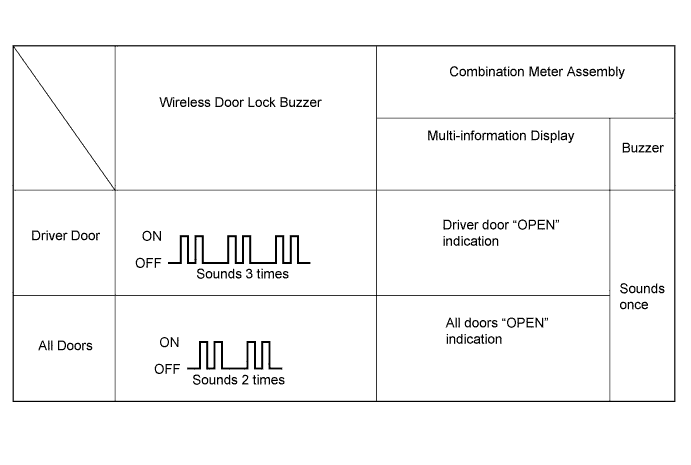
The answer-back (wireless buzzer, buzzer in the combination meter assembly) operation for each mode is indicated in the table below.
Currently Selected Mode Answer-back (Wireless Buzzer) Answer-back (Buzzer in Combination Meter Assembly) All door unlock mode Buzzer sounds twice (short beeps) Buzzer sounds once Driver door unlock mode Buzzer sounds 3 times (short beeps) Buzzer sounds once
-
-
Release the lock and unlock buttons of the electrical key transmitter sub-assembly.
-
Check that the LED of the electrical key transmitter sub-assembly is not illuminated, and then press and hold the lock and unlock buttons of the electrical key transmitter sub-assembly for 5 seconds or more to change the mode.
Tech Tips
Repeat the procedure as necessary to select the desired mode.
-
Unlock the doors with the wireless operation, and then open any door
-
-
-
Entry cancel function (manual operation)
Tech Tips
While the smart key system is canceled, it is possible to lock and unlock the doors with the wireless operation, and the start system can be operated by holding the electrical key transmitter sub-assembly near the power switch.
-
The following functions are disabled when the smart key system is canceled.
-
Entry unlock/lock functions
-
Entry luggage compartment door open function
-
Push start function
-
Key lock-in prevention function
-
Entry warning functions
-
-
When canceling the system through manual operation:
-
Make sure the following conditions are met:
-
The power switch is off.
-
The driver door is closed.
-
The driver door is unlocked.
-
Press the unlock button of the electrical key transmitter sub-assembly.
-
Open the driver door within 5 seconds of completing the step above (driver door: close condition → opened).
-
With the driver door open, press the unlock button of the electrical key transmitter sub-assembly 2 times within 5 seconds of completing the step above.
Note
If the driver door is closed before or while pressing the unlock button, the entry cancel setting mode will end.
-
Close and open the driver door twice completing the above step (driver door: open condition → closed → opened → closed → opened).
-
With the driver door open, press the unlock button of the electrical key transmitter sub-assembly 2 times completing the step above.
Note
If the driver door is closed before or while pressing the unlock button, the entry cancel setting mode will end.
-
Close and open the driver door completing the step above (driver door: open condition → closed → opened).
-
Close the driver door within 5 seconds of completing the above step.
-
Check that the wireless buzzer sounds twice (short beeps) to confirm that the smart key system has been canceled.
Tech Tips
Finish the step 5 to 7 within 30 seconds.
-
-
Perform the following procedure to restore the smart key system to the active state from the canceled state.
-
Perform the procedures to cancel the smart key system again.
-
Check that the wireless buzzer sounds once (short beep) to confirm that the smart key system has been restored to the active state.
Tech Tips
-
The system changes between the canceled state and the active state each time the procedure to cancel the system through manual operation is performed.
-
The buzzer sounds twice when the system changes from the active state to the canceled state, and sounds once when the system changes from the canceled state to the active state.
-
-
-
-
-
CUSTOMIZE SMART KEY SYSTEM (for Start Function)
Tech Tips
The following items can be customized.
Note
-
When the customer requests a change in a function, first make sure that the function can be customized.
-
Record the current settings before customizing.
-
Customizing with the Techstream
-
Connect the Techstream to the DLC3.
-
Turn the power switch on (IG).
-
Turn the Techstream on.
-
Enter the following menus: Customize Setting / Smart Key/Access or Warning.
-
Select the setting by referring to the table below.
Smart Key/Access Display Default Content Setting Relevant ECU Ignition Available Area
(Entry ignition available area)
All Function that sets the area that the key must be in before the power switch can be operated. Front or All Certification ECU (smart key ECU assembly) Auto Entry Cancel SW* OFF Function that enables or disables the smart key system. OFF or ON Certification ECU (smart key ECU assembly) Engine Start Indicator ON Function that turns the smart warning light on the combination meter assembly on or off. OFF or ON Certification ECU (smart key ECU assembly)
-
*: w/ Side Turn Signal Light
Warning Display Default Content Setting Relevant ECU Key Low Battery Warning (Warn when key battery becomes weak) ON Enables or disables the sounding of the buzzer when the transmitter battery is low and the power switch is turned off after being on (IG) for 20 minutes or more. OFF or ON Certification ECU (smart key ECU assembly) -
-
-
Customizing with the multi-display (for Audio and Visual System (w/ DVD Player))
-
Turn the power switch on (IG).
-
Enter the following menus: SETUP / Vehicle / Vehicle customization / Door lock settings.
-
Select the setting by referring to the table below.
Display Default Content Setting Relevant ECU Entry and start system On Function that enables or disables the smart key system. On or Off Certification ECU (smart key ECU assembly)
-
-
Entry cancel function (manual operation)
Tech Tips
While the smart key system is canceled, it is possible to lock and unlock the doors with the wireless operation, and the start system can be operated by holding the electrical key transmitter sub-assembly near the power switch.
-
The following functions are disabled when the smart key system is canceled.
-
Entry unlock/lock functions
-
Entry luggage compartment door open function
-
Push-button start function
-
Key lock-in prevention function
-
Entry warning functions
-
-
When canceling the system through manual operation:
-
Make sure the following conditions are met:
-
The power switch is off.
-
The driver door is closed.
-
The driver door is unlocked.
-
Press the unlock button of the electrical key transmitter sub-assembly.
-
Open the driver door within 5 seconds of completing the step above (driver door: close condition → opened).
-
With the driver door open, press the unlock button of the electrical key transmitter sub-assembly 2 times within 5 seconds of completing the step above.
Note
If the driver door is closed before or while pressing the unlock button, the entry cancel setting mode will end.
-
Close and open the driver door twice completing the above step (driver door: open condition → closed → opened → closed → opened).
-
With the driver door open, press the unlock button of the electrical key transmitter sub-assembly 2 times completing the step above.
Note
If the driver door is closed before or while pressing the unlock button, the entry cancel setting mode will end.
-
Close and open the driver door completing the step above (driver door: open condition → closed → opened).
-
Close the driver door within 5 seconds of completing the above step.
-
Check that the wireless buzzer sounds twice (short beeps) to confirm that the smart key system has been canceled.
Tech Tips
Finish the step 5 to 7 within 30 seconds.
-
-
Perform the following procedure to restore the smart key system to the active state from the canceled state.
-
Perform the procedures to cancel the smart key system again.
-
Check that the wireless buzzer sounds once (short beep) to confirm that the smart key system has been restored to the active state.
Tech Tips
-
The system changes between the canceled state and the active state each time the procedure to cancel the system through manual operation is performed.
-
The buzzer sounds twice when the system changes from the active state to the canceled state, and sounds once when the system changes from the canceled state to the active state.
-
-
-
-
-
CUSTOMIZE THEFT DETERRENT SYSTEM
Tech Tips
The following items can be customized.
Note
-
When the customer requests a change in a function, first make sure that the function can be customized.
-
Be sure to make a note of the current settings before customizing.
-
When troubleshooting a function, first make sure that the function is set to the default setting.
-
Customizing with the Techstream
-
Connect the Techstream to the DLC3.
-
Turn the power switch on (IG).
-
Turn the Techstream on.
-
Enter the following menus: Customize Setting / Security.
-
Select the setting by referring to the table below.
Security Display Default Content Setting Relevant ECU Panic Function ON This function operates the theft deterrent system when the panic switch is pressed and held for 0.8 seconds. ON or OFF Main Body ECU (Multiplex Network Body ECU) Security control with mechanism key* OFF This function makes it possible to cancel the security alarm with the mechanical key. ON or OFF
-
*: w/o Daytime Running Light Control
-
-
-
-
CUSTOMIZE LIGHTING SYSTEM (INT)
-
Customizing using the Techstream
Tech Tips
The following items can be customized.
Note
-
When the customer requests a change in a function, first make sure that the function can be customized.
-
Be sure to make a note of the current settings before customizing.
-
When troubleshooting a function, first make sure that the function is set to the default setting.
-
Connect the Techstream to the DLC3.
-
Turn the power switch on (IG).
-
Turn the Techstream on.
-
Enter the following menus: Customize Setting / Illuminated Entry.
-
Select the setting by referring to the table below.
Illuminated Entry Tester Display Default Content Setting Relevant ECU Lighting Time 15 s Changes the lighting time after closing all of the doors. (It will fade out immediately in case of turning the power switch from off to on (ACC) or on (IG).) 7.5 s, 15 s or 30 s Main body ECU (Multiplex network body ECU) I/L when ACC OFF ON Lights up the power switch illumination, personal light*1 and rear interior light when the power switch is turned from on (ACC) or on (IG) to off. ON or OFF I/L ON W/Door Key Unlock ON Lights up the power switch illumination, personal light*1 and rear interior light when doors are unlocked using a mechanical key or door control transmitter. ON or OFF Room Light when Aprchd ON Lights up the power switch illumination, personal light*1 and rear interior light when a key enters any actuation area around the doors. ON or OFF Interior Light Control ON Lights up the power switch illumination, personal light*1 and rear interior light when the illuminated entry function is operating. ON or OFF
-
*1: w/ Sliding Roof
-
-
-
Customizing using the multi-display (w/ Navigation System or w/ Audio and Visual System (w/o DVD Player))
-
Turn the power switch on (IG).
-
Enter the following menus: APPS / Setup / Vehicle / Vehicle Customization / Lights Settings. (w/ Navigation System)
-
Enter the following menus: SETUP / Vehicle / Vehicle Customization / Lights Settings. (w/ Audio and Visual System (w/o DVD Player))
-
Select the setting by referring to the table below:
Lights Settings Display Default Content Setting Relevant ECU Interior Lights Off Timer 15 sec. Changes the lighting time after closing all of the doors. (It will fade out immediately in case of turning the power switch from off to on (ACC) or on (IG).) Off, 7.5 sec., 15 sec., or 30 sec. Main body ECU (Multiplex network body ECU)
-
-
Customizing using the multi-display (w/ Audio and Visual System (w/ DVD Player))
-
Turn the power switch on (IG).
-
Enter the following menus: SETUP / Vehicle / Vehicle customization / Lights settings.
-
Select the setting by referring to the table below:
Lights settings Display Default Content Setting Relevant ECU Interior lights off timer 15 sec. Changes the lighting time after closing all of the doors. (It will fade out immediately in case of turning the power switch from off to on (ACC) or on (IG).) Off, 7.5 sec., 15 sec., or 30 sec. Main body ECU (Multiplex network body ECU)
-
-
-
CUSTOMIZE METER / GAUGE SYSTEM
-
Customizing with the Techstream
-
Connect the Techstream to the DLC3.
-
Turn the power switch on (IG).
-
Turn the Techstream on.
-
Enter the following menus: Customize Setting / Warning or Display.
-
Select the setting by referring to the table below.
Note
-
Record the current settings before customizing.
Warning Tester Display Default Content Setting Relevant ECU Key Remind Sound Slow Function to change the frequency of the key reminder warning buzzer Fast, Normal, Slow Combination meter assembly Lane Change Flashing Times Setting 3 Function to change the lane change flashing times OFF, 3, 4, 5, 6, 7 Combination meter assembly Display Tester Display Default Content Setting Relevant ECU ODO Display Time After IG OFF Setting 30s Function to change the odometer display time after the power switch is turned off OFF, 30s, 60s, 600s Combination meter assembly -
-
-
-
CUSTOMIZE SEAT BELT WARNING SYSTEM
Tech Tips
The following items can be customized.
Note
-
When the customer requests a change in a function, first make sure that the function can be customized.
-
Be sure to make a note of the current settings before customizing.
-
When troubleshooting a function, first make sure that the function is set to the default setting.
-
These buzzers should be ON for safe driving. Perform this procedure only if it is necessary to set the buzzer to OFF (disabled).
-
Customizing with the Techstream
-
Connect the Techstream to the DLC3.
-
Turn the power switch on (IG).
-
Turn the Techstream on.
-
Enter the following menus: Customize Setting / Warning.
-
Select the setting by referring to the table below.
Warning Display Default Content Setting Relevant ECU Driver Side Seatbelt Warning Buzzer ON Function to sound the driver seat belt warning buzzer ON/OFF Combination meter assembly Front Passenger Side Seatbelt Warning Buzzer ON Function to sound the front passenger seat belt warning buzzer ON/OFF Tech Tips
This setting is only valid when the vehicle is driven at 20 km/h (12 mph) or more.
-
-
-
CUSTOMIZE AIR CONDITIONING SYSTEM
-
Customizing with the Techstream
Note
-
When the customer requests a change in a function, first make sure that the function can be customized.
-
Be sure to make a note of the current settings before customizing.
-
When troubleshooting a function, first make sure that the function is set to the default setting.
Tech Tips
The following items can be customized.
-
Connect the Techstream.
-
Turn the power switch on (IG).
-
Turn the Techstream on.
-
Enter the following menus: Customize Setting / Air Conditioner.
-
Select the setting by referring to the table below.
Air Conditioner Tester Display Default Content Setting Relevant ECU Set Temperature Shift Normal Function to perform control with the shifted temperature versus the displayed temperature -2C, -1C, Normal, +1C, +2C Air Conditioning Amplifier Assembly Compressor Mode Automatic Function to turn the A/C ON automatically by pressing the AUTO button when the blower is ON and the A/C is OFF Automatic or Manual Air Conditioning Amplifier Assembly Air Inlet Mode* Automatic In case of turning the A/C ON to cool the cabin down quickly, this is the function to change the mode automatically to RECIRCULATION mode Automatic or Manual Air Conditioning Amplifier Assembly Foot/DEF Auto Mode ON Function to turn the airflow from FOOT/DEF ON automatically when AUTO MODE is ON ON or OFF Air Conditioning Amplifier Assembly Foot/DEF Automatic Blow Up Function ON Function to increase the blower level automatically when the defroster is ON ON or OFF Air Conditioning Amplifier Assembly Ambient Temperature Shift Normal Function to display shifted ambient temperature versus actual ambient temperature -3C, -2C, -1C, Normal, +1C, +2C, +3C Air Conditioning Amplifier Assembly ECO MODE Cancel OFF Function to cancel the ECO mode drive when item is on. OFF or ON Air Conditioning Amplifier Assembly Noise and Vibration Reduction OFF Function to change speed of the compressor when item is on. OFF or ON Air Conditioning Amplifier Assembly Refrigerant Shortage Check ON Function to cancel the refrigerant shortage check (check performed during normal operation) when item is OFF. ON or OFF Air Conditioning Amplifier Assembly Fan speed increment control Normal Function to define how fast the AC blower goes to target speed when first activating the AC. Slow, Normal, Fast Air Conditioning Amplifier Assembly Outside Air Mode Auto Switch Function ON Function to automatically change the air inlet to FRESH mode when the vehicle is parked ON or OFF Air Conditioning Amplifier Assembly
-
*: w/ Side Turn Signal Light
-
-
-
Customizing using the Multi-display (w/ Navigation System or w/ Audio and Visual System (w/o DVD Player))
-
Turn the power switch on (IG).
-
Enter the following menus: APPS / Setup / Vehicle / Vehicle Customization / Climate Settings. (w/ Navigation System)
-
Enter the following menus: SETUP / Vehicle / Vehicle Customization / Climate Settings. (w/ Audio and Visual System (w/o DVD Player))
-
Select the setting by referring to the table below.
Display Default Content Setting Relevant ECU Auto A/C Mode On Function to turn the A/C ON automatically by pressing the AUTO button when the blower is ON and the A/C is OFF On or Off Air Conditioning Amplifier Assembly
-
-
Customizing using the Multi-display (w/ Audio and Visual System (w/ DVD Player))
-
Turn the power switch on (IG).
-
Enter the following menus: SETUP / Vehicle / Vehicle customization / Climate settings.
-
Select the setting by referring to the table below.
Display Default Content Setting Relevant ECU Auto A/C mode On Function to turn the A/C ON automatically by pressing the AUTO button when the blower is ON and the A/C is OFF On or Off Air Conditioning Amplifier Assembly Efficient ventilation mode On In case of turning the A/C ON to cool the cabin down quickly, this is the function to change the mode automatically to RECIRCULATION mode On or Off Air Conditioning Amplifier Assembly
-
-
-
CUSTOMIZE POWER WINDOW CONTROL SYSTEM
Note
-
When the customer requests a change in a function, first make sure that the function can be customized.
-
Be sure to make notes of the current settings before customizing.
-
When troubleshooting a function, first make sure that the function is set to the default setting.
Tech Tips
The following items can be customized.
-
Customizing with the Techstream
-
Connect the Techstream to the DLC3.
-
Turn the power switch on (IG).
-
Turn the Techstream on.
-
Enter the following menus: Customize Setting / Power Window.
-
Select the setting by referring to the table below.
Display Default Content Setting Relevant ECU Door Key P/W Up OFF This function is used to close the front door power windows and moon roof (if equipped) by operating the mechanical key. OFF/ON Main body ECU (Multiplex network body ECU) Door Key P/W Down OFF This function is used to open the front door power windows and moon roof (if equipped) by operating the mechanical key. OFF/ON Main body ECU (Multiplex network body ECU) P/W Down W/ Transmit* OFF This function is used to open the front door power windows and moon roof (if equipped) using the wireless key transmitter. OFF/ON Main body ECU (Multiplex network body ECU) D Window Auto Up ON This function is used to enable or disable the auto up function for the driver door window using the power window regulator master switch assembly. OFF/ON Power window regulator motor assembly (for driver door) D Window Auto Down ON This function is used to enable or disable the auto down function for the driver door window using the power window regulator master switch assembly. OFF/ON Power window regulator motor assembly (for driver door) P Window Auto Up ON This function is used to enable or disable the auto up function for the front passenger door window using the power window regulator switch assembly. OFF/ON Power window regulator motor assembly (for front passenger door) P Window Auto Up From Driver ON This function is used to enable or disable the remote auto up function for the front passenger door window using the power window regulator master switch assembly. OFF/ON Power window regulator motor assembly (for front passenger door) P Window Auto Down ON This function is used to enable or disable the auto down function for the front passenger door window using the power window regulator switch assembly. OFF/ON Power window regulator motor assembly (for front passenger door) P Window Auto Down From Driver ON This function is used to enable or disable the remote auto down function for the front passenger door window using the power window regulator master switch assembly. OFF/ON Power window regulator motor assembly (for front passenger door)
-
*: w/ Side Turn Signal Light
-
-
Enter the following menus: Customize Setting / Wireless Door Lock.
-
Select the setting by referring to the table below.
Display Default Content Setting Relevant ECU P/W Wireless Ope Buzz* ON This function turns the wireless power window buzzer response on or off. OFF/ON Main body ECU (Multiplex network body ECU)
-
*: w/ Side Turn Signal Light
-
-
-
-
CUSTOMIZE SLIDING ROOF SYSTEM
Tech Tips
The following items can be customized.
Note
-
When the customer requests a change in a function, first make sure that the function(s) can be customized.
-
Be sure to make notes of the current settings before customizing.
-
When troubleshooting a function, first make sure that the function is set to the default setting.
-
Customizing with the Techstream
-
Connect the Techstream to the DLC3.
-
Turn the power switch to on (IG).
-
Turn the Techstream on.
-
Enter the following menus: Customize Setting / Power Window.
-
Select the setting by referring to the table below.
Display Default Content Setting Relevant ECU Door Key P/W Up OFF This function is used to close the front door window and sliding roof by operating the mechanical key. OFF/ON Main body ECU (Multiplex network body ECU) Door Key P/W Down OFF This function is used to open the front door window and sliding roof by operating the mechanical key. OFF/ON Main body ECU (Multiplex network body ECU) P/W Down W/ Transmit*1 OFF This function is used to open the front door window and sliding roof using the wireless key transmitter. OFF/ON Main body ECU (Multiplex network body ECU)
-
*1: w/o Side Turn Signal Light
-
-
Enter the following menus: Customize Setting / Slide Roof.
-
Select the setting by referring to the table below.
Display Default Content Setting Relevant ECU Door Key Related Operation Slide Function to select tilt up or slide open of sliding roof key-linked function. Slide/Tilt Sliding roof ECU (Sliding roof drive gear sub-assembly) Wireless Key Related Operation*1 Slide Function to select tilt up or slide open of sliding roof wireless transmitter-linked function. Slide/Tilt Sliding roof ECU (Sliding roof drive gear sub-assembly) Front SW Auto Operation ON This function is used to enable or disable the auto operation. OFF/ON Sliding roof ECU (Sliding roof drive gear sub-assembly)
-
*1: w/o Side Turn Signal Light
-
-
Enter the following menus: Customize Setting / Security.
-
Select the setting by referring to the table below.
Display Default Content Setting Relevant ECU Slide Roof Open Warning ON This function is used to enable or disable the sliding roof open warning. OFF/ON Main body ECU (Multiplex network body ECU)
-
-
-
CUSTOMIZE LIGHTING SYSTEM (EXT)
Tech Tips
The following items can be customized.
Note
-
When the customer requests a change in a function, first make sure that the function can be customized.
-
Be sure to make a note of the current settings before customizing.
-
When troubleshooting a function, first make sure that the function is set to the default setting.
-
Customizing with the Techstream
-
Connect the Techstream to the DLC3.
-
Turn the power switch on (IG).
-
Turn the Techstream on.
-
Enter the following menus: Body Electrical / Main Body / Utility / Customize / Light Control.
-
Select the setting by referring to the table below.
Light Control Display Default Content Setting Relevant ECU Disp Ex ON Sen NORMAL Changes the ambient brightness level required to dim the lights such as the indicator lights of the combination meter, A/C indicator light and clock.*A LIGHT2, LIGHT1, NORMAL, DARK1 or DARK2 Main Body ECU (Multiplex Network Body ECU) Disp Ex OFF Sen NORMAL Changes the ambient brightness level required to cancel the dimming of the lights such as the indicator lights of the combination meter, A/C indicator light and clock.*B LIGHT2, LIGHT1, NORMAL, DARK1 or DARK2 Light Auto OFF Delay*3 30 s Keeps the headlights on for a certain period of time after turning the power switch off and closing all doors with the low beam headlights on. OFF, 30 s, 60 s or 90 s Response Time*1 Normal Changes the delay timing of lighting the taillights when going into a tunnel when the light control switch is in the AUTO position. Normal or Long Sensitivity Normal Adjusts the sensitivity of the automatic light control system.*C Light2, Light1, Normal, Dark1 or Dark2 DRL Function*2 ON ON/OFF of the DRL function ON or OFF
-
*1: w/ Side Turn Signal Light
-
*2: Headlight dimmer switch with DRL OFF function.
-
*3: w/o Side Turn Signal Light
Tech Tips
The sensitivity adjustment may be difficult to confirm. Check by driving the customer's vehicle.
*A Brightness level required to dim the lights 
Setting DARK2 DARK1 NORMAL LIGHT1 LIGHT2 *B Brightness level required to cancel the dimming of the lights Setting DARK2 DARK1 NORMAL LIGHT1 LIGHT2 *C Sensitivity of the automatic light control system Setting Dark2 Dark1 Normal Light1 Light2 -
-
-
Customizing with the multi-display (w/ Navigation System or w/ Audio and Visual System (w/o DVD Player))
-
Turn the power switch on (IG).
-
Enter the following menus: APPS / Setup / Vehicle / Vehicle Customization / Light Settings. (w/ Navigation System)
-
Enter the following menus: SETUP / Vehicle / Vehicle Customization / Light Settings. (w/ Audio and Visual System (w/o DVD Player))
-
Select the setting by referring to the table below.
Light Settings Display Default Content Setting Relevant ECU Headlamps-On Sensitivity 0 Adjusts the sensitivity of the automatic light control system.*A -2, -1, 0, +1 or +2 Main Body ECU (Multiplex Network Body ECU) Headlamps Auto-Off Timer 30 sec. Keeps the headlights on for a certain period of time after turning the power switch off and closing all doors with the low beam headlights on. Off, 30 sec., 60 sec. or 90 sec. Daytime Running Lights* On ON/OFF of the DRL function On or Off
-
*: Headlight dimmer switch with DRL OFF function.
Tech Tips
The sensitivity adjustment may be difficult to confirm. Check by driving the customer's vehicle.
*A Sensitivity of the automatic light control system Setting -2 -1 0 +1 +2 -
-
-
Customizing with the multi-display (w/ Audio and Visual System (w/ DVD Player))
-
Turn the power switch on (IG).
-
Enter the following menus: SETUP / Vehicle / Vehicle customization / Light settings.
-
Select the setting by referring to the table below.
Light settings Display Default Content Setting Relevant ECU Light sensor sensitivity 0 Adjusts the sensitivity of the automatic light control system.*A -2, -1, 0, +1 or +2 Main Body ECU (Multiplex Network Body ECU) Daytime Running Lights On ON/OFF of the DRL function On or Off Tech Tips
The sensitivity adjustment may be difficult to confirm. Check by driving the customer's vehicle.
*A Sensitivity of the automatic light control system Setting -2 -1 0 +1 +2
-
-
-
CUSTOMIZE AUTOMATIC HIGH BEAM SYSTEM
Tech Tips
The following item can be customized.
Note
-
When the customer requests a change in a function, first make sure that the function can be customized.
-
Be sure to make a note of the current settings before customizing.
-
When troubleshooting a function, first make sure that the function is set to the default setting.
-
Customizing with the Techstream
-
Connect the Techstream to the DLC3.
-
Turn the power switch on (IG).
-
Turn the Techstream on.
-
Enter the following menus: Customize Setting / Light Control.
-
Select the setting by referring to the table below.
Light Control Display Default Content Setting Relevant ECU Automatic High Beam On Enabling (On) or disabling (Off) of the automatic high beam function On or Off Main Body ECU (Multiplex Network Body ECU)
-
-
-
CUSTOMIZE VEHICLE PROXIMITY NOTIFICATION SYSTEM (w/ Customization Function)
Note
-
When the customer requests a change in a function, first make sure that the function can be customized.
-
Be sure to make a note of the current settings before customizing.
-
When troubleshooting a function, first make sure that the function is set to the default setting.
Tech Tips
The following items can be customized.
-
Customizing with the Techstream
-
Connect the Techstream to the DLC3.
-
Turn the power switch on (IG).
-
Turn the Techstream on.
-
Enter the following menus: Body Electrical / Vehicle Proximity Notification System / Utility / Customize Setting / Others.
-
Select the setting by referring to the table below.
Vehicle Proximity Notification System Display Default Content Setting Relevant ECU Proximity Sound Volume Adjustment Standard Function that sets the warning sound volume in 3 levels Standard, Standard +1, Standard +2 Vehicle Approaching Speaker Controller Proximity Sound Level Increase (Vehicle Starting) ON Function that amplifies the warning sound when the vehicle starts off ON or OFF Vehicle Approaching Speaker Controller Proximity Sound Control (Vehicle Stationary) OFF Function that sets the warning sound when the vehicle is stopped ON or OFF Vehicle Approaching Speaker Controller
-
-