NAVIGATION SYSTEM USB Audio System Recognition/Play Error
DESCRIPTION
When a USB device or "iPod" is connected to the USB jack of the No. 1 stereo jack adapter assembly, it must have playable files. The device must also communicate with and be recognized by the navigation ECU. This diagnosis procedure is for when a device is not recognized, or files from the device cannot be played normally.
WIRING DIAGRAM
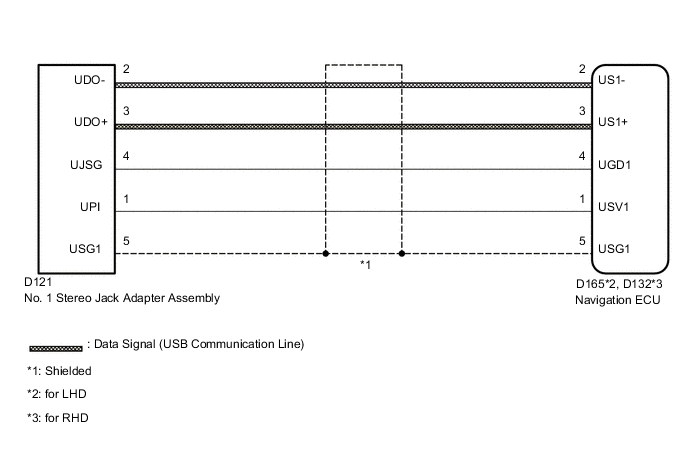
CAUTION / NOTICE / HINT
Tech Tips
-
When a large amount of data is in a USB device, it may take a while to before play begins.
-
When using a USB device, files that are copy protected or encrypted cannot be played.
-
When files are not played in the sorted order, perform the following procedure before inspection.
-
Add numbers in front of the file names.
-
Put the files in a folder and copy the folder data to the USB device.
Note
Check that the wire harness is properly installed and does not have any sharp bends, pinching or loose connections Click here.
PROCEDURE
-
CHECK USB DEVICE OR "iPod"
-
Disconnect the USB device or "iPod" from the No. 1 stereo jack adapter assembly.
-
Check if playable files are present on the USB device or "iPod".
Tech Tips
Refer to System Description for playable files Click here.
-
Check if the USB device is a compatible format or "iPod" is a compatible version.
Tech Tips
Refer to System Description for compatible formats and versions Click here.
Result Result Proceed to No playable files exist, or incompatible device format or version A Playable files exist, and compatible device format or version B
A 
USB DEVICE FORMAT WAS INCOMPATIBLE, "iPod" VERSION WAS INCOMPATIBLE, OR NO PLAYABLE FILES PRESENT
B 
-
-
CHECK HARNESS AND CONNECTOR (NAVIGATION ECU - NO. 1 STEREO JACK ADAPTER ASSEMBLY)
-
Disconnect the D165*1 or D132*2 navigation ECU connector.
-
*1: for LHD
-
*2: for RHD
-
-
Disconnect the D121 No. 1 stereo jack adapter assembly connector.
-
Measure the resistance according to the value(s) in the table below.
Standard Resistance for LHD Tester Connection Condition Specified Condition D165-1 (USV1) - D121-1 (UPI) Always Below 1 Ω D165-2 (US1-) - D121-2 (UDO-) Always Below 1 Ω D165-3 (US1+) - D121-3 (UDO+) Always Below 1 Ω D165-4 (UGD1) - D121-4 (UJSG) Always Below 1 Ω D165-5 (USG1) - D121-5 (USG1) Always Below 1 Ω D165-1 (USV1) - Body ground Always 10 kΩ or higher D165-2 (US1-) - Body ground Always 10 kΩ or higher D165-3 (US1+) - Body ground Always 10 kΩ or higher D165-4 (UGD1) - Body ground Always 10 kΩ or higher D165-5 (USG1) - Body ground Always 10 kΩ or higher for RHD Tester Connection Condition Specified Condition D132-1 (USV1) - D121-1 (UPI) Always Below 1 Ω D132-2 (US1-) - D121-2 (UDO-) Always Below 1 Ω D132-3 (US1+) - D121-3 (UDO+) Always Below 1 Ω D132-4 (UGD1) - D121-4 (UJSG) Always Below 1 Ω D132-5 (USG1) - D121-5 (USG1) Always Below 1 Ω D132-1 (USV1) - Body ground Always 10 kΩ or higher D132-2 (US1-) - Body ground Always 10 kΩ or higher D132-3 (US1+) - Body ground Always 10 kΩ or higher D132-4 (UGD1) - Body ground Always 10 kΩ or higher D132-5 (USG1) - Body ground Always 10 kΩ or higher
NG
REPAIR OR REPLACE HARNESS OR CONNECTOR
OK
-
-
CHECK NAVIGATION ECU
-
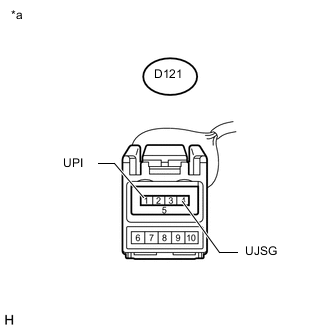
Text in Illustration *a Front view of wire harness connector
(to No. 1 Stereo Jack Adapter Assembly)
Reconnect the D165*1 or D132*2 navigation ECU connector.
-
*1: for LHD
-
*2: for RHD
-
-
Disconnect the No. 1 stereo jack adapter assembly connector.
-
Measure the voltage according to the value(s) in the table below.
Standard Voltage Tester Connection Switch Condition Specified Condition D121-1 (UPI) - D121-4 (UJSG) Ignition switch ACC 4.5 to 5.5 V
NG
REPLACE NAVIGATION ECU Click here
OK
-
-
FORMAT USB DEVICE OR RESTORE "iPod" AND RECHECK
-
Delete all files in the USB device or "iPod" and format/ restore it.
Note
Formatting a USB device or restoring an "iPod" erases all music on the device. Make sure that back up music data is available before performing this operation.
-
Save the data again and check if it can be played on the in-vehicle device.
OK Malfunction disappears.
OK
END (USB OR "iPod" IS DEFECTIVE)
NG
-
-
REPLACE USB DEVICE OR "iPod"
-
Turn the ignition switch off.
-
Turn the ignition switch to ACC.
-
Connect a known good USB device or "iPod" to the No. 1 stereo jack adapter assembly.
Tech Tips
-
If the malfunction occurred when a USB device was in use, use another USB device for the inspection. If the malfunction occurred when an "iPod" was in use, use another "iPod" for the inspection.
-
Refer to System Description for compatible formats and versions Click here.
-
NEXT
-
-
CHECK USB DEVICE OR "iPod"
-
Check if USB device or "iPod" is recognized by navigation ECU, or if information such as track, artist and album names is displayed on screen.
OK USB device or "iPod" is recognized or track information such as track, artist and album names are displayed.
OK
USB DEVICE OR "iPod" WAS INCOMPATIBLE OR DEFECTIVE
NG
PROCEED TO NEXT SUSPECTED AREA SHOWN IN PROBLEM SYMPTOMS TABLE Click here
-