NAVIGATION SYSTEM (for DVD) DTC CHECK / CLEAR

-
CHECK DTC (CHECK USING INTELLIGENT TESTER)
-
Connect the intelligent tester to the DLC3.
-
Turn the engine switch on (IG).
-
Turn the intelligent tester on.
-
Enter the following menus: Body / Navigation System / Trouble Codes.
-
Check for DTC(s) and freeze frame data, and then write them down.
-
Check the details of the DTC(s) Click here.
Note
The navigation system outputs DTCs for the following systems. When DTCs other than those in Diagnostic Trouble Code Chart for the navigation system are output, refer to Diagnostic Trouble Code Chart for the system.
System Proceed to Audio and visual system (w/ Navigation system) Parking assist monitor system (w/ Parking assist monitor system)
-
-
CLEAR DTC (CLEAR USING INTELLIGENT TESTER)
-
Connect the intelligent tester to the DLC3.
-
Turn the engine switch on (IG).
-
Turn the intelligent tester on.
-
Enter the following menus: Body / Navigation System / Trouble Codes.
-
Clear DTCs.
-
-
START DIAGNOSTIC MODE
Tech Tips
-
Illustrations may differ from the actual vehicle screen depending on the device settings and options. Therefore, some detailed areas may not be shown exactly the same as on the actual vehicle screen.
-
To help find the malfunction when the system can not change to diagnostic mode, check for DTCs using the intelligent tester.
-
After the engine switch is turned on (IG), check that the map is displayed before starting diagnostic mode. Otherwise, some items cannot be checked.
-
There are 2 methods to start diagnostic mode. Start the mode by using one of them.
-
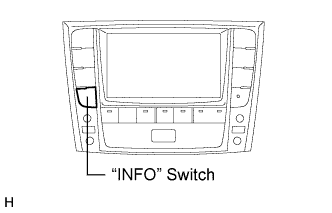
Method 1
-
Start the engine.
-
While pressing and holding the "INFO" switch, operate the light control switch: off → Turn on → Turn off → Turn on → Turn off → Turn on → Turn off.
-
The diagnostic mode starts and the "System Check Mode" screen will be displayed.
-
-
Method 2
-
Start the engine.
-
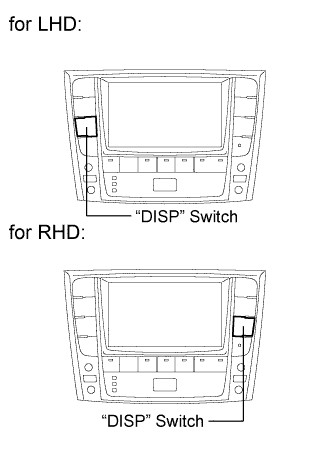
Press the "DISP" switch.
-
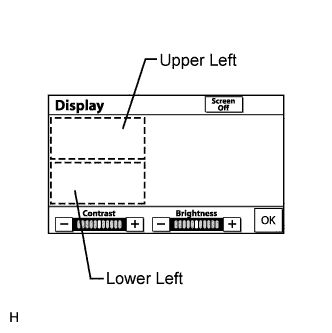
From the display quality adjustment screen, touch the upper and lower left corners of the screen in the following: Upper left → Lower left → Upper left → Lower left → Upper left → Lower left.
-
Diagnostic mode starts and the "System Check Mode" screen will be displayed. Service inspection starts automatically and the result will be displayed.
-
-
-
FINISH DIAGNOSTIC MODE
-
Turn the engine switch off.
-
-
FAILURE DIAGNOSIS
-
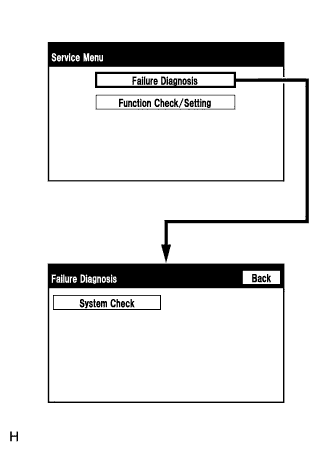
The "Failure Diagnosis" screen is displayed when the "Failure Diagnosis" switch on the "Service Menu" screen is selected.
-
-
SYSTEM CHECK
-
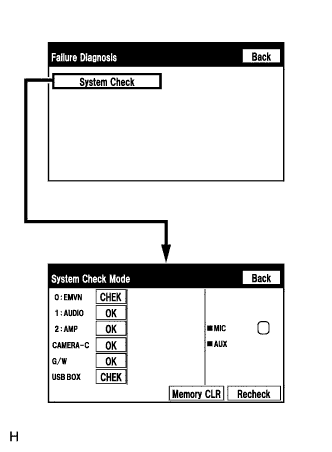
The "System Check Mode" screen is displayed when the "System Check" switch on the "Failure Diagnosis" screen is selected.
-
-
CHECK DTC (CHECK USING SYSTEM CHECK MODE SCREEN)
Tech Tips
Refer to Diagnosis Display Detailed Description for further details on the "System Check Mode" screen Click here.
-
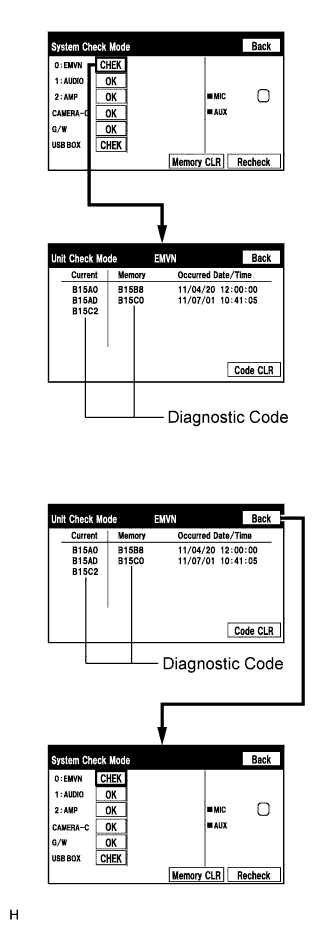
Read the system check result.
-
When the result is "EXCH" or "CHEK", select the icon which displays the result, and check and record each DTC displayed on the "Unit Check Mode" screen.
Note
A maximum of 6 DTCs can be displayed by the display and navigation module display. When more than 6 DTCs are expected, check DTCs using the intelligent tester.
Tech Tips
-
Refer to Diagnosis Display Detailed Description for further details on the "System Check Mode" screen Click here.
-
When all results are "OK", this means that no DTCs are present.
-
When "MOST" is displayed for the result, selecting "MOST" displays the "MOST Line Check" screen and performs the MOST line check.
-
Changing to the "MOST Line Check" screen is possible only when the MOST network is malfunctioning and "MOST" is displayed for the result.
-
If the MOST network had a malfunction in the past, the DTCs will be displayed in the Memory column.
-
Refer to Diagnosis Display Detailed Description for further details on the "MOST Line Check" screen Click here.
-
When "NCON" is displayed for all devices connected using the AVC-LAN, or when all device names are not displayed, check if there is a short circuit in the AVC-LAN or devices connected to the AVC-LAN. Repair or replace parts as necessary Click here.
-
When proceeding to view the results of another device, press the "Back" switch to return to the "System Check Mode" screen. Repeat the step above to view the results of other devices.
-
-
Check the details of the DTC(s) Click here.
Note
The navigation system outputs DTCs for the following systems. When DTCs other than the codes in Diagnostic Trouble Code Chart for the navigation system are output, refer to Diagnostic Trouble Code Chart for the system.
System Proceed to Audio and visual system (w/ navigation system) Parking assist monitor system (w/ Parking assist monitor system)
-
-
-
DTC CLEAR/RECHECK (CLEAR USING SYSTEM CHECK MODE SCREEN)
-
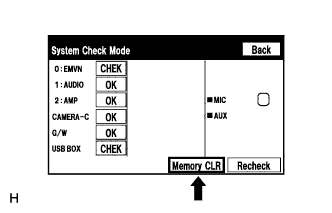
Clear DTC
-
Press the "Memory CLR" switch for 3 seconds.
-
The check results are cleared.
Tech Tips
-
To clear the DTC for a specific device, clear the DTC using the "Unit Check Mode" screen.
-
When clearing a DTC using the "Unit Check Mode" screen, press the "Code CLR" switch for 3 seconds.
-
-
-
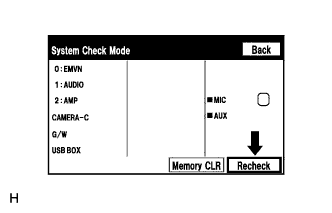
Recheck
-
Press the "Recheck" switch.
-
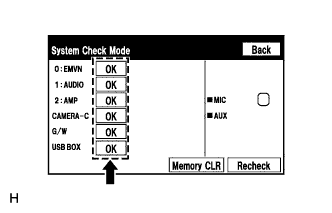
Confirm that all diagnostic codes are "OK" when the check results are displayed. If a code other than "OK" is displayed, troubleshoot again.
Tech Tips
When a DTC was cleared using the "Unit Check Mode" screen, press the "Back" switch to return to the "System Check Mode" screen and perform this operation.
-
-