NAVIGATION SYSTEM (for DVD) Voice is not Recognized
INSPECTION PROCEDURE
PROCEDURE
-
CHECK NAVIGATION SETTING
-
Enter the "Setup" screen.
-
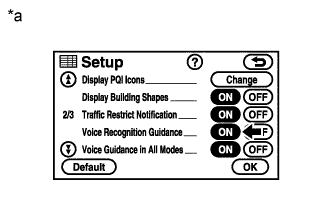
Text in Illustration *a Example Check that "Voice Recognition Guidance" is not "OFF".
OK "Voice Recognition Guidance" is not "OFF".
NG 
TURN VOICE RECOGNITION GUIDANCE "ON"
OK 
-
-
CHECK MAP DISC
-
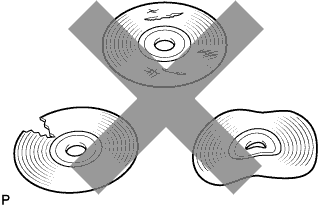
Check that the map disc is not deformed or cracked.
OK No deformations or cracks on the map disc
NG
REPLACE MAP DISC
OK
-
-
CHECK MAP DISC
-
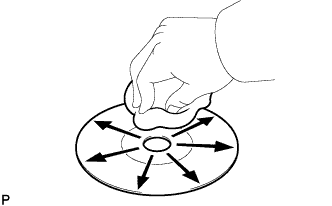
Check for dirt on the map disc surface.
OK No dirt is on the map disc surface. Note
Do not use a conventional record cleaner or anti-static preservative.
Tech Tips
If the map disc is dirty, clean the map disc by wiping the map disc surface radially with a soft cloth.
NG
CLEAN MAP DISC
OK
-
-
CHECK MICROPHONE (OPERATION CHECK)
-
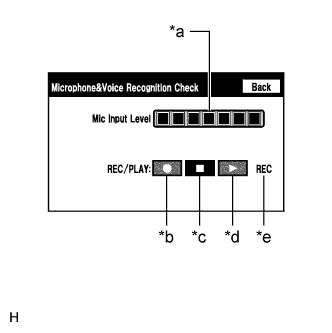
Text in Illustration *a Microphone Input Level Meter *b Recording Switch *c Stop Switch *d Play Switch *e Recording Indicator Enter the "Microphone&Voice Recognition Check" screen (Check Mic & Voice Recognition) Click here.
-
When voice is input into the microphone, check that the microphone input level meter changes according to the input voice.
-
Push the recording switch and perform voice recording.
Tech Tips
-
Voice can be recorded up to 5 seconds.
-
Select the recording switch with the blower motor of the air conditioning system stopped. If an outlet of the air conditioning system is facing the microphone, noise may be recorded.
-
-
Check that the recording indicator remains on while recording and that the recorded voice is played normally without noise or distortion.
OK All check results are normal.
NG
PROCEED TO NEXT SUSPECTED AREA SHOWN IN PROBLEM SYMPTOMS TABLE Click here
OK 
REPLACE NAVIGATION RECEIVER ASSEMBLY Click here
-