| DTC Code | DTC Name |
|---|---|
| Voice Recognition Difficulty |
INSPECTION PROCEDURE
PROCEDURE
- Click here
CHECK CONDITION
-
Check if the system's voice recognition level is low by using only one particular voice.
OK System's voice recognition level is low with any voice. Tip:System's voice recognition level varies depending on voice and pronunciation. This is not a malfunction.
- OKClick here
- NGClick here
-
- Click here
END
- Click here
CHECK MAP DISC
-
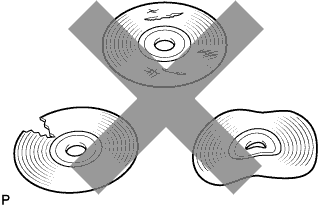
Check that the map disc is not deformed or cracked.
OK No deformations or cracks on the map disc.
- OKClick here
- NGClick here
-
- Click here
REPLACE MAP DISC
- Click here
CHECK MAP DISC
-
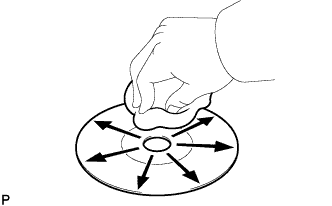
Check for dirt on the map disc surface.
OK No dirt is on the map disc surface. Note:Do not use a conventional record cleaner or anti-static preservative.
Tip:If the disc is dirty, clean the disc by wiping the disc's surface radially with a soft cloth.
- OKClick here
- NGClick here
-
- Click here
CLEAN MAP DISC
- Click here
CHECK MICROPHONE (NAVIGATION CHECK MODE)
-
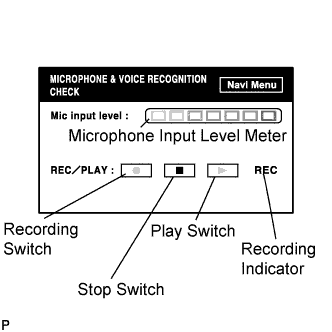
Enter the "MICROPHONE & VOICE RECOGNITION CHECK" mode (Click here).
-
When voice is input into the microphone, check that the microphone input level meter changes according to the input voice.
-
Push the recording switch and perform voice recording.
Tip:Voice can be recorded up to 5 seconds.
-
Check that the recording indicator remains on while recording and that the recorded voice is played normally without noise or distortion.
OK All check results are normal.
- OKClick here
- NGClick here
-
- Click here
PROCEED TO NEXT CIRCUIT INSPECTION SHOWN IN PROBLEM SYMPTOMS TABLEClick here
- Click here
END