NAVIGATION SYSTEM Display does not Dim when Light Control Switch is Turned ON
CAUTION / NOTICE / HINT
Note
-
Depending on the parts that are replaced during vehicle inspection or maintenance, performing initialization, registration or calibration may be needed. Refer to Precaution for Navigation System.
-
When replacing the radio and display receiver assembly, always replace it with a new one. If a radio and display receiver assembly which was installed to another vehicle is used, the following may occur:
-
A communication malfunction DTC may be stored.
-
The radio and display receiver assembly may not operate normally.
PROCEDURE
-
CHECK IMAGE QUALITY SETTING
-
Turn the light control switch to the tail or head position.
-
Check that the daytime screen setting on the display adjustment screen is set to on.
Result Result Proceed to Daytime screen setting is set to on. A Daytime screen setting is set to off. B
A 
CHANGE DAYTIME SCREEN SETTING TO OFF
B 
-
-
CHECK VEHICLE SIGNAL (OPERATION CHECK)
-
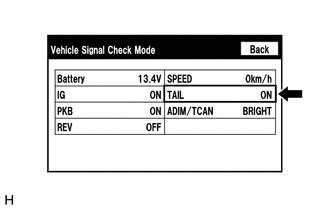
Enter the "Vehicle Signal Check Mode" screen. Refer to Check Vehicle Signal in Operation Check.
-
Check that the display changes between ON and OFF according to the light control switch operation.
OK Light Control Switch Display Tail or head ON Off or AUTO OFF Tech Tips
-
The display is updated once per second. It is normal for the display to lag behind the actual switch operation.
-
Make sure to move the vehicle to a bright area before performing an operation check with the light control switch in the AUTO position.
Result Proceed to OK NG -
OK
REPLACE RADIO AND DISPLAY RECEIVER ASSEMBLY Click here
NG
PROCEED TO NEXT SUSPECTED AREA SHOWN IN PROBLEM SYMPTOMS TABLE Click here
-