PARKING ASSIST MONITOR SYSTEM
-
CONSTRUCTION
-
Parking Guide Lines
-
The parking guide line function consists of estimated course line display mode, parking assist guide line display mode and distance guide line display mode. The initial (default) setting is estimated course line display mode.
-
Pressing the display mode switch screen button switches among the rear monitor modes.
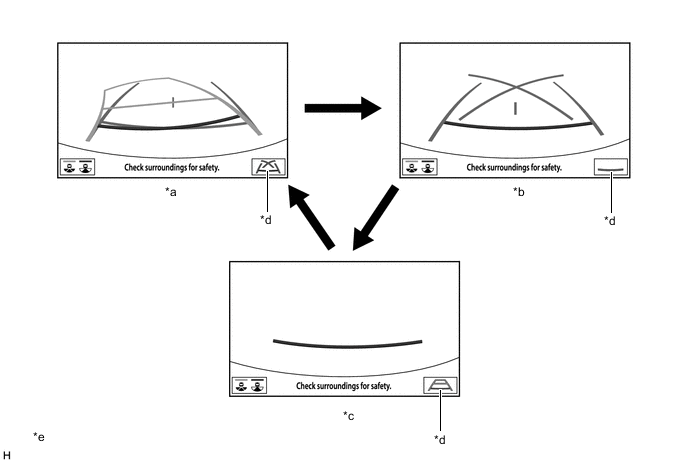
*a Estimated Course Line Display Mode *b Parking Assist Guide Line Display Mode *c Distance Guide Line Display Mode *d Display Mode Switch Screen Button *e The illustrations shown are examples only. The illustrations may differ from the actual vehicle screens. - - -
A description of the estimated course line display mode is provided in the following diagram.
Figure 1. Rear View
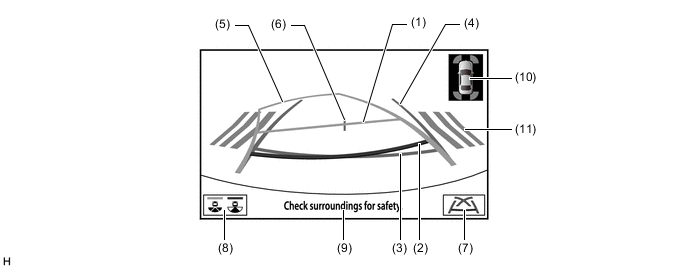
The illustration shown is an example only. The illustration may differ from the actual vehicle screen.
Item Description (1) Distance Guide Line (Yellow) Moves together with estimated course lines in sync with the steering wheel. The center of the line indicates a position on the ground approximately 1.0 m (3.3 ft.) behind the rear bumper. (2) Distance Guide Line (Red) Moves together with estimated course lines in sync with the steering wheel. The center of the line indicates a position on the ground approximately 0.5 m (1.6 ft.) behind the rear bumper. (3) Distance Guide Line (Blue) Indicates a position on the ground approximately 0.5 m (1.6 ft.) behind the rear bumper. (4) Vehicle Width Guide Line (Blue) Indicates the estimated vehicle width. (5) Estimated Course Line (Yellow) Moves in sync with the steering wheel to indicate the estimated reverse course of the vehicle. (6) Vehicle Center Guide Line (Blue) Indicates the estimated position on the ground of the center of the vehicle. (7) Display Mode Switch Screen Button Pressing this button changes the display mode. (8) Camera Angle Mode Switch Screen Button Pressing this button switches between rear view and wide rear view. (9) Warning Message Display Area Area where warning messages are displayed. (10) Clearance Sonar Icon*1 If an obstacle is detected when the TOYOTA parking assist-sensor system is activated, the approximate distance between the vehicle and the obstacle is displayed. (11) RCTA Icon*2 If a vehicle is detected when the blind spot monitor system is activated, the direction of the approaching vehicle is displayed. *1: Models with TOYOTA parking assist-sensor system
*2: Models with blind spot monitor system
Figure 2. Wide Rear View
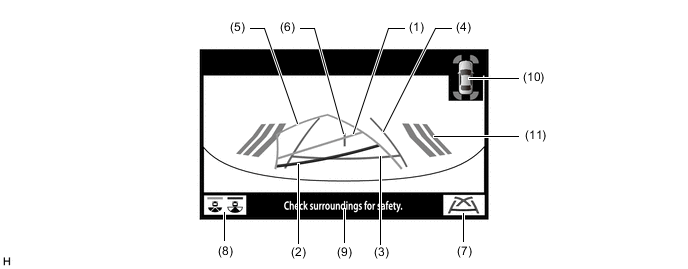
The illustration shown is an example only. The illustration may differ from the actual vehicle screen.
Item Description (1) Distance Guide Line (Yellow) Moves together with estimated course lines in sync with the steering wheel. The center of the line indicates a position on the ground approximately 1.0 m (3.3 ft.) behind the rear bumper. (2) Distance Guide Line (Red) Moves together with estimated course lines in sync with the steering wheel. The center of the line indicates a position on the ground approximately 0.5 m (1.6 ft.) behind the rear bumper. (3) Distance Guide Line (Blue) Indicates a position on the ground approximately 0.5 m (1.6 ft.) behind the rear bumper. (4) Vehicle Width Guide Line (Blue) Indicates the estimated vehicle width. (5) Estimated Course Line (Yellow) Moves in sync with the steering wheel to indicate the estimated reverse course of the vehicle. (6) Vehicle Center Guide Line (Blue) Indicates the estimated position on the ground of the center of the vehicle. (7) Display Mode Switch Screen Button Pressing this button changes the display mode. (8) Camera Angle Mode Switch Screen Button Pressing this button switches between rear view and wide rear view. (9) Warning Message Display Area Area where warning messages are displayed. (10) Clearance Sonar Icon*1 If an obstacle is detected when the TOYOTA parking assist-sensor system is activated, the approximate distance between the vehicle and the obstacle is displayed. (11) RCTA Icon*2 If a vehicle is detected when the blind spot monitor system is activated, the direction of the approaching vehicle is displayed. *1: Models with TOYOTA parking assist-sensor system
*2: Models with blind spot monitor system
-
A description of the parking assist guide line display mode is provided in the following diagram.
Figure 3. Rear View
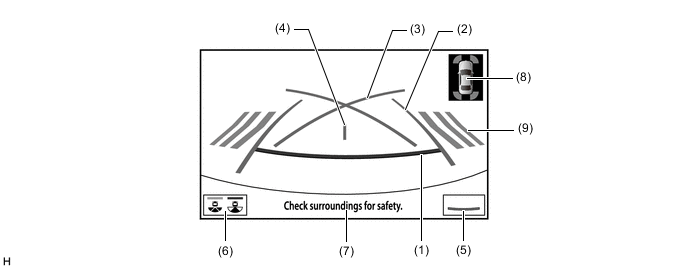
The illustration shown is an example only. The illustration may differ from the actual vehicle screen.
Item Description (1) Distance Guide Line (Red) Indicates a position on the ground approximately 0.5 m (1.6 ft.) behind the rear bumper. (2) Vehicle Width Guide Line (Blue) Indicates the estimated vehicle width. (3) Parking Assist Guide Line (Blue) Indicates the path the vehicle will follow if the driver turns the steering wheel fully. (4) Vehicle Center Guide Line (Blue) Indicates the estimated position on the ground of the center of the vehicle. (5) Display Mode Switch Screen Button Pressing this button changes the display mode. (6) Camera Angle Mode Switch Screen Button Pressing this button switches between rear view and wide rear view. (7) Warning Message Display Area Area where warning messages are displayed. (8) Clearance Sonar Icon*1 If an obstacle is detected when the TOYOTA parking assist-sensor system is activated, the approximate distance between the vehicle and the obstacle is displayed. (9) RCTA Icon*2 If a vehicle is detected when the blind spot monitor system is activated, the direction of the approaching vehicle is displayed. *1: Models with TOYOTA parking assist-sensor system
*2: Models with blind spot monitor system
Figure 4. Wide Rear View
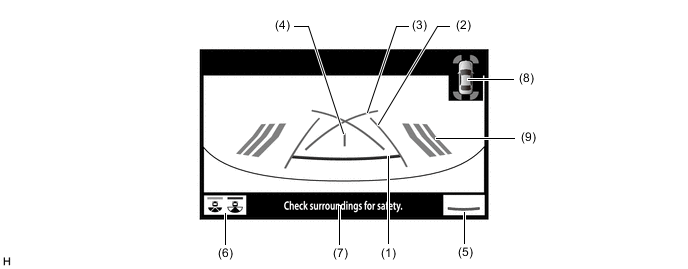
The illustration shown is an example only. The illustration may differ from the actual vehicle screen.
Item Description (1) Distance Guide Line (Red) Indicates a position on the ground approximately 0.5 m (1.6 ft.) behind the rear bumper. (2) Vehicle Width Guide Line (Blue) Indicates the estimated vehicle width. (3) Parking Assist Guide Line (Blue) Indicates the path the vehicle will follow if the driver turns the steering wheel fully. (4) Vehicle Center Guide Line (Blue) Indicates the estimated position on the ground of the center of the vehicle. (5) Display Mode Switch Screen Button Pressing this button changes the display mode. (6) Camera Angle Mode Switch Screen Button Pressing this button switches between rear view and wide rear view. (7) Warning Message Display Area Area where warning messages are displayed. (8) Clearance Sonar Icon*1 If an obstacle is detected when the TOYOTA parking assist-sensor system is activated, the approximate distance between the vehicle and the obstacle is displayed. (9) RCTA Icon*2 If a vehicle is detected when the blind spot monitor system is activated, the direction of the approaching vehicle is displayed. *1: Models with TOYOTA parking assist-sensor system
*2: Models with blind spot monitor system
-
A description of the distance guide line display mode is provided in the following diagram.
Figure 5. Rear View
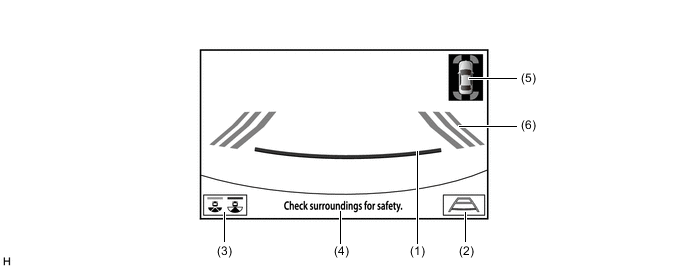
The illustration shown is an example only. The illustration may differ from the actual vehicle screen.
Item Description (1) Distance Guide Line (Red) Indicates a position on the ground approximately 0.5 m (1.6 ft.) behind the rear bumper. (2) Display Mode Switch Screen Button Pressing this button changes the display mode. (3) Camera Angle Mode Switch Screen Button Pressing this button switches between rear view and wide rear view. (4) Warning Message Display Area Area where warning messages are displayed. (5) Clearance Sonar Icon*1 If an obstacle is detected when the TOYOTA parking assist-sensor system is activated, the approximate distance between the vehicle and the obstacle is displayed. (6) RCTA Icon*2 If a vehicle is detected when the blind spot monitor system is activated, the direction of the approaching vehicle is displayed. *1: Models with TOYOTA parking assist-sensor system
*2: Models with blind spot monitor system
Figure 6. Wide Rear View
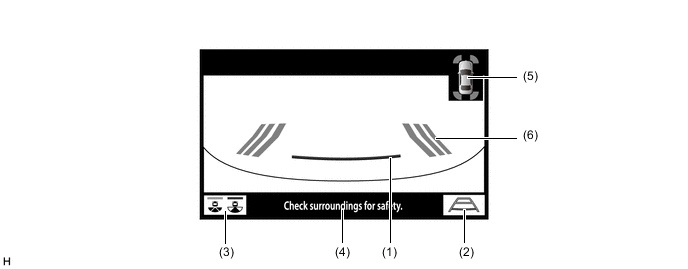
The illustration shown is an example only. The illustration may differ from the actual vehicle screen.
Item Description (1) Distance Guide Line (Red) Indicates a position on the ground approximately 0.5 m (1.6 ft.) behind the rear bumper. (2) Display Mode Switch Screen Button Pressing this button changes the display mode. (3) Camera Angle Mode Switch Screen Button Pressing this button switches between rear view and wide rear view. (4) Warning Message Display Area Area where warning messages are displayed. (5) Clearance Sonar Icon*1 If an obstacle is detected when the TOYOTA parking assist-sensor system is activated, the approximate distance between the vehicle and the obstacle is displayed. (6) RCTA Icon*2 If a vehicle is detected when the blind spot monitor system is activated, the direction of the approaching vehicle is displayed. *1: Models with TOYOTA parking assist-sensor system
*2: Models with blind spot monitor system
-
-
-
OPERATION
-
Estimated Course Line Display Mode (Perpendicular Parking)
-
To use estimated course line display mode in perpendicular parking when parking the vehicle in a parking space, perform the following procedure:
-
Move the shift lever to R.
-
Select estimated course line display mode.
-
An image appears on the multi-display as illustrated below.
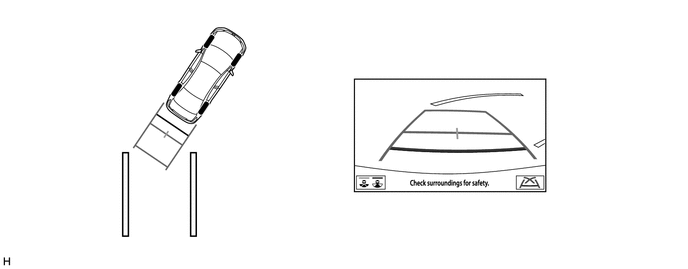
The illustration shown is an example only. The illustration may differ from the actual vehicle screen.
-
Turn the steering wheel so that the estimated course lines are within the parking space, and back up carefully.
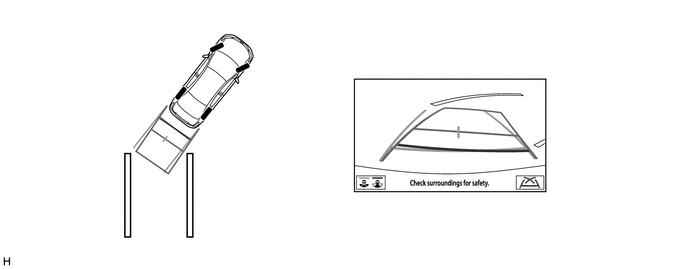
The illustration shown is an example only. The illustration may differ from the actual vehicle screen.
-
When the rear of the vehicle is within the parking space, turn the steering wheel in order to equalize the gap between the left and right sides of the vehicle width guide lines and the painted lines of the parking space.
-
When the vehicle width guide lines and the painted lines of the parking space are parallel, straighten the steering wheel and then carefully back up until the entire vehicle is within the parking space.
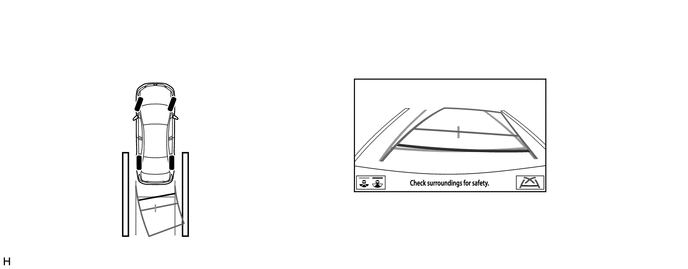
The illustration shown is an example only. The illustration may differ from the actual vehicle screen.
-
-
-
Parking Assist Guide Line Display Mode (Perpendicular Parking)
-
To use parking assist guide line display mode in perpendicular parking when parking the vehicle in a parking space, perform the following procedure:
-
Move the shift lever to R.
-
Select parking assist guide line display mode.
-
An image appears on the multi-display as illustrated below.
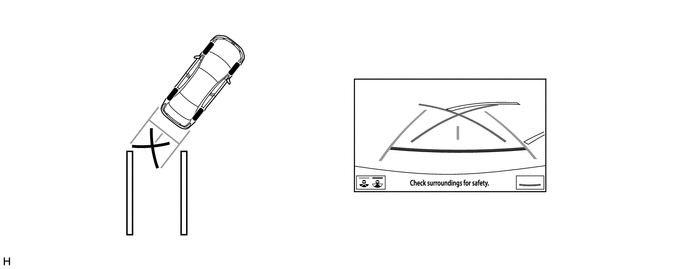
The illustration shown is an example only. The illustration may differ from the actual vehicle screen.
-
Back up the vehicle and stop at the position in which the parking assist guide line comes in contact with the left side of the intended parking position.
-
Turn the steering wheel fully to the right and back up the vehicle.
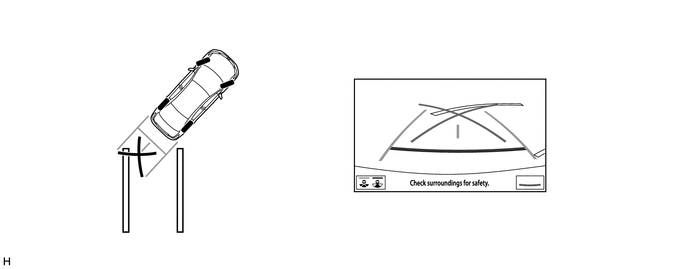
The illustration shown is an example only. The illustration may differ from the actual vehicle screen.
-
Continue backing up the vehicle until the vehicle is parallel to the painted lines.
-
Once the vehicle is parallel, aim the steering wheel straight ahead and back up the vehicle to the target stop position.
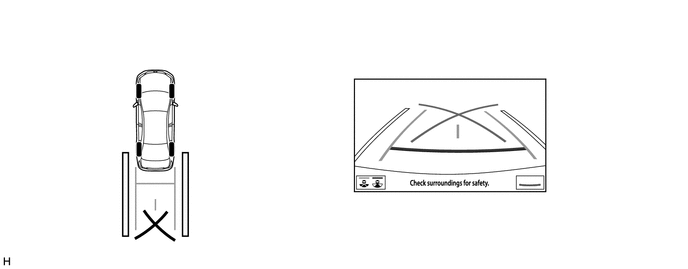
The illustration shown is an example only. The illustration may differ from the actual vehicle screen.
-
-
-