NAVIGATION SYSTEM / MULTI INFORMATION SYSTEM
-
FUNCTION OF MAIN COMPONENTS
Component Function Navigation Receiver Assembly Receives and processes the data that is input from various components, displays various pieces of information and operating conditions on the screen, and provides voice guidance. Navigation Antenna Assembly Receives signals from the GPS satellites and transmits them to the navigation receiver assembly. Telephone Microphone Assembly Transmits the voice input signals to the navigation receiver assembly. Back-up Light Switch Assembly*1 Transmits the on/off signals from the back-up light switch assembly to the navigation receiver assembly. Park/Neutral Position Switch Assembly*2 Transmits the R position signals to the navigation receiver assembly. Steering Pad Switch Assembly Enables the driver to operate the navigation system using the steering pad switches. Rear Television Camera Assembly Captures the view behind the vehicle and transmits the image to the navigation receiver assembly. Combination Meter Assembly Transmits the vehicle signal to the navigation receiver assembly. No. 1 Stereo Jack Adapter Assembly Transmits information about the portable audio player connected to the USB port or AUX port to the navigation receiver assembly.
-
*1: Models with manual transaxle
-
*2: Models with automatic transaxle or K111F CVT
-
-
FUNCTION
-
The main functions of the navigation system are shown below:
Function Outline Navigation System Through the use of the Global Positioning System (GPS) and map data which is stored on an HDD, the navigation system analyzes the position of the vehicle and indicates the position on the map that is displayed on the screen. In addition, it is possible to use the system to register memory points and navigate to a destination. Audio/Video System Serves as the display and controls for the following operations:
-
Radio operation
-
DAB operation*1
-
CD/DVD player operation
-
Bluetooth-compatible portable player operation
-
USB memory operation
-
iPod/iPhone operation
-
Portable audio player operation (AUX type)
Hands-free System When a Bluetooth-compatible cellular telephone is registered to the multi-display, the driver can make and receive calls or talk hands-free on the cellular telephone by operating the switches on the screen/steering pad. Speech Command System Operates the navigation, audio and hands-free systems based on voice commands. Parking Assist Monitor System*2 Displays a view of the area behind the vehicle that is captured by the television camera mounted on the back door when the shift lever is moved to R. Others Maintenance Information Can be used to inform the driver of the inspection or replacement timing for the following items based on the Global Positioning System (GPS) information and distance driven:
-
Engine oil: Replace engine oil
-
Oil filter: Replace engine oil filter
-
Rotation: Rotate tires
-
Tires: Replace tires
-
Battery: Replace battery
-
Brake pad: Replace brake pads
-
Wipers: Replace wiper blades
-
Coolant: Replace engine coolant
-
Brake oil: Replace brake fluid
-
Trans. fluid: Replace ATF
-
Service: Scheduled maintenance
-
Air filter: Replace air filter
-
Personal: New information items can be created separately from the provided items
Language Select The language of the screen buttons, pop-up messages and the voice guidance can be changed. Screen Setting
-
This enables automatic return to the navigation screen from the audio screen.
-
The color of the touch-screen buttons can be selected.
Beep Setting The beep sound can be turned off. Keyboard Layout The keyboard layout can be changed. Delete Personal Data The following personal data can be deleted or returned to their default settings:
-
Maintenance conditions
-
Maintenance information "off" setting
-
Memory point
-
Password settings for backing up and copying memory points
-
Areas to avoid
-
Previous points
-
Route guidance
-
Route trace
-
Phonebook data
-
Call history data
-
Speed dial data
-
Bluetooth phone data
-
Phone sound settings
-
Phone display settings
-
Message settings*1
-
Audio setting
-
Bluetooth audio setting
-
Search engine settings*1
Screen Adjustment The brightness or contrast of the screen can be adjusted to suit the brightness of the surroundings. Memory Point Import/Export*1 Exports and imports registered memory points via the USB/Disc media. Diagnosis This menu contains the following items:
-
Failure Diagnosis
-
System Check
-
HDD Check
-
Diagnosis Recorder
-
Function Check/Setting
-
Panel and Steering Switch
-
Touch Switch
-
Mic and Voice Recognition
-
Color Bar
-
GPS and Vehicle Sensors
-
Vehicle Signal
-
HF Voice Quality Setting
-
Camera Settings
-
Service Information
-
Program Update
-
Version Information
-
Memory Point Backup
-
*1: Models for Europe
-
*2: Models with parking assist monitor system
-
-
Navigation Screen
-
The functions of the navigation screen display are shown below:
Item Function Map Display Linear Touch Scroll Enables smooth scrolling by connecting the touch points on the screen. Map Color Change Depending on the position of the light control switch, the screen changes to day mode or night mode. Taillight-interlocked Map Color Change Changes the color of the map screen that is displayed when the taillights are turned on. North Up/Heading Up
-
When north up is selected, north is always up regardless of the direction of vehicle travel.
-
When heading up is selected, the direction of vehicle travel is always up.
3D Display Displays a 3-dimensional (3D) view of the map. Multi-step Scale Display Changes the map scale in 14 steps. Direct Scale Change Directly selects and displays the map scale. Street Name Indication on Scrolled Map Displays the street name and city name even when the map screen is being scrolled. Stepless Scale Display Changes the scale of the map from the basic 14 steps to an even finer range of scales. Road Number Sign Board Display Displays the road number on the map. Point of Interest Display Displays the selected types of points of interest as marks on the map. Home Screen Display*1 Displays different modes on a screen that is split into 3 views. Compass Mode Screen Displays the direction of travel and detailed data of the present location. Route Guidance Demonstration Demonstrates the route guidance to the destination. Route Trace It is possible to store up to the last 200 km (124 miles) of a traveled route and retrace the route on the display. Destination Search Preset Destination Memory Search Sets a pre-registered point as a destination point while driving. Address Search A destination can be set in 2 ways:
-
Information can be entered in the order of: street name, town and house number.
-
Information can be entered in the order of: town, street name and house number.
Hybrid Point of Interest Search Narrows the search by names of the point of interest, category and areas. Online Search*1 The navigation system can use an internet search engine to set a destination using the most up-to-date information. Previous Destination Search Stores the coordinates, names and dates of up to 100 locations that have been set as destinations in the past. Address Book (Memory Point) Search Sets a destination from the registered address book (memory point). Intersection Search By specifying 2 streets, the point at which they intersect is set as the destination point. Motorway Entrance or Exit Search Searches for the destination by the name of the street that connects to a motorway entrance or exit. Map Search A destination can be set by scrolling the cursor on the map. Coordinate Search A destination can be input by entering its coordinates. Voice-recognition Search A destination can be set up by voice command input. Phone Number Search A destination can be input by entering its phone number. UK Postal Code*1 Destinations in the U.K. can be searched for using a postal code. Route Search Multiple Destination Setting Sets multiple destinations. The sequence of the destinations can also be changed. Multiple Route Search Searches for multiple routes. Search Condition Designation Searches for the preferred, alternate and short routes. Detour Search Changes the route to detour around a section of the route. Regulated Road Consideration Performs searches which consider regulated roads. Avoidance Area Searches for a route that avoids a designated area. Avoid Traffic Search Automatically changes to another route to avoid heavy congestion. Guidance Voice Guidance Provides voice guidance about the distance and the direction of travel to a destination point based on road conditions and vehicle speed. Next Turn Guidance Provides guidance about the distance to the next turn and indicates the direction of the turn using an arrow. Motorway Mode Display Displays the distance to the next junction and exit, or POIs in the vicinity of the motorway exit. Motorway Direction of Travel Display Displays the direction of travel to take on the motorway. Motorway Shield Icon Display Motorway shield icons will be displayed on the 3D guidance screen. Intersection Zoom-in Display Zooms in the image when approaching an intersection. Turn List Display Displays a turn list on the right side of the 2-screen display. Arrow (Turn-by-turn) Display Displays the direction of the next turn and the distance to the turn on the right side of the 2-screen display. Distance-to-destination Display Displays the distance from the present location to the destination. Estimated Arrival Time Display Displays estimated arrival time. Others Voice Recognition Recognizes pre-programmed system commands spoken to operate the navigation system.
-
*1: Models for Europe
-
*2: Except models for Europe
-
-
-
Information Screen
-
Information about fuel consumption per minute or per trip can be displayed.
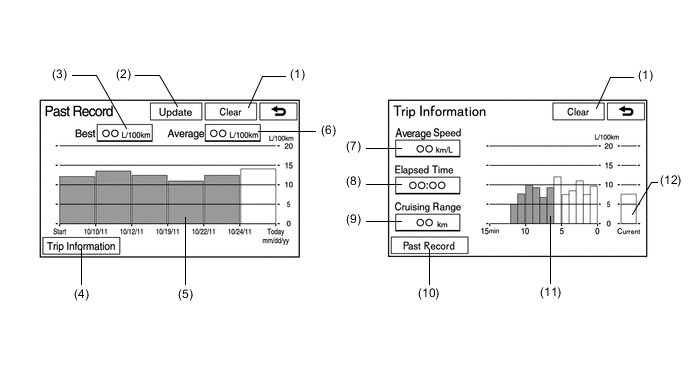
Item Outline (1) Clear Switch Clears all of the past information. (2) Update Switch
-
Restarts calculation of the average fuel consumption value.
-
Sends the average fuel consumption reset signal to the combination meter assembly to update the graph.
(3) Best Fuel Consumption Displays the best (the most economical) fuel consumption per trip. (4) Trip Information Switch Changes to the average per minute fuel consumption screen. (5) Average per Trip Fuel Consumption
-
Displays the current record and the last 5 average per trip fuel consumption records or the current record and those since clear was last selected.
-
Starts calculating the average fuel consumption when the average fuel consumption displayed on the combination meter assembly is reset.
(6) Average Fuel Consumption Displays the average fuel consumption for the current trip and the previous 5 trips. (7) Average Speed Displays the value that has been calculated by the combination meter assembly, which is based on the distance driven and the time elapsed since the ignition switch was turned to ON. (8) Elapsed Time Displays the value that has been calculated by the combination meter assembly, which is based on the time elapsed since the ignition switch was turned to ON. (9) Cruising Range Displays the approximate drivable distance. (10) Past Record Switch Changes to the past record of the (per trip) fuel consumption screen. (11) Average per Minute Fuel Consumption
-
Displays the value that has been calculated by the combination meter assembly, which is based on the driven distance and the volume of fuel consumed (fuel injection signal), provided that the ignition switch is ON.
-
Displays the average fuel consumption for the last minute, or since clear was last selected.
(12) Current per Minute Fuel Consumption Displays the instantaneous (current) fuel consumption value that has been calculated by the combination meter assembly, which is based on the driven distance and the volume of fuel consumed (fuel injection signal), provided that the ignition switch is ON. -
-
-
Setup Screen
-
The following settings for the functions of the navigation receiver assembly are available from the setup screen:
Item Function Display Settings
-
Map menu and camera screen can be ajusted.
-
Depending on the position of the headlight switch, the screen changes to day or night mode.
General Settings
-
Time zones and the on/off setting of daylight saving time can be changed.
-
The language can be selected.
-
The home screen display can be changed.*1
-
The beep sound can be turned off.
-
Automatic return from the audio screen to the map screen after audio operation can be changed.
-
The color of the screen buttons can be changed.
-
Distance units can be changed.*2
-
Registered information (personal data) can be cleared.
-
The navigation system program can be updated.*2
Voice Settings
-
The voice guidance volume can be adjusted or switched off.
-
The voice recognition prompts can be set.
-
The voice recognition function for operating the audio functions can be turned on or off.
-
The voice guidance of the traffic information function can be set.
Navigation Settings The navigation settings can be used to:
-
Set detailed online search settings such as*1:
-
Synchronized settings of the online search portal site and navigation system
-
Pop-up message display during online search
-
Automatic accumulated data downloading settings from the portal site
-
Roaming pop-up message settings
-
Memorization settings of the user name and password used when connecting to the portal site
-
Search engine settings of the online search
-
Deletion of the online search history
-
Change of the user name and password used when connecting to the portal site
-
Deletion of the user name and password used when connecting to the portal site
-
Set detailed navigation settings such as average cruising speed
-
Set detailed navigation settings such as displayed POI icon categories
-
Set detailed navigation settings such as display of 3D landmarks*2
-
Displaying the speed limit of the road currently being used*2
-
Magnify the map scale as the vehicle approaches a guidance point*2
-
Set the cautionary message display shown when a regulated street is included in the route*1
-
Set the display of pop-up information
-
Manually adjust the current vehicle position mark
Vehicle Settings
-
Settings can be changed for the following maintenance items:
-
Reminder
-
Engine oil
-
Oil filter
-
Rotation
-
Tires
-
Battery
-
Brake pad
-
Wipers
-
Coolant
-
Brake oil
-
Trans. fluid
-
Service
-
Air filter
-
Personal
-
Set dealer
-
Customizable vehicle settings can be changed.
Phone Settings
-
Phone sound settings can be changed:
-
Call volume
-
Ring tone volume
-
Ring tone
-
Phonebook settings can be changed:
-
Manage contacts
-
Manage speed dials
-
Delete call history
-
Message function settings can be changed*1:
-
Message forwarding from cellular phones
-
New message notification display
-
New message voice notification
-
The new message notification volume adjustment
-
New message voice notification tone selection
-
Automatic message read out
-
Message read out volume adjustment
-
Cellular phone's read and unread status update
-
"Quick Reply Messages" edit
-
Phone display settings can be changed:
-
Change of the incoming call display
-
Display of the automatic phonebook transfer completion message (for PBAP compatible models)
-
Display of the automatic call history transfer completion message (for PBAP compatible models)
-
Display of images during calls (for PBAP compatible models)
-
Orientation of images displayed during calls (for PBAP compatible models)
Bluetooth Settings
-
Bluetooth device registration settings can be changed:
-
Register a Bluetooth device
-
Delete the Bluetooth device
-
Edit the Bluetooth device
-
Bluetooth devices can be selected
-
Bluetooth device settings can be changed:
-
Automatic connection to a Bluetooth device
-
Change to a desired Bluetooth device name
-
Bluetooth device passcode edit
-
Bluetooth device connection status display
-
Bluetooth DUN profile settings
Audio Settings
-
Sound quality can be adjusted.
-
Radio setting can be changed:
-
An FM station that regularly broadcasts traffic information and the station broadcasts can be automatically seeked.
-
An FM station providing good reception is automatically selected if current reception worsens.
-
A broadcasting station within the same local program network can be switched to.
-
Cover art can be displayed when a song stored in an iPod is being played.
-
*1: Models for Europe
-
*2: Except models for G.C.C. Countries
-
-
-
-
DIAGNOSIS
-
For details on the procedure required to enter the service menu screen, refer to the Repair Manual.
-