NAVIGATION SYSTEM / MULTI INFORMATION SYSTEM
-
CONSTRUCTION
-
The remote touch (remote operation controller assembly) consists of several switches and a touch pad.
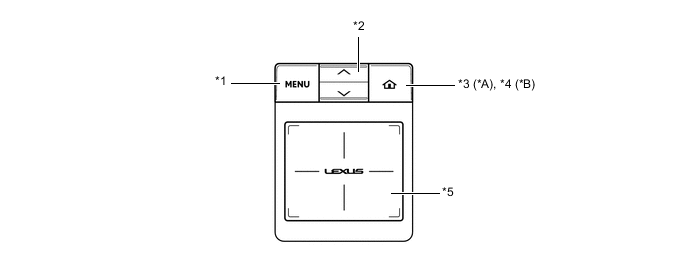
*A Models for Europe and Destination Packages for Turkey and Russia *B Except Models for Europe and Destination Packages for Turkey and Russia *1 MENU Switch *2 Seesaw Switch *3 Home Mark Switch *4 HOME Switch *5 Touch Pad - - -
The remote touch (remote operation controller assembly) generates vibrations with an internal motor according to changes in the selection buttons in order to provide feedback to the user's hand. This feedback makes it easier to select buttons on the screen, achieving improvements in operability while driving, operating the screen without looking and detailed operation of buttons.
-
A stabilizer structure is used to ensure operations are recognized no matter where the touch pad is pressed.
-
The touch pad has the following detection range.
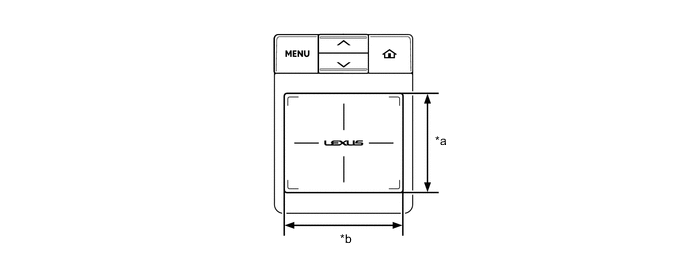
*a 50 mm (2 in.) *b 60 mm (2.4 in.)
-
-
OPERATION
-
Remote Touch Operation
-
Remote touch (remote operation controller assembly) operations are displayed by the system highlighting the screen buttons of the multi-display assembly or moving the pointer.
-
When the remote touch (remote operation controller assembly) is operated, the remote touch (remote operation controller assembly) calculates the difference based on the previous pointer position coordinates sent to the navigation ECU and sends the result to the navigation ECU.
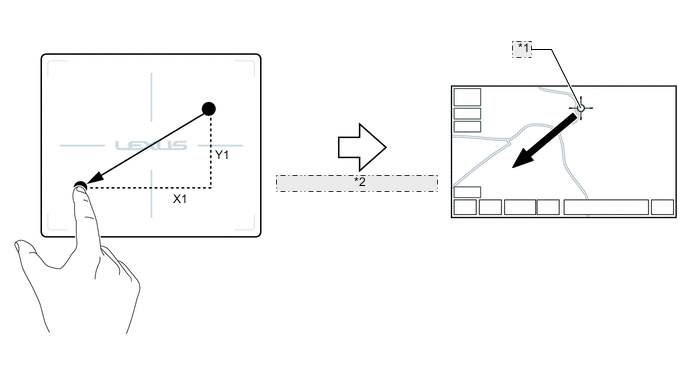
*1 Coordinates (X0, Y0) *2 Sends New Coordinates as (X0+X1, Y0+Y1)
-
-
Vibration Feedback Control
-
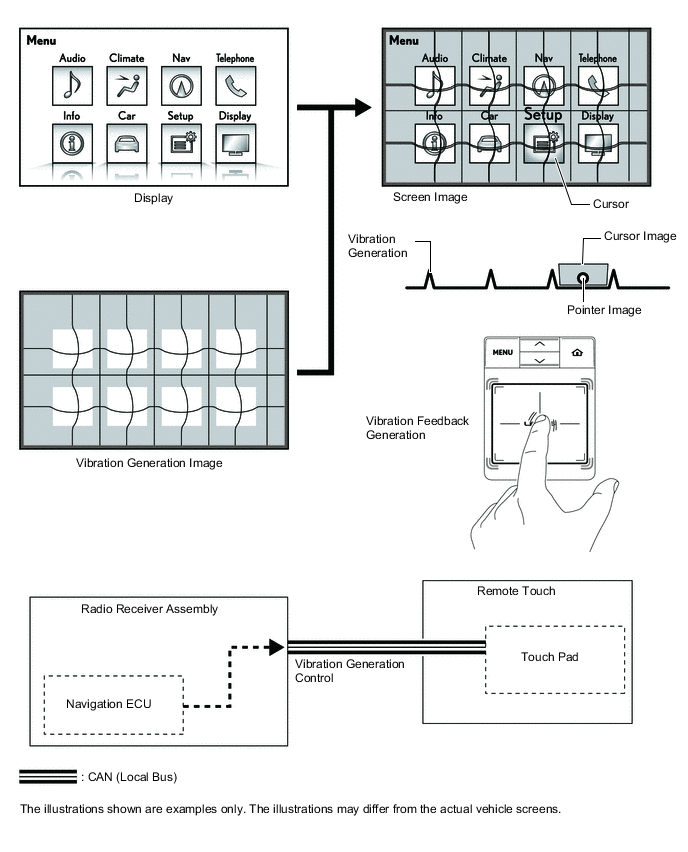
A motor, which generates vibrations on the touch pad according to remote touch (remote operation controller assembly) operations, is built into the remote touch (remote operation controller assembly).
-
The radio receiver assembly sends screen information regarding the display mode shown on the multi-information display to the remote touch (remote operation controller assembly).
-
The remote touch (remote operation controller assembly) controls the built-in motor according to the received screen information to generate vibrations on the touch pad.
-
-
Pull-in Control
-
The icon whose center is closest to the current pointer position is judged to be the pull-in icon, which pulls the pointer toward the icon.
-
When the pointer position changes as shown in the following illustration, the vibrations are generated on the touch pad.
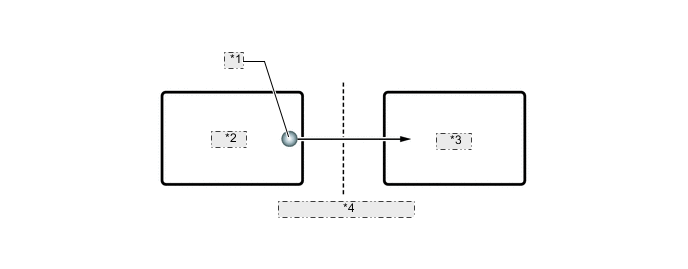
*1 Pointer *2 Icon B *3 Icon A *4 Vibration Generated on Touch Pad
-
-
Frame Area Control
-
A frame area surrounds all screens. The frame area prevents the pointer from moving outside the screen.
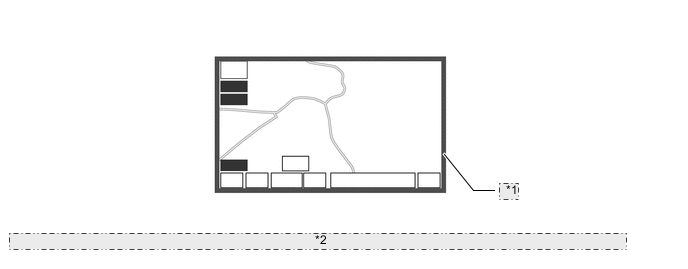
*1 Frame Area *2 The illustration shown is an example only. The illustration may differ from the actual vehicle screen.
-
-
Customization
-
A customization function is provided which can be used to change settings according to user preference. The touch pad vibration strength can be changed on the screen of the multi-display assembly. All other customization settings are changed by operating the remote touch (remote operation controller assembly).
Item Outline Touch Pad Vibration Strength The strength of the touch pad vibrations can be set. 5 stages are available, from 1 (no vibration) to 5 (maximum vibration). The initial setting is 3. Pointer Movement Speed The speed at which the pointer and cursor moves when the touch pad is touched can be set. Flick Operation Judgment Threshold Value The flick operation judgment threshold value can be changed. Flick Operation Scroll Direction The direction the screen (map, list) scrolls when a flick operation is performed can be changed. Pinch Operation The pinch operation function availability can be changed. Flick Operation Flick operation function availability on the map screen and list screen can be changed. -
To perform customization by operating the remote touch (remote operation controller assembly), press and hold the remote touch switches* while touching the touch pad with 2 fingers. When the setting changes, a number of vibrations are generated according to the setting value as an answer back operation. When changing the setting value further, remove your fingers from the touch pad once before operating the touch pad again.
Tech Tips
*: The combination of switches to press at the same time differs depending on the user's desired setting.
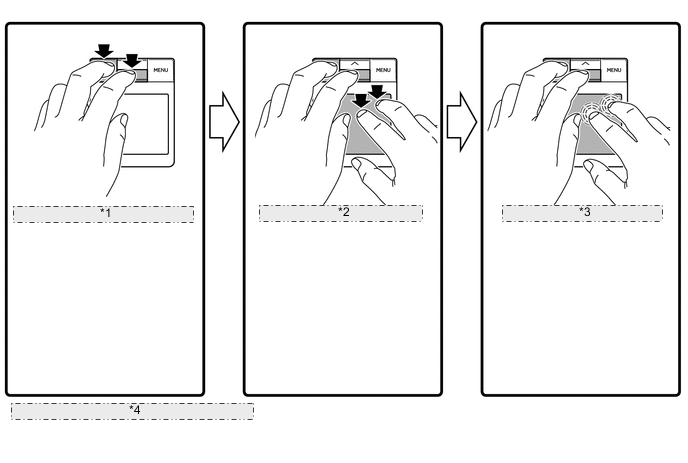
*1 Press and hold the appropriate switches for approximately 5 seconds or more. *2 While holding the switches, touch the remote touch (remote operation controller assembly) screen with 2 fingers. *3 When the setting changes, a number of vibrations are generated according to the setting value as an answer back operation *4 The illustrations shown are examples only. Item Simultaneously Pressed Switches Available Setting Pointer Movement Speed MENU+UP Average (2 Vibrations)*1 → Fast (3 Vibrations) → Slow (1 Vibration) → returns to Average (2 Vibrations) Flick Operation Judgment Threshold Value*2 Home Mark*3 or HOME*4+UP Average (1 Vibration)*1 → High Threshold (3 Vibrations) → Low Threshold (2 Vibrations) → returns to Average (1 Vibration) Flick Operation Scroll Direction MENU+Home Mark*3 or HOME*4 Same Direction of Flick Direction (2 Vibration)*1 → Opposite Direction as Flick Direction (1 Vibrations) → returns to Same Direction of Flick Direction (2 Vibration) Pinch Operation Home Mark*3 or HOME*4+DOWN Function Enabled (2 Vibration)*1 → Function Disabled (1 Vibrations) → returns to Function Enabled (2 Vibration) Flick Operation*5 MENU+UP+Home Mark*3 or HOME*4 Map Function Enabled/List Function Enabled (1 Vibrations)*1 → Map Function Enabled/List Function Disabled (2 Vibrations) → Map Function Disabled/List Function Disabled (3 Vibrations) → Map Function Disabled/List Function Enabled (4 Vibration) → returns to Map Function Enabled/List Function Enabled (1 Vibrations) Tech Tips
*1: Initial Setting
*2: When the threshold is set to high, flick operations are more difficult to perform. When the threshold is set to low, flick operations are easier to perform.
*3: Models for Europe and destination packages for Turkey and Russia
*4: Except models for Europe and destination packages for Turkey and Russia
*5: When the map function is enabled, flick operations can be performed on the map screen, but when the map function is disabled, flick operations cannot be performed on the map screen. Similarly, when the list function is enabled, flick operations can be performed on list screens (screens which have a vertical scroll bar), but when the list function is disabled, flick operations cannot be performed on list screens.
-
-