AUDIO AND VISUAL SYSTEM(w/ Multi-display) Audio cannot be Recorded to HDD
| DTC Code | DTC Name |
|---|---|
| Audio cannot be Recorded to HDD |
DESCRIPTION
The HDD is compliant with the Serial Copy Management System (SCMS). Therefore, recording from a CD-R that is a copy of a commercially published music CD is not possible.
PROCEDURE
CHECK SOUND LIBRARY SETTING OF HDD ON SOUND LIBRARY INFORMATION SCREEN
-
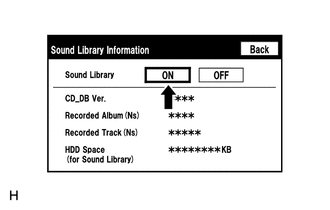
Enter the "Sound Library Information" (Check Sound Library Setting).
Select "ON" for the "Sound Library" setting.
Check if recording is possible.
OK
Malfunction disappears.
Result
Result
OK
NG
OK END
-
CHECK FREE SPACE IN HDD
-
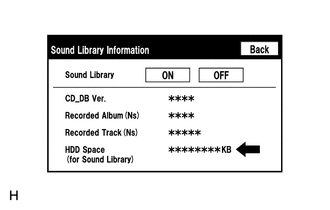
Enter the "Sound Library Information" (Check Sound Library Setting).
Check free space in HDD from the sound library setting screen.
Result
Result
Proceed to
Insufficient space in HDD
A
Sufficient space in HDD
B
A DELETE UNNECESSARY DATA FROM HDD
-
CHECK IF AUDIO POWER IS ON
Check if the audio power is on.
Tip:When the audio is off, audio recording is not possible.
OK
Audio power is on.
Result
Result
OK
NG
NG TURN AUDIO ON
CHECK IF RECORDING SETTING IS SET TO AUTO
Check if the recording setting is set to AUTO.
Tip:When the recording setting is set to manual, recording does not start automatically after a CD is inserted.
OK
Recording setting is set to AUTO.
Result
Result
OK
NG
NG CHANGE RECORDING SETTING TO AUTO
CHECK CD
-
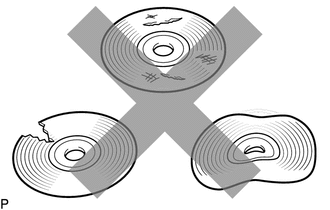
Check that the CD is not deformed or cracked.
OK
No deformation or cracks on the CD
Result
Result
OK
NG
NG CHANGE CD
-
CLEAN CD AND RECHECK CD
-
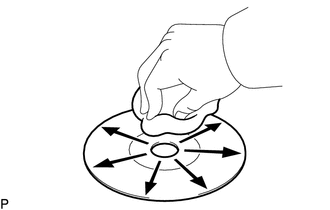
Check the CD by wiping it clean with a soft cloth from the inside to the outside in a radial direction.
OK
Malfunction disappears.
Note:Do not use a conventional record cleaner or anti-static preservative.
Result
Result
OK
NG
OK END
-
CHECK USING ANOTHER VEHICLE WITH HDD NAVIGATION SYSTEM
Check if the CD plays normally using another vehicle with the navigation system.
OK
Malfunction disappears.
Result
Result
OK
NG
NG CD WAS FAULTY